Cad Tools
 Gabor Kiss


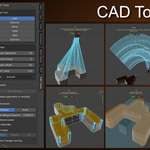
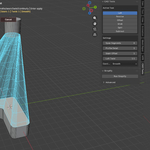
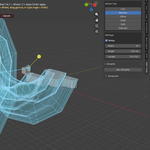
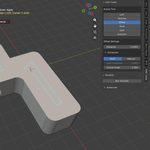
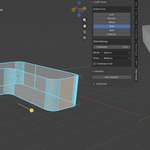
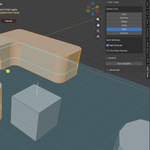
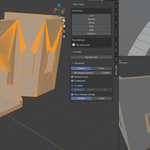
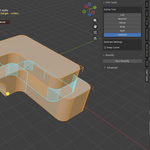
CAD Tools User Guide
CAD Tools is a Blender add-on for selection-driven hard-surface modeling. It provides modal tools for Subtract, Loft, Revolve, Offset, Shell, and Split, plus a separate Simplify cleanup utility.
Overview
The main workflow is accessed through a modal operator and the CAD Tools sidebar. You can open it in both Object Mode and Edit Mode
Requirements
- Blender
5.0.0or newer - Main workflow entry:
CAD Toolssidebar - Sidebar location: 3D View \>
CAD Tools
Installation
- In Blender, open
Edit>Preferences>Add-ons. - Click the downward arrow icon at the top right of the Add-ons panel and choose
Install from Disk.... - Select the CAD Tools
.zipfile. - Enable the add-on after installation.
- Open the 3D View sidebar and find the
CAD Toolstab.
Getting Started
- Select a mesh object and enter
Edit Mode(most tools require it; onlySubtractandSimplifyare available inObject Mode). - Open CAD Tools from the
CAD Toolssidebar - Choose a tool from the
Active Toollist. - Follow the viewport instructions.
- Confirm with
Enteror theApplybutton, or stop withEsc/Cancel.
Tool Availability By Mode
- Subtract: Object Mode, Edit Mode. The only main CAD tool available in both modes.
- Loft: Edit Mode only. Disabled in Object Mode.
- Revolve: Edit Mode only. Disabled in Object Mode.
- Offset: Edit Mode only. Disabled in Object Mode.
- Shell: Edit Mode only. Disabled in Object Mode.
- Split: Edit Mode only. Disabled in Object Mode.
- Simplify: Object Mode, Edit Mode. Separate utility block, not part of the main modal workflow.
In Object Mode, edit-only tools are labeled with (Edit Mode) in the sidebar.
Main Workflow Notes
- CAD Tools uses a modal workflow.
- While a tool is active, Blender transform hotkeys such as
G,R, andSare blocked until youApplyorCancel. - The viewport overlay shows the active tool, instructions, warnings, and the
Apply/Cancelbuttons. - The sidebar shows the current settings for the active tool.
Tool Guide
Subtract
Subtract removes one mesh body from another.
Object Mode
- Works with selected mesh objects.
- The active mesh object is treated as the target.
- The cutter can be kept after apply with
Keep Cutter.
Edit Mode
- Works on separate selected bodies / islands inside one mesh object.
- The workflow expects a target body and a cutter body.
Loft
Loft creates a bridge surface between two selected faces.
- Mode requirement:
Edit Mode - Runtime controls exposed in the sidebar:
Span Segments,Profile Detail,Seam Offset,Loft Twist,Continuity - Select a first face, then a second face on the active mesh object.
Revolve
Revolve spins selected geometry (face) around an axis edge.
- Mode requirement:
Edit Mode - Runtime controls exposed in the sidebar:
Angle,Steps,Length,Merge - Select a source face, then select an edge as the rotation axis.
Offset
Offset creates a face-based offset from a selected source face.
- Mode requirement:
Edit Mode - Runtime controls exposed in the sidebar:
Distance,Size Threshold,Corner Scale - Select exactly 1 face on the active mesh object.
- Note: outward (negative distance) offset is not yet supported.
Shell
Shell creates thickness from a selected body and opening face.
- Mode requirement:
Edit Mode - Runtime controls exposed in the sidebar:
Thickness,Mode,Auto Fallback,Approx Strength,Thickness First - Select a target body (one island), then select opening faces on that island. Hold
Shiftto add multiple opening faces. - Openings (e.g. doors) may result in chamfered edges on complex shapes.
Split
Split cuts a selected body using a cut plane.
- Mode requirement:
Edit Mode - Runtime controls exposed in the sidebar:
Split Islands,Flip Plane Normal - Select a target body (one island), then select a face to define the cut plane.
Simplify
Simplify is a separate cleanup utility available in the sidebar.
- Trigger button:
Run Simplify - Available in both
Object ModeandEdit Mode - Modes:
PreciseandSolid -
Solidis marked in the UI as object-mode only
Controls
-
Enter: apply the current tool -
Esc: cancel the current tool -
Apply/Cancel: viewport overlay buttons -
K: toggleKeep CutterduringSubtract -
F: flip plane normal duringSplit -
\[/]: decrease or increaseRevolvesteps
License
CAD Tools is distributed under GPL-3.0-or-later. The product files include per-script GPL notices and a license.txt file containing the full GNU GPL text.
Have questions about this product?
Login to message
| Blender Extension Compatible | Yes |
| Published | 6 months ago |
| Blender Version | 5.0 - 5.1 |
| Extension Type | Add-on |
| License | GPL |

Discover more products like this
split cleanup loft hardsurface 3dprinting cut mesh repair cad printing revolve hard_surface shell