 mashud008



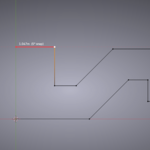
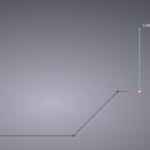
What's new Smart Extrude 1.3.0
- Blender's own snapping works while Smart Extrude is running. Turn the magnet on and use Vertex, Edge, Face, Face Project, Increment, or Grid. Affect must include Move. Hold Ctrl to invert the magnet and step on the visible grid, the same way Blender's transform tools do.
- A locked axis stays locked. With X, Y, Z, or the face normal locked, or with Shift or 90° ortho lock on, another vertex, edge, or face is only a distance reference. The extrude does not leave that axis to sit on the point. Press N during a face extrude if you want to leave the normal and land on the point.
- An angled extrude meets the reference guide. Aiming at an acquired point runs the line through that point, instead of a nearby 5° step that misses the crossing. Moving onto a guide sets the length and keeps the angle. The line becomes horizontal or vertical only when the drag itself is already nearly horizontal or vertical.
Smart Extrude 1.2.0
Requires Blender 4.0 or newer.
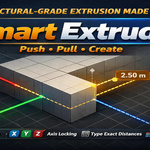
Smart Extrude is a modal extrude tool for vertices, edges, and faces. Drag to aim, click to place, or type an exact distance. Continuous mode lets you chain a whole floor plan without leaving the tool.
What's new
- Click to confirm. Left click or right click places the extrude where the pointer is. Typing a number and pressing Enter still sets that exact distance.
- Enter finishes the tool and keeps every extrude you already clicked in. It drops only the preview you have not confirmed. Esc undoes the whole tool.
- Viewport grid snap. Hold Ctrl to step on the grid cells you can see. Zoom out for a larger step, zoom in for a smaller one. Ctrl+Shift uses the next smaller cell. Shift by itself still locks the current direction.
- Tracking guides. Hover a midpoint, endpoint, or center and the horizontal and vertical guides stay, so the next line can meet that point. Guides stay straight on screen, and lock to world X, Y, or Z when you are close to those axes.
- A parallel line stays parallel. The direction you drag chooses the axis. A crossing guide only sets the length.
- Axis magnet defaults to 5°. Press A to switch between 0° and 5°. Press F for a free angle, with no 5° snap.
- Face extrude starts along the face normal. Press N to release it. Point snaps place the tip on the point.
- Press M while extruding faces to hand off to Blender's Extrude Manifold.
- On-screen help (H) sits at the bottom right.
- Extruded edge walls no longer shade black.
- Confirming a zero-length edge or vertex no longer leaves a second vertex on top of the first.
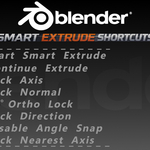
Shortcuts
- Alt+E starts the tool
- LMB / RMB confirm where you click
- Number, then Enter, sets an exact distance
- Enter finishes and keeps clicked extrudes
- Esc undoes the whole tool
- C is Continuous Extrude Mode
- Ctrl snaps to the visible grid; Ctrl+Shift uses the next smaller grid
- A toggles the axis magnet between 0° and 5°
- F turns the 5° angle snap off
- X / Y / Z lock an axis; MMB locks the nearest axis
- N toggles the normal lock; P toggles the 90° ortho lock
- Alt tap switches Global / Local; hold Alt to snap points
- M starts Extrude Manifold from a face selection
- H shows or hides help
Feet/Inch Input Fix
- In Imperial + Feet mode, typing
5.7now works as5'-7". - Internally it uses real scale:
5 + 7/12 = 5.5833... ft. - The display label also shows the value in
5'-7"format.
RMB Cancel Fix
- Pressing the Right Mouse Button after Smart Extrude no longer cancels the extrude.
- It now confirms the extrude and leaves it in place, like Blender’s default behavior.
-
ESCstill cancels/undoes the extrude.
Alt-Hold Snapping Feature
- While Smart Extrude is running, holding Alt and moving the mouse enables Vertex/Edge snapping.
- Alt-hold snapping can work even when Blender’s magnet snapping is off.
Alt-Tap Existing Feature Preserved
- Quickly pressing and releasing Alt still toggles the Global/Local axis frame.
- No existing feature was removed.
UI/Help Text Update
- The header and help panel now describe
Alt tapandAlt holdseparately. - The RMB confirm behavior is also updated in the help text.
Discover more products like this
polar-snap extrude auto snapping aligned push-pull Auto Snap Lighting Smart Extrude