SmartRenames&Organize
 NaughtyMiao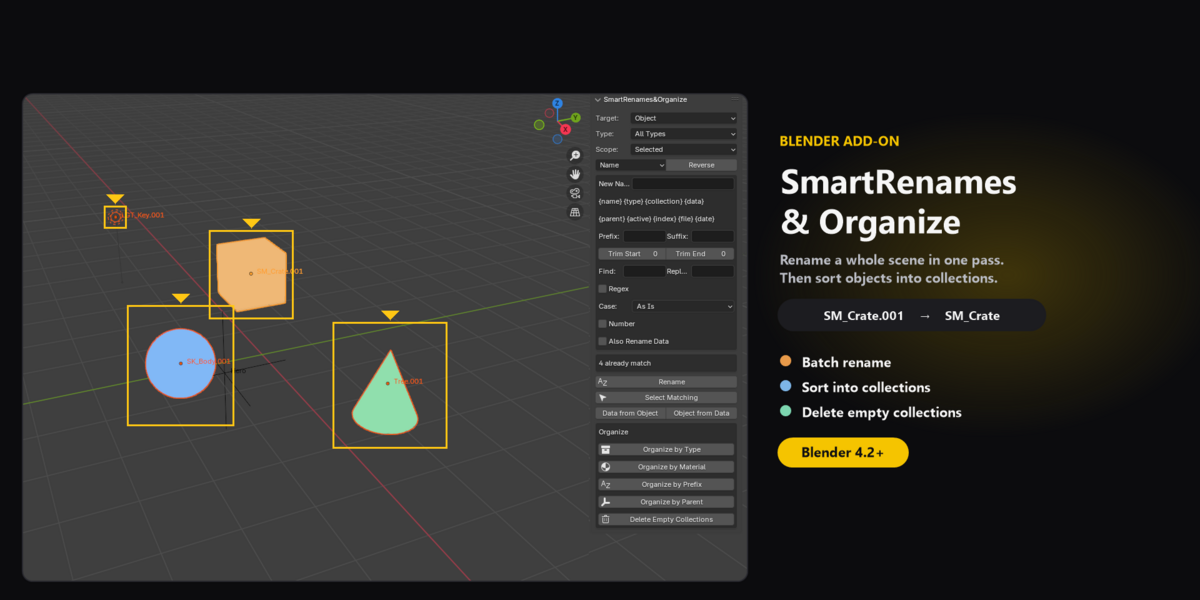
Requirements
Blender 4.2 or newer. The download is one zip. The add-on is licensed GPL-3.0-or-later.
Install
- Download the zip.
- In Blender, open Edit, Preferences, Get Extensions.
- Open the menu in the top right and choose Install from Disk.
- Select the zip.
- In the 3D Viewport, press N and open the SmartRenames&Organize tab.
Rename
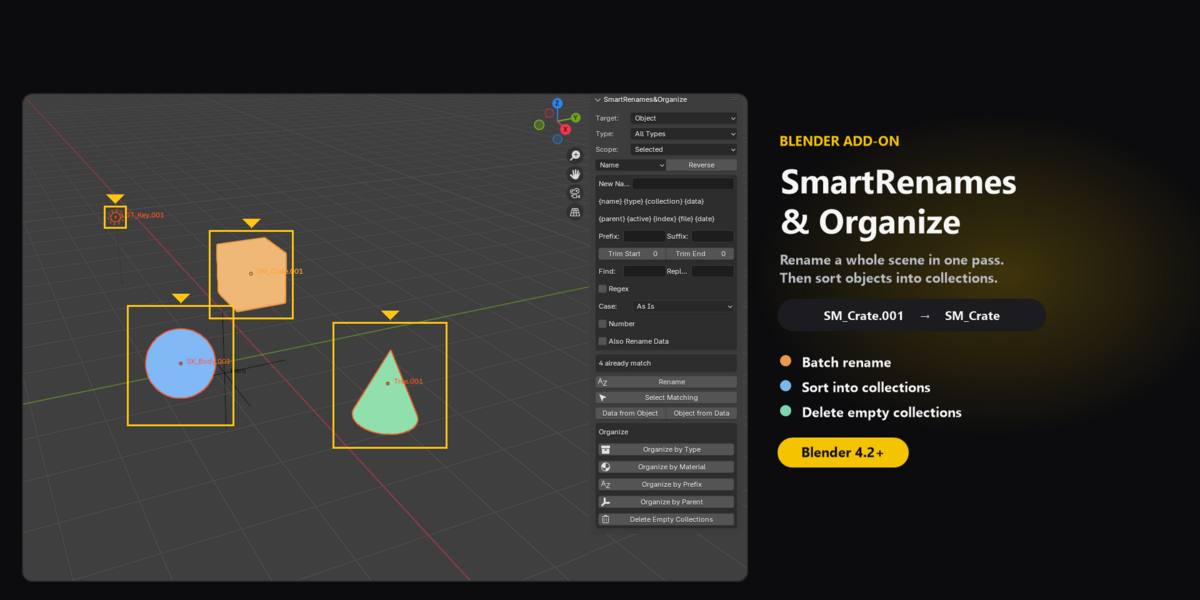
Set Target to what you want to rename: Object, Object Data, Material, Collection, Bone, Modifier, Shape Key, UV Map, or Node Group.
Type limits the work to one object type, such as Mesh, Camera, Hair Curves, or Point Cloud. All Types leaves the filter off.
Scope is Selected or All. Selected uses the objects selected in the viewport. All uses everything in the view layer.
The panel shows a preview before anything changes. Press Rename to apply it. Undo works with Ctrl+Z.
Build a name
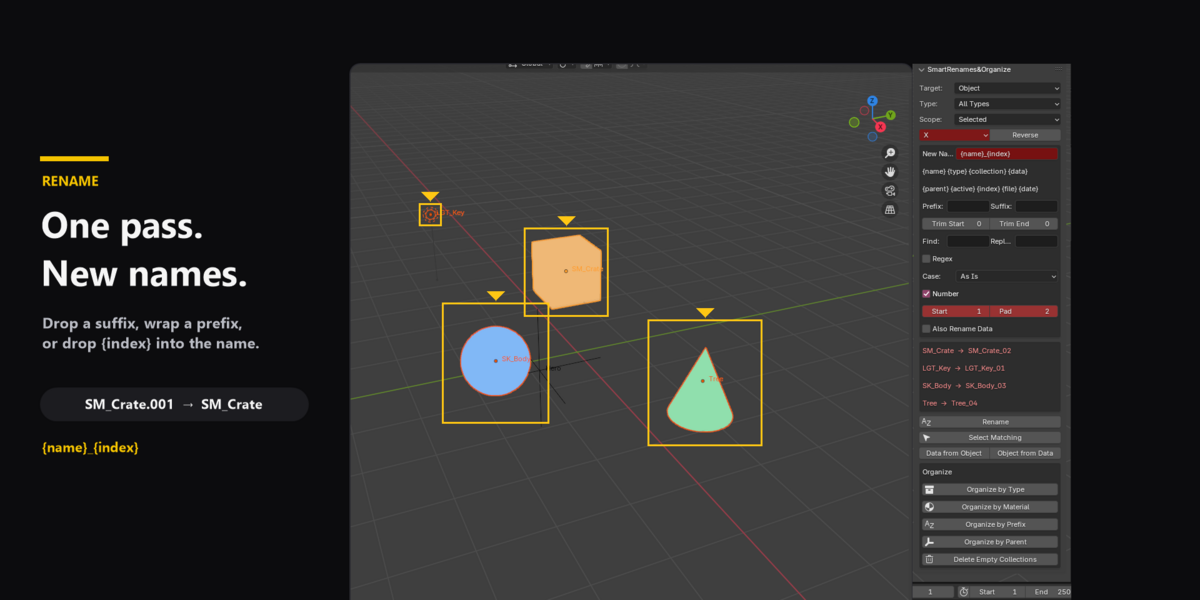
Leave New Name empty to keep the current name. Fill it in to replace the name. Tokens work in New Name, Prefix, and Suffix:
{name} {type} {collection} {data} {parent} {active} {index} {file} {date}
{index} can sit in the middle, for example mesh_{index}_high.
The other fields run in this order: Trim Start and Trim End, Find and Replace, New Name, Case, Prefix and Suffix, then Number. Turn on Regex to treat Find as a regular expression. Case can stay As Is, or become lower, UPPER, Title, Sentence, camelCase, or PascalCase.
Number sorts by Name, Selection, or world X, Y, or Z. Reverse counts from the other end. Start is the first number. Pad is how many digits it uses, so 1 with a pad of 3 becomes 001. If {index} is already in the name, prefix, or suffix, the counter is not added a second time.
Also Rename Data copies the new object name onto mesh or curve data that belongs to only one object. Shared data is left alone. Linked data is skipped.
For UV maps, UV Index chooses which map to rename. Set it to -1 to rename every UV map on the mesh.
Find and copy names
Select Matching selects objects or bones whose names contain the text in Find.
Data from Object copies each object name onto its object data. Object from Data does the reverse. These two buttons appear when Target is Object.
Organize
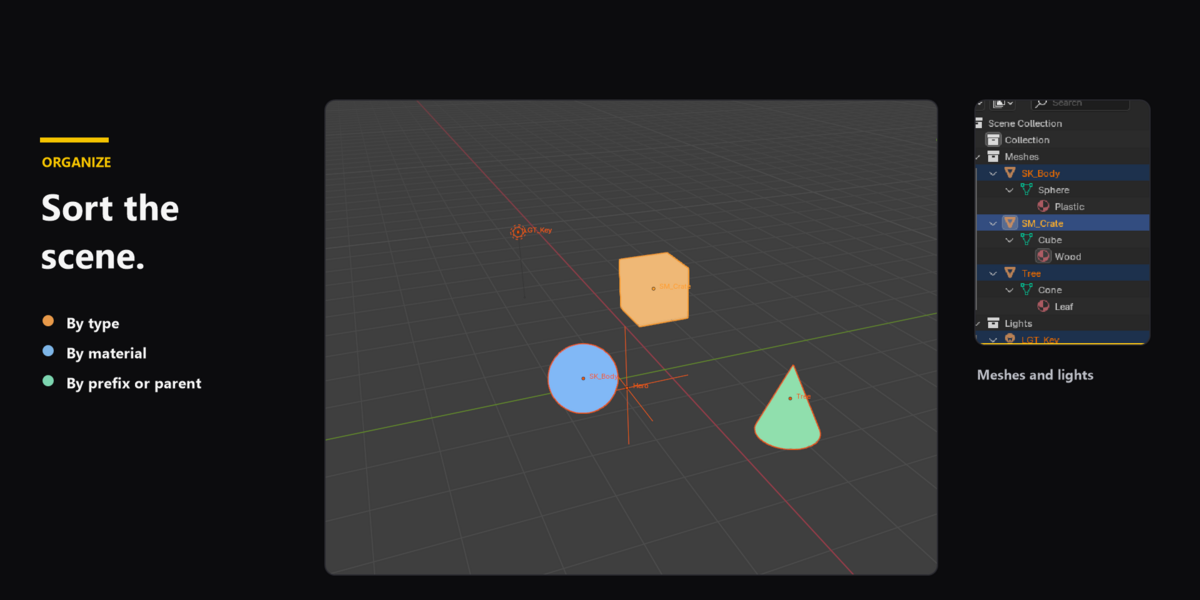
These buttons appear when Target is Object. Each one links an object into the new collection before unlinking it from the old one.
Organize by Type files objects into collections such as Meshes, Lights, Cameras, and Hair Curves.
Organize by Material uses the first material on the object. Objects with no material go into No Material.
Organize by Prefix files names that start with SM_ into Static, SK_ into Skeletal, and LGT_ into Lights. The match is case-sensitive. Other names stay where they are.
Organize by Parent files an object into a collection named after its parent, and only when that parent is an Empty.
Delete Empty Collections
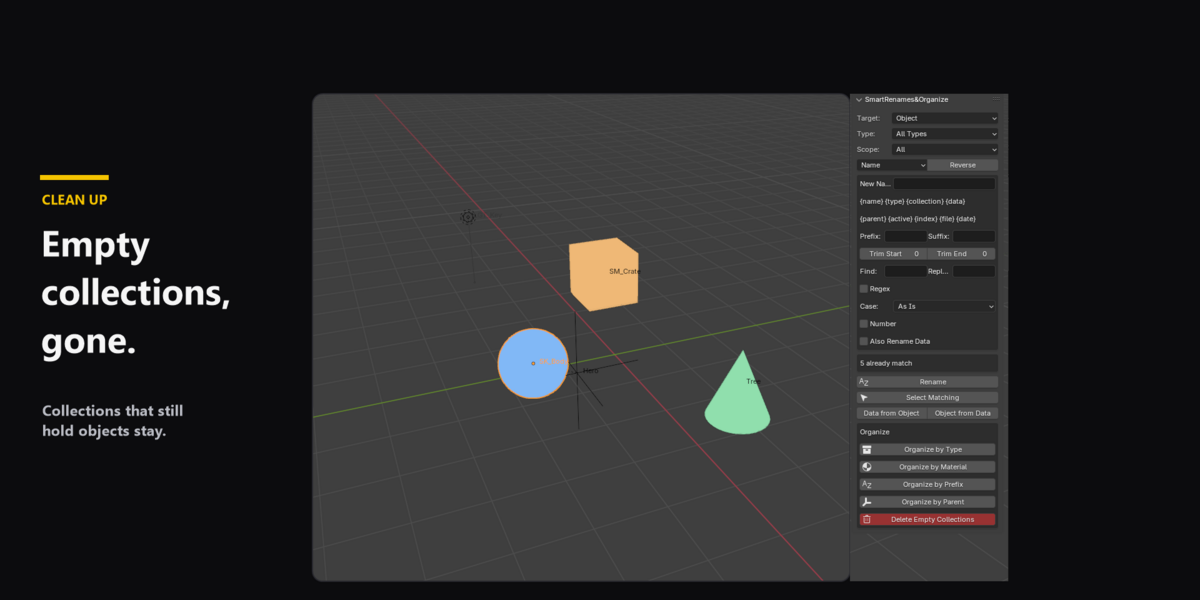
This removes local collections that contain no objects and no nested collections, then repeats so a parent can be removed once its children are gone. Collections that still hold objects stay. The scene collection, linked collections, instanced collections, and the rigid-body world stay.
Have questions about this product?
Login to message
| Blender Extension Compatible | Yes |
| Published | about 9 hours ago |
| Blender Version | 4.2 - 4.5 |
| Extension Type | Add-on |
| Render Engine Used | Blender-Internal |
| License | GPL |

Discover more products like this
Blender Add-on blender organizer blender blender auto rename