 RenderLab


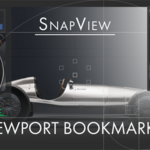
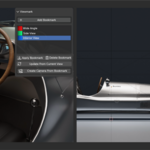
What SnapView does
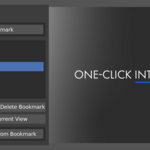
- Add Bookmark — Save the current 3D View (position/orientation), shading/overlay settings, etc
- Apply Bookmark — Instantly restore everything exactly as saved.
- Create Camera From Bookmark — One click to drop a camera that matches the bookmark’s view.
-
Scene-local — Bookmarks live in your
.blend. Rename, duplicate, or delete freely.
Why artists use it
- Consistency: Jump between tiny details and wide shots without losing your place
-
Speed: No more re-framing, re-hiding, or re-enabling overlays.
- Reliability: Cameras that match the exact view you approved.
Quick Start (30 seconds)
- Open the N-panel → SnapView tab in the 3D Viewport.
- Frame a view you like → click Add Bookmark to save a bookmark.
- Click Apply to return to that view anytime.
- Click Create Camera to spawn a camera that matches the bookmark.
UI Guide
- Bookmarks List: Shows saved views. Select one to work with it.
- Add: Save the current viewport state as a new bookmark.
- Apply: Restore the selected bookmark.
- Create Camera: Spawn a camera aligned to the selected bookmark.
- Manage: Rename, duplicate, or delete bookmarks right in the panel.
Hotkeys (optional, configurable)
Defaults may vary by setup; you can change them anytime in Edit → Preferences → Keymap (filter “SnapView”).
- Ctrl + Alt + B — Add Bookmark
-
Alt + B — Apply Bookmark (Full)
- Shift + Alt + B — Create Camera From Bookmark
Tips & Workflows
- Detail ↔ Overview: Save a close-up for precision work and a wide shot for context. Bounce between them without re-framing.
- Storyboard Cameras: Approve views as bookmarks, then Create Camera for each. Great for previz and shot lists.
-
Scene Templates: Keep a few “starter” bookmarks in a template
.blendfor studio-standard angles. - Large Projects: Use shading-based visibility to keep heavy scenes responsive; SnapView restores it for you.
- Multiple Viewports: Actions apply to the active 3D View region you’re using.
Troubleshooting
- I don’t see the panel. Make sure the add-on is enabled, then open the N-panel → SnapView tab.
- Buttons don’t do anything. Ensure you’re in a 3D Viewport and a bookmark is selected (for Apply/Create).
- Hotkey conflict. Edit → Preferences → Keymap, filter “SnapView,” reassign keys.
- After updating, nothing appears. Restart Blender after reinstalling or switching builds.
Discover more products like this
previz sale scene bookmarks viewport camera from view one-click Cyber Monday Workflow addon blender layout bcon25 shot planning productivity navigation