 RenderLab


Which Blender versions does it support?
Blender 3.6–4.5. Works with both Cycles and Eevee.
Where do I find SnapView after installing?
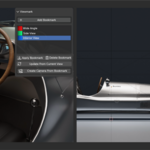
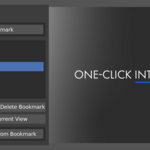
In the N-panel → SnapView tab (3D Viewport). You’ll see your bookmark list and buttons to Add, Apply, and Create Camera.
Does applying a bookmark move my cameras?
No. Applying restores the viewport only. Use Create Camera From Bookmark to spawn a camera that matches the saved view.
Can I rename, reorder, or delete bookmarks?
Yes—manage them directly in the SnapView panel.
What about performance on big scenes?
Minimal overhead. Bookmarks are simple properties; applying one is near-instant, even on large projects.
Can I have unlimited bookmarks?
Practically yes. They’re lightweight scene data. If a list gets very long, it’s just a UI convenience question, not a hard limit.
Does it work with multiple viewports and different workspaces?
Yes. Actions apply to the active 3D View you’re working in.
Will this change my render results or settings?
No. SnapView only touches viewport state. It doesn’t modify render settings or your engine choice.
How do I assign or change hotkeys?
Edit → Preferences → Keymap, filter by “SnapView”, and adjust. You can add quick keys for Add/Apply/Create Camera if you like.
Can I share bookmarks with my team or across files?
Bookmarks live in your .blend. To reuse them, append the scene (or duplicate the file). They’ll come along.
Does SnapView work in orthographic views?
Yes. The created camera will match the current view type/transform.
Will it interfere with other add-ons or my keymap?
It plays nicely with others. If you see a hotkey conflict, just reassign SnapView’s keys (or the other add-on’s) in the Keymap.
Where are bookmarks stored and can I back them up?
They’re stored as scene data inside your .blend. Back up your project file as usual and you’re covered.
How do I remove SnapView? Will I lose anything?
Disable or remove it in Preferences → Add-ons. Your .blend keeps any saved bookmarks as regular scene data.
Something isn’t showing or a button does nothing—now what?
1. Make sure the add-on is enabled.
2. Open the N-panel → SnapView tab in the 3D View.
3. If you just updated, restart Blender.
4. Still stuck? Contact RenderLab via Superhive messages with a short screen recording and your Blender version.
Discover more products like this
scene bookmarks Cyber Monday shot planning navigation layout productivity Workflow sale camera from view viewport addon blender bcon25 previz one-click