 Mulk
Mulk

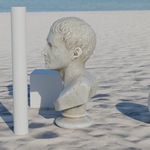
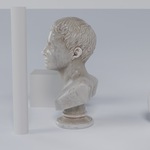
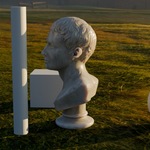
Install
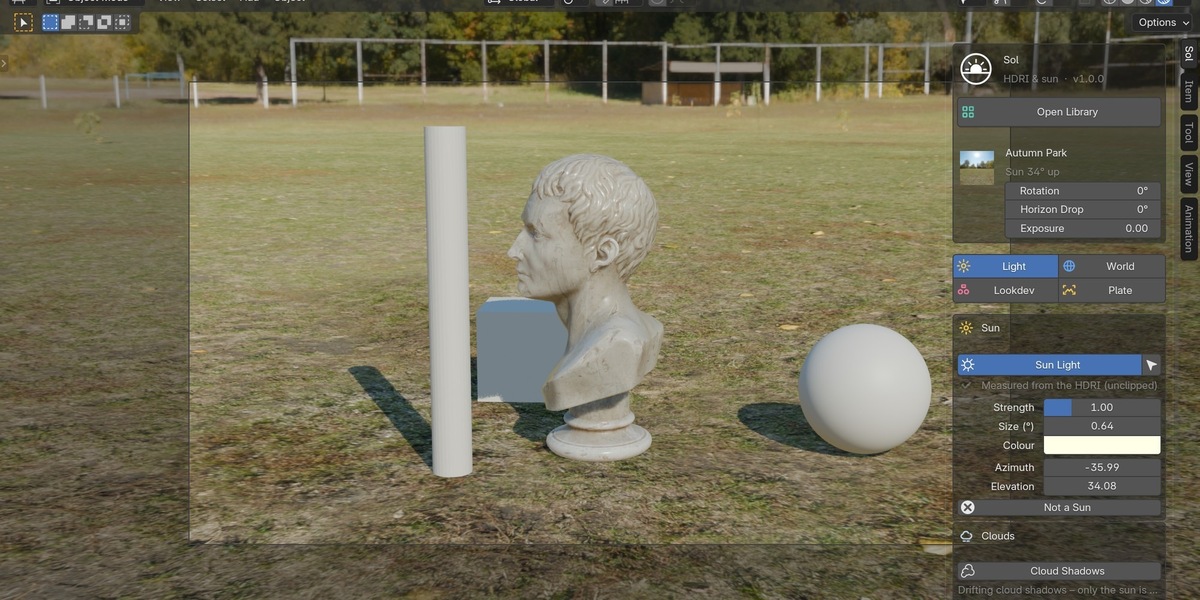
In Blender 4.2 or newer, open Edit › Preferences › Get Extensions. Click the arrow menu (top right) › Install from Disk… and pick the Sol zip. Sol shows up in the 3D view sidebar (N-panel) under Sol, and in the World properties.
Set up your library
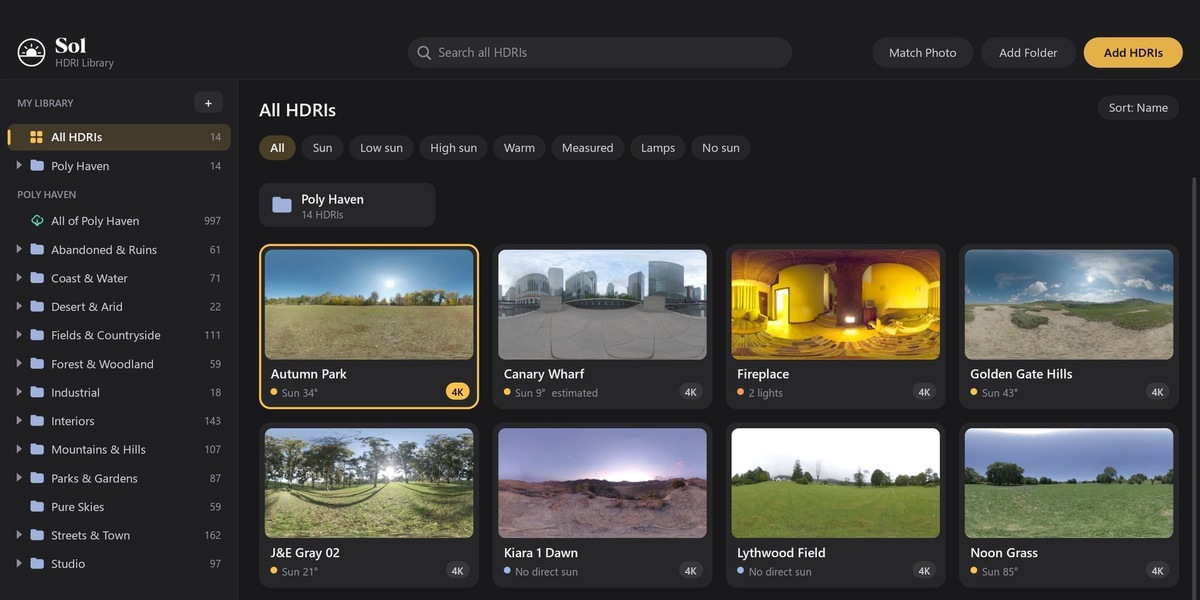
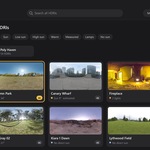
In Sol's preferences, choose a library folder. Click Add HDRIs or Add Folder in the library window. Each HDRI is analysed once in the background: Sol finds the sun (or the lamps of an interior), paints it out into a clean copy and makes a thumbnail. The result is saved in the library.
Use an HDRI
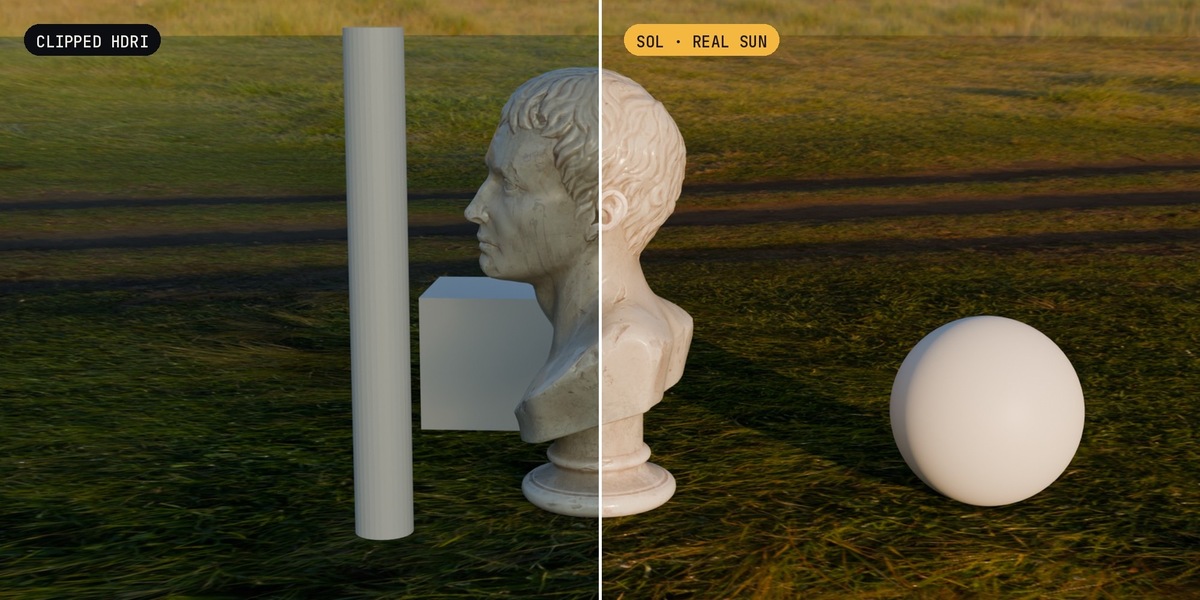
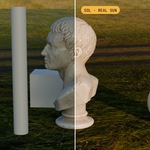
Open the library with Open Library, or press the button in the panel, and double-click a card. Sol sets up the world with the sun-free HDRI and adds a sun light where the sun was. Rotation turns the HDRI and the sun together.
Tabs
- Light: sun strength, size, colour and direction, Aim, Not a Sun / Find the Sun Anyway, cloud shadows.
- World: HDRI + Lights or Original HDRI, what the camera sees, Infinite or Ground Dome projection, camera height, radius, Measure, real-world values.
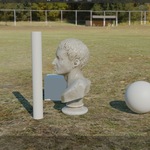
- Lookdev: grey ball, chrome ball and colour chart in the corner of the camera; ready lookdev scenes.
- Plate: backplates from Poly Haven or your own photo, and photo matching.
Poly Haven
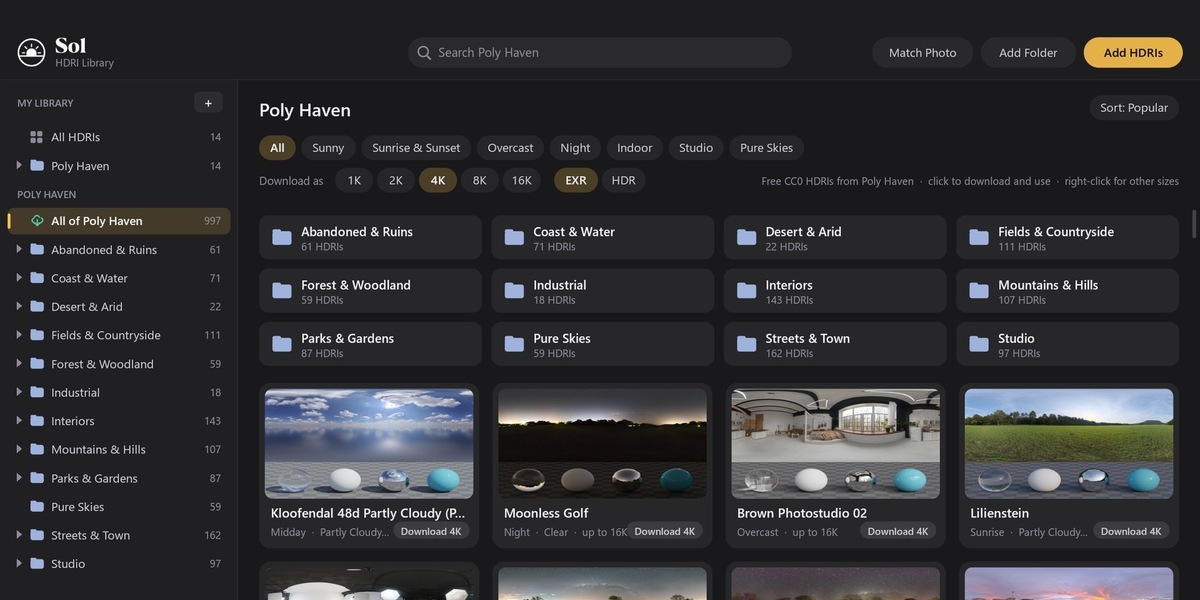
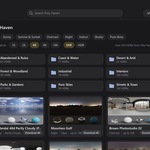
Click Poly Haven in the library window to browse every Poly Haven HDRI. Pick a resolution and format, then Download. Files go into a polyhaven folder inside your library and are analysed straight away. Needs an internet connection and Blender's online access turned on.
Licence
One licence per artist. For a team, pick the number of seats at checkout.
Have questions about this product?
Login to message
| Blender Extension Compatible | Yes |
| Published | 1 day ago |
| Blender Version | 4.2 - 5.2 |
| Extension Type | Add-on |
| Render Engine Used | Cycles, Eevee |
| License | GPL |
Discover more products like this
Hdri library shadows hdri hdri manager Sun Ground Projection Lighting Sun light environment poly haven lookdev sun position