Splat Prep: Import, Fix, Clean Up and Export Gaussian Splats
 NicoHartl


What it does
Import and export
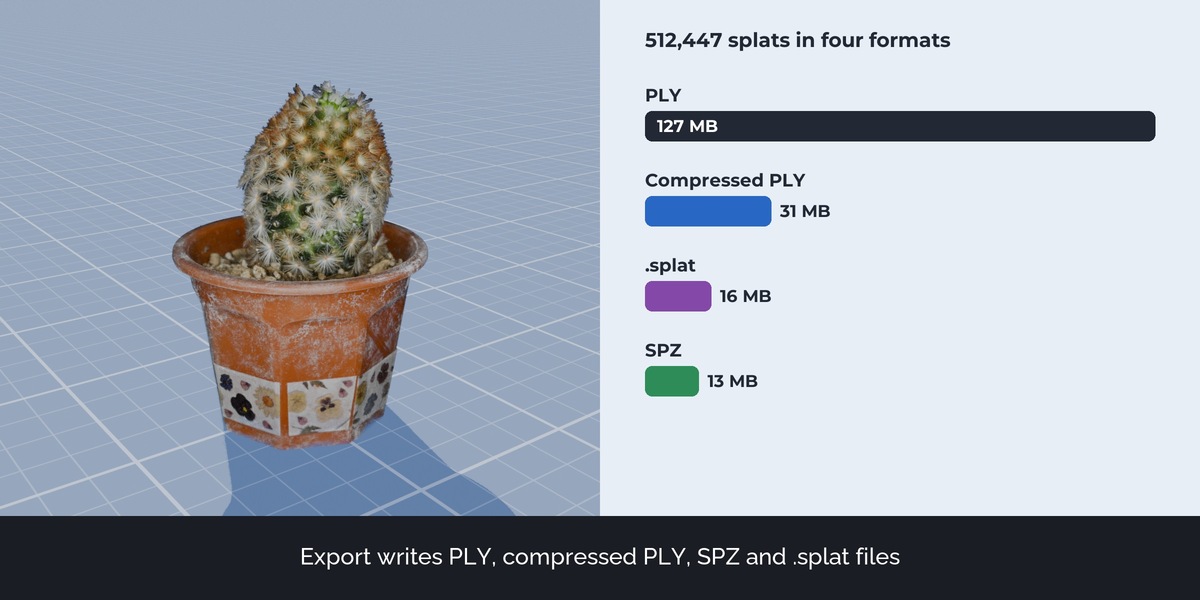
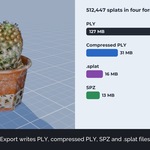
Import reads compressed PLY (SuperSplat, PlayCanvas) and .splat files. Export writes standard 3DGS PLY, compressed PLY, SPZ and .splat, in world space and with modifiers applied.
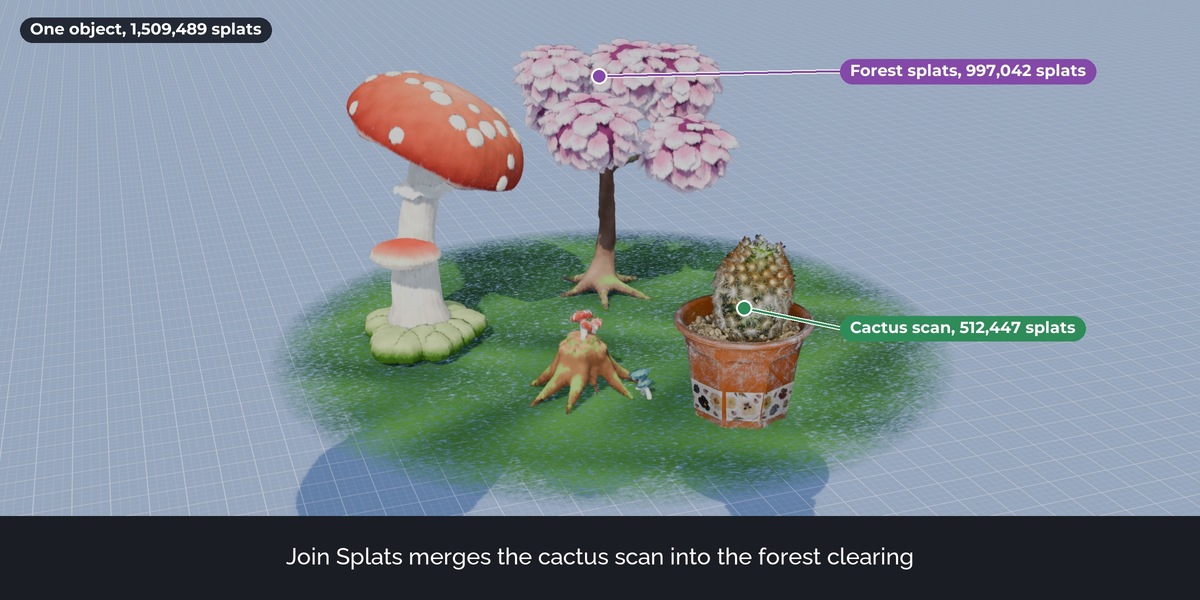
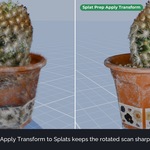
Apply Transform to Splats and Join Splats
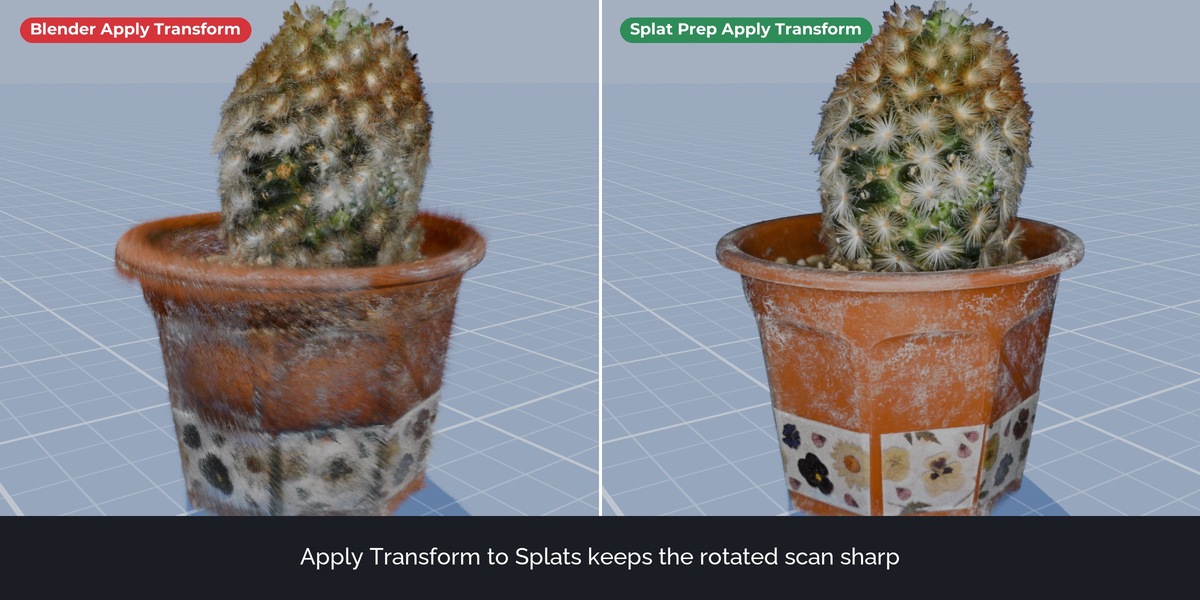
Apply Transform bakes location, rotation and scale into the splats. Each splat is turned and resized with the object, and its view-dependent colour (spherical harmonics up to degree 3) is rotated too. Mirrored and non-uniformly scaled objects work as well. Join merges several splat objects, each keeping its place and look.
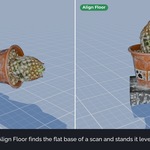
Align Floor, Origin to Base, Set Real Size
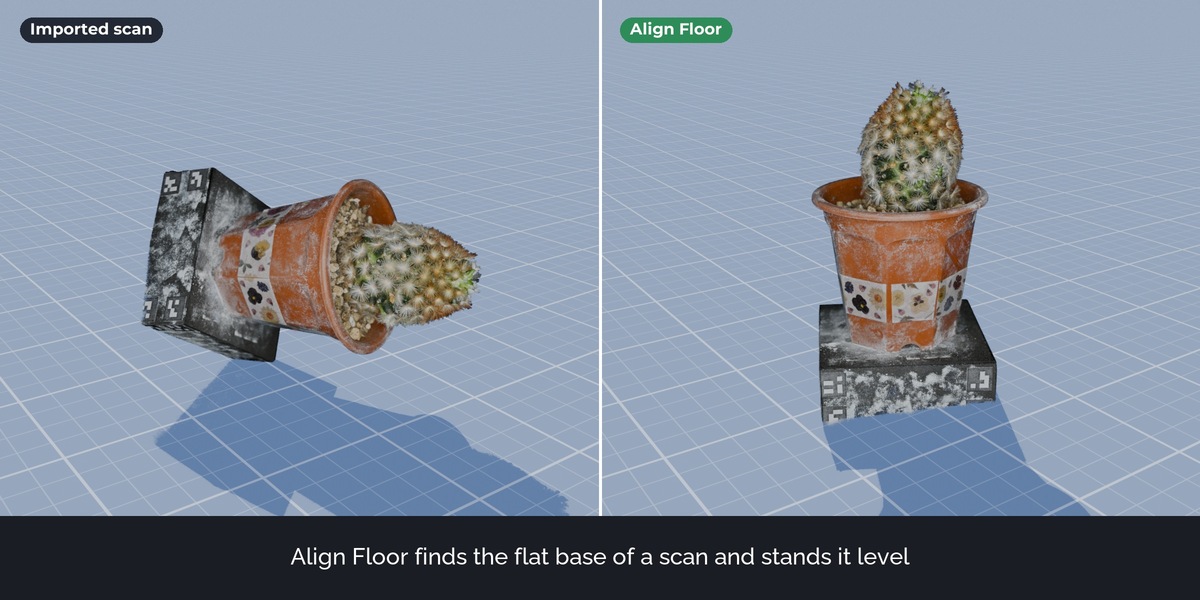
Align Floor finds the largest flat part of a scan, or uses the floor splats you select, and stands the scan level at Z = 0. Origin to Base puts the origin at the bottom centre. Set Real Size scales the scan from a length you know.
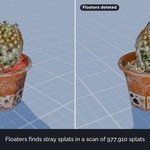
Clean up
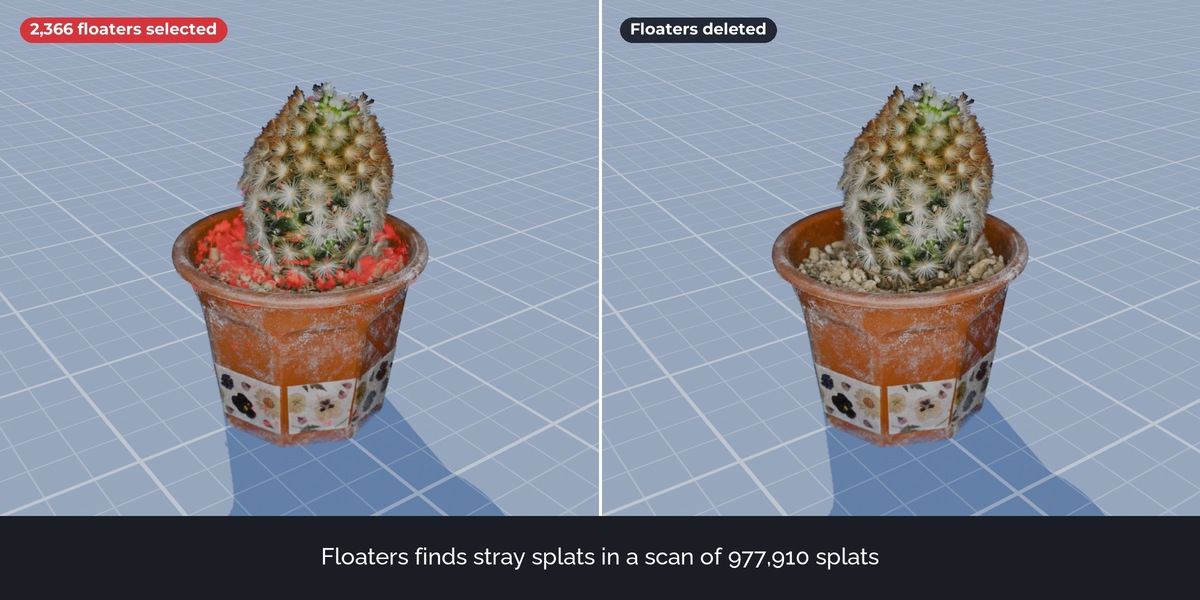
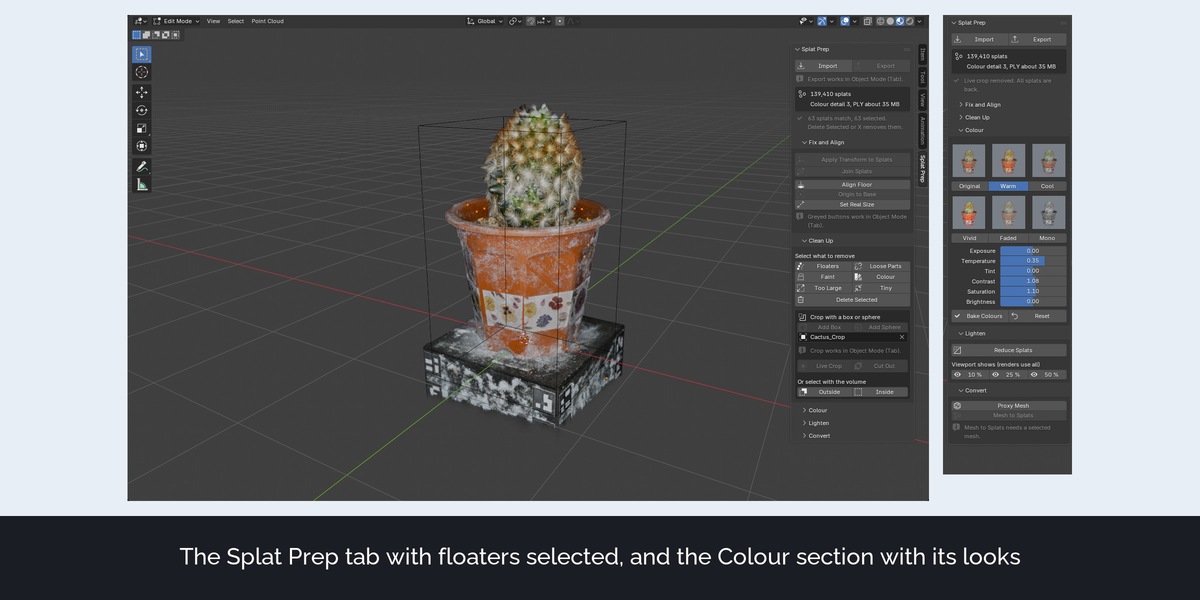
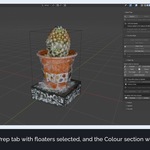
Select floaters (small groups cut off from the scan), loose parts, faint splats, splats of a similar colour such as sky or a backdrop, and splats much larger or smaller than the rest. The selection opens in Edit Mode, where X deletes it and P separates it.
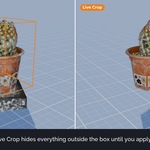
Live Crop
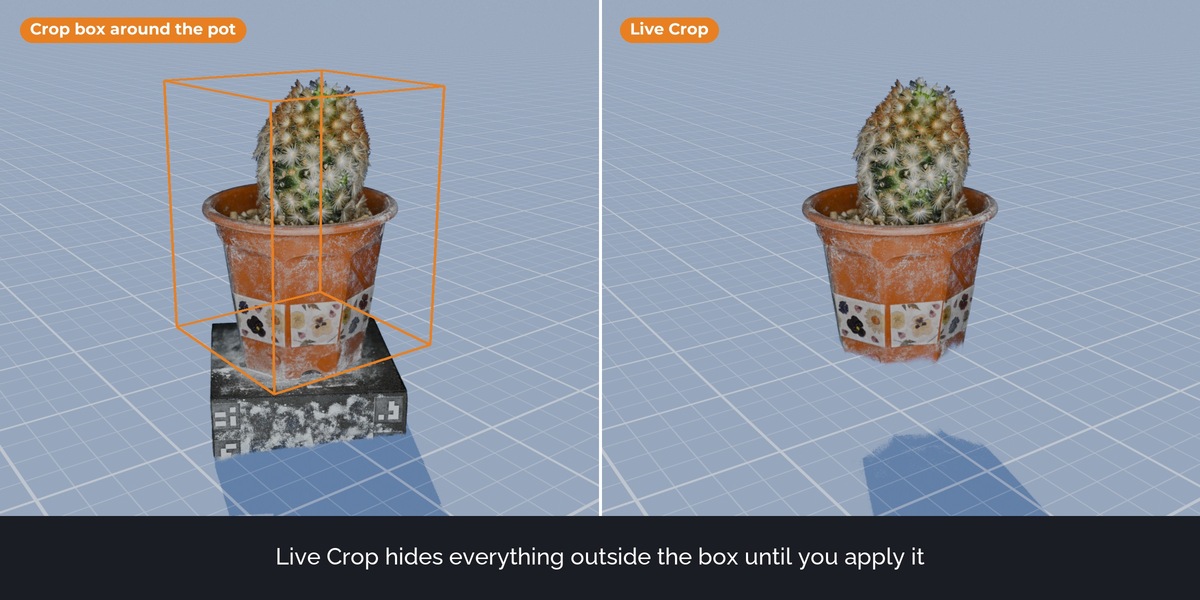
Crop with a box or a sphere without deleting anything. The crop follows the volume while you move and scale it. Apply makes it permanent.
Colour
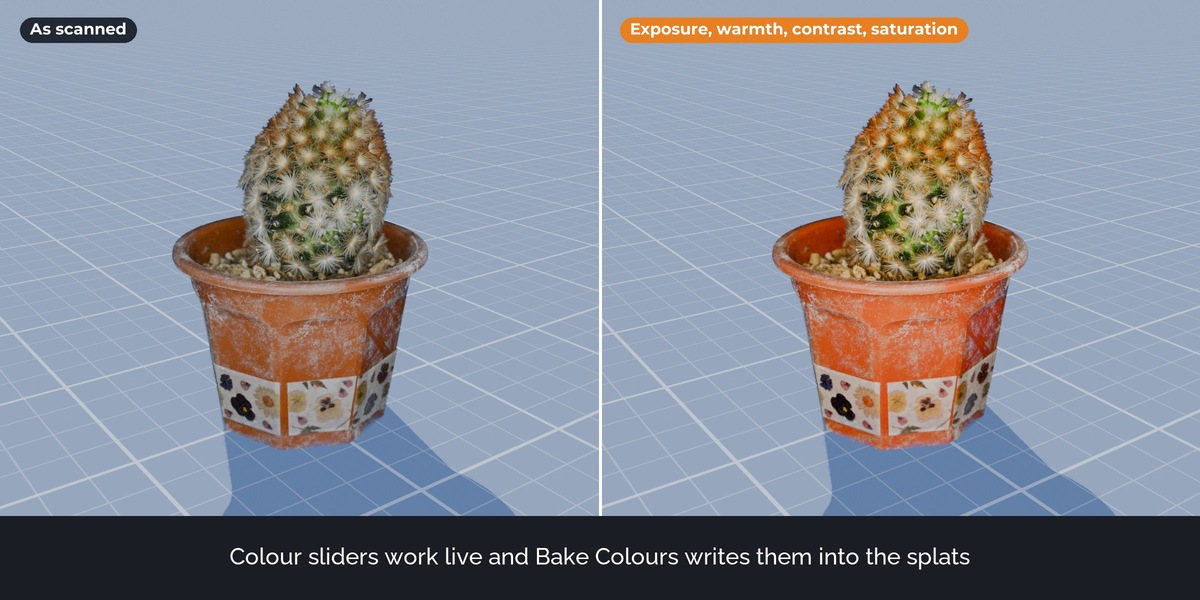
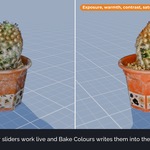
Exposure, temperature, tint, contrast, saturation and brightness work live. Bake Colours writes the look into the splats, including the view-dependent colour, so it stays in renders and in exported files.
Reduce Splats and viewport preview
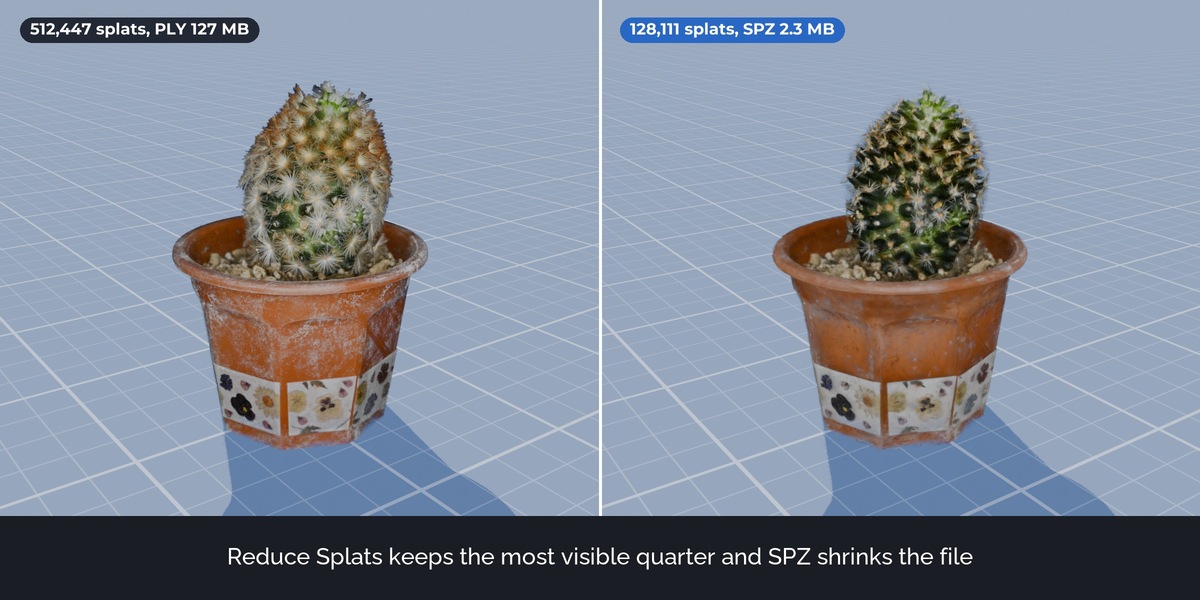
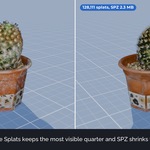
Reduce keeps the share of splats that contribute most to the picture and can drop colour detail for smaller files. The viewport preview shows 10, 25 or 50 percent of the splats for speed; renders and exports always use all of them.
Proxy Mesh and Mesh to Splats
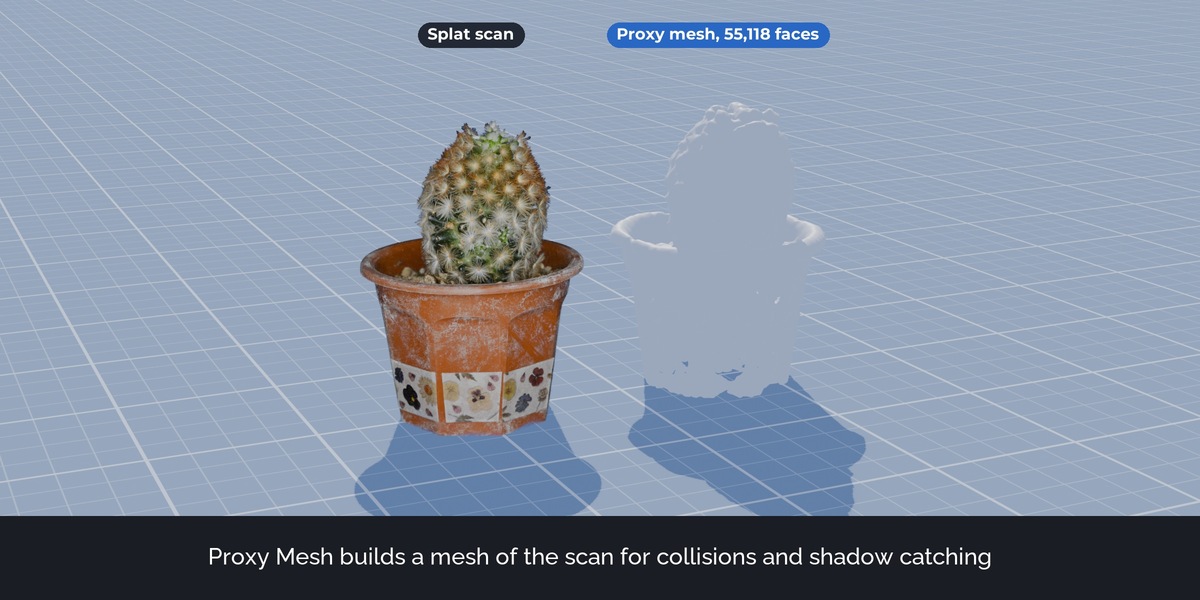
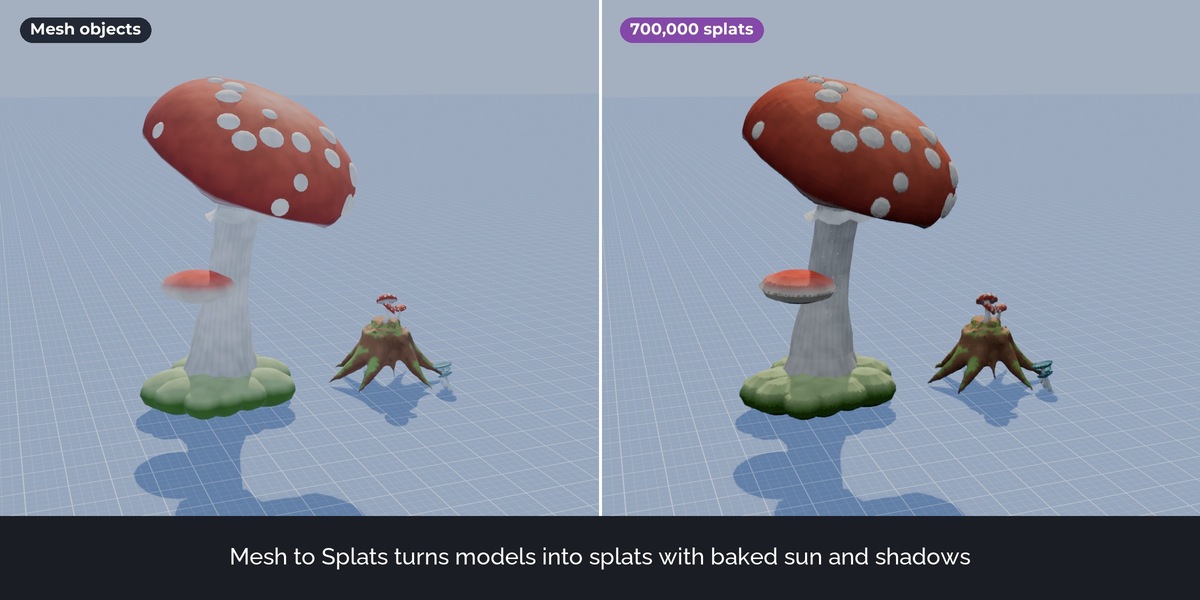
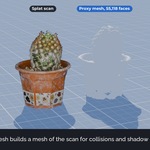
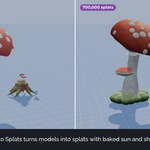
Proxy Mesh builds a mesh in the shape of the scan, for collisions, physics or as a shadow catcher in Cycles. Mesh to Splats turns mesh objects into splats with their colours and baked sun, sky and shadows.
How it works
- Import a splat and open the Splat Prep tab in the sidebar.
- Click Align Floor and Apply Transform to Splats.
- Click Floaters and press X. Add a box and click Live Crop.
- Click Export and pick a format.
FAQ
Why not use Blender's own Apply Transform?
It moves the splat centres only. Each splat keeps its old orientation and colour direction, so a rotated scan smears. The first store picture shows both side by side.
Which tools open the exported files?
The PLY uses the standard 3D Gaussian Splatting layout. Compressed PLY is the SuperSplat and PlayCanvas format, SPZ the open compressed format, .splat the simple web viewer format.
Is anything destructive?
Live Crop, the colour sliders and the viewport preview change nothing until you apply or bake them. Every operator supports undo.
Are the assets in the pictures included?
The cactus scan is included as a demo. The forest assets in the Join and Mesh to Splats pictures are from the Stylized Enchanted Forest pack, which is sold separately and not included.
Does it send data anywhere?
No. No network access, no licence check.
Have questions about this product?
Login to message
| Published | about 7 hours ago |
| Blender Version | 5.3 |
| Render Engine Used | Cycles, Eevee |
| License | GPL |
Discover more products like this
Workflow photogrammetry scan cleanup blender 5.3 splats gaussian splatting 3dgs pipeline PLY export point cloud Import-Export spz