 hamorisz
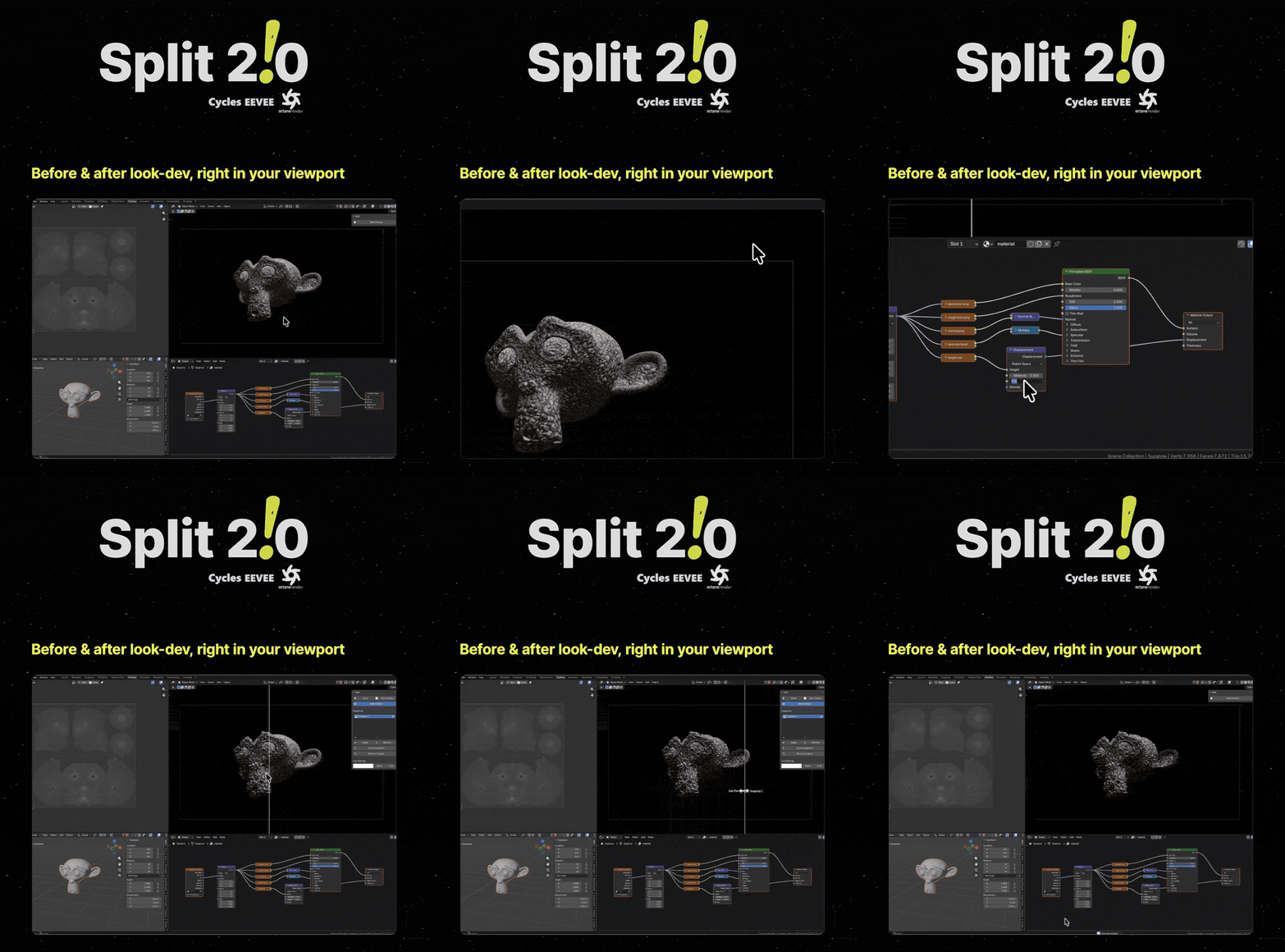
Stop guessing whether your last tweak made it better.
You nudge the roughness, swap a texture, adjust a light… and a minute later you can't remember what it looked like before. Flipping back and forth with Undo is slow and you lose your work. Saving test renders to compare them breaks your flow.
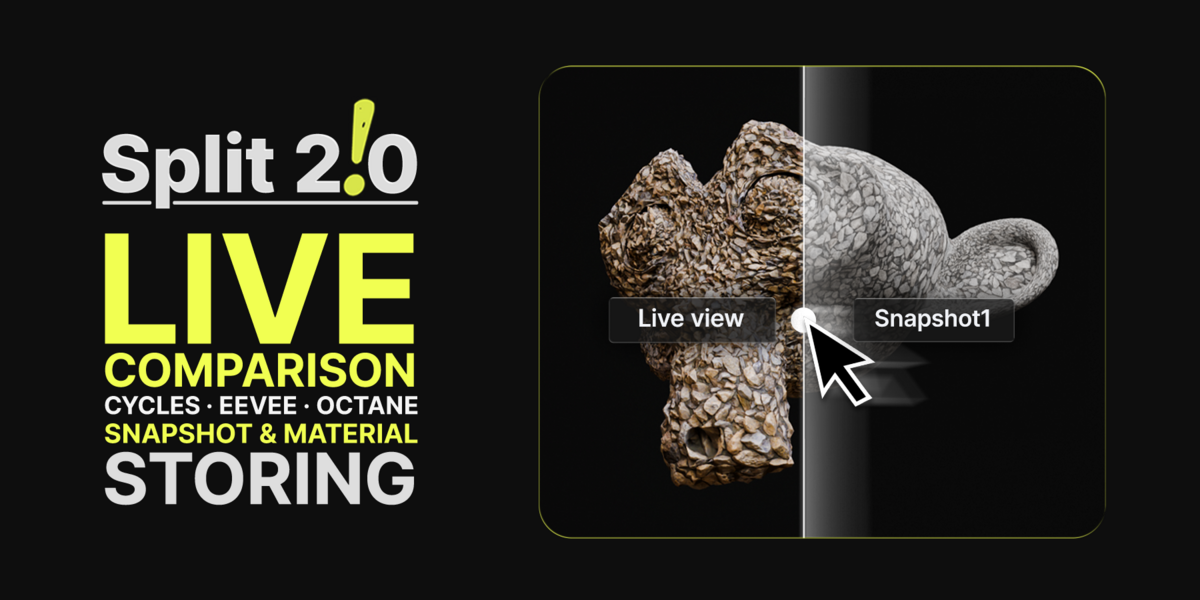
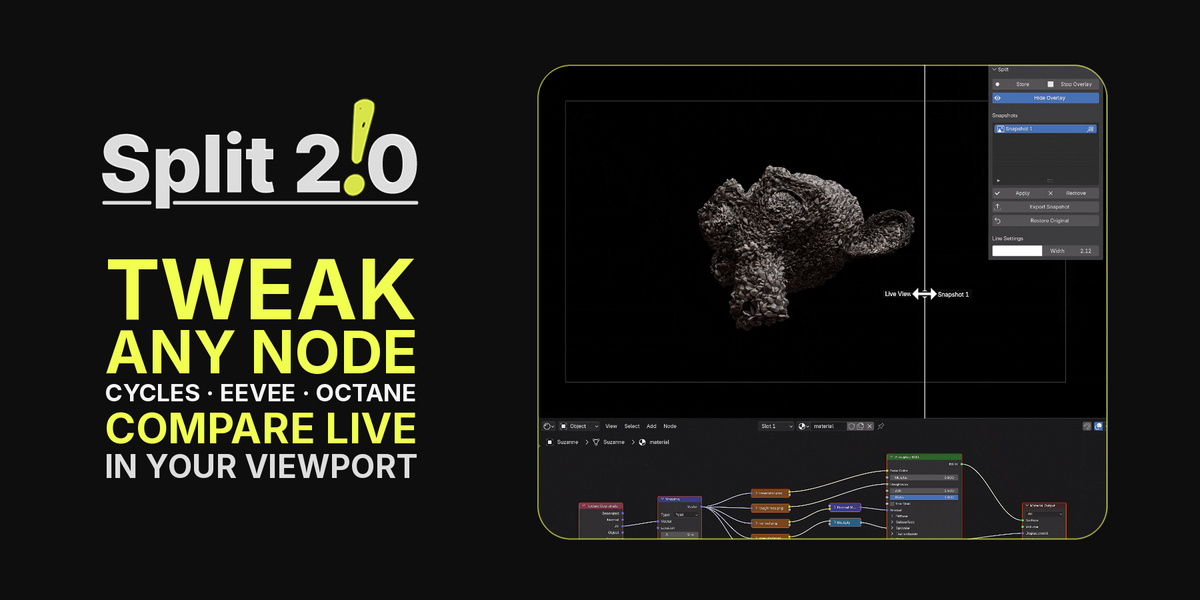
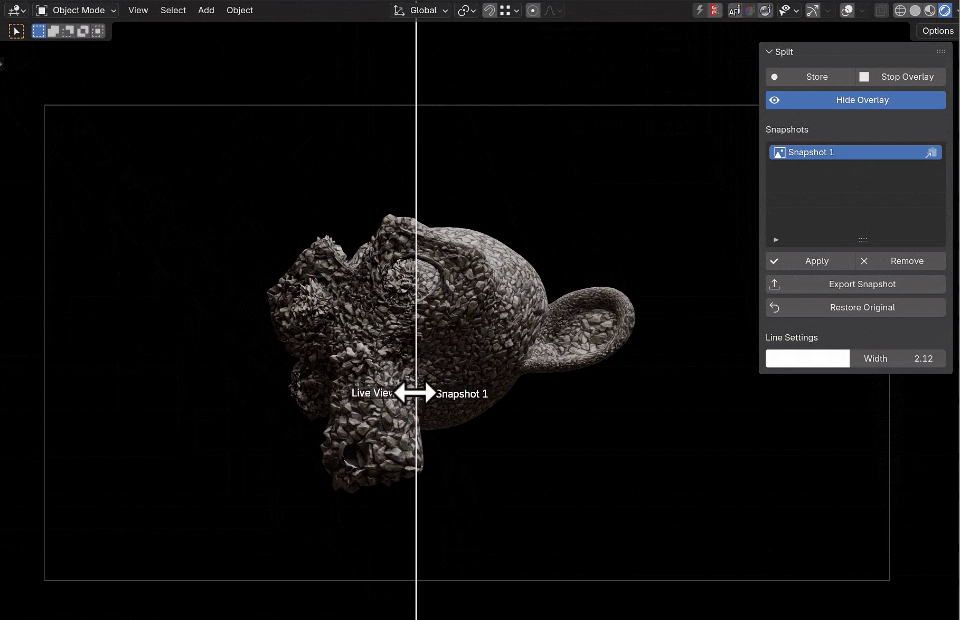
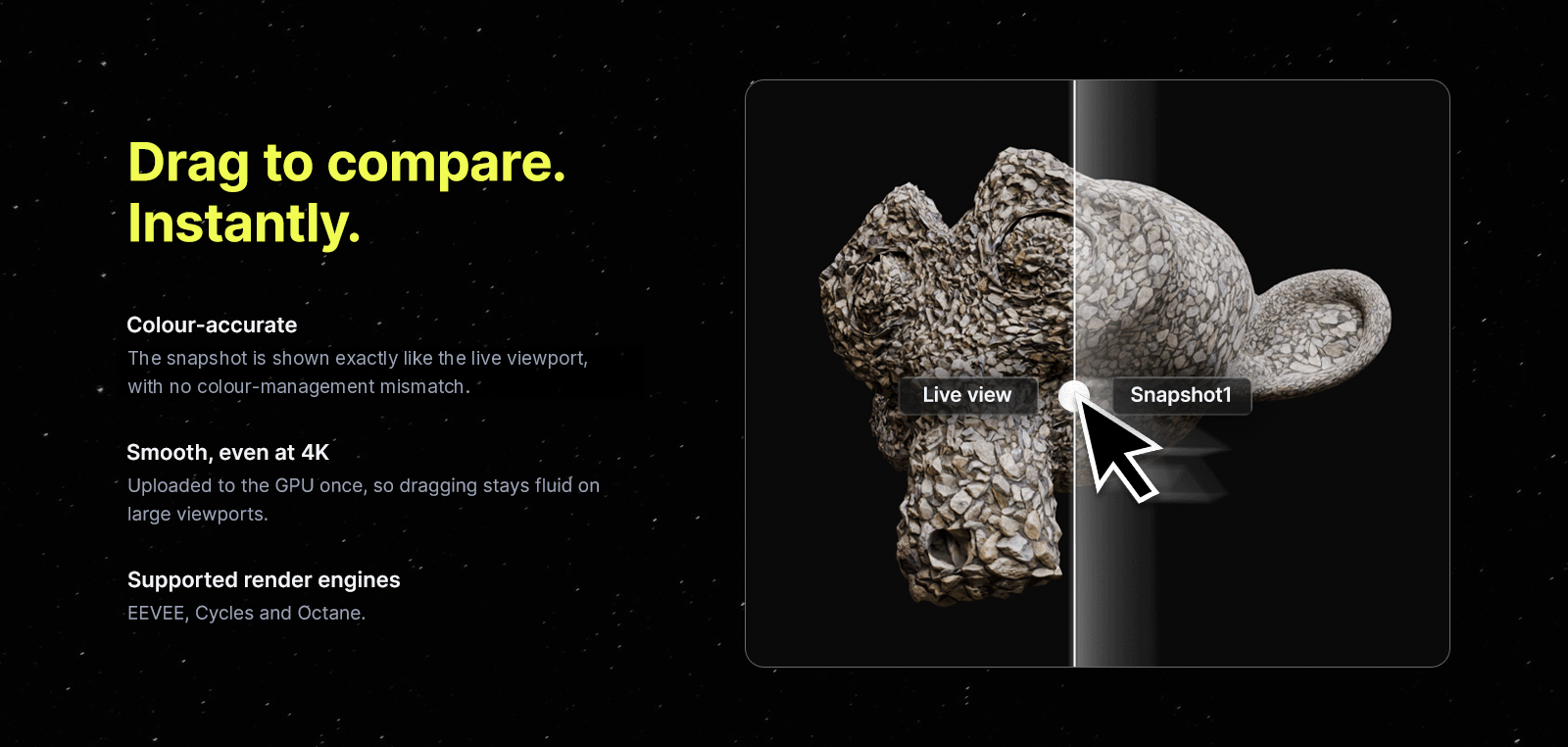
Split puts the "before" right next to the "now", live in your rendered viewport. Store a snapshot, keep working, and drag the split line across the viewport to compare the stored image with the live render, pixel for pixel.
"As a Cinema 4D Octane user, I was missing having a split comparison in the live viewer to help me work on materials and optimize my render settings — this add-on fulfills that!" — Justin, ★★★★★
Why artists use Split
- See the difference instantly. A draggable split line compares any stored snapshot with the live render, right in the 3D Viewport.
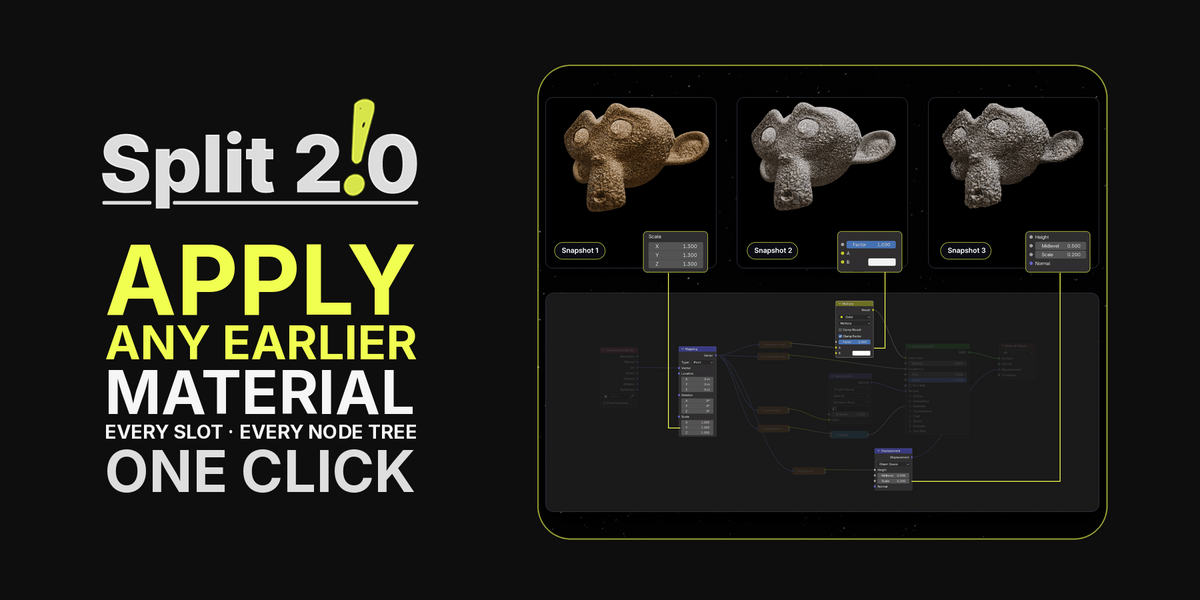
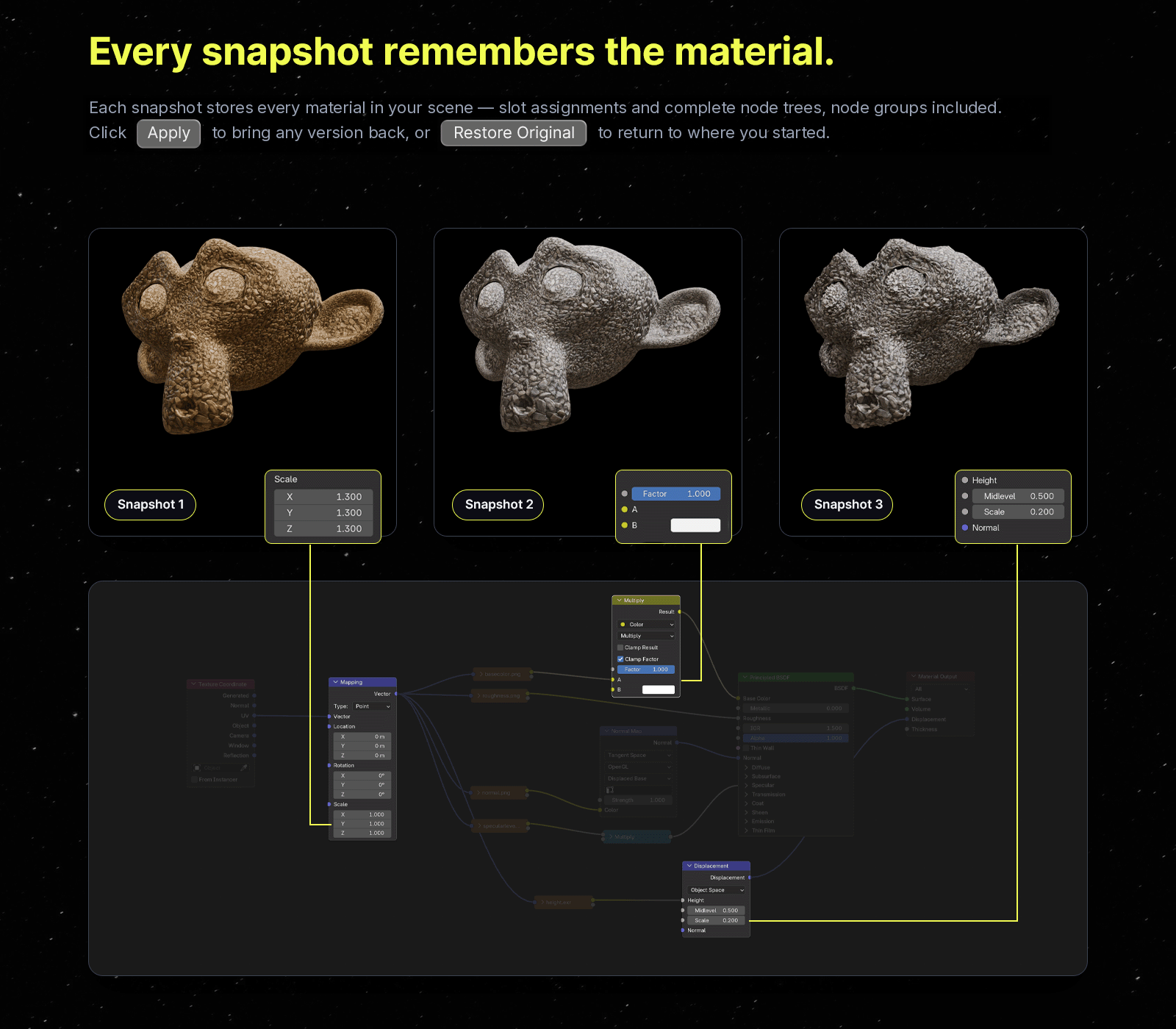
- Every snapshot remembers the materials. Each snapshot stores every material in your scene: which material sits in which slot and the complete node trees, node groups included. Bring back the materials of any snapshot with Apply, or go back to where you started with Restore Original.
- Compare as many versions as you like. Store unlimited named snapshots, each with a thumbnail. Click any one in the list to compare against it, and double-click to rename it.
- Colour-accurate. The snapshot is shown exactly like the live viewport, with no colour-management mismatch.
- Stays fluid. The overlay is a single image uploaded to the GPU once, so dragging stays smooth even on large viewports, with no noticeable effect on render speed.
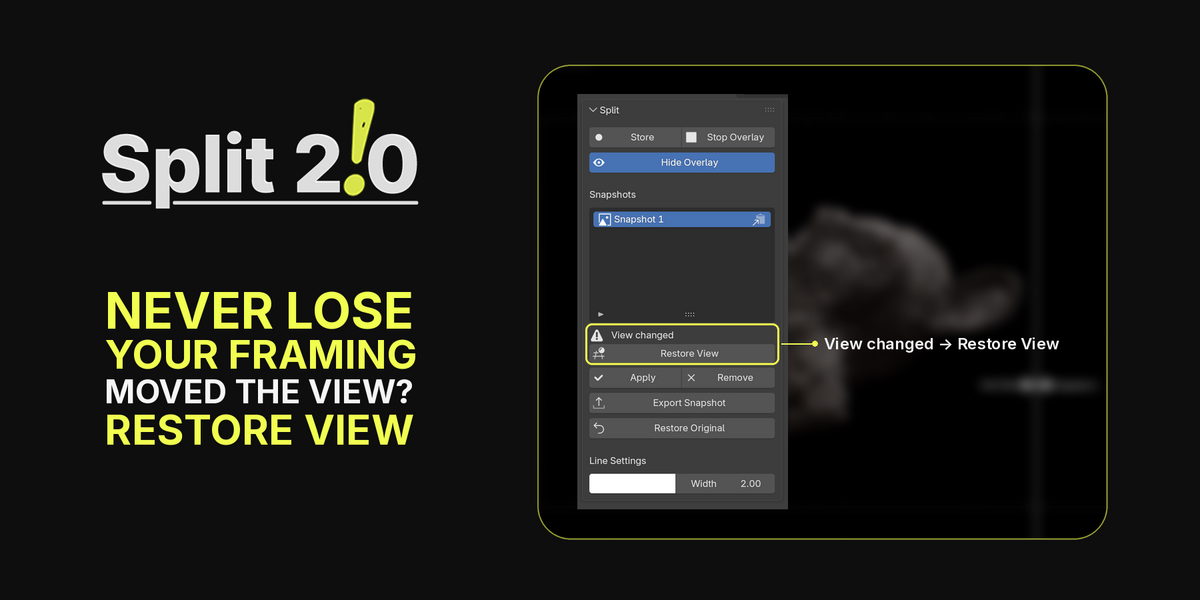
- Never lose your framing. If you've moved the view since taking a snapshot, Split warns you, and Restore View lines it back up.
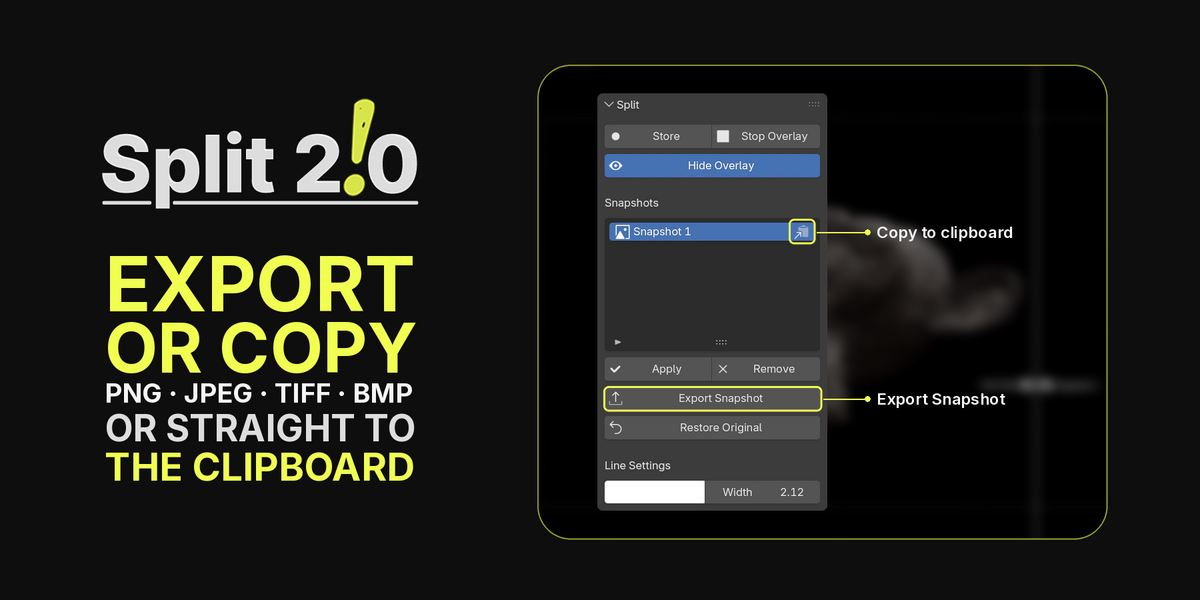
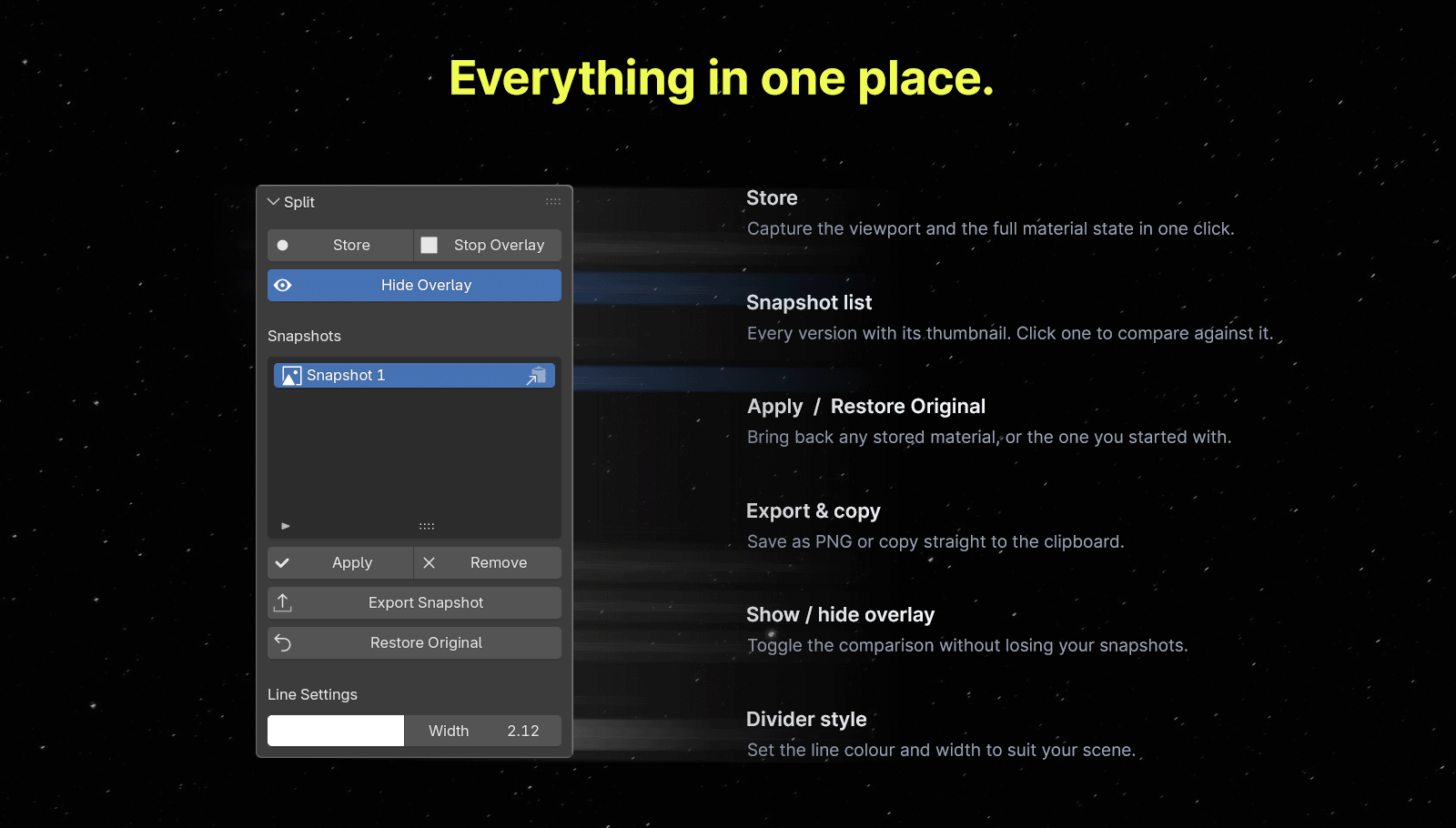
- Share your progress. Export Snapshot saves to PNG, JPEG, TIFF or BMP, or you can copy it straight to the clipboard.
- Non-destructive. No compositor nodes and no extra scene data. The overlay lives only in the viewport and never shows up in a final render.
- Works your way. Use it in camera view or free view, and set the split line's colour and width to suit your scene.
How it works
- Store. Switch the viewport to Rendered shading, open the Split tab in the N-panel, click Start Overlay, then Store.
- Change. Keep working: materials, lighting or anything else.
- Compare. Drag the split line to compare the snapshot with the live render. Like an earlier look better? Click Apply to bring its materials back.

Good to know
- Apply restores materials only (slot assignments and node trees). Lights, geometry, object transforms and world settings are not changed.
- Want to keep your latest materials before applying an older snapshot? Store a new snapshot first and you can return to it at any time.
- Click Stop Overlay when you're done, and your scene stays exactly as it is.
Compatibility
- Blender 4.5 – 5.2
- Cycles, Eevee, Octane
- Rendered Viewport Shading (camera or free view)
- GPL license
Installation
Edit → Preferences → Add-ons → Install from Disk → select the file → enable it. Then press N in the 3D Viewport and open the Split tab.
Enjoying Split? A quick rating on this page helps other artists find it, and it really helps an independent developer. Questions or ideas? Message me here anytime.