 AUER
AUER


Split3D Print: Quick Start
Install: Edit > Preferences > Get Extensions > arrow at the top right > Install from Disk... > select the zip. The panel appears in the 3D Viewport sidebar (N key) under the Split3D tab, in Object Mode.
The Panel
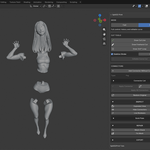
The Split3D panel has six sections: MODE, CUT TOOLS, CONNECTORS, INSPECT, REPAIR and EXPORT. A question mark at the bottom opens the video tutorial.
Modes
Fast cuts the moment you finish drawing. The pieces separate right away and the connector is live and tunable. No cut history, no curve editing.
Expert stores every cut as a red trace on the model, with the connector shown as a ghost. Nothing is cut yet: move the connector, edit the curve, change its settings, then press Apply to perform the cut. The connector stays live for a second Apply that bakes it.
Cutting
- Cut Line: click and drag a straight line across the piece. Only the part under your stroke is cut. The line does not need to end on the mesh.
- Draw Freehand Cut: draw any curve; the cut follows your hand exactly and the red trace wraps around the part so you see the full seam before cutting. A stroke stabilizer smooths the line; adjust its radius with the mouse wheel while drawing.
- Draw 360° Loop: draw all the way around the model, orbiting as you go; the line sticks to the surface. Close the loop and the cut runs exactly along it.
- Edge Loop Cut (Fast mode): click an edge and the cut follows that edge loop exactly, edge for edge.
While drawing: Ctrl for straight segments and 45° snaps, Shift for slow precision drawing, Esc cancels.
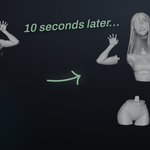
Both pieces come out capped, watertight and sharing the exact same section surface, so they mate perfectly off the printer.
Editing a Cut (Expert mode)
Editable Curve Cut turns any stored cut into a curve with handles on the surface: drag a point, Ctrl+click to add one, right-click to remove one, Done to confirm. A freehand cut becomes a surface loop you can edit all around the part. Double-click a cut in the viewport to open its editor directly.
Connectors
Every cut receives a connector: a tapered peg on one piece with its socket on the other, or facing pockets for disc magnets (standard neodymium sizes 5×2 to 10×3 mm, or custom). All sizes and the clearance are in true millimetres, whatever your scene units.
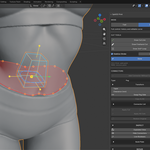
Click a connector in the viewport to select it; the panel shows its settings and a transform gizmo appears on it: arrows to slide it across the cut face, a plate for free movement, a ring to spin it, handles for depth, width and length, a cube for uniform size. A cyan and orange ghost shows both halves through the mesh, clearance included. Each gizmo drag is one undo step.
Clearance is your printing tolerance. Default is 0.5 mm; tune it to your printer and material.
Copy to All applies the selected connector's settings (type, sizes, taper, clearance) to every connector of the model. Placement and peg side stay untouched.
Add Connector Without Cut
Click anywhere on a piece to place a complete joint with no cut: the peg on the piece you clicked, the matching socket carved into the piece facing it. The facing piece is detected automatically; Set Female Side turns the cursor into an eyedropper so you can click the piece that gets the socket instead. Swap Peg Side flips the two halves. Placed connectors get the full gizmo: three arrows, a plate, three rings, size handles. Apply bakes both halves.
Mesh Check & Fix Mesh (REPAIR)
Mesh Check inspects the selected mesh and reports at the top of the viewport what would make a cut unreliable: non-manifold edges, loose vertices, dust shells. Fix Mesh repairs it: loose geometry removed, interior faces deleted, doubles merged, holes filled, normals made consistent, micro slits closed. The merge distance adapts to the mesh, so a dense sculpt never gets welded shut. Run Fix Mesh on imported STLs before cutting.
Inspect
Exploded View spreads the selected pieces apart with a live distance slider, to inspect every joint.
Build Plate: choose among 18 printer presets (Bambu Lab, Prusa, Creality, Elegoo, Anycubic, Phrozen, Voron) or a custom volume. The plate is drawn in the viewport and every piece that cannot fit is boxed in red.
Arrange Print View lays the pieces flat on the plate, slicer-style, and shows how many plates the print takes. One click in, one click out, exact positions restored.
Hide Connectors and Live Booleans toggle the ghosts and the live preview.
Export
Set the export folder once, select the pieces, click Export Pieces: one STL per piece, named after your objects, at true millimetre scale. Pending cuts and live connectors are baked into the files, and the scene comes back exactly as it was, every cut still editable. 3MF joins the format list as soon as the free 3MF extension is installed.
Tips
- Cut in the crease of a sculpt (a sleeve edge, a belt) and the seam melts into the design.
- If a cut or a connector misbehaves, run Mesh Check first: a non-manifold mesh is almost always the cause, and Fix Mesh usually settles it.
- If the loop cut reports that the part is fused all around, the surface has no free path there: draw the loop where the surface is free all around the part.
- Pieces too big for the plate are flagged in red long before your slicer finds out.
Questions, ideas, feedback: message me right here on Superhive, I answer fast.
Have questions about this product?
Login to message