StepIO | Blender Step Import & Export Add-On
 SIO Studio


STEP Import & Export 1.0.1 — Documentation
This documentation is written for the Superhive product page. It should remain available on-site rather than being replaced by an external link.
System requirements
- Blender 5.2.x
- Windows x64
- The downloaded StepIO_v1.0.1_Blender5.2_Windows_x64_Release.zip file
No separate Python, pip, FreeCAD, CAD application, account, or network connection is required.
Installation
- Download StepIO_v1.0.1_Blender5.2_Windows_x64_Release.zip. Do not extract it.
- Open Blender 5.2.
- Choose Edit → Preferences → Get Extensions.
- Open the menu in the upper-right corner and choose Install from Disk.
- Select StepIO_v1.0.1_Blender5.2_Windows_x64_Release.zip.
- Confirm that STEP Import & Export is enabled.
- Optional: open the extension preferences and confirm that STEP Core Status is Available.
After installation, the extension adds:
- File → Import → STEP (.stp/.step)
- File → Export → STEP (.stp/.step)
If Blender reports an incompatible version, install this package only in Blender 5.2.x. Builds for another Blender release series need a matching Python ABI and are not interchangeable.
Updating
- Save your current Blender files.
- Open Edit → Preferences → Get Extensions.
- Remove the previous STEP Import & Export version.
- Install the new ZIP from disk.
- Open the extension preferences and run Recheck Dependencies.
Removing or updating the extension does not delete STEP files or Blender scene files created with it.
Quick start: importing STEP
- Choose File → Import → STEP (.stp/.step).
- Select a .step or .stp file.
- Start with Geometry Quality set to Standard.
- Leave Preserve Assembly, Preserve Part Names, Instance Repeated Parts, Import Colors, Create Materials, Correct Face Orientation, Parallel Tessellation, Merge Duplicate Vertices, and Convert to Scene Units enabled.
- Click Import STEP.
- Use Home in the 3D View if the imported assembly is outside the current view.
The completion message reports the number of imported parts, assemblies, triangles, and elapsed time.
Import geometry quality
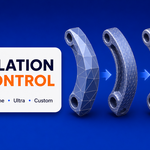
The preset values are linear deflection / angular deflection:
| Preset | Values | Suggested use |
|---|---|---|
| Fast | 1.0 / 0.5 | Large-assembly preview |
| Standard | 0.2 / 0.15 | Recommended starting point |
| Fine | 0.05 / 0.08 | Product-quality curved surfaces |
| Ultra Fine | 0.01 / 0.04 | Very dense close-up output |
| Custom | User-defined | Controlled technical workflows |
Lower deflection values generally create denser meshes. Ultra Fine can use substantially more time and memory on large models.
Import options
Geometry Precision
- Geometry Quality: chooses one of the four presets or exposes Custom values.
- Linear Deflection: maximum geometric deviation used by OCCT tessellation when Custom is selected.
- Angular Deflection: angular tessellation control when Custom is selected.
- Relative Deflection: makes linear deflection relative to shape size.
- Parallel Tessellation: allows OCCT to tessellate in parallel.
Structure
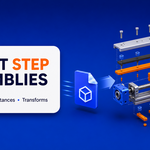
- Preserve Assembly: reconstructs the STEP assembly hierarchy as Blender collections.
- Preserve Part Names: uses XCAF names when available.
- Instance Repeated Parts: shares one Blender Mesh datablock between repeated components.
Appearance
- Import Colors: reads XCAF color assignments.
- Create Materials: creates Blender materials for imported colors.
- Correct Face Orientation: validates OCCT face orientation during extraction.
- Smooth Shading: marks the imported mesh faces for smooth shading.
Mesh
- Merge Duplicate Vertices: welds coincident vertices inside each imported part.
- Weld Distance: controls the part-local weld threshold. The default is 0.000001.
Units
- Convert to Scene Units: converts OCCT millimetres to the current Blender scene scale.
- Keep STEP Values: keeps the millimetre coordinate values supplied by OCCT.
Quick start: exporting STEP
- Select one or more mesh objects.
- Choose File → Export → STEP (.stp/.step).
- Set Export Scope to Selected Objects.
- Leave Apply Modifiers, Apply Object Transforms, Repair Simple Problems, Try to Create Solids, Export as Assembly, and Preserve Object Names enabled.
- Choose the required unit mode and STEP schema.
- Choose an output path and export.
The completion message reports exported objects, Solids, Shells, skipped objects, and elapsed time.
Export options
Export Scope
- Selected Objects: exports selected mesh objects.
- All Scene Meshes: exports every mesh object in the current scene.
Geometry
- Apply Modifiers: evaluates the modifier result without changing the source mesh or modifier stack.
- Apply Object Transforms: writes object world transforms into the exported part geometry.
- Repair Simple Problems: removes simple invalid or degenerate conditions when possible.
- Try to Create Solids: attempts closed Solid creation after sewing planar faces.
Structure
- Export as Assembly: stores exported objects as named XCAF assembly components.
- Preserve Object Names: writes object names into the STEP document.
Appearance
- Export Object Colors: writes object viewport colors.
- Export Material Colors: uses material colors when available.
Units
- Scene Units (Auto)
- Millimetres
- Centimetres
- Metres
- Inches
STEP schema
- AP203: legacy configuration-controlled design.
- AP214: automotive-oriented exchange with color support; this is the default.
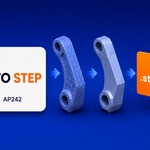
- AP242: managed model-based engineering exchange.
Sewing Tolerance
The sewing tolerance is measured in exported millimetres. The default is 0.000001. Raising it may help close very small gaps, but an excessive value can merge geometry that should remain separate.
How export geometry is created
The exporter evaluates the source mesh in a temporary context, applies the requested transform and unit conversion, triangulates the temporary mesh, creates planar Open CASCADE faces, sews those faces, and attempts to create a closed Solid.
If Solid creation is unsafe, the exporter keeps a Shell or Compound instead of inventing geometry. Source Blender meshes and modifier stacks are not replaced.
The output is faceted B-Rep STEP. It is not a conversion from polygon geometry back into analytic cylinders, fillets, NURBS surfaces, sketches, constraints, or a parametric feature tree.
Diagnostics and logs
Open Edit → Preferences → Get Extensions → STEP Import & Export.
The preferences display:
- Blender version
- Python version and ABI
- Operating system and architecture
- OCP wheel and binding version
- STEP Reader and Writer checks
- XCAF and BRepMesh checks
Use:
- Recheck Dependencies after installing or updating.
- Copy Diagnostics when opening a support request.
- Open Log Directory to find the current diagnostic log.
Logs are stored in Blender's writable user configuration directory, not inside the installed extension.
Troubleshooting
The extension is marked incompatible
This package supports Blender 5.2.x on Windows x64 only. Confirm the full Blender version and platform. Blender 5.1, 5.3, Linux, macOS, and Windows on ARM require different builds.
STEP Core Status says Load failed
Run Recheck Dependencies and Copy Diagnostics. Confirm that the ZIP was installed directly and that its contents were not manually rearranged. Include the report in a support message.
The imported model looks very small or very large
Check the Blender scene unit scale and the import Units option. STEP data is read through OCCT in millimetres. Try Convert to Scene Units first; use Keep STEP Values only when that matches the intended workflow.
Curves look faceted
Re-import with Fine or Ultra Fine, or use Custom deflection values. Smaller values create denser geometry and can increase processing time and memory use.
A large assembly imports slowly
Start with Fast quality, keep Parallel Tessellation enabled, and confirm that the result is organized correctly before using a finer preset.
Export reports a Shell instead of a Solid
Check for open boundaries, non-manifold edges, degenerate triangles, overlapping geometry, and extremely small gaps. Try Repair Simple Problems and adjust Sewing Tolerance carefully. Some polygon meshes cannot form a safe closed Solid and are intentionally retained as Shells or Compounds.
Nothing is exported
Confirm that the Export Scope matches the selection and that the target objects are Blender mesh objects. Convert curves, text, metaballs, or other object types to mesh before export when appropriate.
Colors are missing
For import, enable Import Colors and Create Materials. For export, enable Export Object Colors and Export Material Colors and use AP214 or AP242 when color exchange is required.
Privacy
The extension contains no network, telemetry, analytics, cloud-conversion, account, or upload code. STEP processing runs locally through the bundled Open CASCADE runtime.
Licensing
The extension is distributed under GPL 3.0 or later. It includes unmodified cadquery-ocp-novtk and cadquery-ocp-proxy wheels. Applicable third-party notices, source links, native-component inventories, wheel hashes, and license texts are included in the download.
Uninstallation
- Open Edit → Preferences → Get Extensions.
- Find STEP Import & Export.
- Open its menu and choose Remove.
Generated STEP files and Blender project files are not removed.
-
$35
Single User License.
-
$100
Team License, For up to 5 users.
-
$200
Studio License, For up to 10 users.
 Included
Includes 12 months of
- Support from SIO Studio
- Product updates
Extend this product’s Support Period +12 months: 50% of product price
Have questions before purchasing?
Login to message
| Blender Extension Compatible | Yes |
| Dev Fund Contributor | |
| Published | about 2 months ago |
| Blender Version | 5.2 |
| Extension Type | Add-on |
| Render Engine Used | Cycles, Eevee |
| License | GPL |
Discover more products like this
open cascade step cad assembly AP214 stp AP203 product-visualization Import-Export AP242 engineering XCAF