STL CAD Cleaner
 Sonneblom Digitaal
STL CAD Cleaner 1.0.0
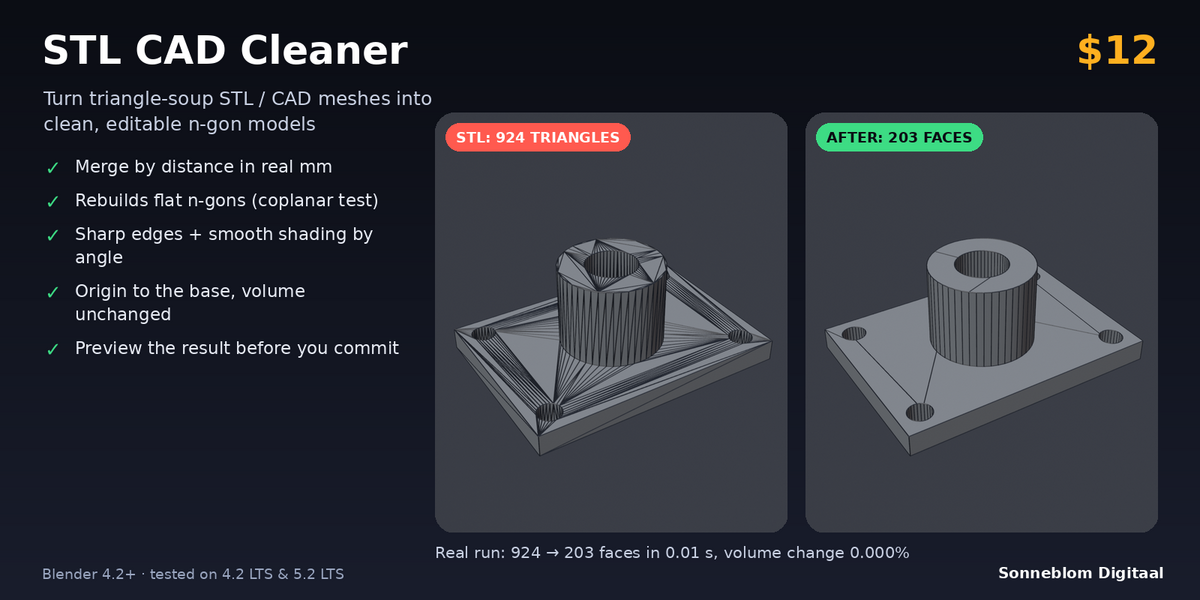
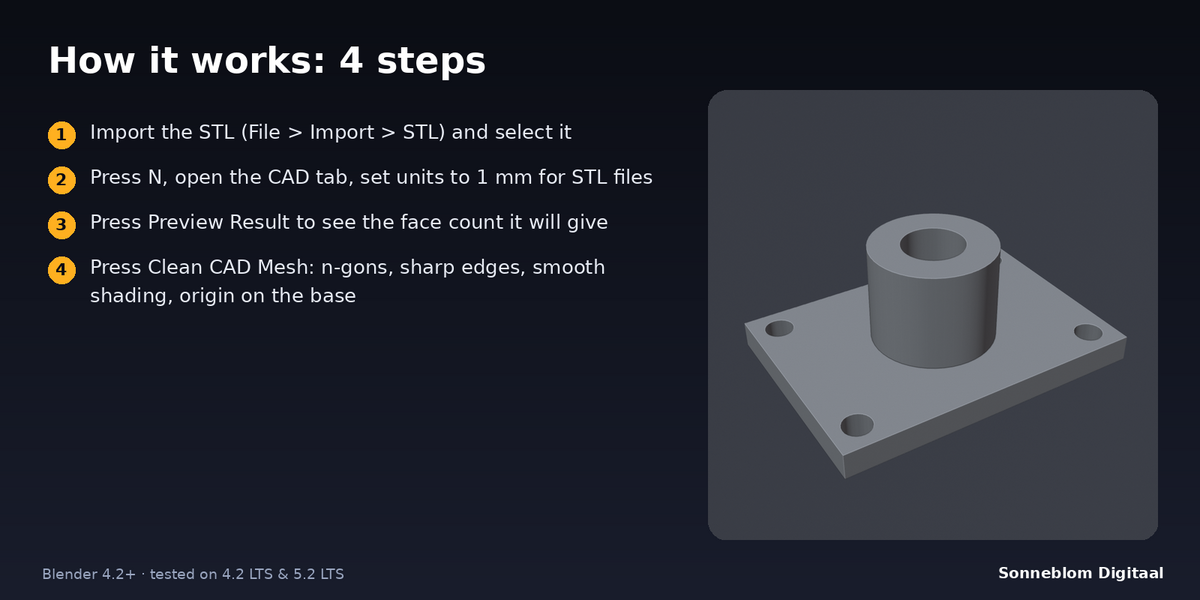
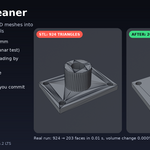
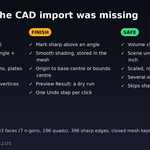
Turns triangle-soup STL and CAD meshes into clean, editable n-gon models: merge by distance, flat n-gons from coplanar triangles, sharp edges and smooth shading by angle, origin to the base. Blender 4.2 LTS or newer, tested on 4.2 LTS and 5.2 LTS.
Install
-
Extension zip (recommended):
stl_cad_cleaner-1.0.0.zip. Drag it into Blender, or go to Edit > Preferences > Get Extensions, open the drop-down at the top right and choose Install from Disk. -
Legacy zip:
stl_cad_cleaner-1.0.0-legacy.zip. Go to Edit > Preferences > Add-ons > Install from Disk, then tick STL CAD Cleaner.
The panel is in the 3D Viewport sidebar. Press N and open the CAD tab.
Clean a model, step by step
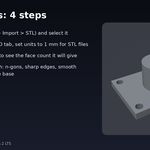
- Import your model (File > Import > STL) and select it. You can select several objects.
- Set 1 Blender unit =. STL files are almost always in millimetres, so choose 1 mm. Auto follows Scene > Units.
- Click Preview Result. The report shows how many faces, n-gons and sharp edges you would get and the volume change. Nothing is changed.
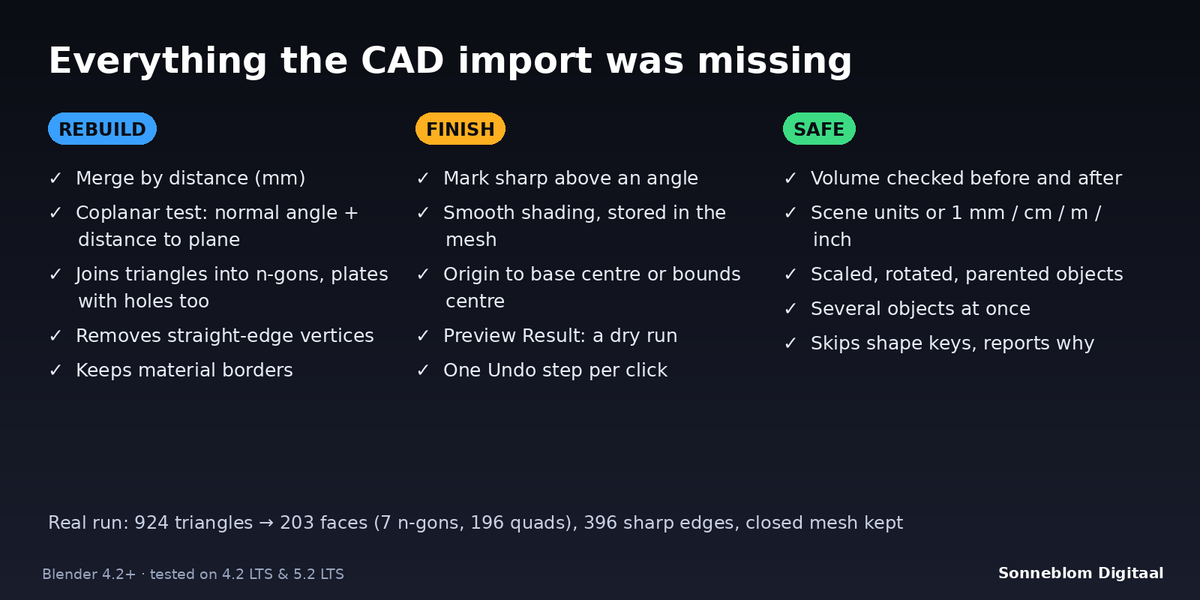
- Click Clean CAD Mesh. The mesh is welded, flat faces are rebuilt, straight-edge vertices are removed, sharp edges are marked, shading is set to smooth and the origin moves to the base. The report lists the result per object.
- Check the report: the volume of a closed mesh should read +0.000%. If it warns about a volume change, lower Distance.
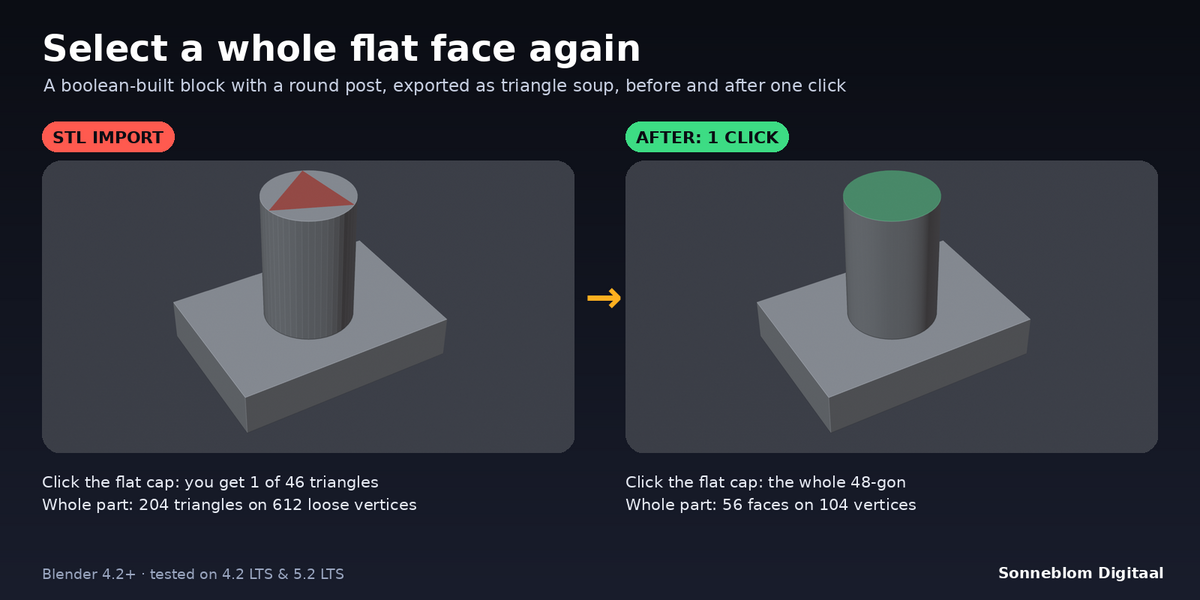
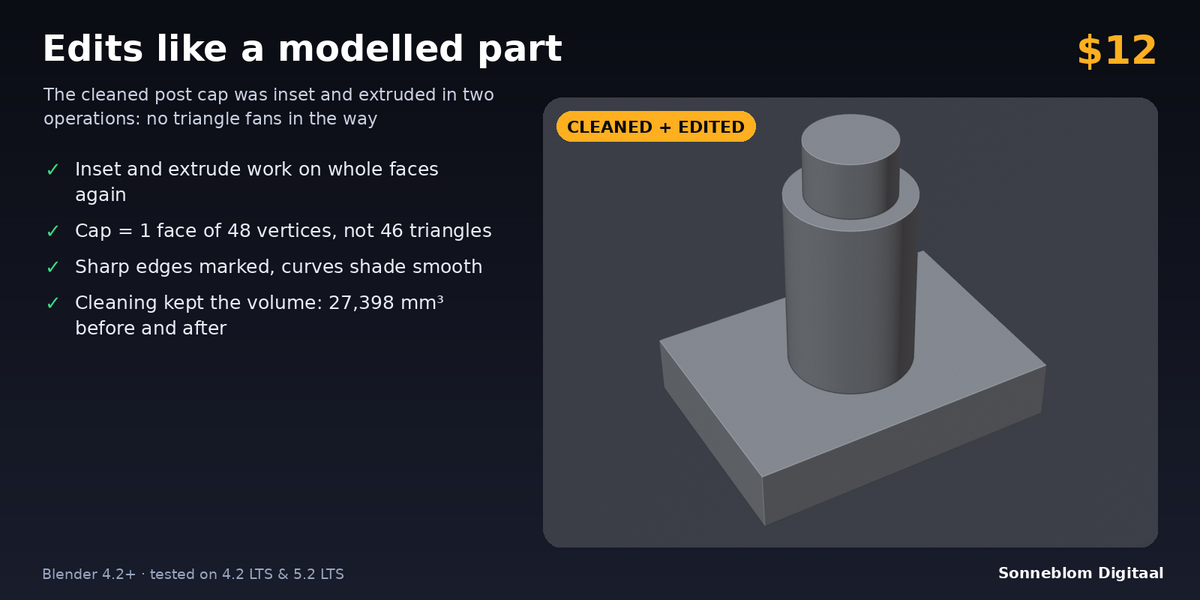
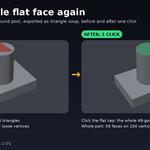
- Edit: select a whole flat face and inset, extrude or bevel it. Ctrl+Z undoes the clean in one step.
Settings
| Setting | Default | What it does |
|---|---|---|
| 1 Blender unit = | Auto (scene units) | How long one Blender unit is, so every tolerance is in real millimetres. Auto reads Scene > Units (unit scale 0.001 means 1 unit = 1 mm). Overrides: 1 mm, 1 cm, 1 m, 1 inch. |
| Merge by distance | On | Welds vertices closer together than Distance. Needed for STL files, where nothing is connected. |
| Distance (mm) | 0.01 | Welding distance in millimetres. |
| Recover flat faces | On | Joins coplanar triangles into n-gons. |
| Angle (°) | 0.5 | A triangle joins a flat face only if its normal is within this angle of the face's normal. |
| Flatness (mm) | 0.01 | Coplanar test: every vertex of a joined triangle must be within this distance of the face's plane. Also the most a straight outline can move. |
| Keep material borders | On | Never joins faces with different materials. |
| Remove straight-edge vertices | On | Dissolves vertices that only sit on a straight edge, within Flatness. |
| Mark sharp edges | On | Marks edges between faces that differ by more than the angle below as sharp; all other edges are cleared. Off keeps your existing marks. |
| Sharp above (°) | 30 | The sharp-edge angle. |
| Smooth shading | On | Sets every face to smooth shading. With the sharp edges this equals Shade Smooth by Angle, stored in the mesh. |
| Origin | Base centre | Base centre = centre of the bounding box at its lowest point. Bounds centre, or Keep as is. The geometry stays where it is in the scene. |
Tips
- Use Preview Result first on a new kind of file: if the face count barely drops, the surface is not really flat (a scan or a sculpt) and this add-on is the wrong tool.
- Noisy export (vertices off by a few thousandths of a millimetre)? Raise Distance to 0.02 and Flatness to 0.05.
- Very fine round parts (thousands of facets): lower Angle to 0.1 and Flatness to 0.001 to keep every facet.
- Keep a copy of the original if you may want it back: Clean CAD Mesh changes the mesh itself.
Limits
- Works on the base mesh; modifiers are not applied. Meshes with shape keys and zero-scale objects are skipped and the report says why.
- A face with a hole cannot exist in Blender, so a plate top with holes becomes several n-gons around the holes.
- Curved surfaces are not turned into one smooth surface: they stay as strips of faces. Facets closer together than Angle may merge, never moving the surface more than Flatness.
- No hole filling, no repair, no remeshing. UV maps and vertex weights are not kept for welded corners (STL files have none).
- Mark sharp edges replaces existing sharp marks. A mesh shared with unselected objects is cleaned for all of them and its origin is left alone.
Troubleshooting
- Nothing changed (the face count stays the same): the units are probably wrong. Set 1 Blender unit = 1 mm.
- Face count only dropped a little: the surface is curved or noisy; see Tips.
- Report says "not watertight": the model has holes. The clean still works; use a repair tool such as Print Fix first if you need a closed mesh.
Uninstall
Edit > Preferences > Get Extensions (or Add-ons), find STL CAD Cleaner and remove it. Your cleaned meshes stay as they are.
Licence
GPL-3.0-or-later. Copyright Sonneblom Digitaal.
Changelog
1.0.0: first release.
Have questions about this product?
Login to message
| Blender Extension Compatible | Yes |
| Published | about 9 hours ago |
| Blender Version | 4.2 - 5.2 |
| Extension Type | Add-on |
| License | GPL |
Discover more products like this
remix mesh cleanup cad printables N-gons STL 3d printing smooth by angle