Storyboard Lite for Blender — Visual Storyboard Timeline (2D/3D)
 Click & Snap



Storyboard Lite for Blender — Documentation
by Click & Snap — Plan the shot, tell the story.
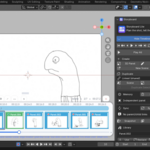
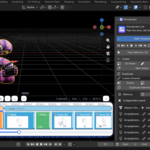
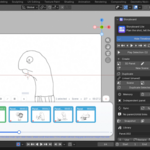
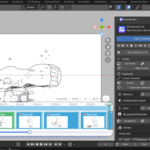
Storyboard Lite turns Blender into a lightweight storyboarding and previz workspace. Shots live as visual panels on an interactive GPU timeline drawn right inside the 3D viewport. Every panel is a real Blender scene — so a panel can be a full 3D set-up with a camera, or a 2D Grease Pencil drawing on a white canvas. Duplicate a shot, keep shared elements in sync across panels, set statuses, and play the whole board back as an animatic.
Requirements
| Blender | 4.2 LTS or newer |
| Platforms | Windows, macOS, Linux |
| Dependencies | None — pure Blender Python + GPU module |
| License | GPL-3.0-or-later |
Installation
- Edit → Preferences → Add-ons → Install…
- Select the downloaded
.zip. - Enable Storyboard Lite in the add-on list.
- Press N in the 3D viewport and open the Storyboard tab.
On Blender 4.2+ the package also installs as a proper extension via blender_manifest.toml.
Quick start (2 minutes)
- Open the Storyboard tab in the sidebar and press Enable Storyboard. On an empty board your current Blender scene becomes the first scene and the first panel — the timeline is never empty.
- Press 3D Panel or 2D in the Create block to add your next shot.
- Block out the shot in the viewport, then press Snapshot to put a thumbnail on the card.
- Right-click a clip on the timeline to set its status and colour.
- Press Play to watch the board as an animatic.
The timeline
The board is drawn with the GPU directly over the viewport: a row of scene bands with panel cards inside them. Each card shows its thumbnail, name, status dot, clip colour and duration. The active panel is clearly outlined.
The timeline works in Object Mode and in Grease Pencil Draw Mode — you can sketch a 2D panel and jump between shots without leaving your brush. In Sculpt / Edit / Paint modes it hides itself and passes all events through, so it never blocks your tools.
Controls
| Action | Result |
|---|---|
| Left-click a card | Switch to that panel |
| Drag a card | Reorder it, or move it into another scene |
| Ctrl / Shift + click | Add to the selection (multi-panel operations) |
| Wheel | Scroll the board |
| Shift + Wheel | Scroll faster |
| Ctrl + Wheel | Zoom in / out |
| Middle-mouse drag | Pan |
| Right-click a card | Panel menu — rename, status, colour, duplicate, delete, move |
| Right-click a scene band | Scene menu — rename, delete, return hidden scenes |
Showing and hiding the board
- The SB button in the left toolbar (Object Mode and Grease Pencil Draw Mode) is a plain on/off switch. Toggling it restores your previous tool automatically, per mode — Object Mode bounces back to Move/Select, Draw Mode back to your brush.
- The sidebar has a Show / Hide Timeline toggle as well.
Panels and scenes
3D panel — a normal scene with a perspective camera, for blocking real geometry.
2D panel — a front-orthographic camera plus a Grease Pencil object on a white canvas, matching Blender's native 2D Animation template (white world in viewport and render, Standard view transform). Switching back to a 3D panel restores your normal theme background.
Creating and arranging
-
3D Panel/2D— add a panel after the current one. -
New Scene— start a new scene band. - Right-click a card to insert a panel to the left or to the right of it.
- Arrows in the sidebar move a panel within its scene; the export arrow moves it to another scene.
- Pencil icons next to any scene header or panel row rename it. Renames are safe: thumbnails follow the panel by a stable internal id, sync links are re-pointed, and the shared collection is renamed with its scene.
- The eye icon on a scene header hides a whole scene from the board (panels are kept). Return hidden scene in any scene right-click menu brings it back.
Duration — set per panel in seconds or frames in the Active Panel block. The board total is shown in the sidebar.
Duplicate and parent → child sync
Duplicating is where the add-on saves the most time. Pick a mode before duplicating:
- Linked (shared) — the copy shares data with the original. Light on memory, and the two panels stay connected.
- Independent (full copy) — a deep copy with no links back.
With a linked duplicate, the original becomes the parent and the copy a child:
- Objects you create in a child stay local until you explicitly add them to the parent.
- New objects from the parent arrive in the child's inbox — show or discard them.
- Sync now pushes the current state through the link; Also push my new objects to the parent makes the link two-way.
- Make independent cuts the link at any time.
Object manager
The Active Panel block lists every object in the current panel with its state:
| State | Meaning |
|---|---|
| Shared | Lives on the shared stage — edits reach every linked panel |
| Local | Belongs to this panel only |
| Detached | Was shared, now an independent copy in this panel |
| Hidden | Kept but not visible in this panel |
Act on one object or on several selected at once, with precise delete scopes (this panel / everywhere). Purge clears unused datablocks when a board grows large.
Snapshots
Thumbnails are manual only — nothing re-renders behind your back and slows you down.
- Snapshot — render a thumbnail for the current panel.
- All — re-render thumbnails for the whole board.
Snapshots are written to a temp file first and published only once fully on disk, so a redraw mid-render can never leave you with a black card; on any failure the previous thumbnail stays. Thumbnails survive renames and the first save of a new .blend.
Statuses, colours and playback
Each panel carries a production status — To do, In progress, Done — shown as a dot on the card, plus a clip colour you choose freely. Both are set from the right-click menu or the sidebar.
Playback turns the board into an animatic: it switches scenes in real time according to each panel's duration.
- Play — plays the selection, or the whole board if nothing is selected.
- Play all — always plays everything.
- Loop — repeat.
- Navigation buttons jump to first / previous scene / previous panel / next panel / next scene / last.
Template library
Save any scene as a reusable template — a lighting rig, a 2D canvas set-up, a standard room:
- Save current scene as new — adds it to the library.
- Use — insert the template as a new panel.
- Replace — overwrite an existing template.
- Delete — remove it.
- The folder button opens the template directory on disk, so templates can be backed up or shared between projects.
Templates are also available from the right-click menu on the timeline when creating a panel.
Sidebar reference
| Block | Contents |
|---|---|
| Storyboard | Enable / hide the timeline, navigation and playback bar, Create, Duplicate, Memory / Purge |
| Scenes & Panels | The scrollable list of scenes and panels, view switch, per-row rename / move / duplicate / delete |
| Active Panel | Duration, status, colour, camera, snapshot, object manager, sync controls, template library |
Tips
- Work with Linked duplicates while blocking and switch a panel to independent only when it truly diverges — boards stay small and fast.
- Take snapshots at the end of a blocking pass rather than after every tweak.
- Colour-code by sequence or by department; the colour is yours to define.
- Keep the timeline visible while drawing in 2D — switching shots mid-sketch is the whole point.
FAQ
Does this work with the Video Sequence Editor? No. Storyboard Lite draws its own GPU timeline over the 3D viewport and works with real Blender scenes, not VSE strips.
Do panels render? Yes — every panel is a normal scene with its own camera, so you render it exactly as you would any Blender scene.
Does it work with Grease Pencil v3? Yes. Both GPv3 (Blender 4.3+) and legacy Grease Pencil are supported.
Can I use non-Latin names? Yes. Cyrillic and other non-ASCII names are handled throughout.
Will my thumbnails survive renaming or saving? Yes. Every panel has a stable internal id and its thumbnail file follows it; thumbnails made before the first save are migrated when you save.
Is the timeline in the way while sculpting? No. Outside Object Mode and Draw Mode it hides itself and passes every event through.
Lite vs Pro
Storyboard Lite is the light edition: the GPU board, 2D/3D panels, scenes, duplicate and sync, the object manager, statuses, template library and animatic playback.
Storyboard Pro adds a Toon Boom-style script mode with Dialogue / Action / Slugging / Notes tracks, the storyboard sheet and thumbnail views, casting (locations, characters, props), asset libraries and direct model import.
Support
Questions, bug reports and feature requests are welcome through the product page on Blender Market. Please include your Blender version, OS and — where relevant — the console output.
© Click & Snap. Released under GPL-3.0-or-later.
Have questions about this product?
Login to message
| Blender Extension Compatible | Yes |
| Published | 2 months ago |
| Blender Version | 4.2 - 5.1 |
| Extension Type | Add-on |
| Render Engine Used | Cycles, Eevee |
| License | GPL |

Discover more products like this
2d animation filmmaking previsualization previz timeline scene-manager Grease Pencil storyboard Storyboarding animatic panels shot planning