 Achat
Achat
INSTALLATION
Blender 4.2 and newer: Edit > Preferences > Get Extensions > Install from Disk, and pick the downloaded .zip (or drag it into Blender). The panel is in the 3D Viewport sidebar (N), tab Strobe Studio.
QUICK START
- Set each light to the power it should reach at full flash.
- Select the lights.

- In the 3D Viewport sidebar (N), tab Strobe Studio, click Apply Strobe to Selected Lights.
- Press Space to play. Drag Strength, Scale or the variation sliders: the selected lights follow.
SHAPE
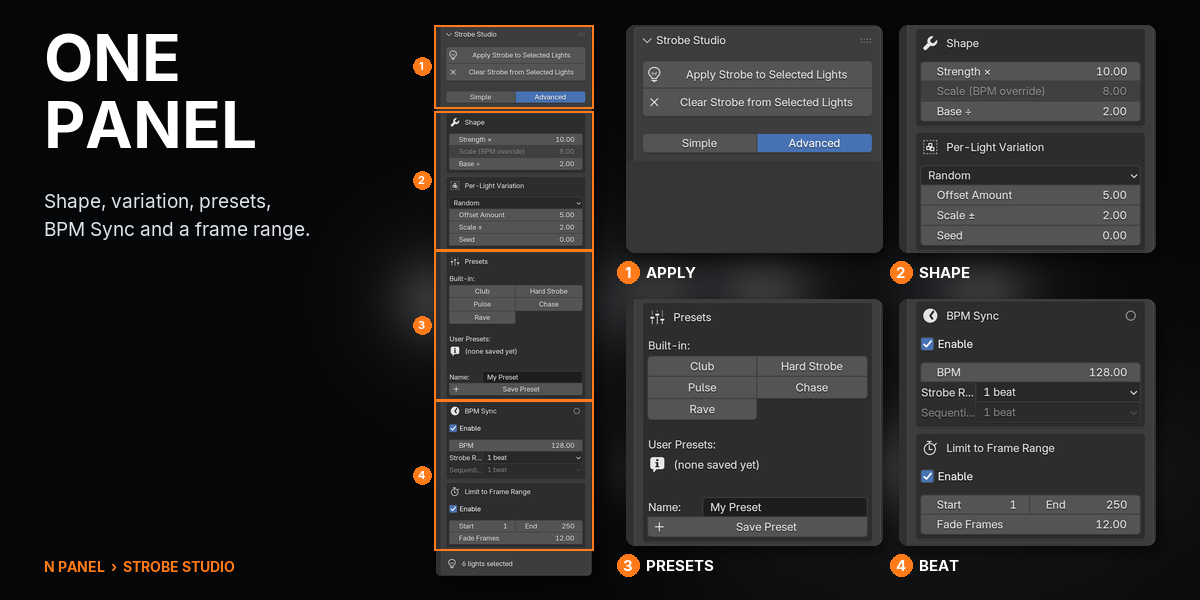

- Strength: how hard the light flickers, as a multiple of its power. Default 10.
- Scale: the noise speed. Lower is a faster strobe. Default 8.
- Base: the keyframed power is the light's power divided by this. Default 2.
PER-LIGHT VARIATION

- None: every light flashes together.
- Random: each light gets its own offset, and Scale ± spreads the speed. Seed picks another pattern.
- Sequential: Offset Amount steps along the selection, so the flash runs like a chase.
ADVANCED

- Presets: Club, Hard Strobe, Pulse, Chase, Rave. Save Preset stores your own; they stay in your Blender config folder.
- BPM Sync: BPM, Strobe Rate (1/16 to 4 beats) and Sequential Step. It overrides Scale, and the Sequential offset in Sequential mode. A dot blinks on the beat while you play.
- Limit to Frame Range: Start, End and Fade Frames. Outside the range the light holds its keyframed power.
FEATURES
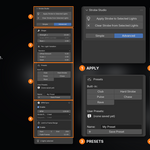
1SELECT THE LIGHTS, CLICK APPLY

Select your lights and click Apply Strobe to Selected Lights. Each one flickers between dark and the power you set, with its own offset so they never flash in lockstep.

2TOGETHER, RANDOM OR A CHASE
None flashes every light together. Random gives each light its own offset and speed. Sequential steps the offset along the selection, so the flash runs down the row like a chase.

3FIVE PRESETS, AND YOUR OWN
Club, Hard Strobe, Pulse, Chase and Rave are one click each. Save your own settings as a preset; they stay in your Blender config and survive reinstalls.
4LOCKED TO YOUR TEMPO
Type your track's BPM and BPM Sync sets the strobe speed from it, with a blinking beat dot while you play. Every slider updates the selected lights live.
GOOD TO KNOW
- Set each light to its full power before you click Apply: that power becomes the strobe's maximum.
- Lights with zero power are skipped.
- BPM Sync sets the strobe's speed from the tempo; Blender's noise does not land a flash on every exact beat. Treat it as a starting point and nudge Scale by ear.
- Apply replaces its own earlier setup on a light instead of stacking; keyframes and modifiers you added yourself stay.
- Clear leaves an empty action on the light's data. It does nothing and can stay.
HOW IT WORKS
For every selected light, Apply notes its power, keys the power at that value divided by Base, adds a Noise F-curve modifier for the flicker and a Limits modifier that keeps it between 0 and the noted power. It is all standard Blender animation.
SUPPORT
Email [email protected].
Have questions about this product?
Login to message
| Blender Extension Compatible | Yes |
| Published | 1 day ago |
| Blender Version | 4.2 - 5.2 |
| Extension Type | Add-on |
| Render Engine Used | Cycles, Eevee |
| License | GPL |
Discover more products like this
animation motion graphics bpm lights Strobe concert music video flicker Lighting Club Light animation Stage Lighting