 blenderVfxMaster


SuperBake Pro
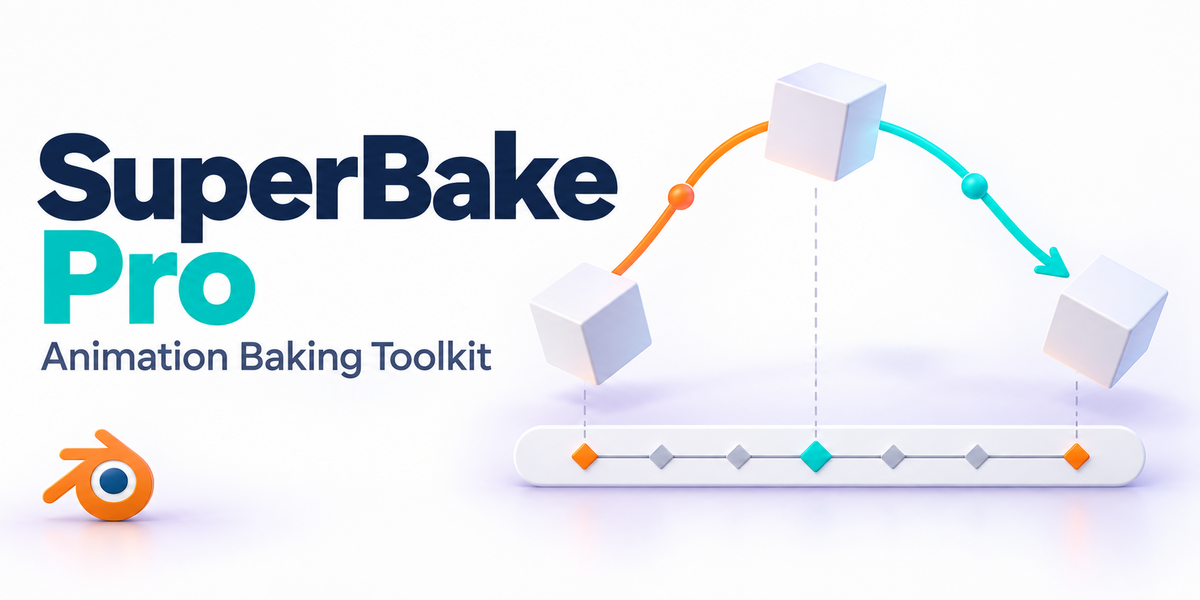
A scene can play perfectly in Blender and still lose motion when you export it. SuperBake turns supported parenting, constraint and driver motion into keyframes for delivery. Choose what to bake, set the frame range, then compare the result with your original scene.
Cover illustration. The screenshots and previews below are labelled separately.
Before and after the bake
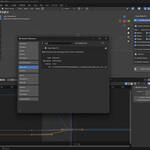
Compare the source curves with the baked keyframes, then play the motion back.

BEFORE / AFTER · View full size ↗
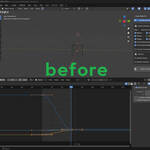
Before baking
Here are the original animation setup and curves. Keep this source state so you have something to compare the bake against.

BEFORE / AFTER · View full size ↗
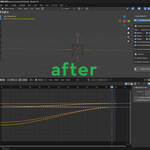
After baking
The resulting keyframes are visible in the after view. Play the same frames in both versions to check that the motion has carried over.
What SuperBake handles
Here’s what you can do with it.
Bake the motion you see
Bake supported keyframed, constraint-driven and driver-driven animation. When parent and child objects contribute to the motion, compare their movement before and after the bake.
Choose which objects to bake
Bake selected objects, visible objects or the full scene. If nothing is selected, the described fallback is scene mode, so check the scope before starting a big job.
Keep track of children, cameras and lights
Use the options for child animation and parented cameras or lights when your shot needs them. Test the particular relationships in your scene rather than relying only on a simple example.
Set the frame range and shape-key options
Choose the start and end frames you need, and enable shape-key handling where appropriate. Use the same range when comparing the original and baked animation.
Decide which attributes to keep
Choose whether to retain materials, vertex colours and tangent data. These settings are separate from baking the motion, so set both parts of the job deliberately.
Keep the results organised
Baked results receive a suffix, and the tool includes hierarchy-reconstruction and naming controls. Check the object structure after the bake, not just the animation curves.
Rename data when you need to
Optional utilities rename objects, data blocks, materials and animation data. You can use them separately; renaming is not something every bake needs.
Work with different object types
The toolset covers meshes, curves, surfaces, metaballs, text, armatures, empties, cameras and lights. Check the properties your shot actually uses—especially when external simulations are involved.
Follow progress and handle errors
Progress, validation and error messages help you see what’s happening. Keep a duplicate project even when recovery options are available; don’t make recovery your only backup.
Test the part that matters
NLA, custom rigs, scripts and external simulations can need extra preparation. Start with a representative shot and compare playback before using the baked scene for delivery.
The baking panel
BLENDER PREFERENCES · View full size ↗
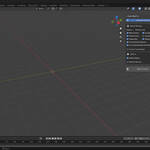
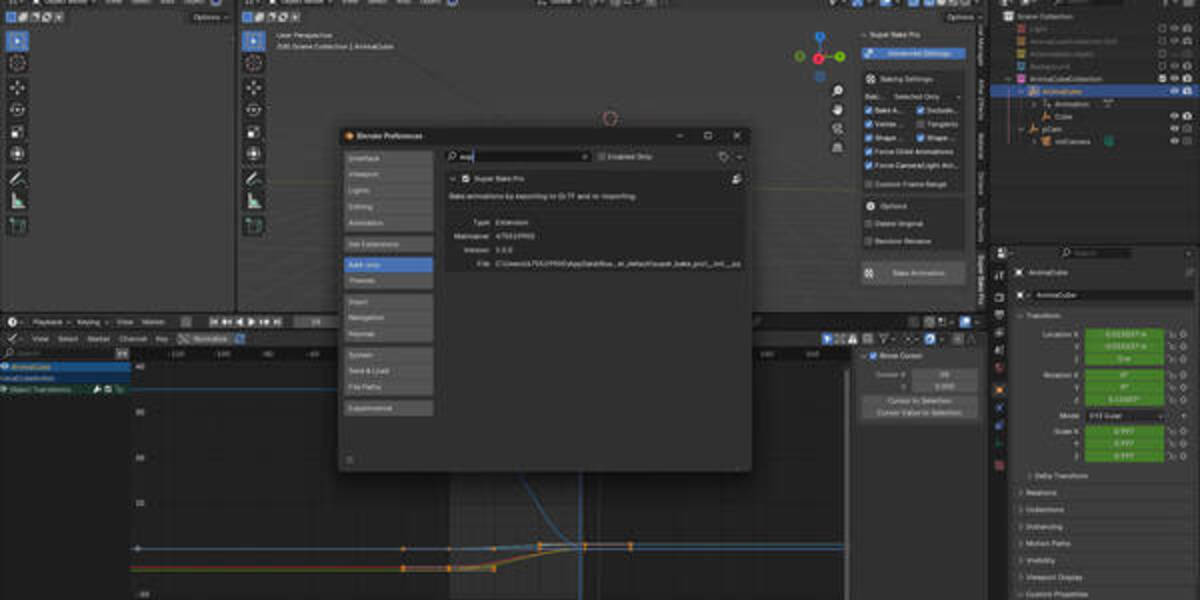
The add-on in Preferences
This is SuperBake’s installed entry. The before-and-after pair shows the animation data separately.
CONTROLS · View full size ↗
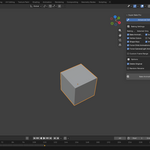
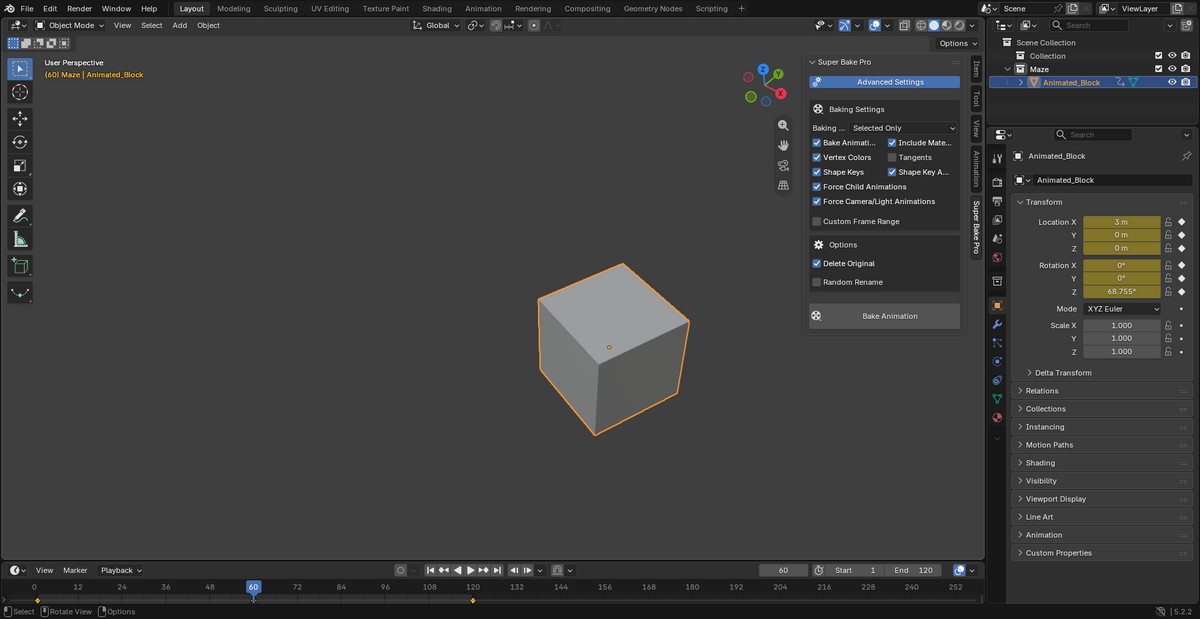
Choose what to bake and keep
The panel includes scope, attributes, shape-key, child-animation and frame-range options. This cube scene shows the interface only; it is not an example of a completed bake.
Bake a shot, then compare it
-
01
Save a copy and pick a representative shot.
-
02
Choose the objects or scene scope and set the frame range.
-
03
Set the child, camera/light, shape-key and attribute options you need.
-
04
Bake and look through the resulting animation data.
-
05
Compare playback and hierarchy before exporting or handing off the scene.
Before you bake
- Official Blender 3.0+ releases.
- Windows, macOS and Linux.
- Beta, alpha, release-candidate and customised builds are not covered.
- Keep the source project and test a representative shot first.
How do I know the bake worked?
Play the same frame range in the original and baked scenes. Check the parented objects, cameras and other relationships used by your shot.
Should I start with the whole project?
Start smaller. A representative shot is a better first test, and you should keep the original project either way.