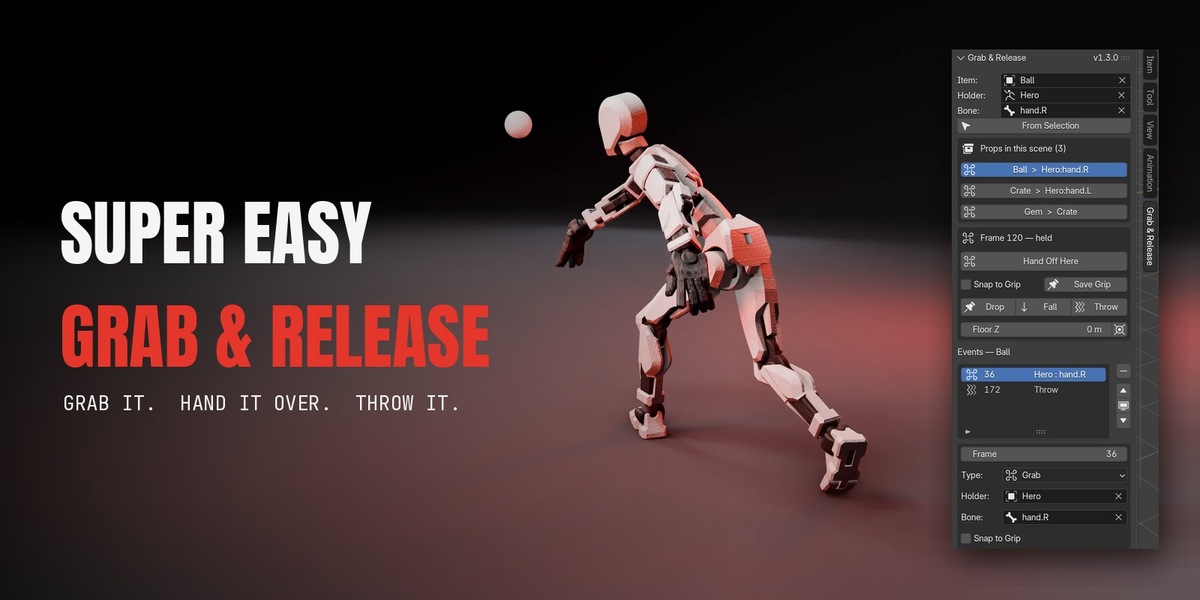
Super Easy Grab & Release
 Make It Move Media

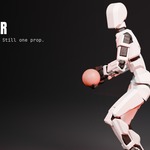
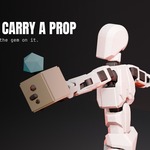
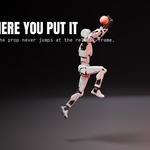
Installation
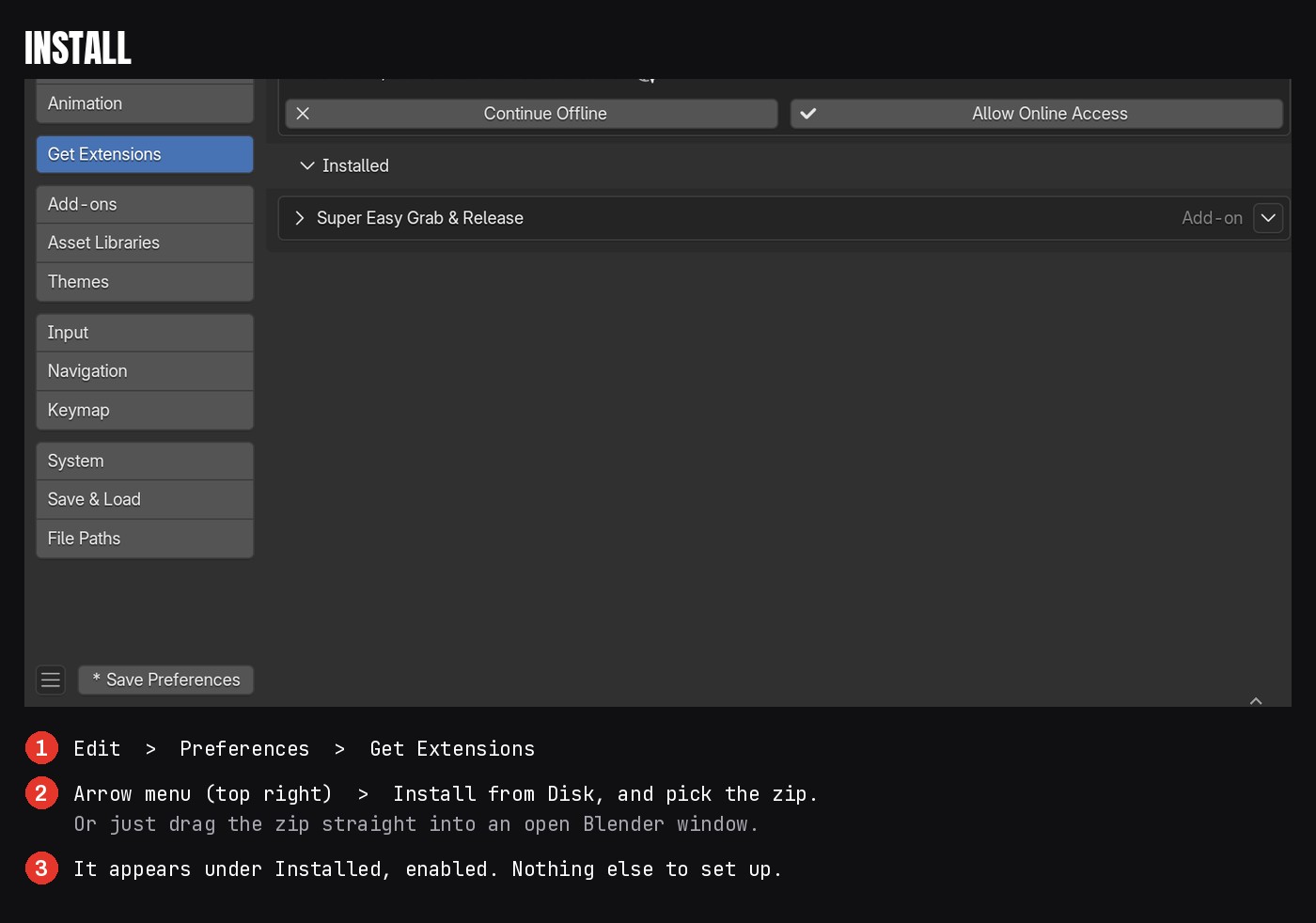
- Download mmm_grab_release-1.3.0.zip from your Superhive library. Do not unzip it.
- Drag the zip into an open Blender window. Blender installs and enables it. If you prefer menus: Edit > Preferences > Add-ons > the drop-down at the top right > Install from Disk, then pick the zip.
- When Blender offers to add Superhive as a remote repository, accept it. That is how you get later versions through Get Extensions.
- Open the 3D viewport sidebar with N and click the Grab & Release tab. The panel header shows the version, so you can tell at a glance which one you are on.
To update later: Edit > Preferences > Get Extensions > Check for Updates, or install the new zip over the old one.
The panel
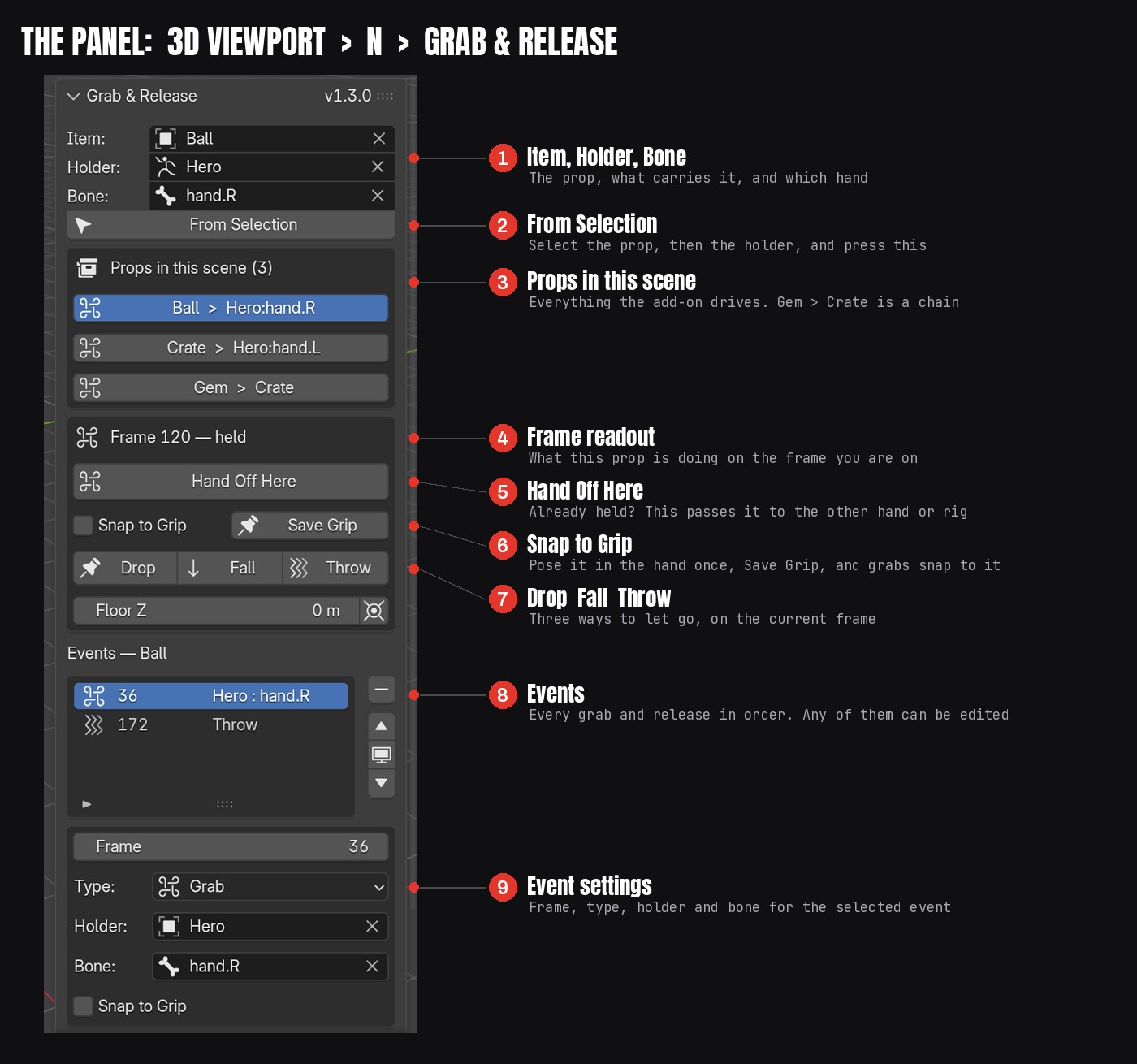
| Control | What it does |
|---|---|
| Props in this scene | Every prop with grabs. Click one to work on it. Shows who holds it at the current frame, and a warning icon when edits are waiting |
| Item | The prop being carried |
| Holder | The rig, object or carrier prop that holds it |
| Bone | The hand bone, when the holder is a rig. Leave empty to use the whole object |
| From Selection | Reads Item, Holder and Bone from your selection and the active bone |
| Grab Here / Hand Off Here | Takes the prop at the current frame. Reads Hand Off Here while it is already held |
| Snap to Grip | New grabs put the prop in the saved grip pose instead of keeping its current offset |
| Save Grip | Stores the prop's pose in the current hand, per holder and bone |
| Drop / Fall / Throw | Releases at the current frame |
| Floor Z | The height falls and throws land on. The button beside it takes the 3D cursor's height |
| Events | Every grab and release for this prop, with the details of the selected one |
| Rebuild | Regenerates everything from the list. Red while edits are waiting |
| Update All | Rebuilds every prop in the scene |
| Bake & Clean | Bakes the scene range to plain keyframes and removes the setup |
| Clear All | Removes this prop's events and everything made from them |
| Timeline Markers | Marks each grab and release on the timeline |
Quick start
A character picks up a sword and throws it.
- Point the panel at the prop and the hand. Click the sword, shift-click the rig so it is active, drop into Pose Mode and click the hand bone, then press From Selection. Or set Item, Holder and Bone by hand in the panel.
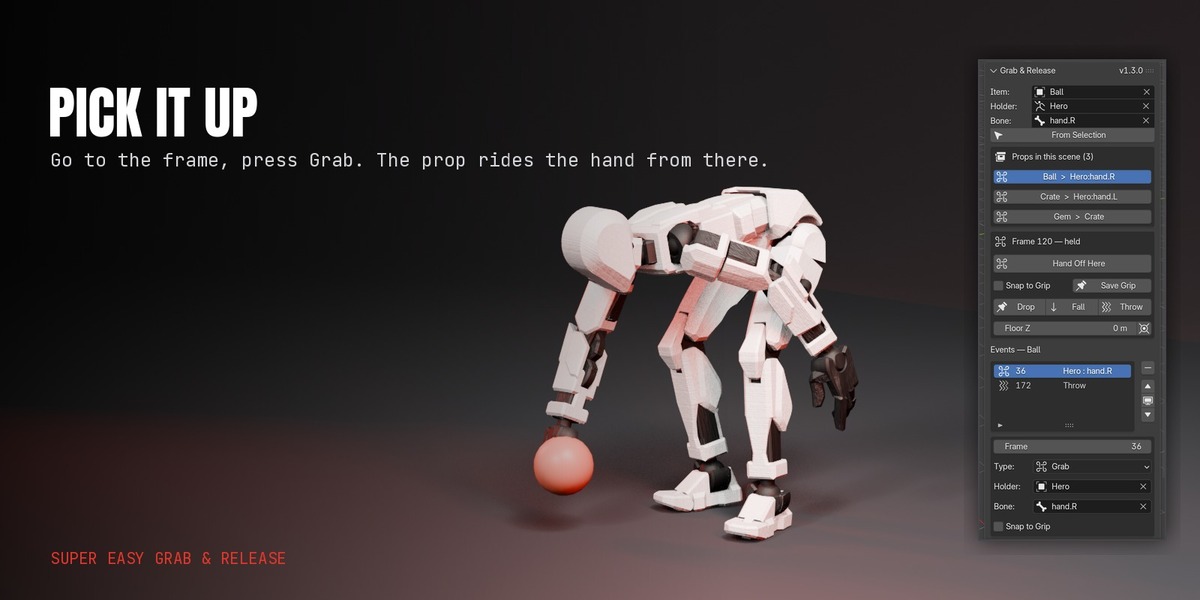
- Go to the frame where the hand reaches the sword and press Grab Here. The sword stays exactly where it is and follows the hand from that frame on.
- Scrub forward. If the sword should sit differently in the hand, pose it there once, press Save Grip, tick Snap to Grip and press Rebuild.
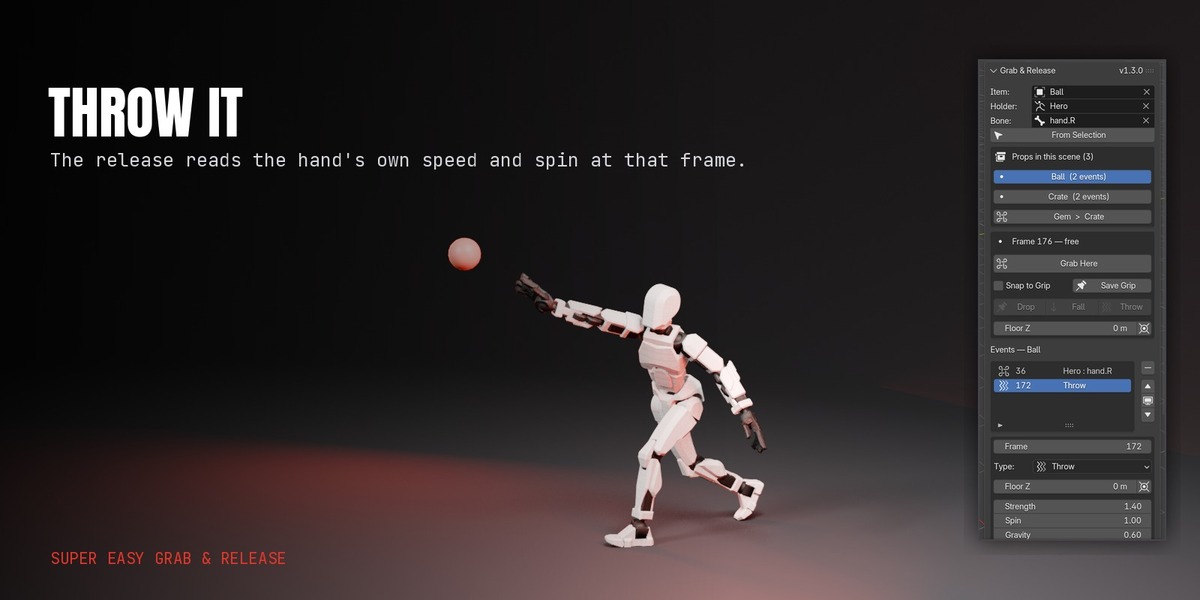
- Go to the release frame and press Throw. The sword leaves the hand with the hand's own speed and spin and arcs to the floor.
- Tune the throw. Select the throw row in the Events list and adjust Strength, Spin, Gravity, Bounces or Floor Z. Lower Gravity if the fall looks too fast for a figure-scale set. Press the floor button beside Floor Z to take the height from the 3D cursor.
- Changed the shot? Edit the frame numbers in the Events list and press Rebuild. The button turns red while edits are waiting.
- Done? Press Bake & Clean to leave plain keyframes and no setup behind.
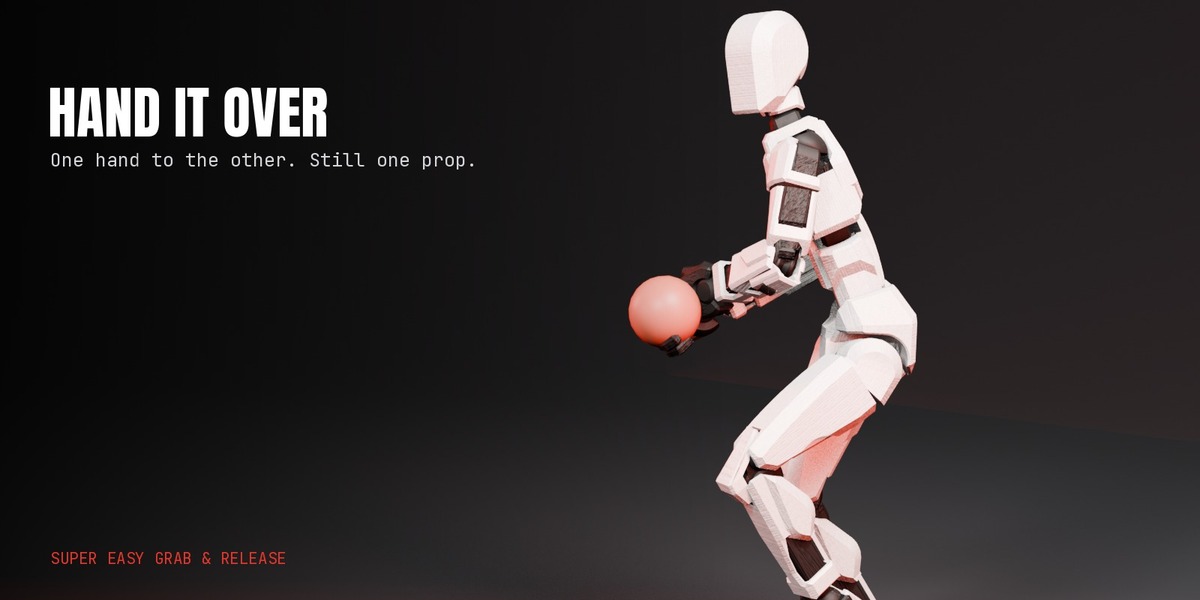
For a hand-off instead of a throw: while the prop is held, pick the other hand (or another character) and press the same button — it reads Hand Off Here at that point.
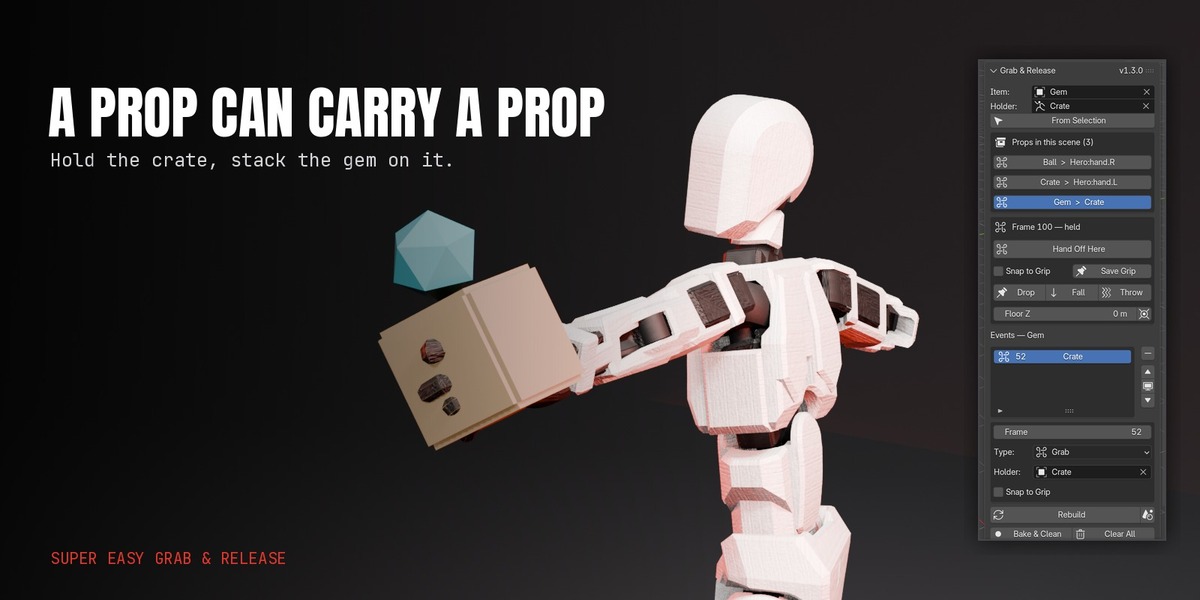
For a prop carried by a prop: set the carrier prop as the Holder and leave Bone empty.
Four ways to let go
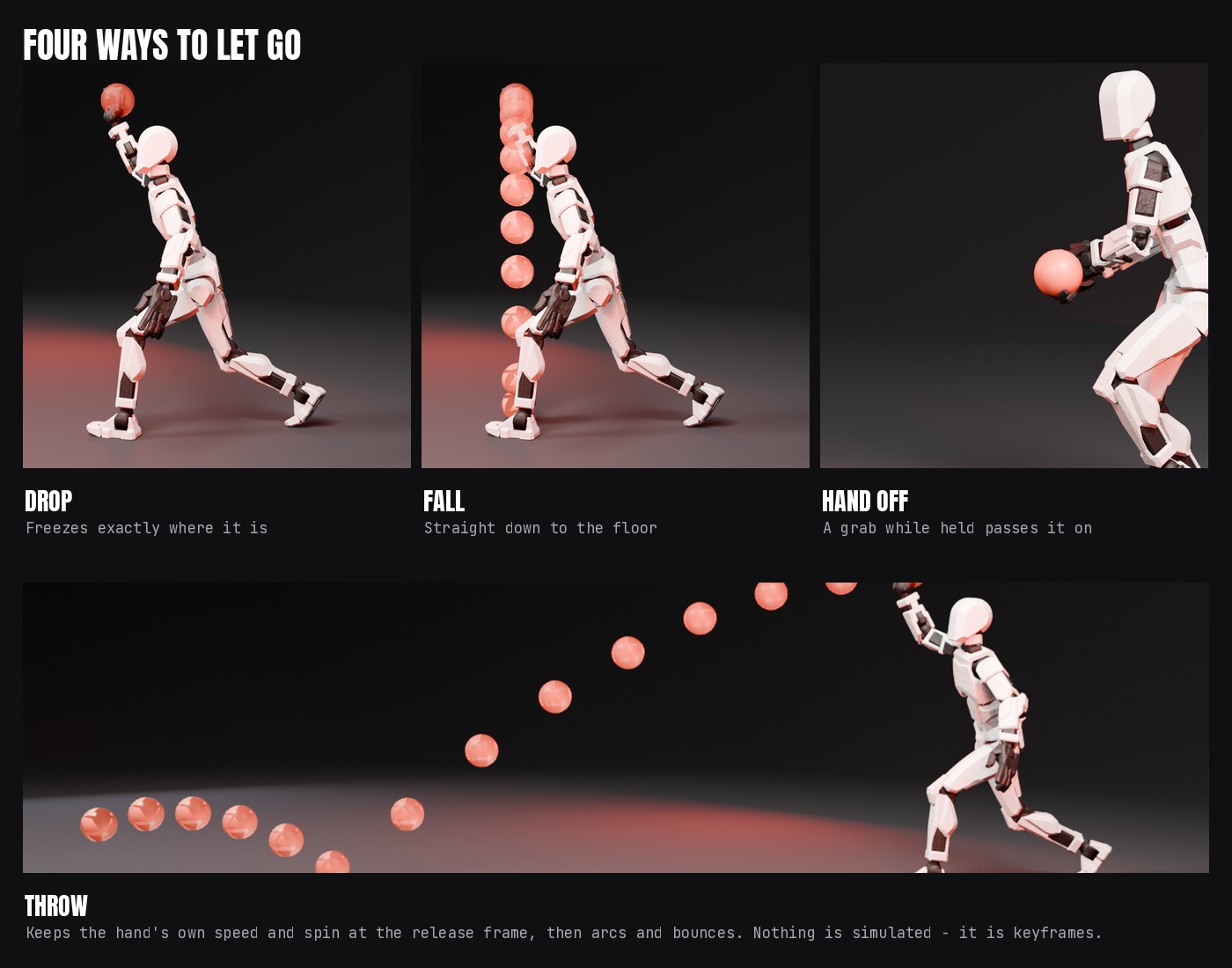
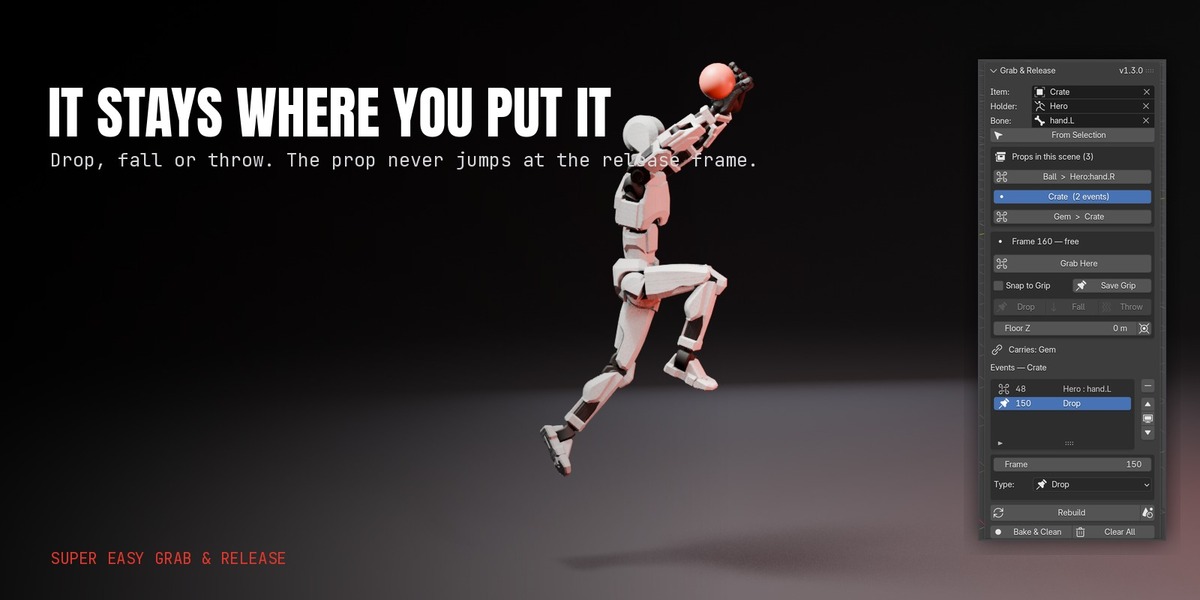
Drop freezes the prop exactly where the hand released it. Fall keyframes a drop to the floor height you set, with bounces and a settle. Throw reads the hand's real speed and spin at the release frame and keys the arc from it. Hand off passes it straight to another hand, another character or a vehicle without the prop ever being free.
The grip
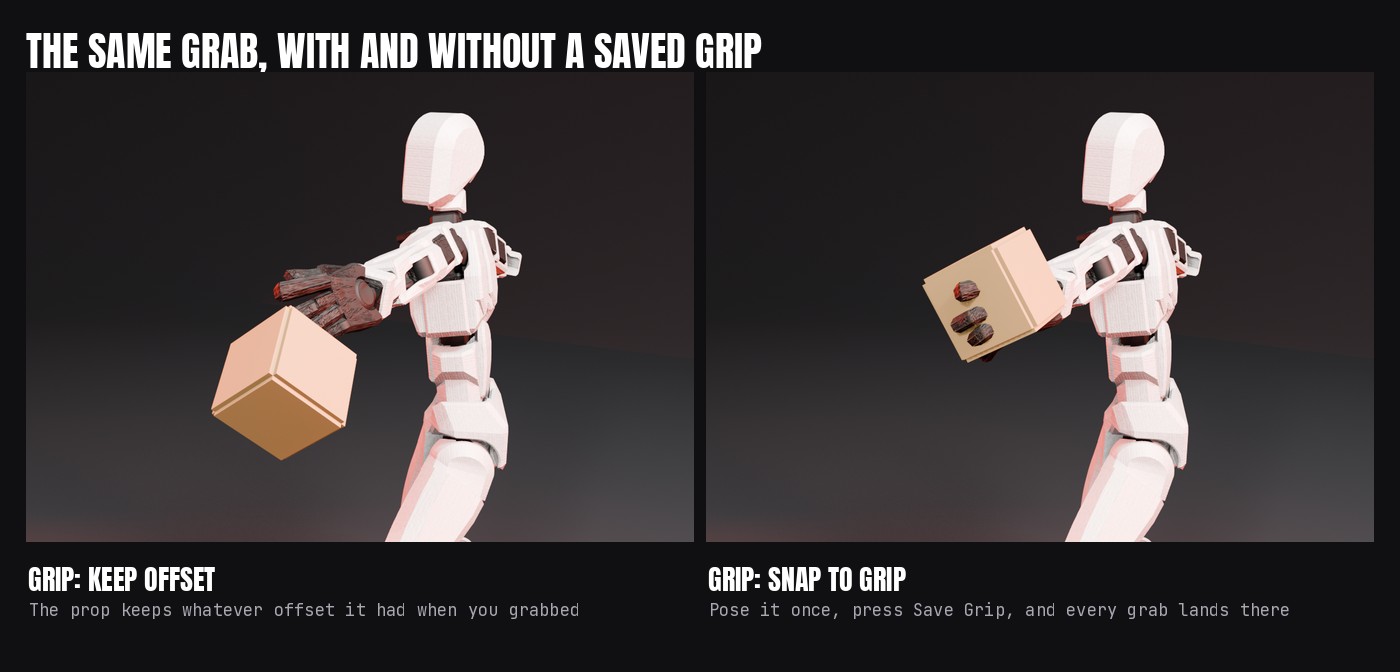
By default a grab keeps whatever offset the prop already had, which is right when you have posed it in the hand yourself. Pose it once, press Save Grip, and tick Snap to Grip to have every later grab put it in that exact spot. Grips are saved per holder and bone, so left and right hands can differ.
Chains: a prop can carry a prop
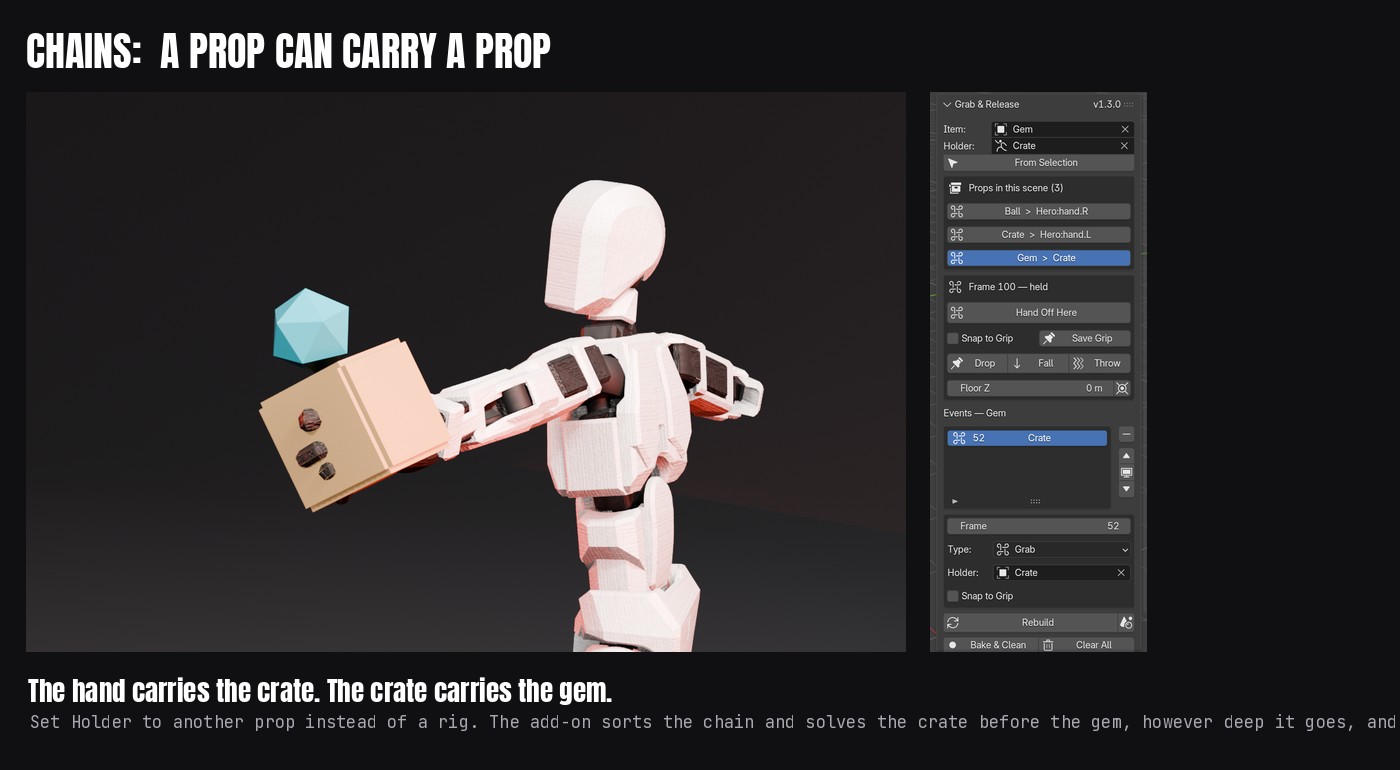
Set another prop as the Holder and leave Bone empty. A hand holds a crate, the crate holds a gem, the gem holds a charm — as deep as you need. Editing the carrier rebuilds everything it carries, in the right order.
Every event stays editable
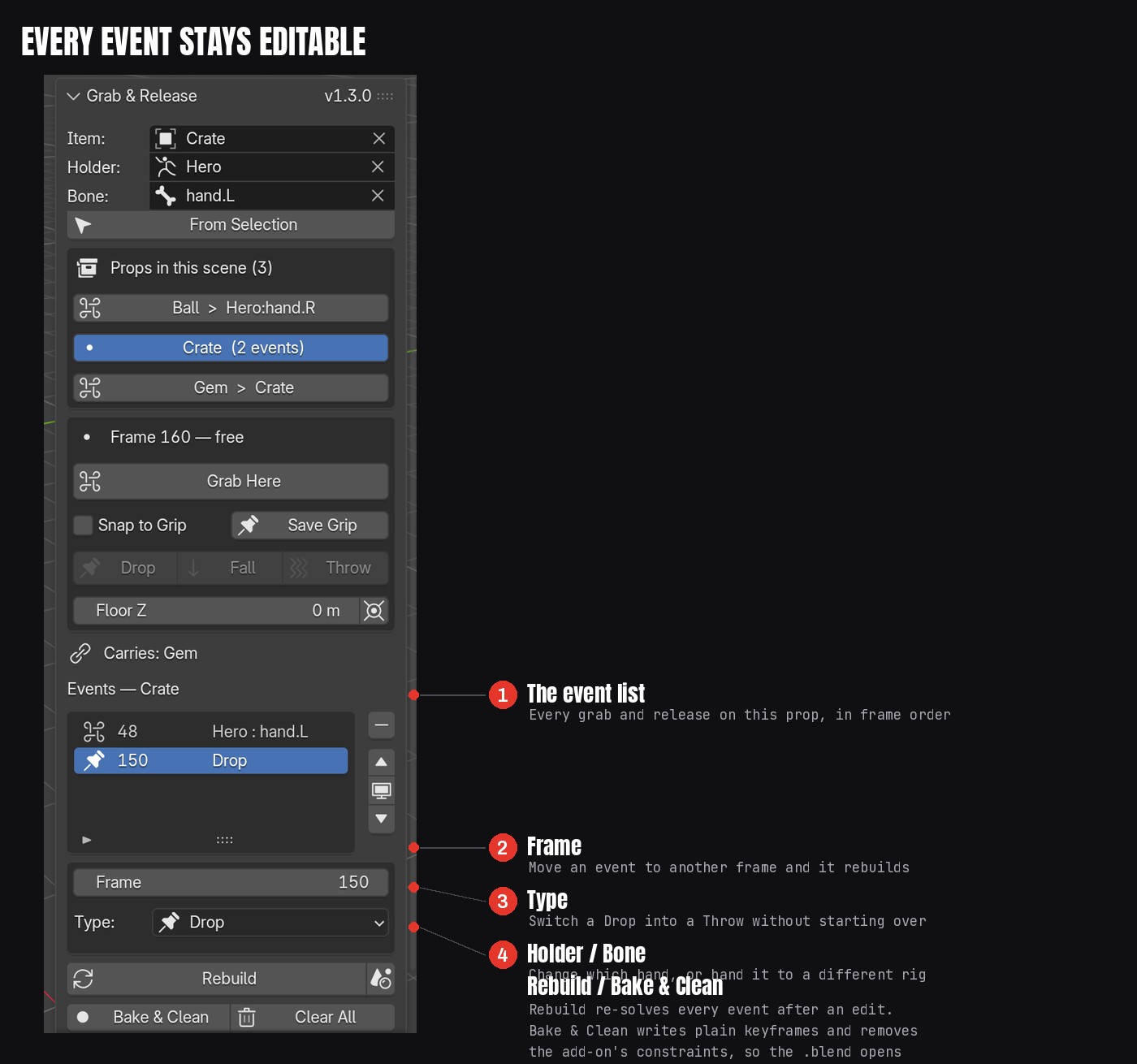
Every grab and release for a prop lives in one list. Change a frame, a holder, a bone or a throw setting and press Rebuild; the button is red while edits are waiting. Update All does the same for every prop in the scene. Nothing is hand-keyed, so a retime is a few numbers rather than a rebuild by hand.
Release settings
| Setting | Applies to | Default | What it does |
|---|---|---|---|
| Strength | Throw | 1.0 | Multiplies the hand's speed at the release frame |
| Spin | Throw | 1.0 | Multiplies the hand's rotation speed at the release frame |
| Gravity | Fall, Throw | 1.0 | Multiplies scene gravity. Lower it for a floatier, figure-scale fall |
| Bounces | Fall, Throw | 1 | How many times it may bounce before it settles |
| Bounciness | Fall, Throw | 0.35 | How much speed a bounce keeps |
| Settle | Fall, Throw | On | Eases the prop flat on the floor after it lands |
| Settle To | Fall, Throw | Nearest Side | Nearest Side tips onto whichever face is closest to flat. Upright always ends the way the prop was modelled |
| Settle Frames | Fall, Throw | 4 | Minimum frames to level out. Bigger tilts take longer on their own |
| Max Frames | Fall, Throw | 150 | Longest a fall or throw may run |
How it works
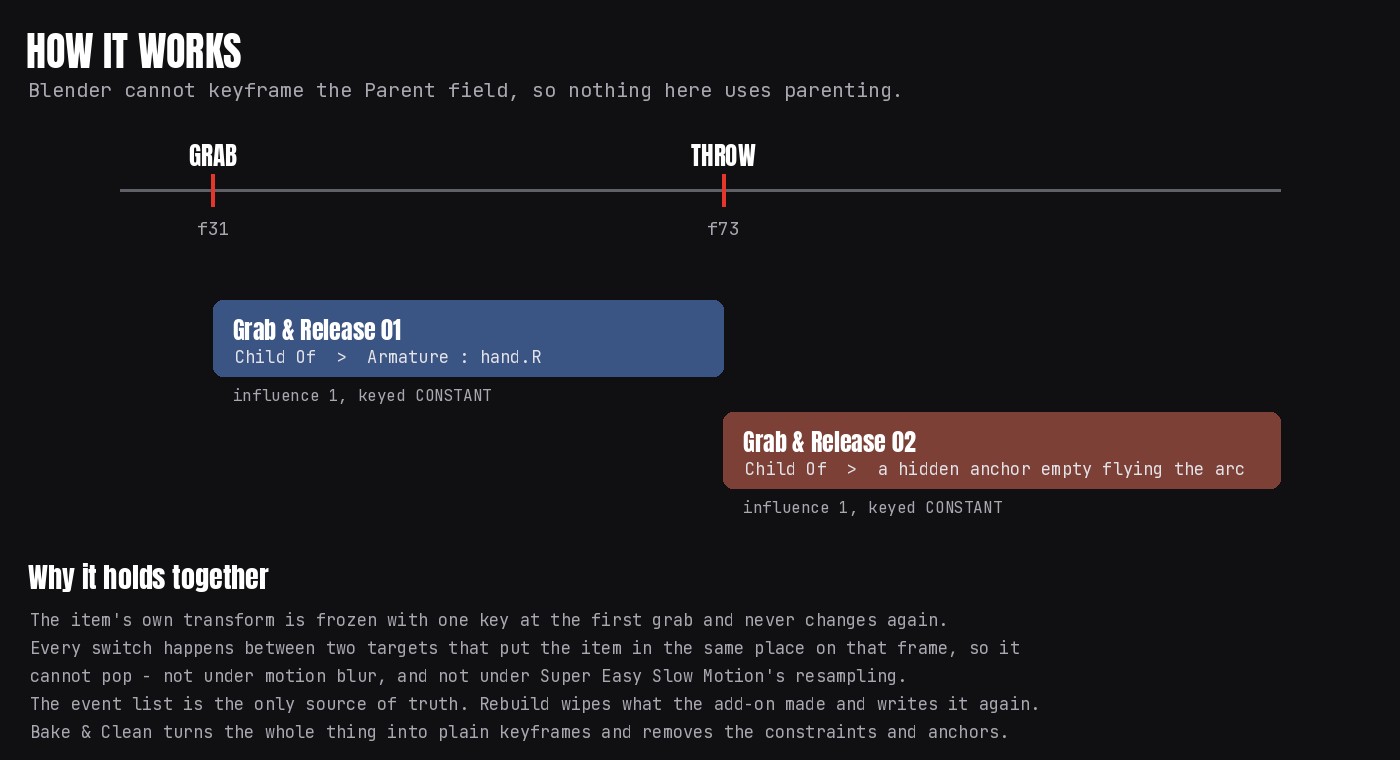
Every grab is a Child Of constraint on the prop, aimed at the hand bone, with its influence switched on at your frame. The add-on computes the inverse matrix itself, so there is no Set Inverse to remember and no offset to fix.
Every release hands the prop to a small hidden empty that sits exactly where the hand let go, or flies the fall or throw arc. The prop's own transform is keyed once, at the first grab, and never touched again.
That is what keeps releases clean. Both sides of every switch put the prop in the same place on the switch frame, so there is nothing for Blender to blend between — whatever the interpolation, including the sub-frames that motion blur and time-remapping add-ons read. The prop never turns faster than the hand it was in.
The empties live in a collection named after the add-on, Super Easy Grab & Release. They are hidden, unselectable and excluded from renders, and Rebuild recreates them, so you can ignore them.
Good to know
- The prop must not already be parented to something else. The panel has a one-click Clear Parent that keeps it where it is.
- Leave the prop's own keyframes alone between a grab and a release. Keys there fight the hand. Before the first grab and after a release, key it as much as you like.
- Do not delete the hidden anchor empties. Rebuild recreates them, but a scene missing them until you rebuild will show props in the wrong place.
- Grip snap pops the prop into the hand on the grab frame rather than easing in. Hide that behind the hand's motion, as stop-motion animators do.
- Using a time-retiming add-on? Restore the original timing, edit the grabs, then re-apply. The panel says so and locks the buttons while a retime is applied, because event frames are in original time.
- Falls and throws are keyframed, not simulated. They look right and they are repeatable, but they are not a rigid-body solve: a prop will not pile up against another prop by itself.
- Bake & Clean uses the scene frame range, so set that first.
- Undo works normally throughout.
Have questions about this product?
Login to message
| Blender Extension Compatible | Yes |
| Published | about 3 hours ago |
| Blender Version | 5.0 - 5.3 |
| Extension Type | Add-on |
| Render Engine Used | Cycles, Eevee |
| License | GPL |
Discover more products like this
parenting action figure prop character animation pick-up throw release grab child of hand off