Super Easy Ragdoll
 Make It Move Media
Installation
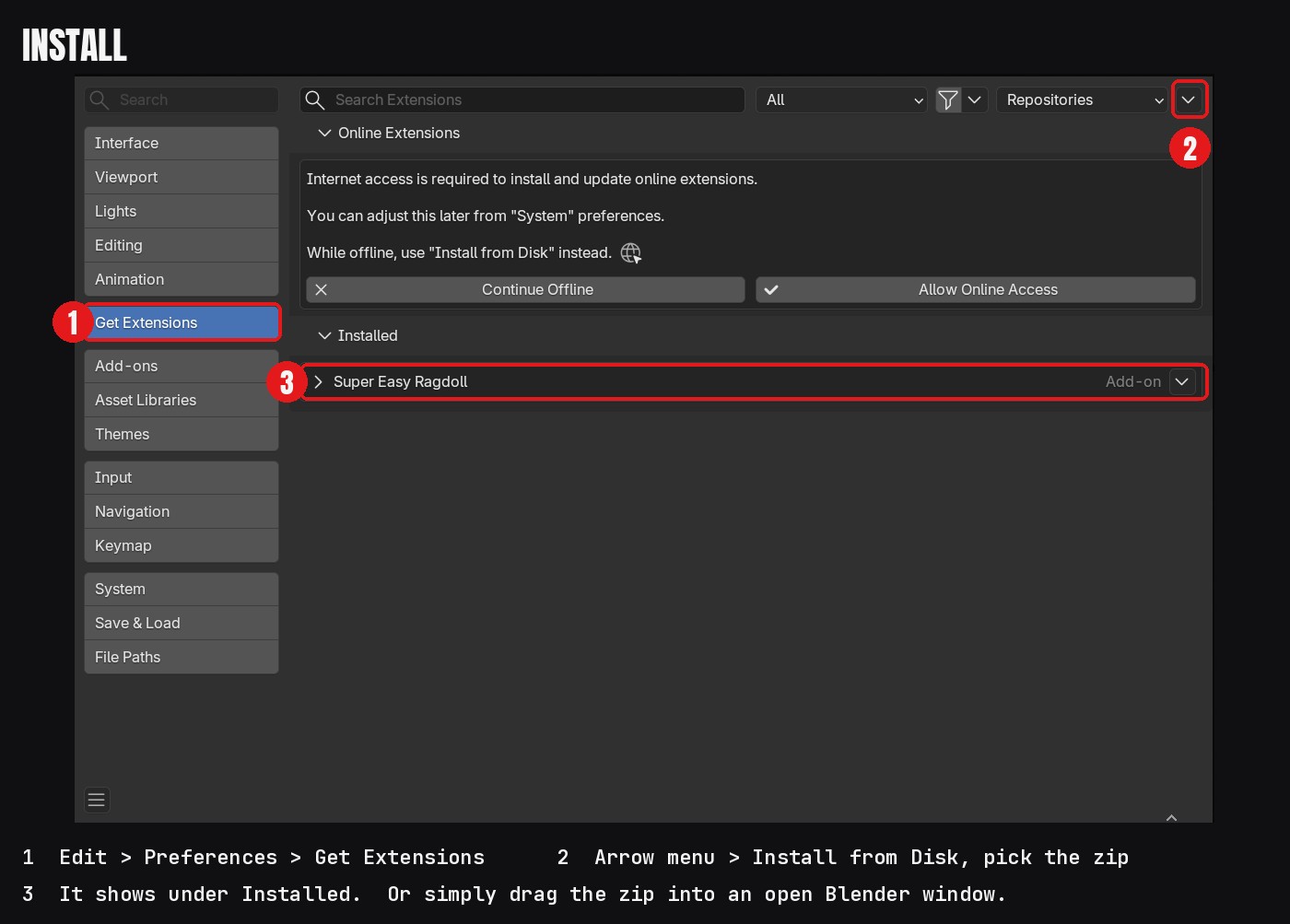
Drag and drop (recommended)
- Download mmm_ragdoll-1.1.1.zip from your order page. Do not unzip it.
- Drag the zip into an open Blender window and confirm the install.
- If Blender offers to add Superhive as a remote repository, accept it. Future updates will then appear in Blender automatically.
Install from Disk
- Open Edit > Preferences > Get Extensions.
- Click the drop-down arrow at the top right and choose Install from Disk.
- Select mmm_ragdoll-1.1.1.zip and click Install from Disk.
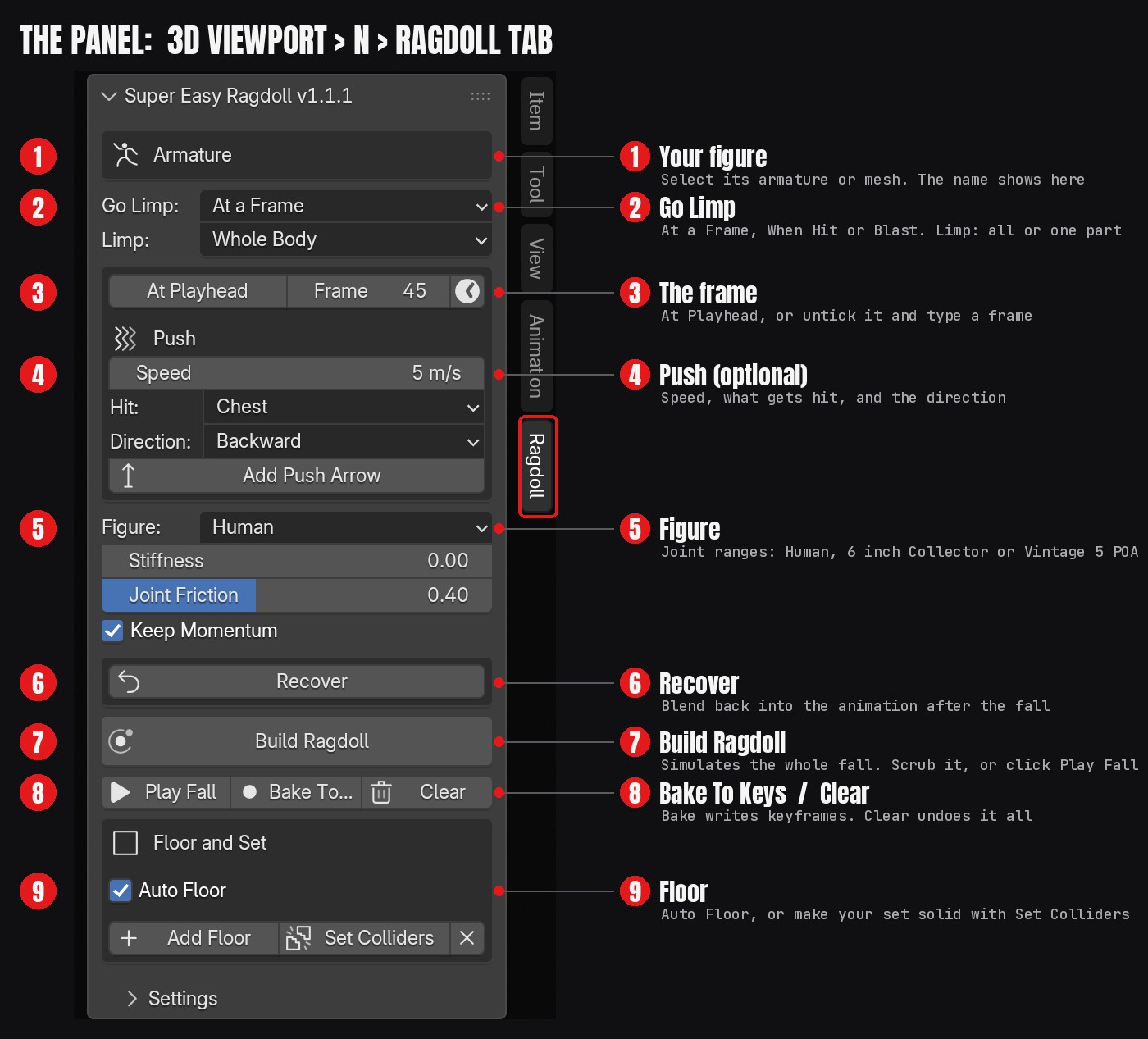
Find the panel: in the 3D Viewport, press N to open the sidebar and click the Ragdoll tab. The panel is titled Super Easy Ragdoll.
Updating: with Superhive connected as a repository, open Edit > Preferences > Get Extensions and click Check for Updates. Otherwise install the new zip the same way; it replaces the old version.
Uninstalling: run Clear on any figure that still has a live, unbaked ragdoll, then open Edit > Preferences > Get Extensions, find Super Easy Ragdoll and choose Uninstall.
The panel
Quick start
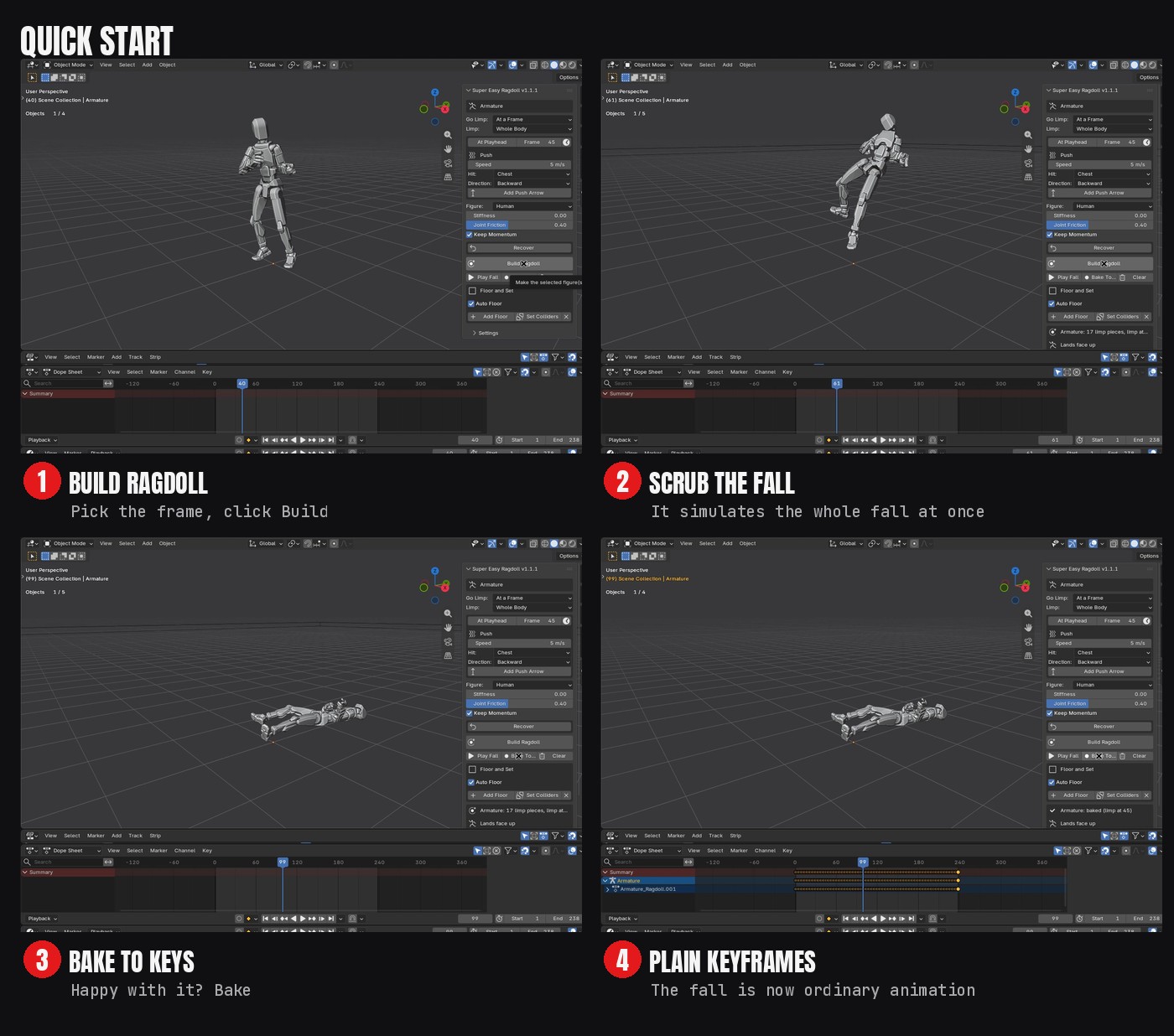
- Select the figure (its armature or its mesh).
- Put the playhead on the frame where it should go limp, or untick At Playhead and type a frame.
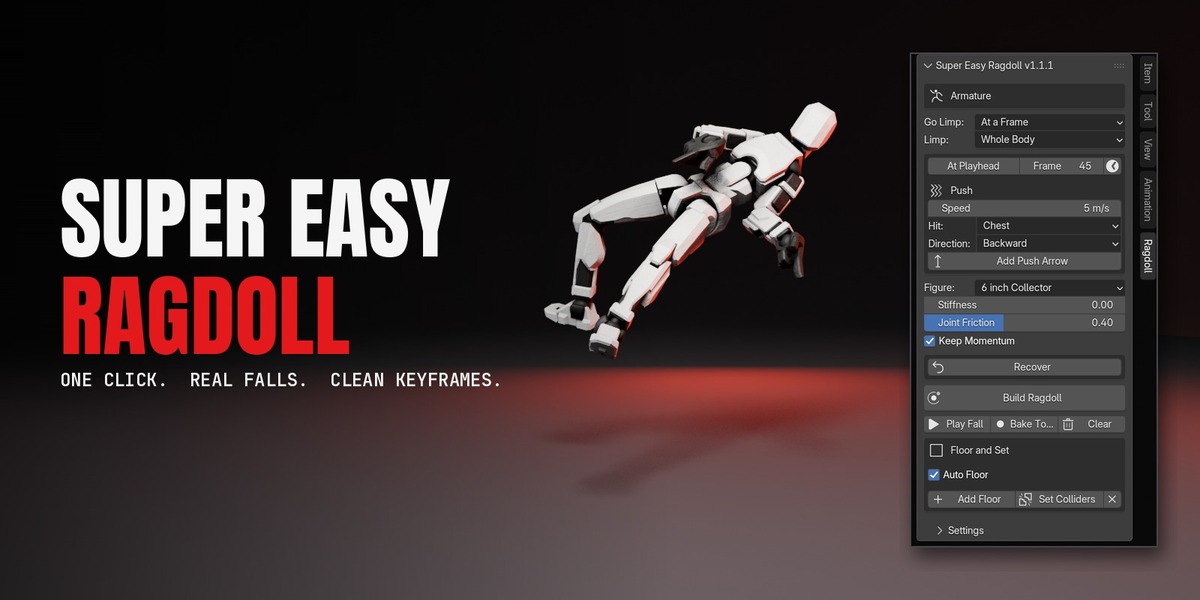
- Pick the Figure type: 6 inch Collector, Vintage 5 POA or Human.
- Optional: add a Push. Set a Speed, what gets Hit and the Direction.
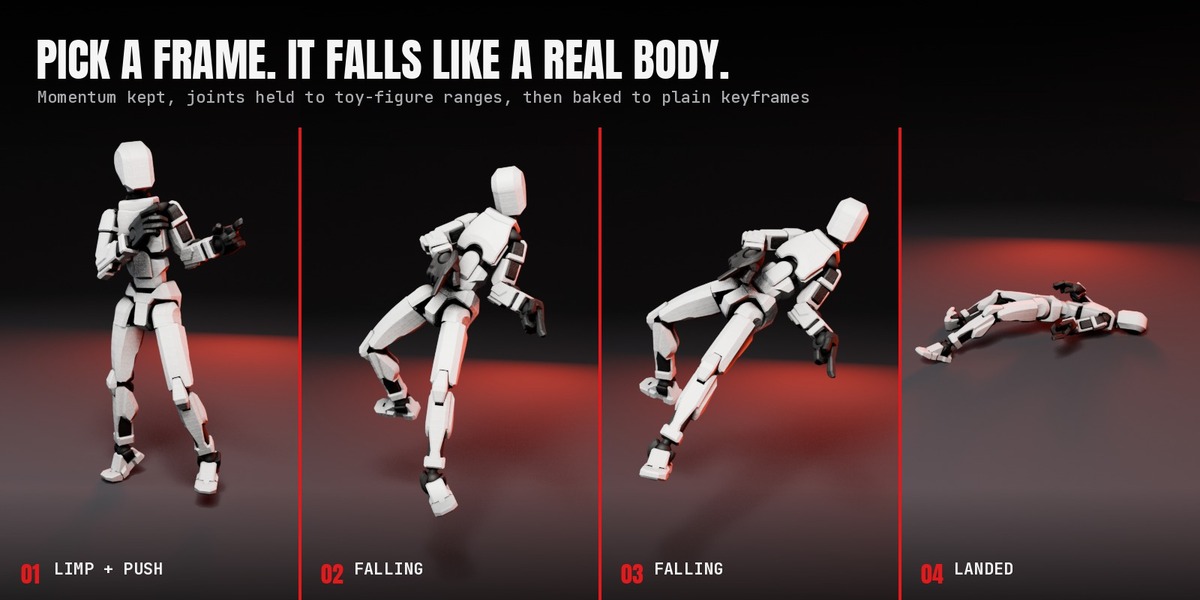
- Click Build Ragdoll. It simulates the whole fall right away, so you can scrub it or click Play Fall.
- Happy with it? Click Bake To Keys. The physics is removed and the fall becomes keyframes. Not happy? Change settings and click Build Ragdoll again.
Clear removes the ragdoll and restores the original animation, even after a bake.
Go Limp
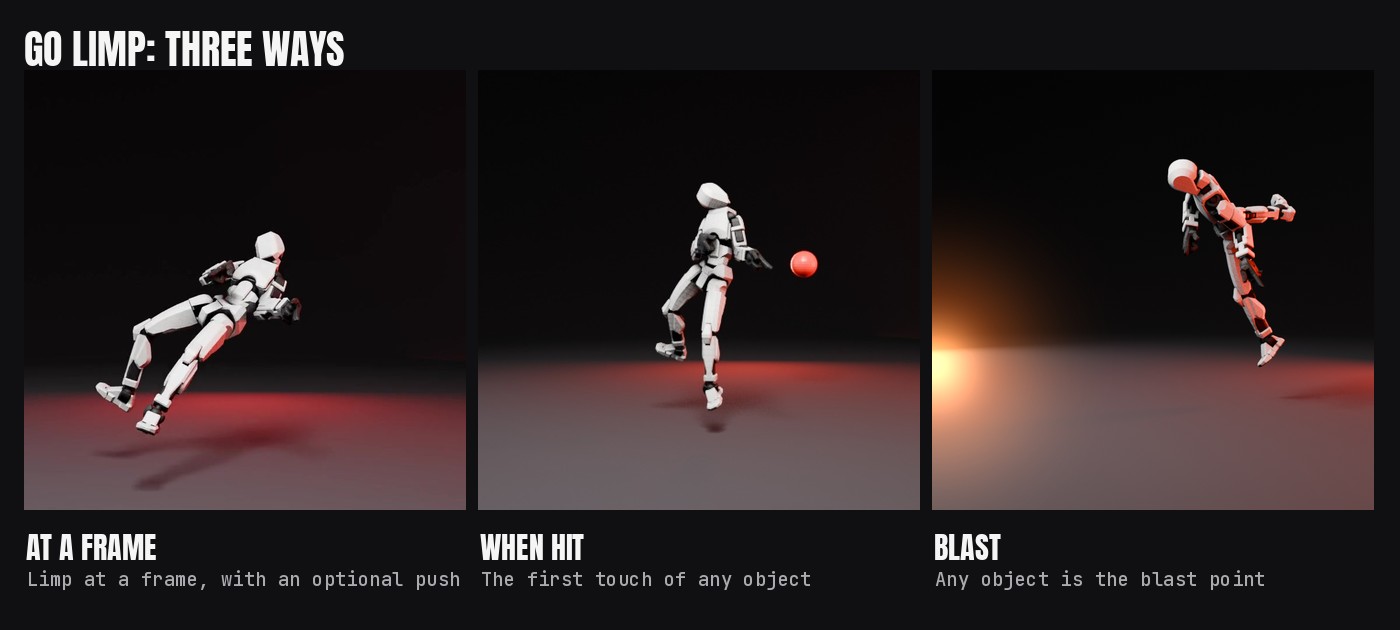
| Trigger | What starts the fall | Settings |
|---|---|---|
| At a Frame | The playhead or a typed frame | Push: Speed, Hit (Chest, Head, Hips, Legs, Whole Body), Direction (Backward, Forward, Left, Right, Up, or along a Push Arrow) |
| When Hit | The first frame the Hit By object touches the figure | Hit By (any animated object, or a character plus the Bone that does the hitting), Hit Strength (1 = all of the hitter's speed) |
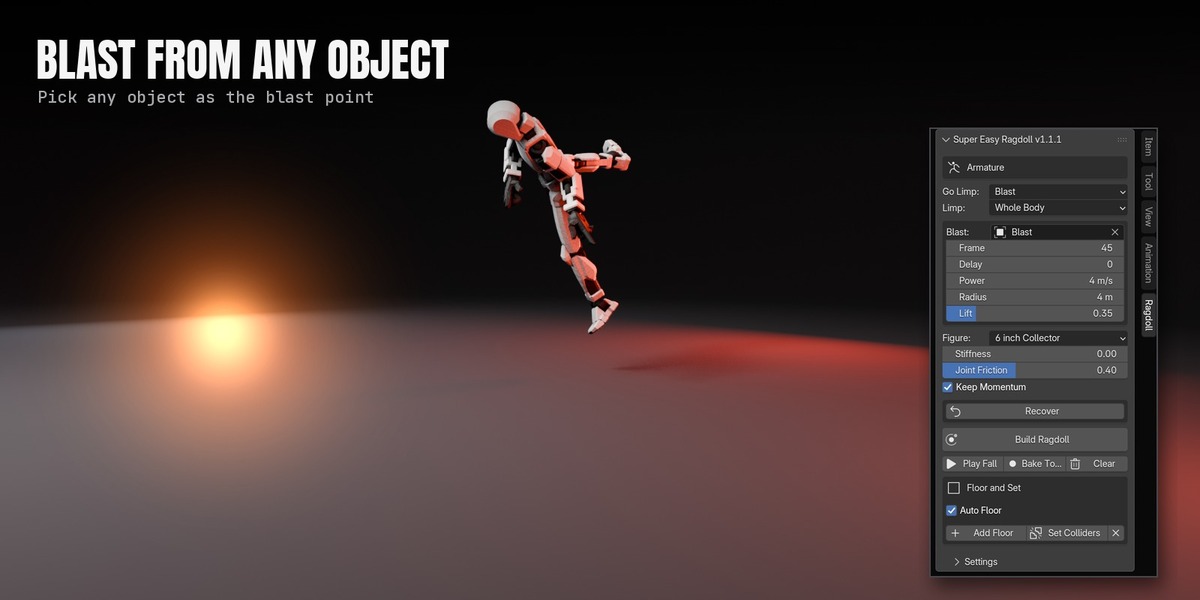
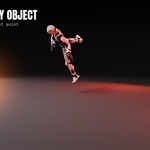
| Blast | A typed frame, plus Delay | Blast (any object at the blast point), Frame, Delay, Power, Radius, Lift |
- When Hit: something already touching the figure at the start is ignored until it moves away, such as a prop in its own hand. The hitter keeps its own path and does not bounce off the figure.
- Blast: Power applies at the centre and falls to nothing at Radius. Lift sets how much of the throw goes upward. Build several figures with the same blast object and they all react.
Limp parts
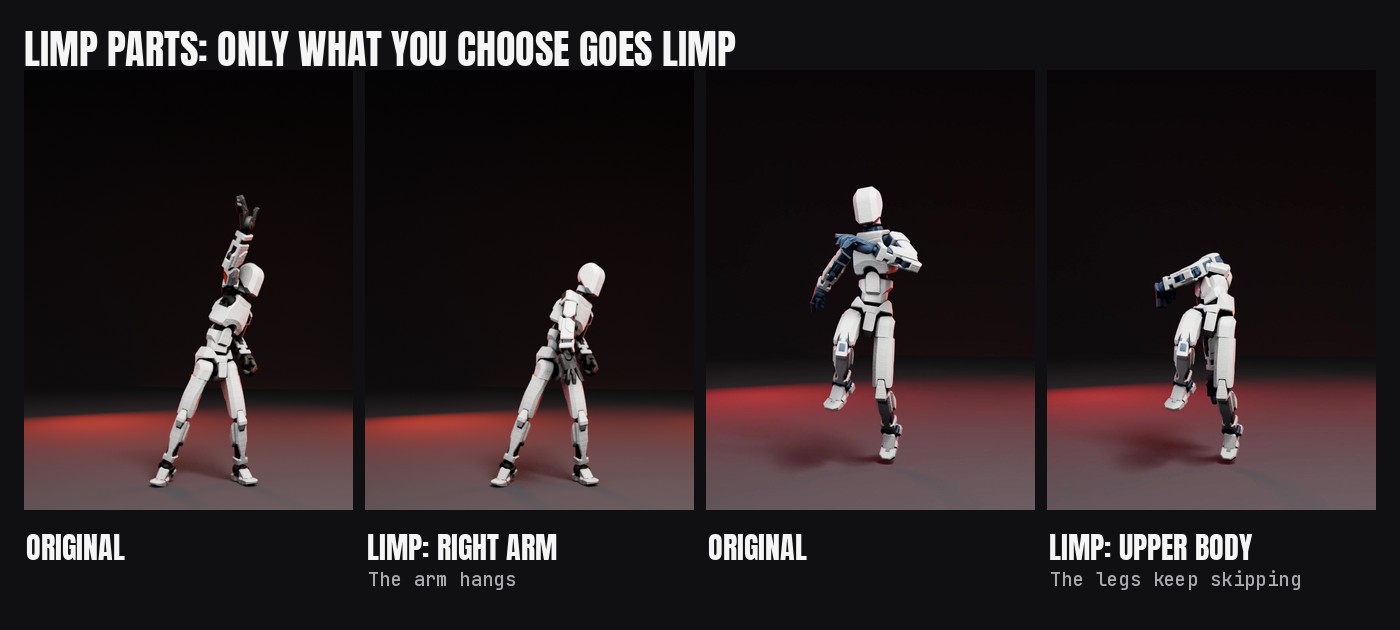
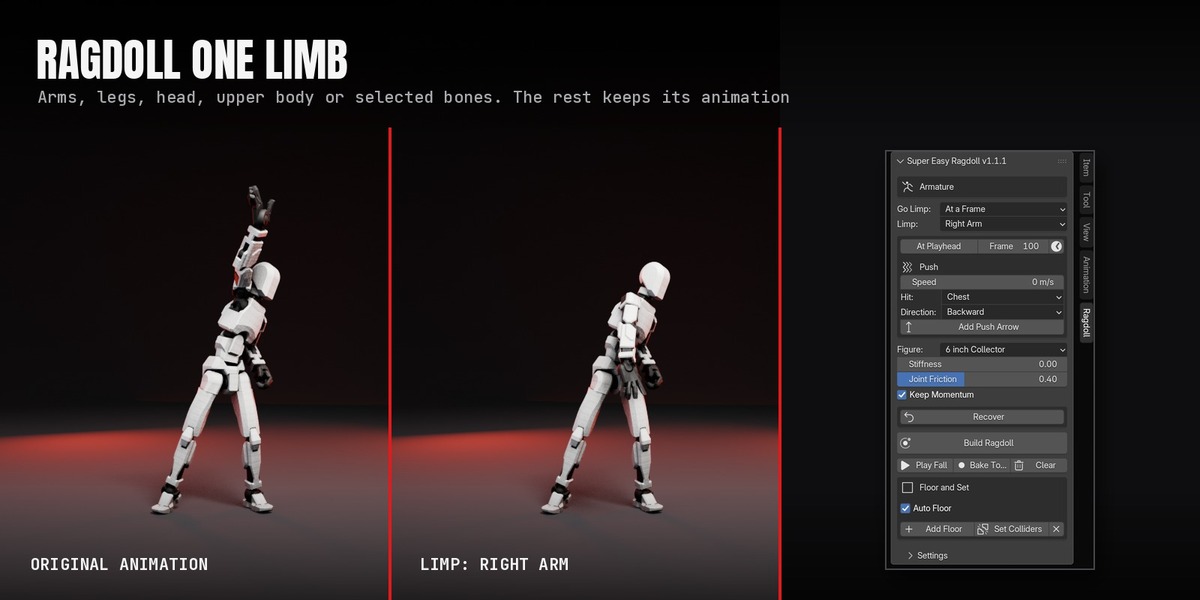
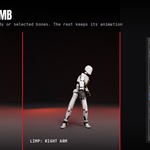
Choose Whole Body, Left Arm, Right Arm, Both Arms, Left Leg, Right Leg, Both Legs, Head, Upper Body (slumps at the waist while the legs keep going) or Selected Bones (select bones in Pose Mode first). Everything you don't choose keeps its animation exactly, before and after the bake.
Recover
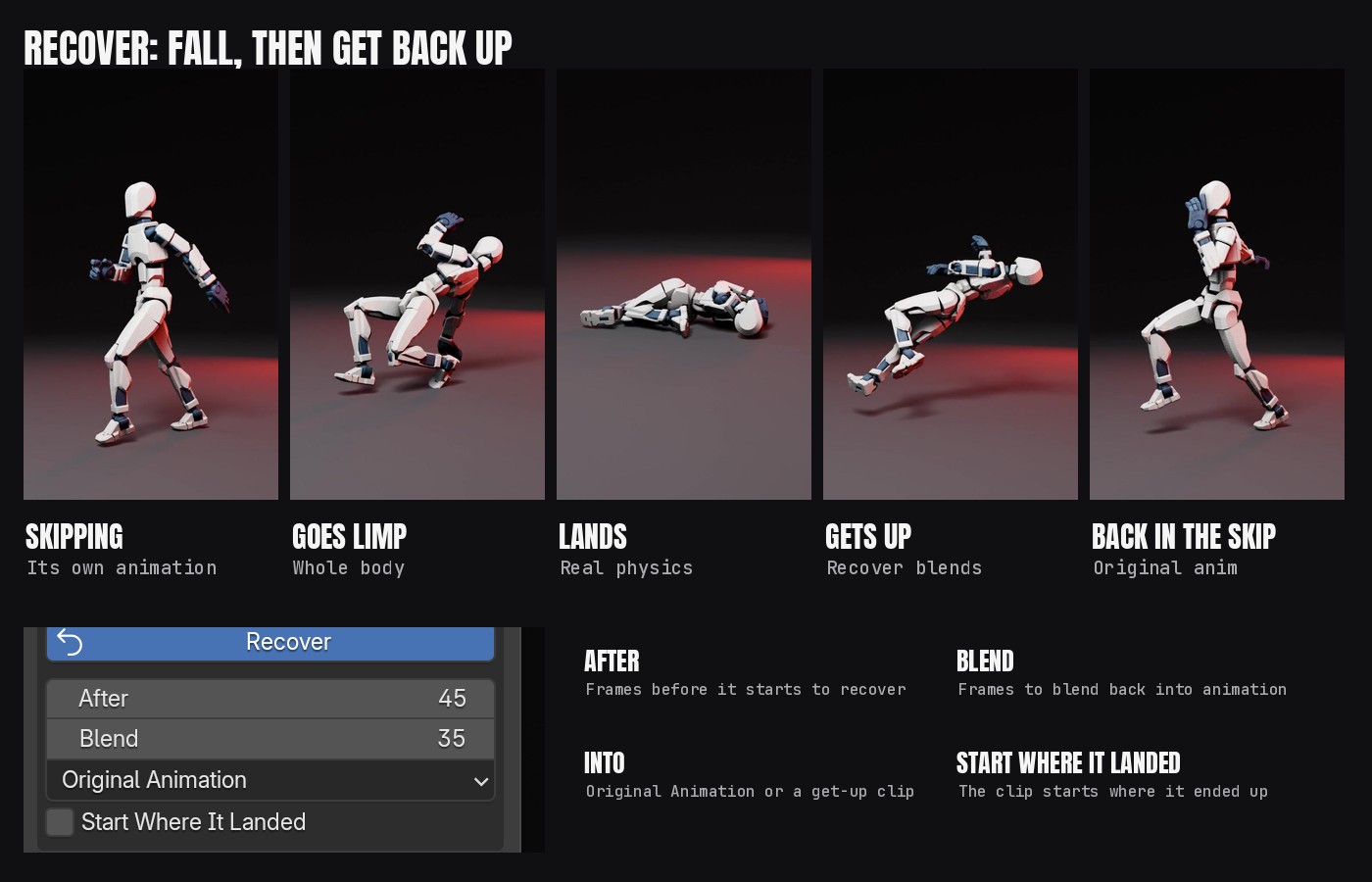
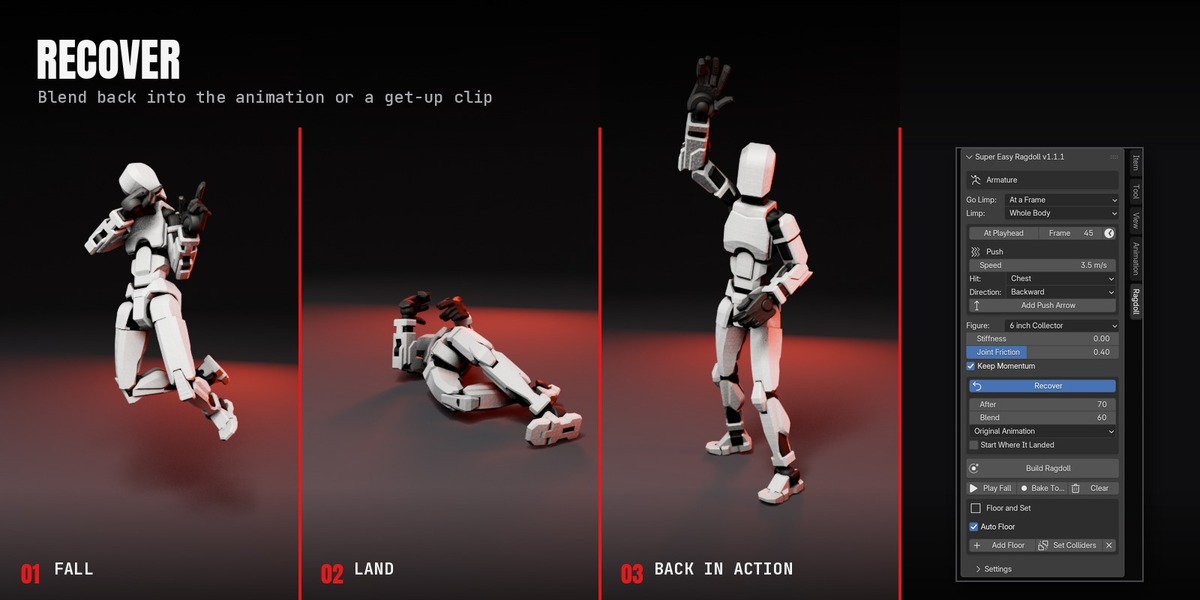
Tick Recover to blend from the ragdoll back into animation.
| Setting | What it does |
|---|---|
| After | Frames after going limp before the recovery starts |
| Blend | Frames to blend from the ragdoll into the animation |
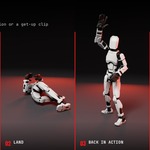
| Into | Original Animation (the limp arm comes back, or the figure picks up its own animation) or Another Action (a get-up clip that starts at the recovery frame) |
| Start Where It Landed | Whole body only: moves and turns the clip so it starts where the figure ended up |
After Build, the status box says whether the figure landed face up, face down or on its side, so you can pick the right get-up clip. Recovering into Original Animation without Start Where It Landed shows live in the viewport. The other combinations appear after Bake.
Main settings
| Setting | What it does |
|---|---|
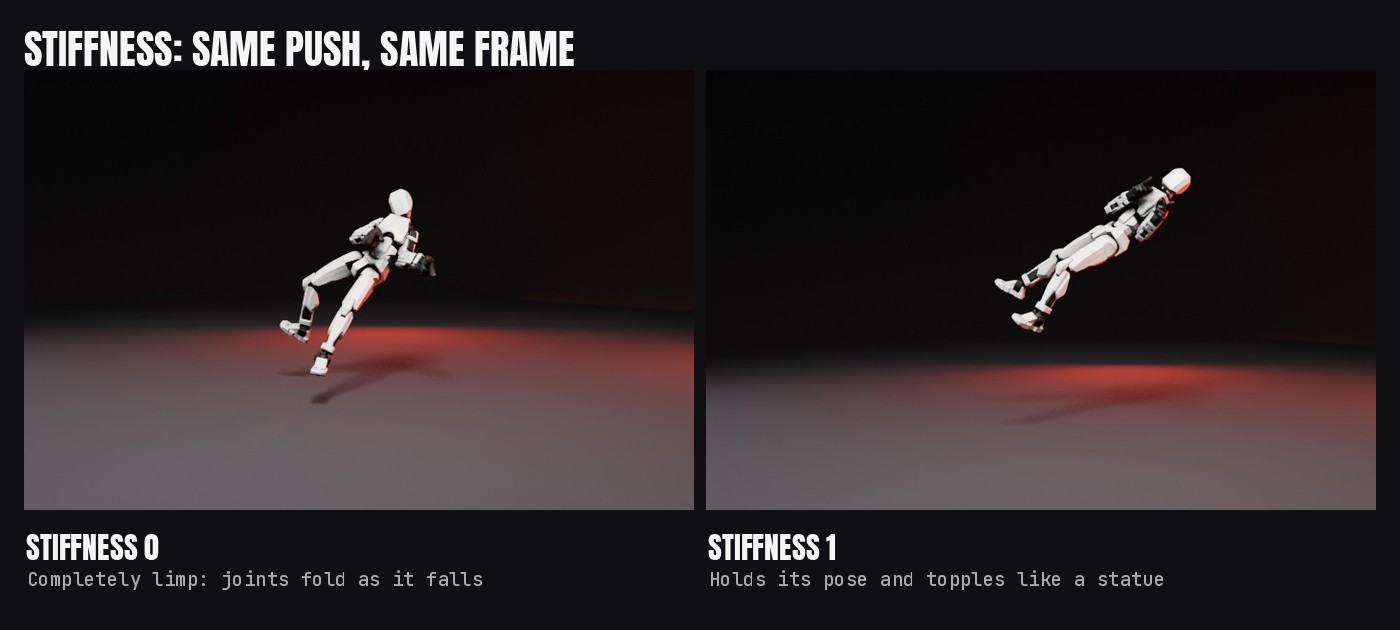
| Stiffness | 0 is completely limp, 0.5 is loose toy joints, and 1 holds the pose so the figure topples like a statue |
| Joint Friction | How much the joints resist moving (default 0.4). 0 is a floppy rag; higher means tight joints that don't wobble |
| Keep Momentum | The figure keeps the speed it had when it went limp (running, jumping, mid-punch) |
| Auto Floor | Adds an invisible floor at the figure's feet unless a set piece is already a collider |
| Set Colliders | Select set meshes and click it so ragdolls land on them. X removes it |
| Add Push Arrow | Adds an arrow empty. Rotate it, and the push follows its Z axis |
Settings sub-panel
| Setting | What it does |
|---|---|
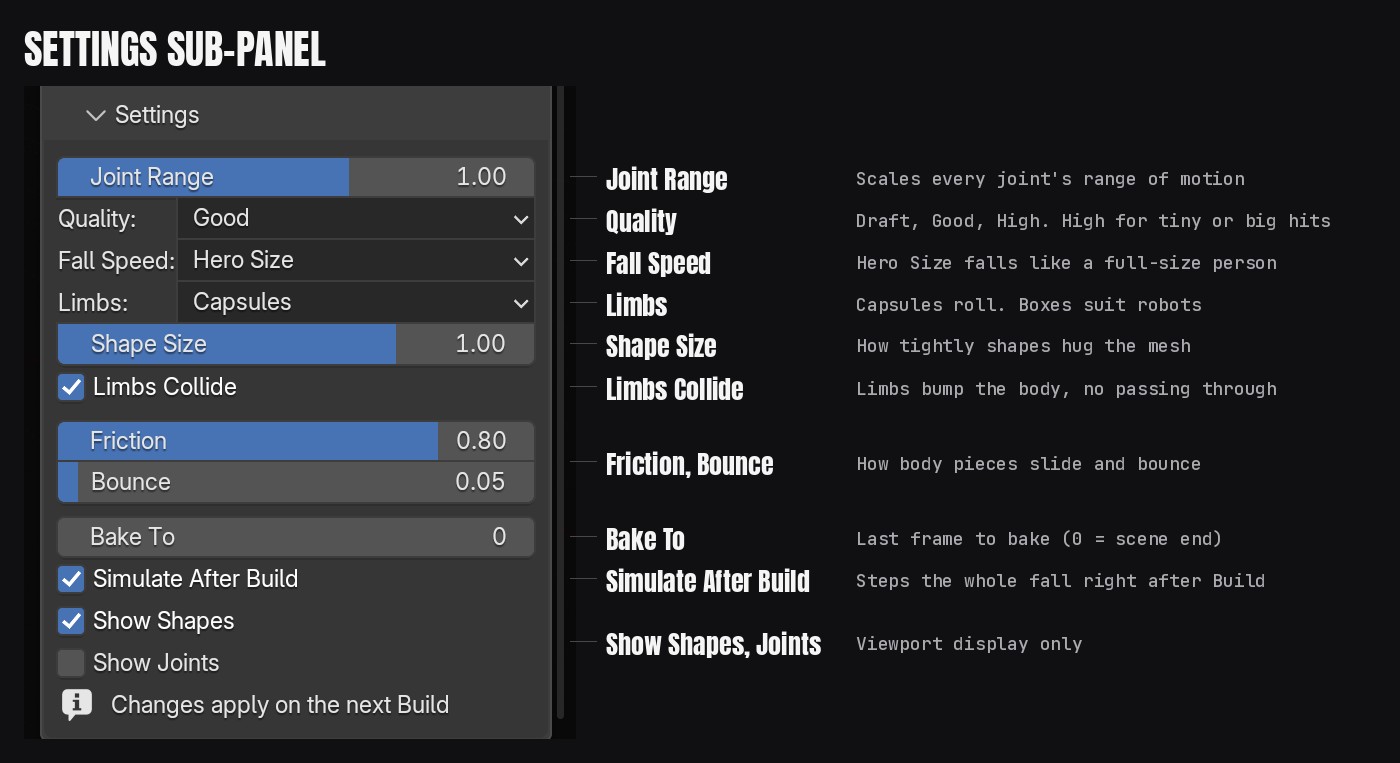
| Joint Range | Scales every joint's range of motion |
| Quality | Draft, Good or High. Use High for tiny figures or big hits |
| Fall Speed | Hero Size (default) falls like a full-size person at any scale. True Scale uses real physics at the figure's real size, so a 6 inch figure drops fast |
| Limbs | Capsules (round limbs roll naturally) or Boxes (robots, blocky figures) |
| Shape Size | How tightly the physics shapes hug the mesh |
| Limbs Collide | Arms and legs bump into the body instead of passing through |
| Friction, Bounce | Surface behaviour of the body pieces |
| Simulate After Build | Steps the whole fall right after Build so you can scrub it straight away |
| Bake To | Last frame to bake (0 = the scene's end frame) |
| Show Shapes, Show Joints | Viewport display only |
How it works
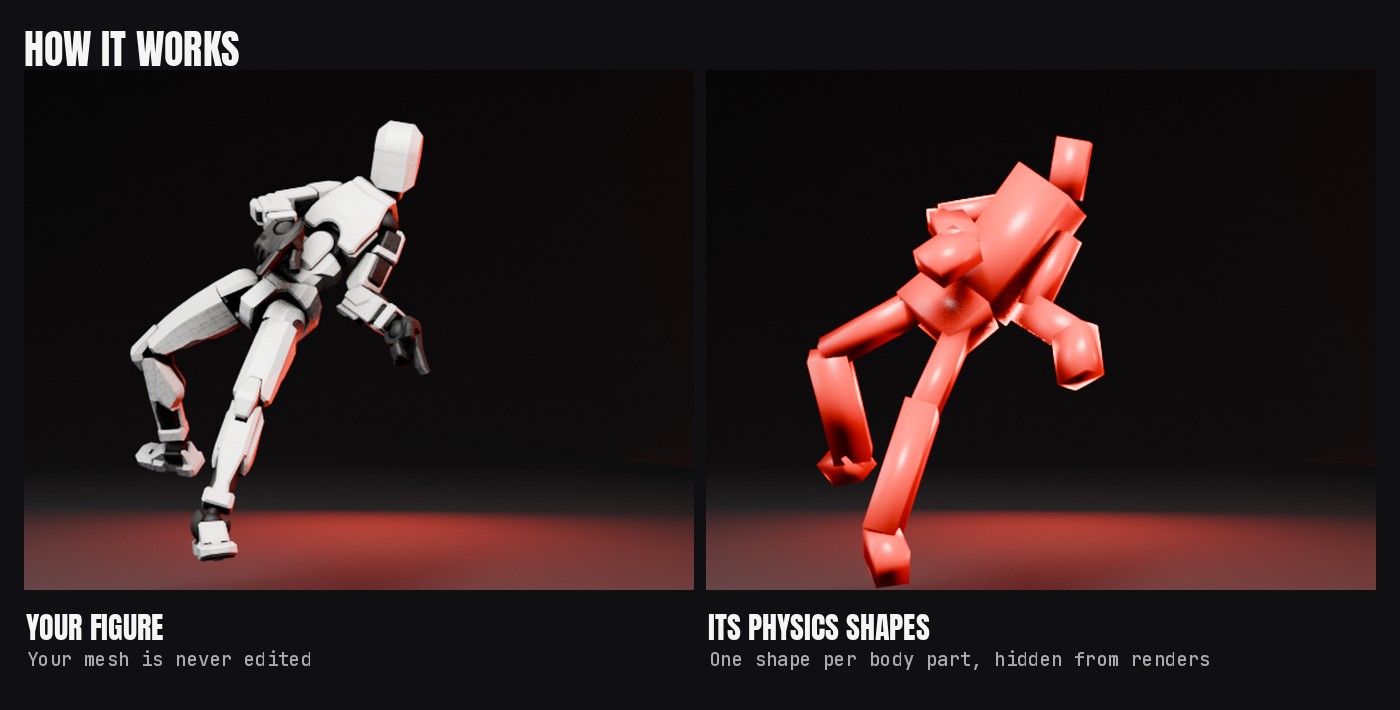
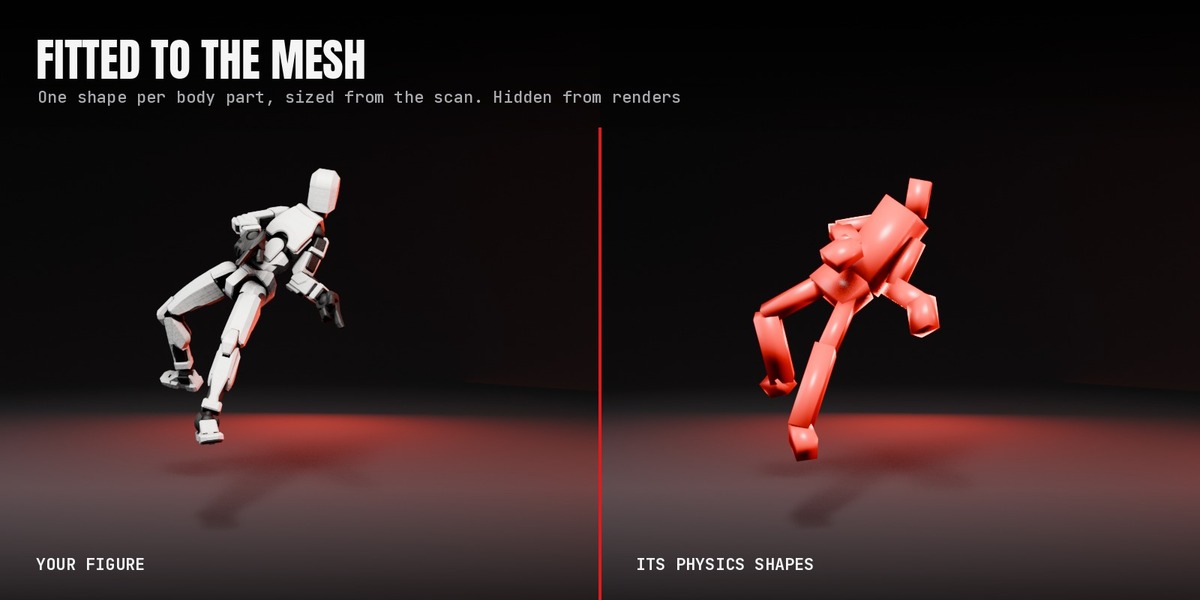
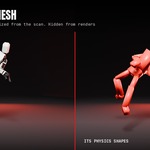
The body is cut into the pieces a figure is cut into: hips, torso, head, upper arms, forearms, hands, thighs, shins and feet. Twist bones, fingers, toes, clavicles, face and hair ride with the piece they belong to. Vintage 5 POA uses only the hips, head, arms and legs. Each piece gets a physics shape fitted to the mesh around it, and each joint gets the range of motion of the Figure type you picked.
Everything the add-on creates lives in the Super Easy Ragdoll collection and is disabled in renders. Set pieces you make solid with Set Colliders are yours and keep rendering. Each bone gets one Super Easy Ragdoll constraint until you Bake or Clear.
Good to know
- Build fills the physics cache for the whole shot. If you change a setting afterwards, click Play Fall: it re-simulates frame by frame and plays. Blender's normal playback skips frames in heavy scenes, and rigid bodies freeze when a frame is skipped.
- Changed the animation after Build? Build again so the physics follows it.
- Bake writes keys on every frame after the limp frame into a copy of the action named "<action>_Ragdoll". Keys before the limp frame are not touched.
- The limp frame needs at least 4 frames after the scene start.
- While simulating and baking, the add-on temporarily switches off skin-only modifiers, so heavy scanned meshes build in seconds.
Update log
1.1.1: first release on Superhive.
Have questions about this product?
Login to message
| Blender Extension Compatible | Yes |
| Published | about 1 hour ago |
| Blender Version | 5.0 - 5.3 |
| Extension Type | Add-on |
| Render Engine Used | Cycles, Eevee |
| License | GPL |
Discover more products like this
rigid body physics ragdoll character animation fall knockback action figure Character Creator explosion mixamo