Super Easy Slow Motion
 Make It Move Media
Installation
Drag and drop (recommended)
- Download mmm_slow_motion-1.7.0.zip from your order page. Do not unzip it.
- Drag the zip into an open Blender window and confirm the install.
- If Blender offers to add Superhive as a remote repository, accept it. Future updates will then appear in Blender automatically.
Install from Disk
- Open Edit > Preferences > Get Extensions.
- Click the drop-down arrow at the top right and choose Install from Disk.
- Select mmm_slow_motion-1.7.0.zip and click Install from Disk.
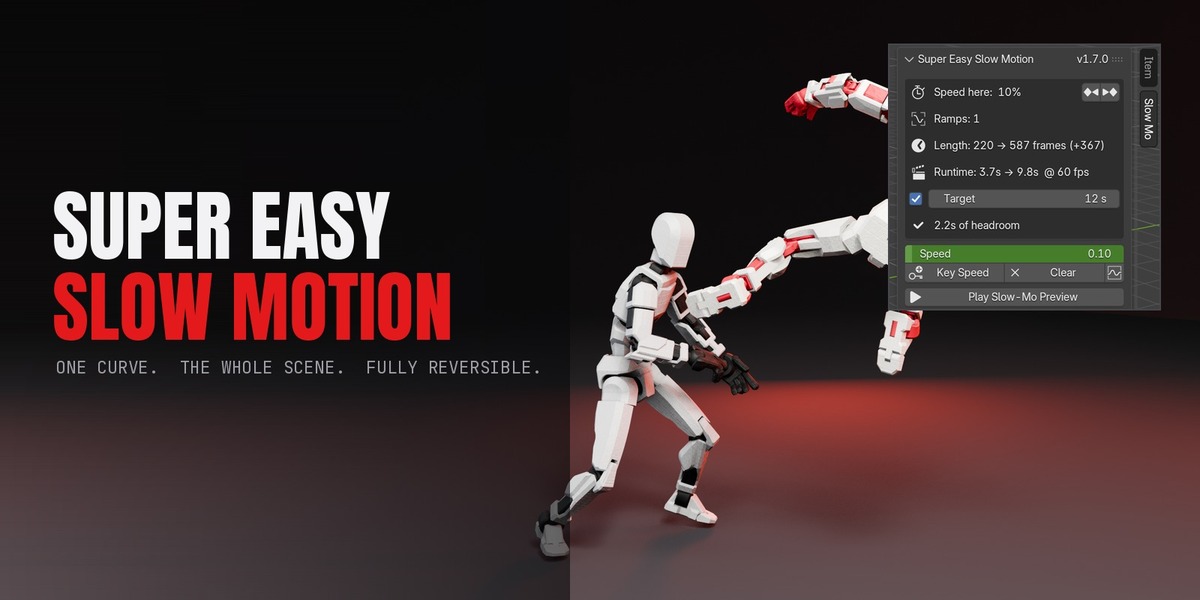
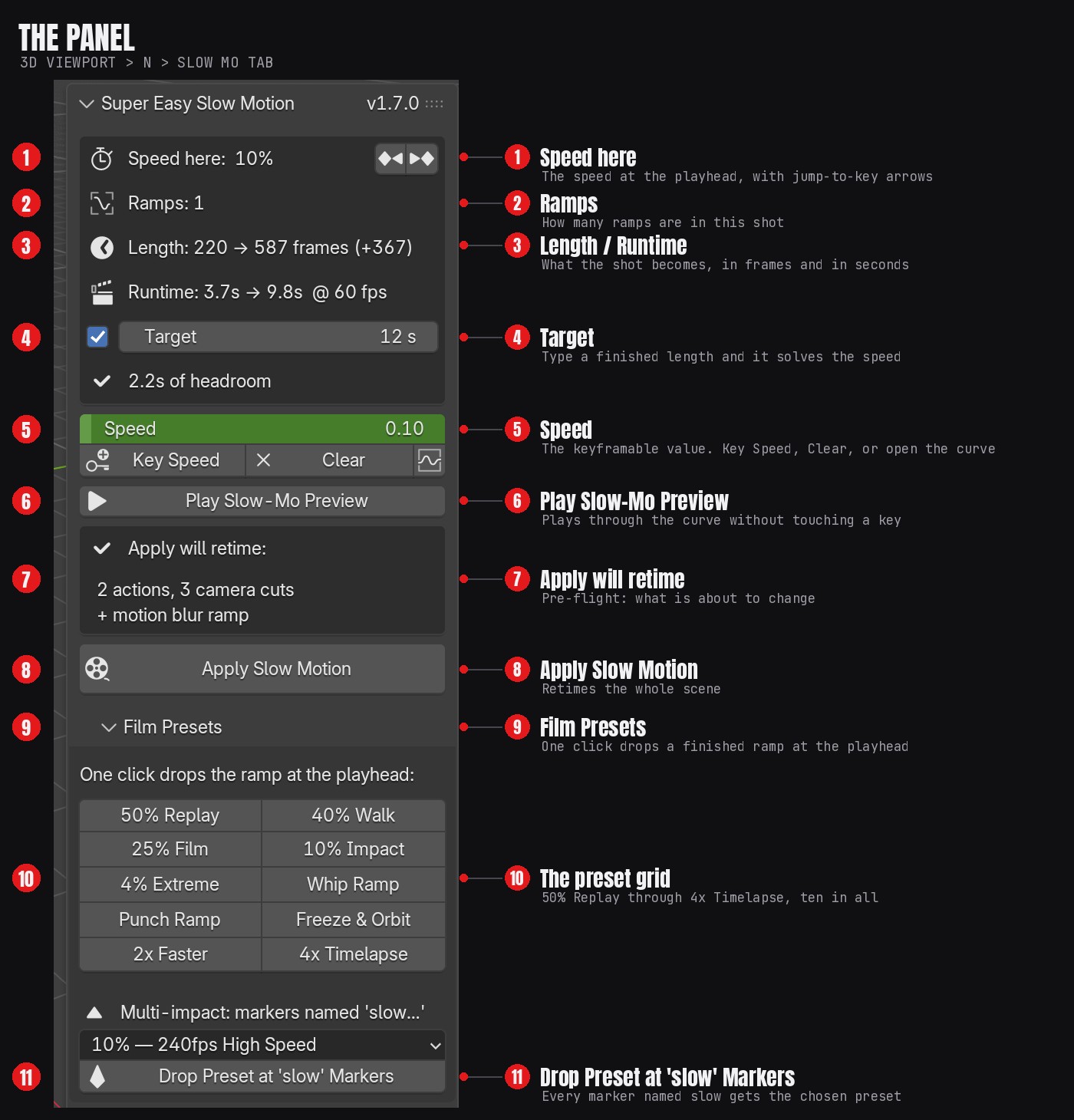
Find the panel: in the 3D Viewport, press N to open the sidebar and click the Slow Mo tab. The panel is titled Super Easy Slow Motion and shows its version, so you can always tell what you have installed.
Updating: with Superhive connected as a repository, open Edit > Preferences > Get Extensions and click Check for Updates. Otherwise install the new zip the same way; it replaces the old version.
Uninstalling: press Restore Original Timing on any scene that still has slow motion applied, then open Edit > Preferences > Get Extensions, find Super Easy Slow Motion and choose Uninstall.
Quick start
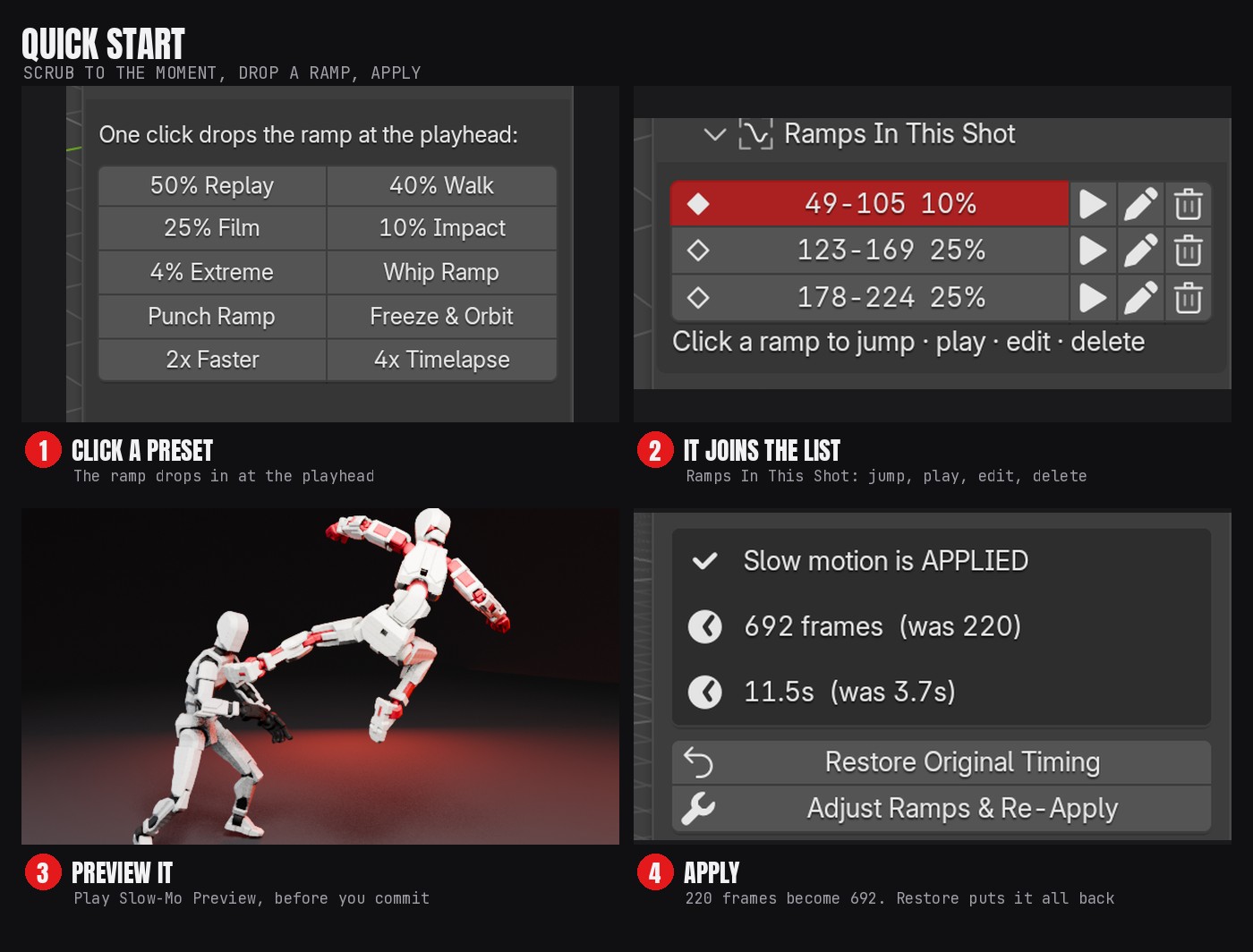
- Scrub to the moment that should go slow — the punch landing, the cape flip, the landing.
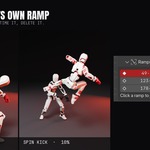
- Click a preset in Film Presets (or pick one from the list and press Add Preset at Playhead). The ramp drops in at the playhead and the readout shows the new scene length and runtime in seconds.
- Play Slow-Mo Preview to watch it live. Esc or Space stops. Tweak the keys in the Graph Editor if you want — the curve button selects them for you.
- Apply Slow Motion. The whole scene is retimed, and normal playback and rendering now show the slow motion.
- Changed your mind? Restore Original Timing puts everything back, or Adjust Ramps & Re-Apply restores and drops you straight back into editing.
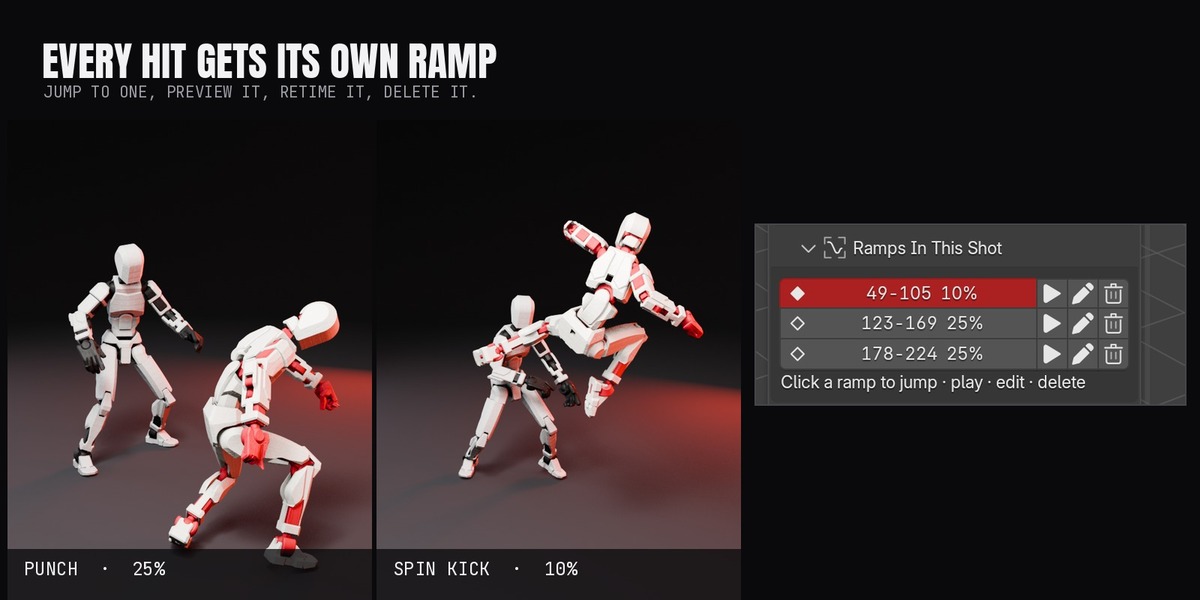
For a fight with several impacts, mark each hit with a timeline marker named slow, pick a preset, and click Drop Preset at 'slow' Markers once.
Film presets
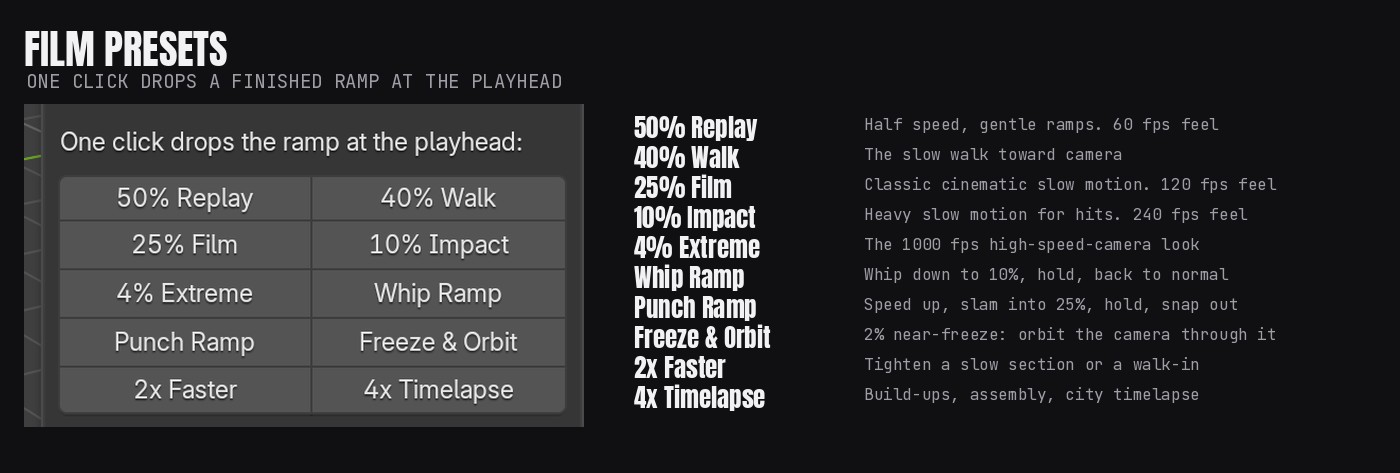
One click drops the ramp at the playhead.
| Preset | What it does |
|---|---|
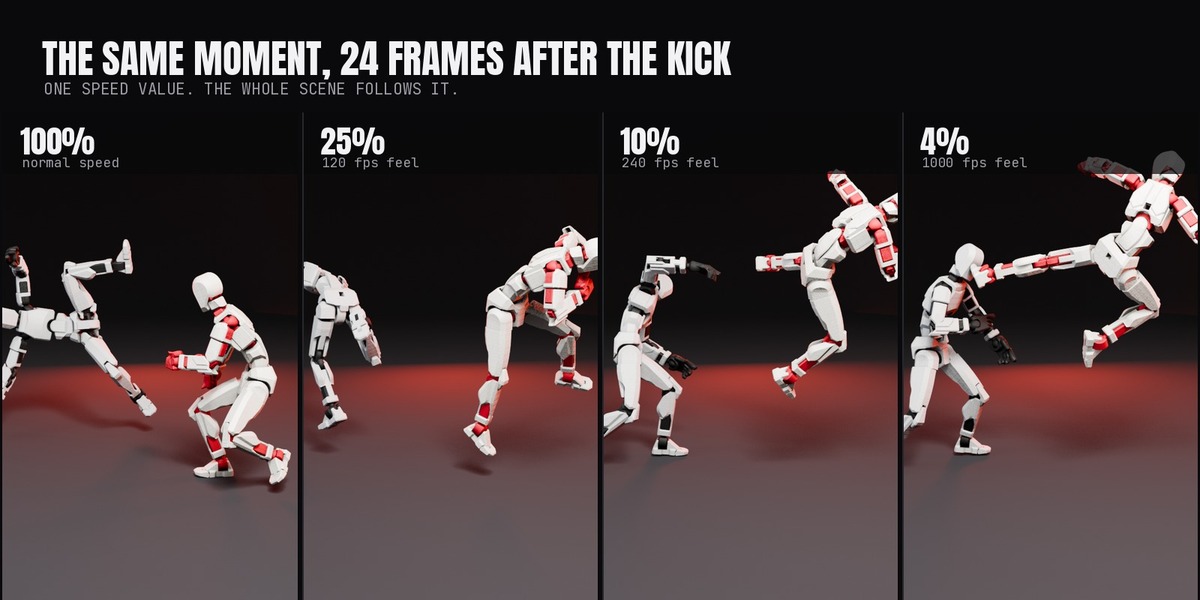
| 50% — Sports Replay (60fps feel) button: 50% Replay |
Half speed with gentle ramps. Target 0.50, ramp in 6, hold 24, ramp out 6 |
| 40% — Stylish Walk button: 40% Walk |
The slow-walk-toward-camera look. Target 0.40, ramp in 8, hold 36, ramp out 8 |
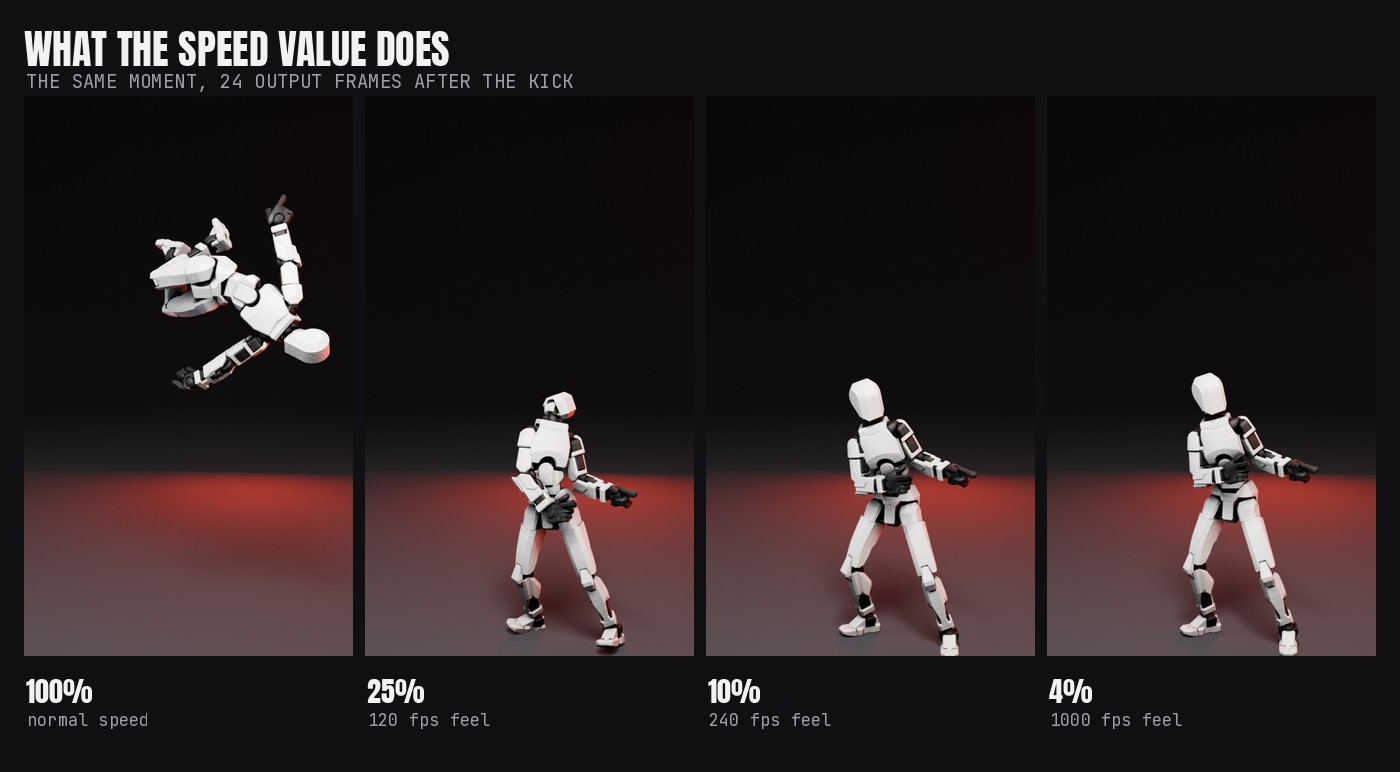
| 25% — 120fps Film Look button: 25% Film |
Classic cinematic slow motion. Target 0.25, ramp in 8, hold 30, ramp out 8 |
| 10% — 240fps High Speed button: 10% Impact |
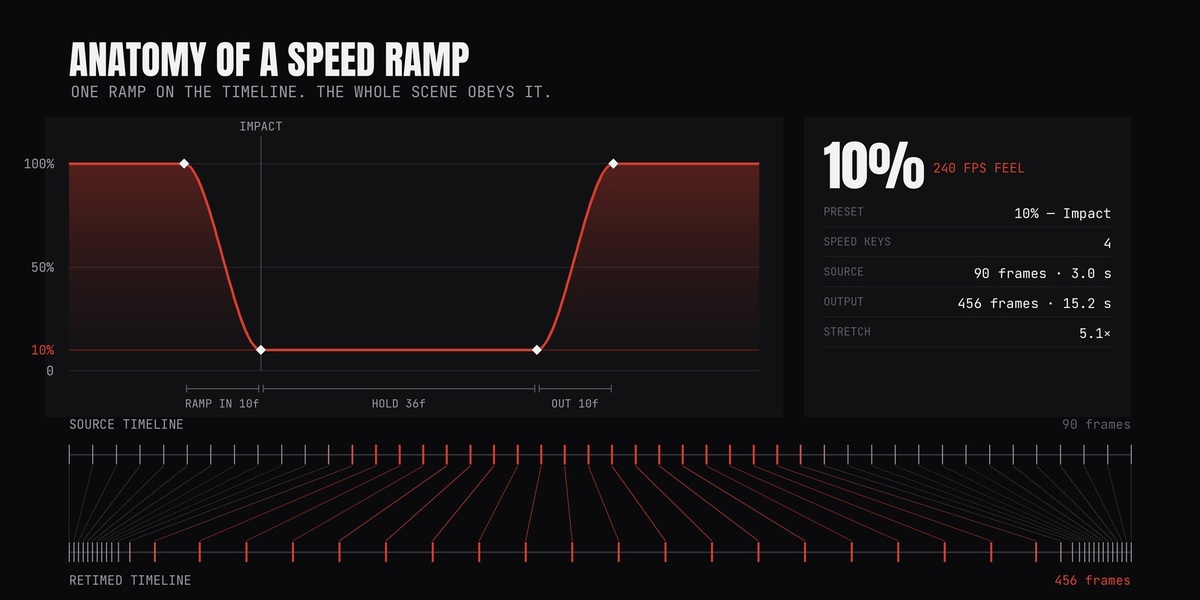
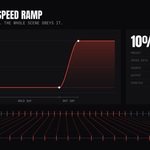
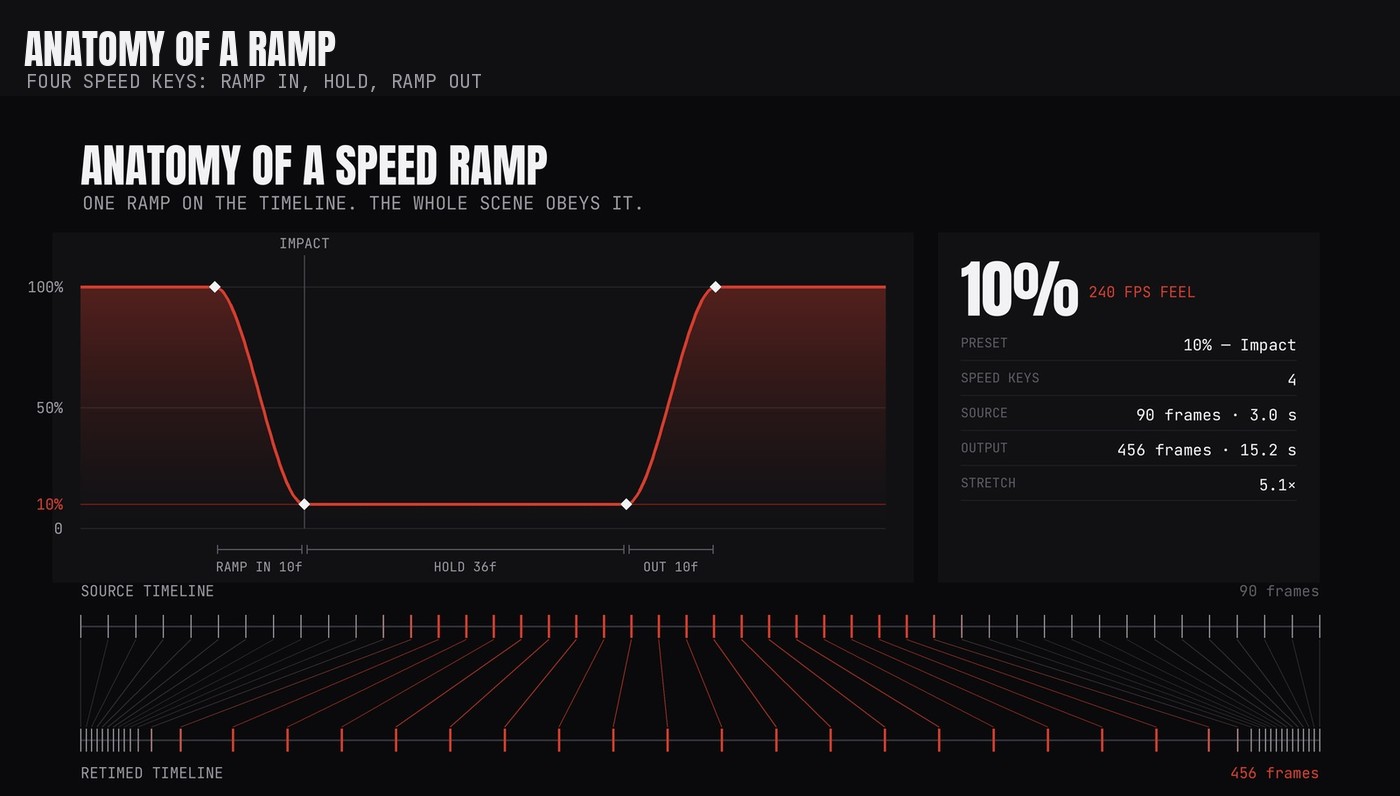
Heavy slow motion for impacts. Target 0.10, ramp in 10, hold 36, ramp out 10 |
| 4% — Extreme (1000fps feel) button: 4% Extreme |
Extreme high-speed-camera look. Target 0.04, ramp in 12, hold 48, ramp out 12 |
| Whip Ramp | Normal, whip down to 10%, back to normal, smooth ease. Ramp in 14, hold 30, ramp out 14 |
| Punch Ramp | Slight speed-up, slam into 25%, long hold, snap out. Ramp in 3, hold 40, ramp out 2, snap easing |
| Freeze & Orbit | Ramp to a 2% near-freeze and hold — orbit the camera during the hold. Ramp in 10, hold 60, ramp out 10 |
| 2x — Quick Time-Up button: 2x Faster |
Double speed: tighten a slow section or a walk-in |
| 4x — Timelapse button: 4x Timelapse |
Quadruple speed: build-ups, assembly, city timelapse |
Custom Ramp & My Presets
| Control | What it does |
|---|---|
| Target Speed | Speed during the slow section. 1.0 is normal, 0.25 is quarter speed, 2.0 is double |
| Ramp In | Frames to ease from normal into slow motion |
| Hold | Frames to hold the slow section |
| Ramp Out | Frames to ease back to normal speed |
| Add Custom Ramp at Playhead | Drops the ramp you dialled in at the current frame |
| Save Current As Preset | Names your ramp and keeps it in Custom Ramp & My Presets for every other scene and .blend. Drop Saved Ramp and Delete Saved Ramp manage the list |
| Key Speed at Playhead / Clear Speed Keys | Keyframe the Speed value by hand, or remove every speed key |
| Select Speed Curve / Jump to Speed Key | Selects the curve in the Graph Editor, or steps the playhead between speed keys |
| Target Length / Target | Type how long the finished shot should run in seconds and it solves the speed for you |
Ramps In This Shot, Camera Cuts and preview
| Panel | What it does |
|---|---|
| Ramps In This Shot | Every ramp as a row. Go To Ramp jumps to it, Edit Ramp changes its speed or slides it along the timeline with Move By, Delete Ramp removes it — none of it disturbs the others |
| Drop Preset at 'slow' Markers | Drops your chosen preset at every timeline marker named slow, for multi-impact fight shots |
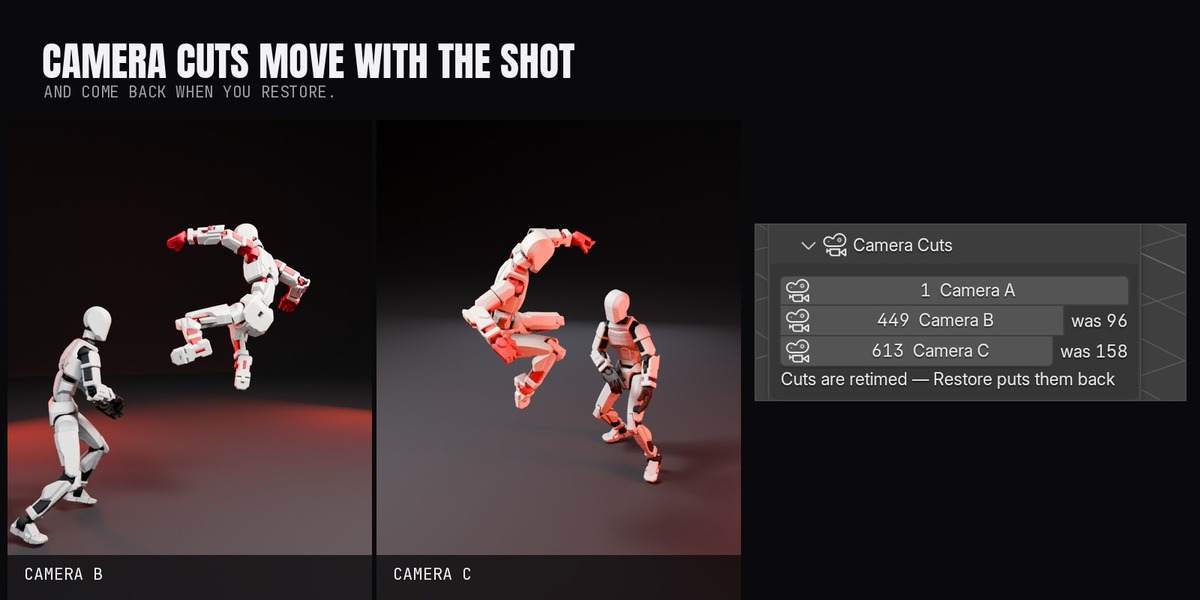
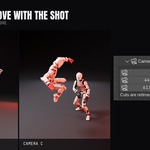
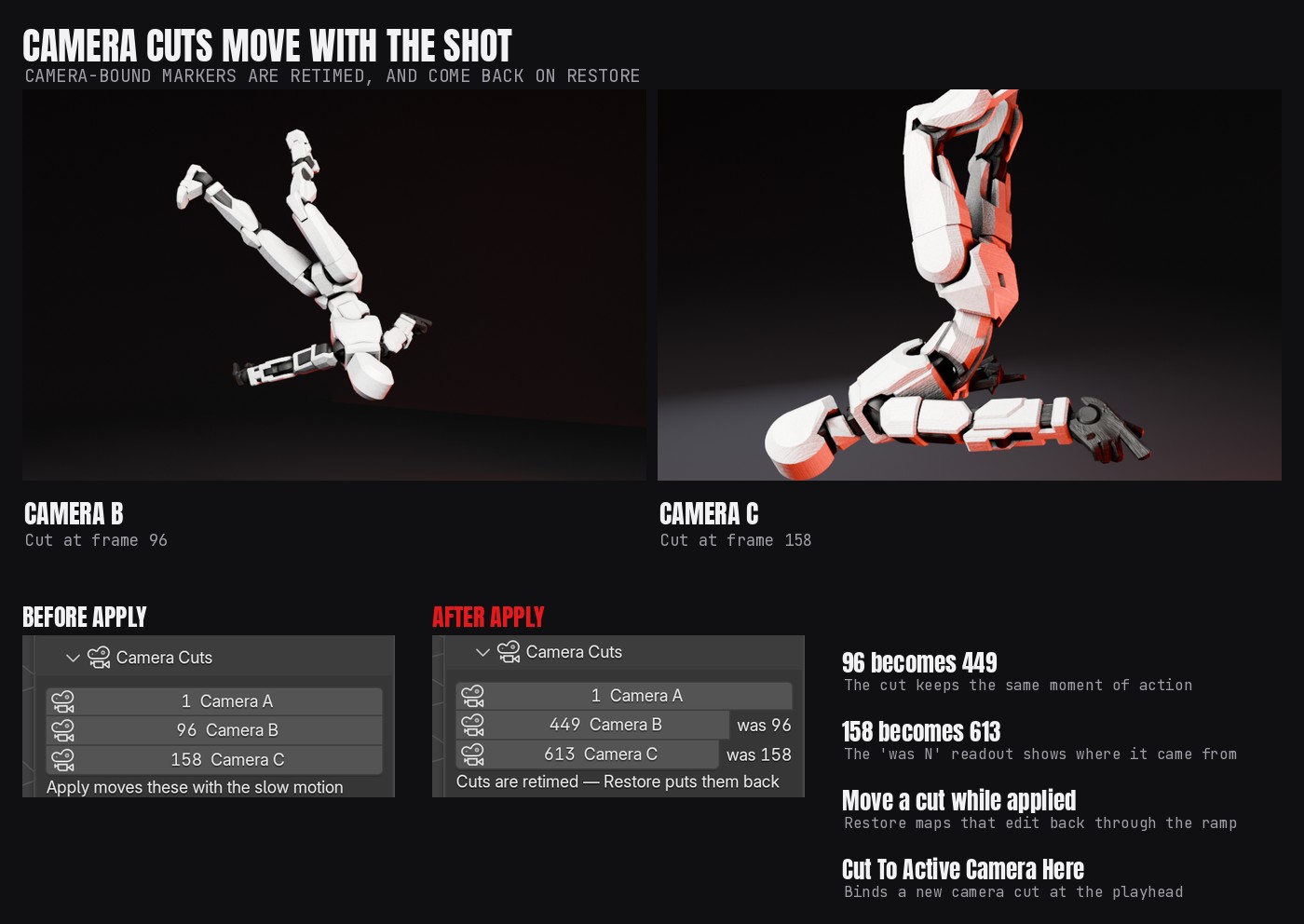
| Camera Cuts | Every camera-bound marker, with its retimed frame and a was N readout once applied. Go To Frame jumps to a cut; Cut To Active Camera Here binds a new one |
| Play Slow-Mo Preview | Plays the shot through the speed curve without touching a keyframe. Each ramp also previews on its own, looped, with a short lead-in |
| Free All Sim Caches / Bake All Sim Caches | Clear or re-bake every physics cache in the scene by hand |
Scene Coverage & Sims
What Apply touches. All on by default.
| Toggle | What it does |
|---|---|
| NLA Strips | Bakes action strips through the ramp, so mocap takes slow where the ramp is |
| Rigid Body | Keys the Rigid Body World time scale to follow the speed curve |
| Cloth | Keys each cloth modifier's time scale |
| Particles | Scales and keys each particle system's timestep |
| Timeline Markers | Moves markers, camera cuts included, to their retimed positions |
| Geometry Nodes Time | Rewires node groups that read the Scene Time node to the remapped clock |
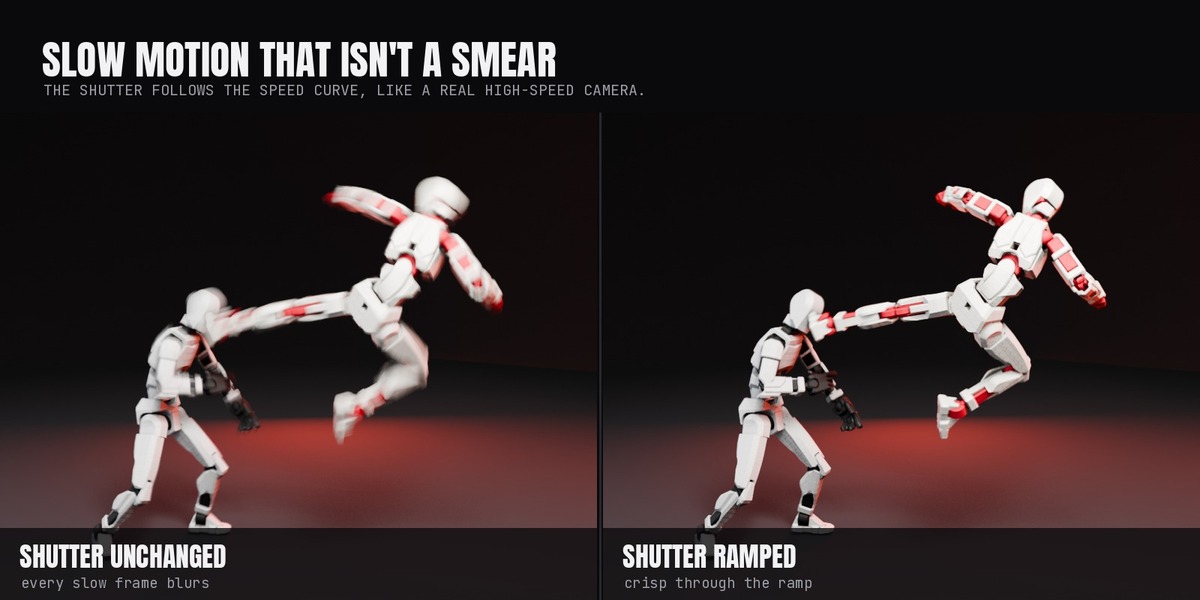
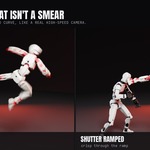
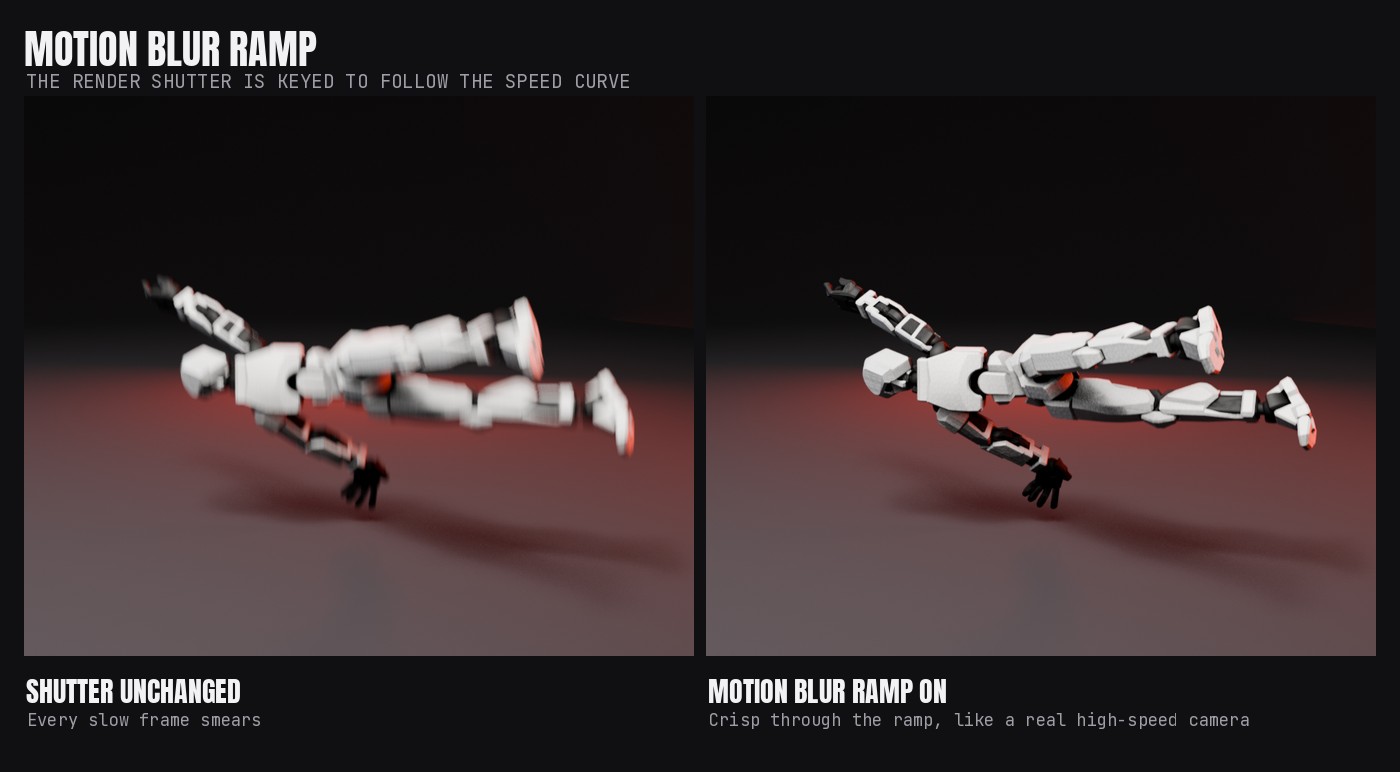
| Motion Blur Ramp | Keys the render shutter to the speed curve, for crisp slow-motion frames |
| Free Sim Caches on Apply | Clears baked physics caches so simulations re-run on the new timing |
Pre-flight: the line above Apply counts what is about to be retimed — actions, NLA strips, node groups, camera cuts, sims — and flags an unsaved file.
How it works
You animate one property and the add-on does the arithmetic.
- Speed is keyframed in your current timeline. "At frame 100, go to 25%" means the moment that sits at frame 100 right now. Presets just insert those keyframes, so you can reshape them in the Graph Editor afterwards.
- Apply integrates the curve into a time remap. Output time advances by 1 / speed per source frame, so a 25% section takes four times as long on the timeline while everything inside it keeps its shape.
- Everything time-based is pushed through that map. F-curves are resampled frame by frame; NLA strips are baked through the ramp into their own copies; markers and camera cuts move; physics time scales, particle timestep, geometry-nodes Scene Time and the render shutter are keyed to follow it; the scene end extends to fit.
- Restore is a swap, not a re-stretch. The originals were never touched — they were set aside as backup actions with a record on the scene — so Restore puts the exact keys, interpolation, strips and settings back, with no drift if you apply and restore all day.
Stepped animation stays stepped: a curve whose keys are all constant (sprite-sheet cells, visibility switches) is resampled with constant keys, so a subframe or a motion-blur sample never lands between two cells.
Good to know
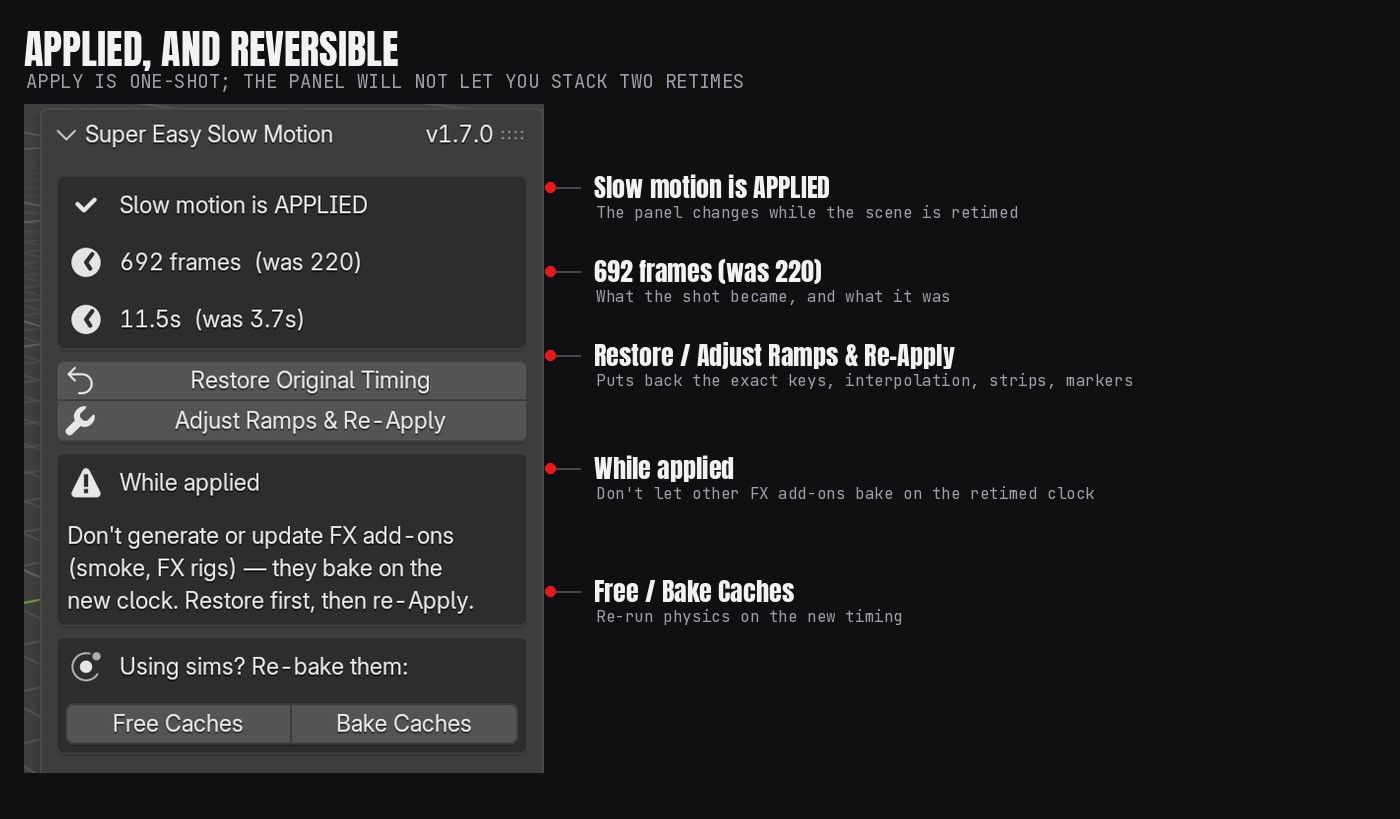
- Apply is one-shot. To change a ramp, press Restore (or Adjust Ramps & Re-Apply), edit, and apply again. The panel enforces it, so you can never stack two retimes on top of each other.
- Baked keys are dense — one per frame, linear, or constant where the source was stepped. That is what makes it exact; your clean original keys are kept in the backup actions and come back on Restore.
-
Each NLA strip plays a baked copy while applied (named with a
_SLOWMO_STRIPsuffix). Restore puts the original action and the strip's own settings back and deletes the copy. - Sound and video strips in the Sequencer are not retimed. Slowing dialogue needs a variable-speed audio render, which is outside what this does; mute or re-cut the audio for the slowed section.
- Geometry-nodes simulation zones are not retimed. Node groups that read the Scene Time node are; a simulation zone carries its own state between frames and would need re-simulating.
- Fluid simulations are not handled. The domain has its own time scale if you need it.
- Don't run other FX add-ons while slow motion is applied. Anything that bakes to the timeline will bake on the retimed clock. Restore first, generate, then apply again — the panel reminds you.
- Save before you apply. It is fully reversible, but a save costs nothing.
Requirements
- Blender 5.0 or newer. Tested on 5.0 through 5.3, on Windows, macOS and Linux. It handles both the classic action system and the layered actions introduced in 5.x.
- Cycles or EEVEE. Nothing here is engine-specific; the motion blur ramp keys whichever shutter your engine uses.
- Any rig. The add-on works on keyframes and NLA strips, not on a particular rig, so iClone and Character Creator exports, Mixamo, Rigify, Auto-Rig Pro, hand-keyed armatures and plain object animation are all the same to it.
- Any animation source: object and bone keys, shape keys, camera moves, material and node-tree animation, constraint influences, NLA action strips, rigid body, cloth, particles, and geometry-nodes setups driven by the Scene Time node.
- No internet connection, no external dependencies, no files written outside your .blend.
Update log
Version 1.7.0 is the first release on Superhive. The history below is the development record, newest first.
| Version | What changed |
|---|---|
| 1.7.0 | Camera cuts: camera-bound markers retime with the shot and come back on Restore, including cuts moved or added while applied. New Camera Cuts panel with jump, bind and a was N readout |
| 1.6.0 | Ramp manager, runtime and target-length readout, pre-flight summary, saved My Ramps presets, 2x and 4x timelapse presets, Adjust Ramps & Re-Apply |
| 1.5.0 | Stepped curves stay stepped when retimed; actions flagged as real-time are left on the real clock for lip sync |
| 1.4.0 | Geometry-nodes time retiming for node groups that read the Scene Time node |
| 1.3.0 | Multi-impact marker automation and the motion blur ramp |
| 1.2.1 | Version shown in the panel header |
| 1.2.0 | NLA strips baked through the ramp, so a ramp inside a mocap take slows exactly where it is placed |
| 1.1.0 | One-click preset grid, live readouts, collapsible panels, speed-key navigation |
| 1.0.0 | First build: keyframable speed, film presets, live preview, scene-wide apply and exact restore, physics time scaling |
Support
Message me through Superhive. I reply within 72 hours.
Have questions about this product?
Login to message
| Blender Extension Compatible | Yes |
| Published | 31 minutes ago |
| Blender Version | 5.0 - 5.3 |
| Extension Type | Add-on |
| Render Engine Used | Cycles, Eevee |
| License | GPL |
Discover more products like this
Motion Blur camera time-remap mocap speed ramp Retime high-speed Slow Motion NLA animation