Surface Forge — 40+ Geometry Nodes Surface Presets
 Voyde Procedural


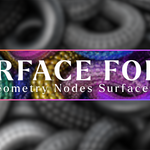
Surface Forge Documentation
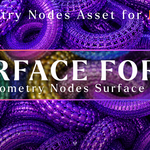
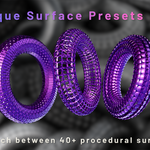
Surface Forge is a Geometry Nodes asset library featuring 40+ procedural surface presets for Blender.
This documentation explains how to install the asset library, use the presets, adjust the parameters, and apply your own materials.
Quick Start
- Extract the downloaded ZIP file.
- Open Blender.
- Go to Edit → Preferences → File Paths.
- Under Asset Libraries, click Add.
- Select the Surface Forge folder.
- Open the Asset Browser.
- Select the Surface Forge catalog.
- Drag a preset into your scene and start editing.
Installation
Surface Forge is designed to work as a Blender Asset Browser library. After extracting the product ZIP file, add the main Surface Forge folder as an Asset Library inside Blender.
- Open Blender.
- Go to Edit → Preferences.
- Open the File Paths tab.
- Find the Asset Libraries section.
- Click Add.
- Select the extracted Surface Forge folder.
- Save Preferences.
Using the Presets
Once the library is added, open the Asset Browser and select the Surface Forge catalog. You can drag and drop any preset into your scene.
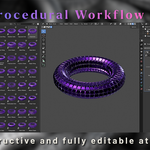
Each preset is powered by Geometry Nodes and can be edited from the modifier panel. You do not need to manually edit the node tree for basic use.
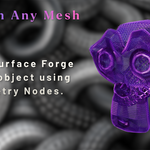
Works On Any Mesh
Surface Forge presets are designed to work on a wide range of meshes and objects. You can use them on primitives, hard-surface models, product assets, props, sci-fi objects, abstract shapes, characters, and custom geometry.
The final result may vary depending on the topology, shape, and scale of the mesh. For best results, use clean geometry and adjust the preset settings according to your object.
Adjustable Parameters
Most presets include simple controls directly in the Geometry Nodes modifier panel. These controls allow you to customize the final surface design without destroying your base mesh.
- Scale XY — controls the overall surface pattern scale
- Height — controls the depth or extrusion strength
- Subdivision Level — increases surface smoothness and detail
- Noise Scale — adds procedural variation
- X Size — adjusts horizontal sizing
- Y Size — adjusts vertical sizing
- Blur Iterations — softens or blends the surface effect
Materials
Surface Forge is material friendly and works with Blender’s native material system. You can apply your own materials directly to the object after adding a preset.
Use metal, ceramic, plastic, glass, emissive, procedural shaders, or custom PBR materials to create different visual styles.
Recommended Workflow
- Add your base mesh to the scene.
- Apply or add a Surface Forge preset.
- Adjust scale, height, subdivision, and noise values.
- Assign your preferred material.
- Fine-tune lighting and render settings.
Performance Tips
- Use lower subdivision levels while working in the viewport.
- Increase subdivision only for final renders when needed.
- Apply presets to optimized meshes for better performance.
- Use Blender’s viewport display settings if your scene becomes heavy.
License
Surface Forge is distributed under the included Royalty Free License. You may use the presets in personal and commercial projects.
Redistribution, resale, repackaging, sharing, or uploading the original files to other marketplaces is not permitted.
Support
If you encounter any issues or have questions about the product, please contact Voyde Procedural through the marketplace support system.
Created by Voyde Procedural.
Have questions about this product?
Login to message
| Sales | 10+ |
| Rating | 1 ratings |
| Published | 4 months ago |
| Blender Version | 4.0 - 5.1 |
| Render Engine Used | Cycles, Eevee |
| License | Royalty Free |
Discover more products like this
surface design procedural motion graphics blender addon geometry nodes surface details blender Generator hard surface sci fi asset library procedural modeling