Surface Mesh
 Pavel Serak 3Dartmodeling


Surface Mesh — Documentation
What is Surface Mesh?
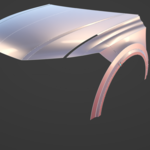
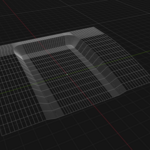
Surface Mesh is a Blender add-on for creating and managing surfaces from Bezier curves using the Coons patch method. It's designed for concept car body modeling — sketch panels from 4 boundary curves, and the surface updates live as you edit the curve network.
Installation
- Download the
.zipfile included with your purchase. - In Blender, go to Edit → Preferences → Get Extensions, click the dropdown arrow next to Install from Disk, and select the downloaded
.zip. (You can also just drag and drop the.zipfile into the Blender window.) - Enable the add-on if it isn't already active.
- Press N in the 3D Viewport to open the sidebar — the Surface Mesh tab will appear.
Requires Blender 4.2 or newer.
Updating from a previous version? Remove the old version first in Preferences, then restart Blender before installing the new one.
Quick Start
Your first surface
- Press N → Surface Mesh tab
- Click New surface — a flat panel with 4 curves is created at the 3D cursor
- Turn on Auto-update — the panel now regenerates live as you move the curve points and handles
Connecting panels
- Use Curve between points to draw a new curve between two existing corner points, so neighboring panels share exact corners
- Select 4 curves and click Create surface from selection (order: C0, C1, D0, D1)
- If the panel looks twisted or saddle-shaped, click Auto-fix Curve Directions — it checks every combination of curve direction and role assignment and applies the one that actually connects all 4 corners
- Repeat to build up a full panel network
Feature Reference
Curve Tools
- New curve — straight Bezier curve at the 3D cursor
- Circle / Half circle
- Curve between points — click two existing corner points to connect them exactly
- Reverse Curve Direction
- Add Point by Click + Split Curve at Point — split one curve/panel into two
Surface Tools
- New surface / Create surface from selection
- Auto-fix Curve Directions — finds the correct direction and role for all 4 boundary curves automatically, including the case where a curve was assigned to the wrong side entirely
- Generate / Generate all patches
- Flip normals
- Mirror — add or remove a Mirror modifier (X/Y/Z axis)
- Apply Mirror (in place) — bakes the mirrored result directly into the panel's mesh, and marks the panel so Generate/Auto-update never silently overwrite it afterward. Use Un-apply any time to return to a live, curve-driven mesh.
- Toggle Surfaces — show/hide all generated meshes, so you can work with the curve network alone
Curve Management
- Merge Endpoints — in multi-object Edit Mode, select 2 or more endpoints across curves and snap them to their shared midpoint
- Dup shared / Dup all — duplicate curves before editing, so you don't accidentally deform a neighboring panel that shares an edge
Visual Aids
- Show curve labels — panel name and role (C0/C1/D0/D1) shown on each curve in the viewport
- Show point info — live XYZ coordinates and handle angles for selected points, in Edit Mode
- Highlight selected curves — thicker highlight on selected boundary curves
- Click any curve or generated surface in the viewport → its panel is automatically selected in the list
Resolution
- Preview resolution controls mesh density during live/Auto-update editing (lower = faster)
- Resolution (export) controls the quality used by Generate / Generate All
Panel Naming Convention
- C0 — left edge (u = 0)
- C1 — right edge (u = 1)
- D0 — bottom edge (v = 0)
- D1 — top edge (v = 1)
Compatibility
- Blender 4.5 and above
- Tested on Blender 5.2 (Windows)
- Bezier curves only — NURBS curves are not supported
 Included
Includes 12 months of
- Support from Pavel Serak 3Dartmodeling
- Product updates
Extend this product’s Support Period +12 months: 25% of product price
Have questions before purchasing?
Login to message
| Blender Extension Compatible | Yes |
| Sales | 30+ |
| Published | about 2 months ago |
| Blender Version | 4.5 - 5.2 |
| Extension Type | Add-on |
| License | GPL |