SVG-Forge
 CStudio.ao
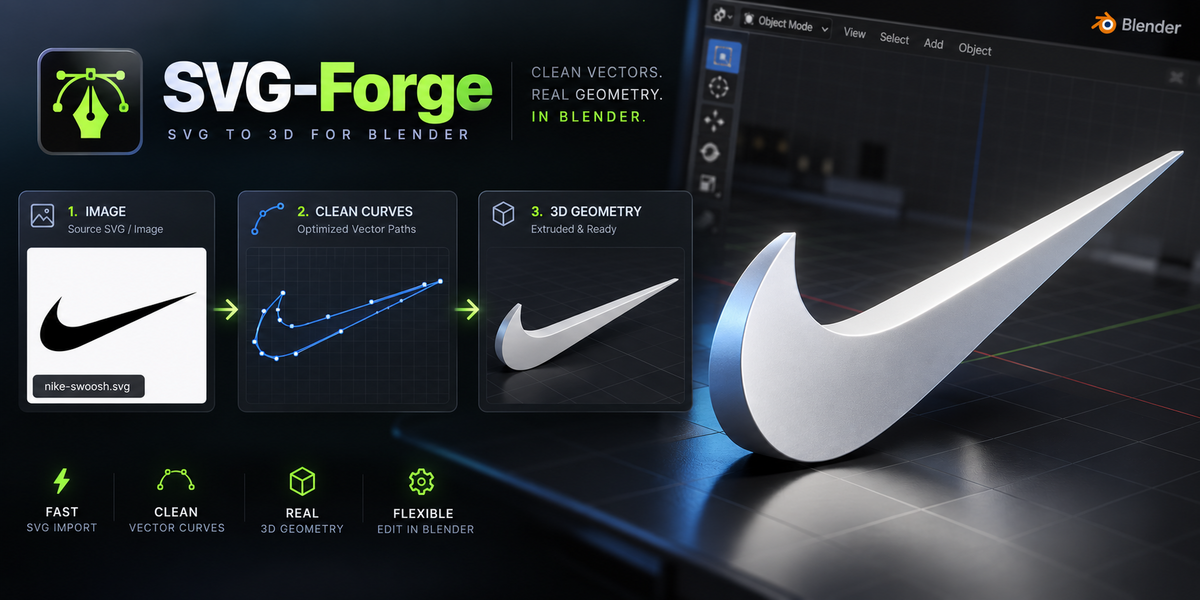


Installation
- Download the SVG-Forge ZIP file.
- Open Blender 4.5 or newer.
- Open Preferences.
- Install SVG-Forge from disk.
- Enable the extension/add-on if required.
- Open the 3D Viewport.
- Press N and select the SVG-Forge tab.
Quick Start
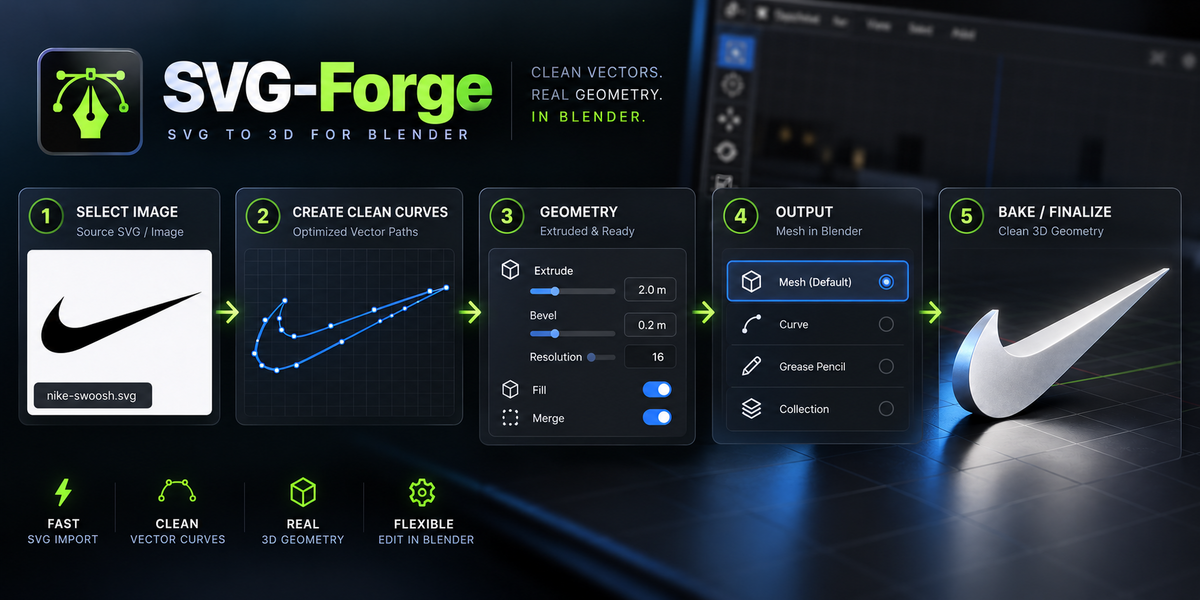
1. Select Image
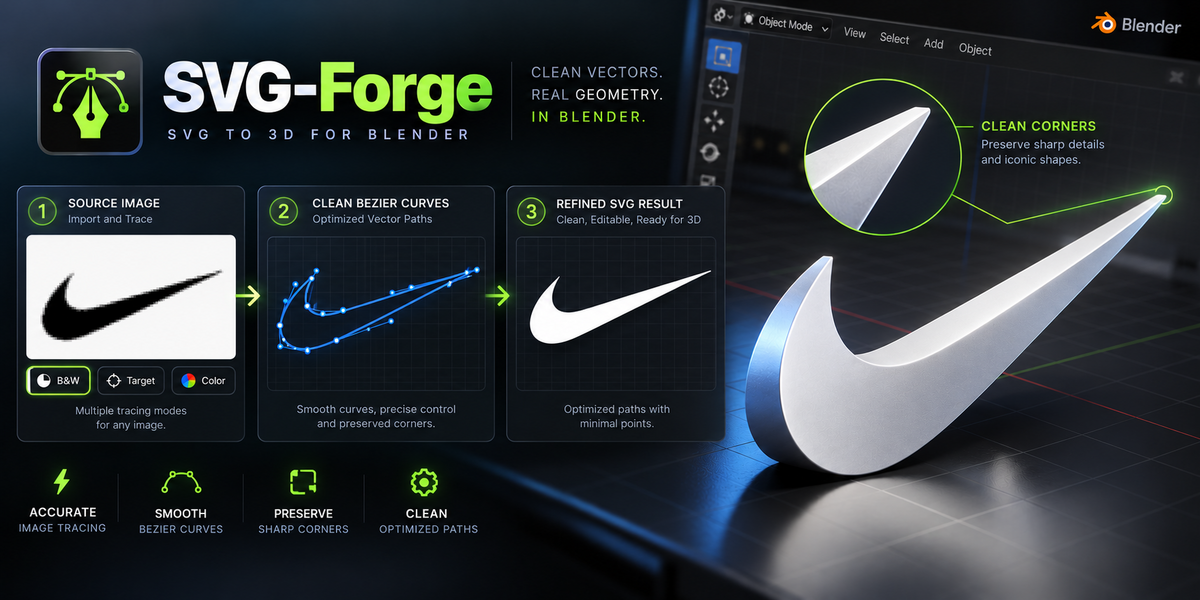
Choose a PNG, JPG, WEBP, BMP or TGA image.2. Configure Trace Settings
Choose B&W, Target Color or Color tracing and adjust the tracing settings.3. Create Clean Curves
Use Preview if necessary, then create the final editable curves.4. Adjust Geometry
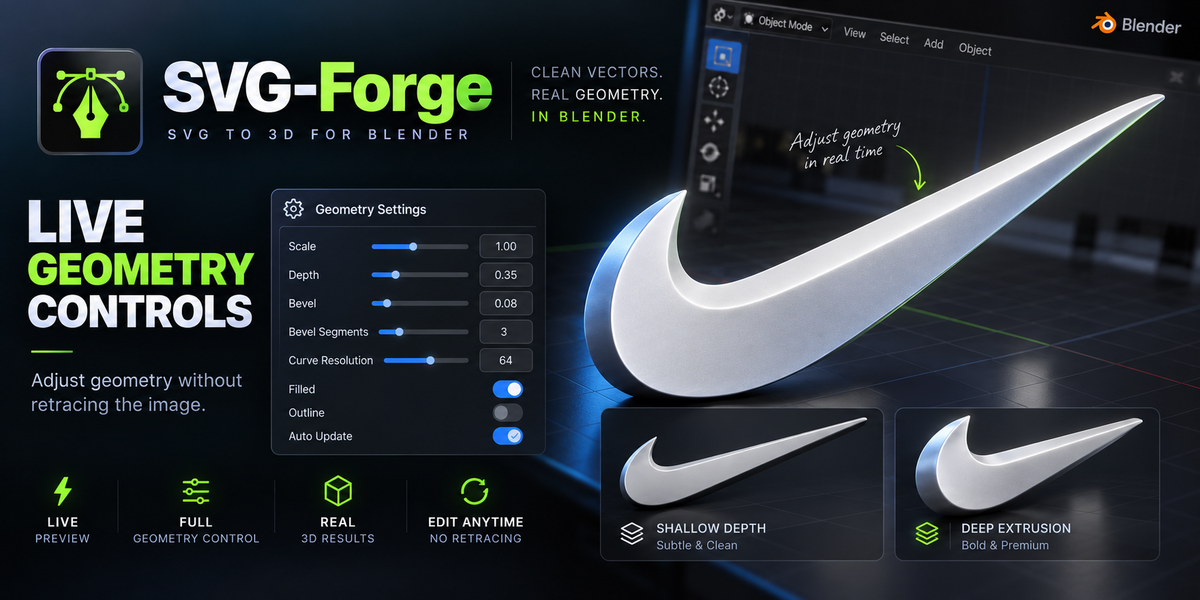
Change Scale, Depth, Bevel, Curve Resolution and Filled/Outline mode.5. Choose Output
Export SVG, keep editable curves or prepare a mesh.6. Bake Mesh
When the curves are ready, use Bake Clean Mesh from Curves.
Recommended Images
SVG-Forge works best with logos, icons, silhouettes, graphic artwork and images with clearly defined shapes.
Highly detailed photographs, noisy images and complex gradients may generate more complex vector results.
Quick Window
Press Ctrl + Shift + V to open the SVG-Forge Quick Window.
Editing Curves
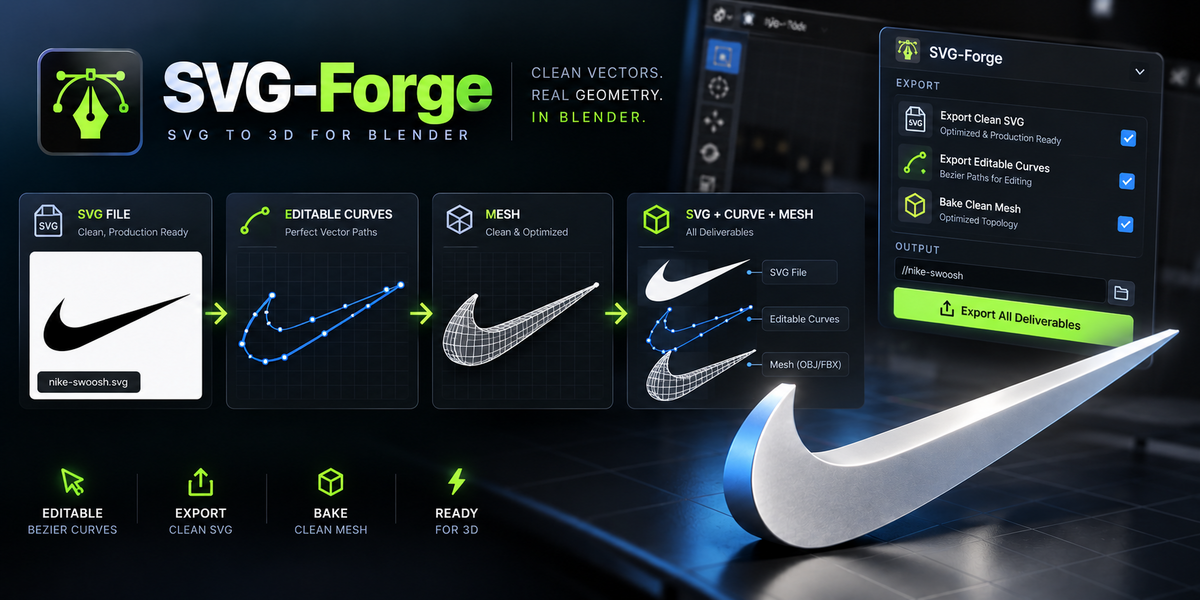
Use Edit Curve to access the generated source curve. Because SVG-Forge follows a curve-first workflow, the shape can be adjusted before the final mesh is baked.
Mesh Workflow
After the curves are approved, use Bake Clean Mesh from Curves. The resulting mesh is created with flat shading by default.
Uninstall
Open SVG-Forge and run its cleanup/uninstall option where applicable, then remove or disable SVG-Forge from Preferences.
Have questions about this product?
Login to message
| Published | 11 days ago |
| Blender Version | 4.5 - 5.2 |
| Extension Type | N/A |
| Render Engine Used | Blender-Internal, Blender-Game-Engine, Cycles, Eevee |
| License | GPL |

Discover more products like this
image to svg png to svg vector tracing vectorize SVG curve extrusion logo modeling bezier mesh logo