SwiftPack for Blender
 Rob Simonds


Installation
- Download the SwiftPack zip package.
- In Blender, open Edit > Preferences > Add-ons.
- Click Install from Disk.
- Select the SwiftPack zip file.
- Enable the add-on.
- Open the 3D View sidebar and find the SwiftPack tab.
Before You Start
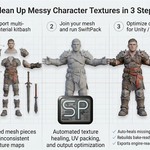
- If your asset is made of separate mesh pieces, select them first and join them with Ctrl+J.
- Select the original joined source mesh before starting a bake.
- Do not start a new bake from the generated SwiftPack preview copy.
Core Workflow
SwiftPack uses a simple 3-step workflow:
Step 1: Select Target Pipeline
- In Target Pipeline, choose the engine or export target you want to build for.
- Use the target that matches your final destination, such as Unity URP, Unity HDRP, Unreal, or a generic workflow.
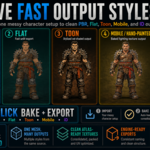
Step 2: Choose a Style and Bake
- Open the style you want to use.
- Available styles include PBR, Toon, Flat, Mobile / Hand-Painted, and ID Map.
- Adjust any options for that style if needed.
- Click the active style button again to run the bake.
- Wait for SwiftPack to generate the processed preview copy and baked outputs.
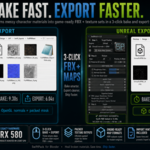
Step 3: Export Output Files
- Use Swift Export to write the final output files.
- Open Advanced Export Options if you want to change naming or tagging behavior.
- You can also enable automatic opening of the output folder after export completes.
What Each Step Controls
- Step 1 controls how SwiftPack formats outputs for the target engine or workflow.
- Step 2 controls the visual output style and style-specific bake options.
- Step 3 handles final file output, including FBX and texture export where supported.
Auto Heal and Manual Heal
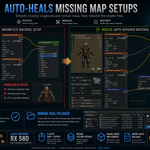
If SwiftPack detects missing source maps, it will try to repair them before baking.
Auto Heal
- Auto Heal searches nearby source folders and matching material-name contexts to reconnect missing maps automatically.
- This is the fastest option and should be tried first.
Manual Heal
- If Auto Heal cannot find a reliable match, SwiftPack will prompt for Manual Heal.
- During Manual Heal, point SwiftPack to the folder that contains the missing texture set for that material.
- After a successful Manual Heal, SwiftPack will also try to recover other nearby missing sets automatically before asking again.
Export Notes
- Advanced Export Options can be used to change output naming and tagging behavior.
- You can enable automatic opening of the export folder after export completes.
- Export behavior may vary slightly depending on the selected target pipeline and style.
Best Results
SwiftPack works best when:
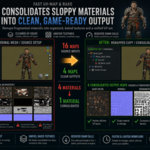
- the source asset is joined before baking
- the correct source mesh is selected
- the target pipeline matches the final engine workflow
- source textures are organized in nearby folders when possible
Have questions about this product?
Login to message
| Published | 5 months ago |
| Blender Version | 5.1 |
| Extension Type | N/A |
| Render Engine Used | Cycles, Eevee |
| License | GPL |

Discover more products like this
Import-Export 3D workflow AtlasTextures addon blender Material Cleanup character uv packing game-art pbr texture baking blender to unreal export easy-b2u-blender-to-unity-export ID-map