SyncTools Pro for 3ds Max
 blenderVfxMaster
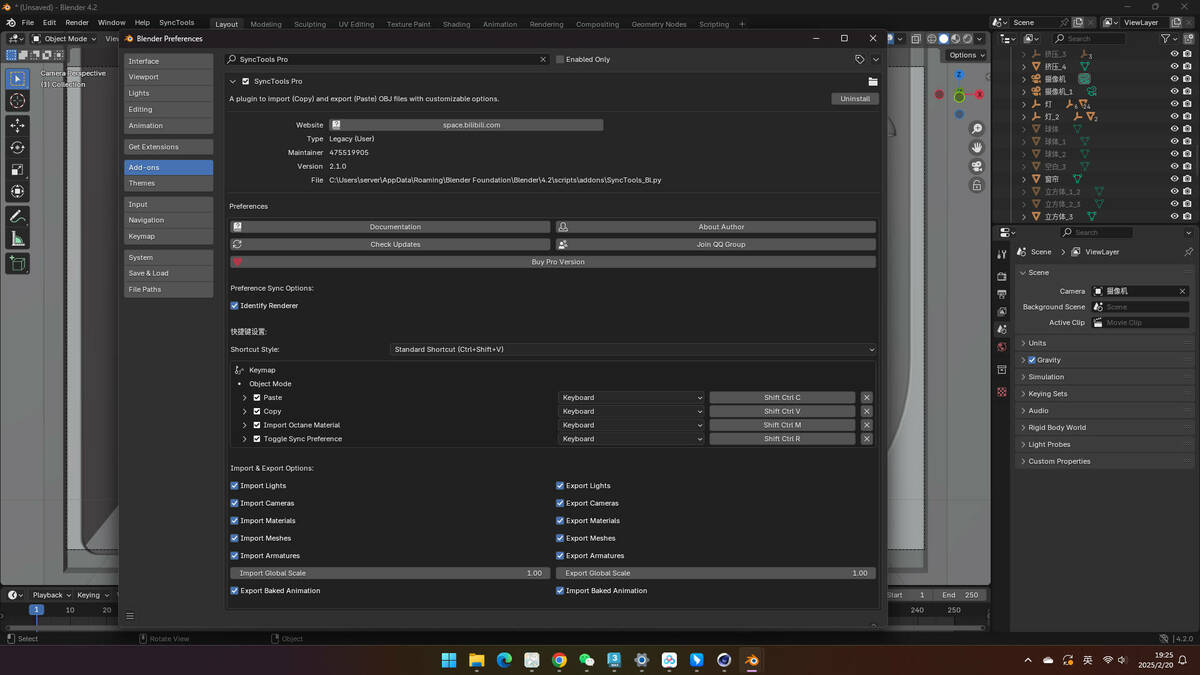
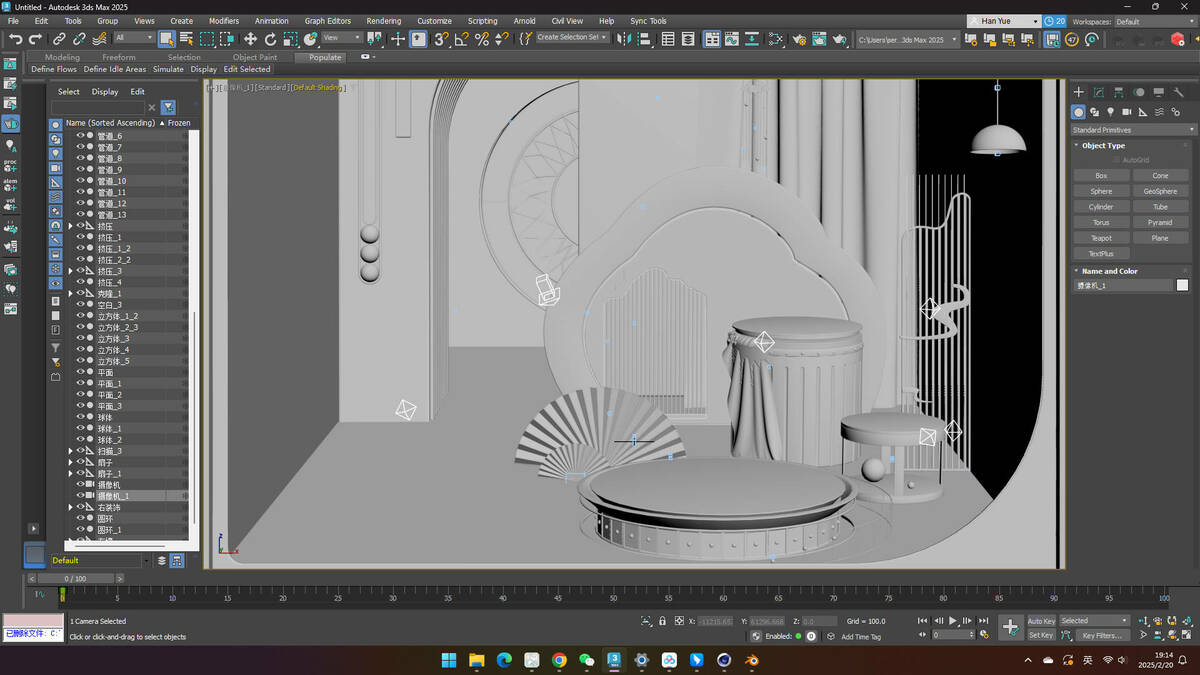
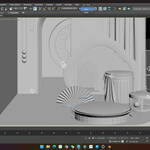
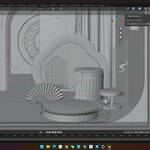
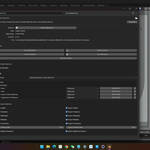
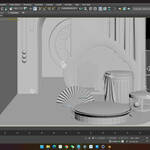
1. Storing the Script in the Correct Location
-
Locate the script file locally, e.g., named
SyncTools_max.py. -
Copy or move the file to the 3ds Max script folder. Common practices are to place it in one of the following directories:
-
The
Scriptsfolder under the installation directory, e.g.:C:\Program Files\Autodesk\3ds Max \Scripts -
The
scriptsfolder in the user's documents, e.g.:C:\Users\\Documents\3dsMax\scripts -
(Optional) If you want the script to load automatically every time 3ds Max starts, place the script directly in the
Startupfolder, e.g.:C:\Program Files\Autodesk\3ds Max \Scripts\Startup
Tip: If you don’t want the script to load automatically every time, you can simply store the script in a regular
Scriptsfolder and run it manually when needed. -
2. Loading the Script in 3ds Max
- Open the 3ds Max main program.
- In the menu bar, find "Scripting" (or "MaxScript" in some versions), then click on "Run Script...".
- In the pop-up dialog, find and select the
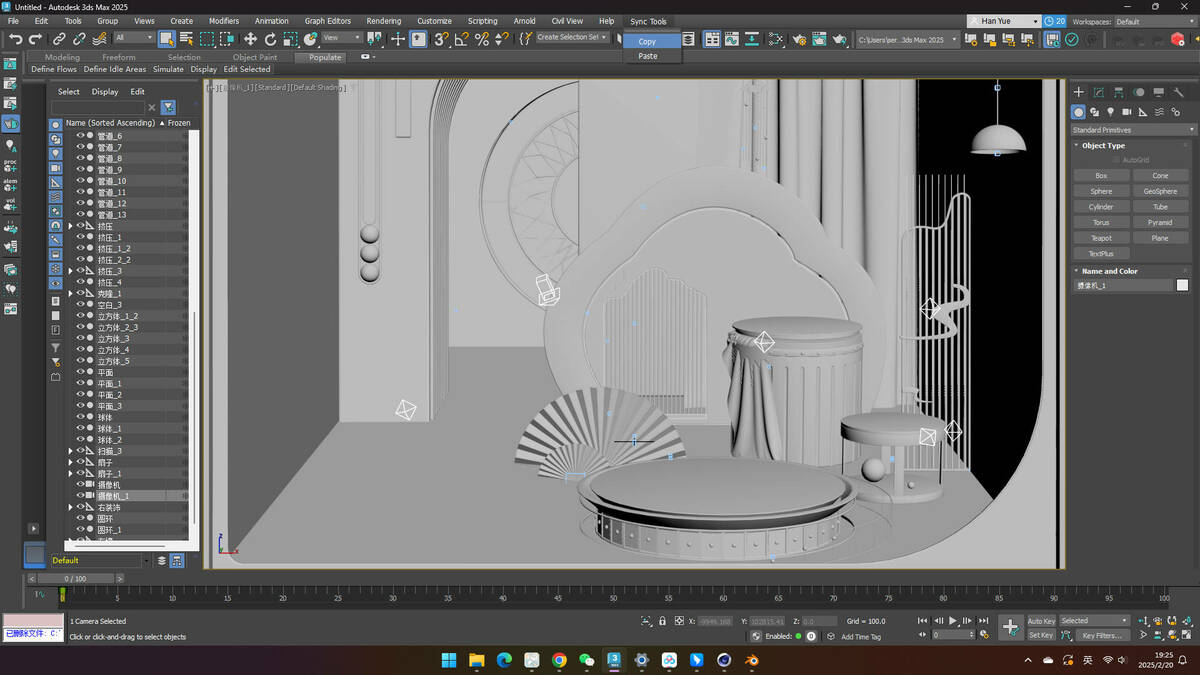
SyncTools_max.pyfile you previously placed, then click "Open". - The script will execute and add a new "Sync Tools" menu item to the 3ds Max menu bar, which includes the "Copy" and "Paste" options.
- If you placed the script in the
Startupfolder, the script will automatically execute and create the menu when 3ds Max starts, without the need to run it manually.
3. Using the Script Features
Copy
- Select the objects you want to copy in the scene.
- Click on "Sync Tools > Copy" in the menu bar.
- The script will store the selected objects as files in a local cache directory (typically located in
Documents/cache), ready for later pasting.
Paste
- When you need to import the cached objects into the current scene:
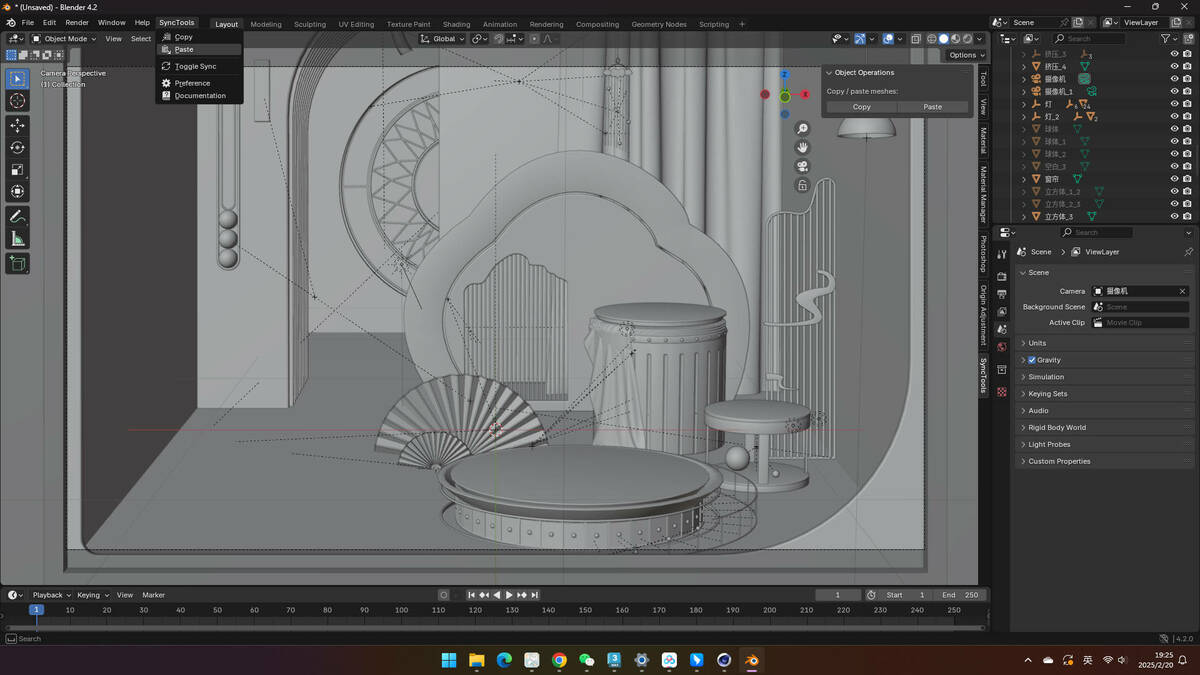
- Click on "Sync Tools > Paste" in the menu bar.
- The script will look for the latest exported file in the cache directory and automatically import it into the current scene.
-
$12
1 seat. For individual creators or small commercial projects.
-
$28.80
Up to 3 seats / single studio team. Use across all internal projects within one company.
-
$144
15+ seats / company-wide / unlimited internal use across subsidiaries.
Have questions about this product?
Login to message
| Sales | 20+ |
| Published | over 1 year ago |
| Blender Version | 3.6 - 5.2 |
| Extension Type | N/A |
| License |
Discover more products like this
Python 3dmodeling 3dartist assetmanagement 3DVisualization crossplatform Production fbx ArchViz characteranimation gamedev maya c4d cgi creative modeling Studio import 3d autodesk plugin 3DsMax rigging digital tools blender productivity technical Workflow animation synctools Export 3DRendering Development VFX pipeline maxscript 3dart design digitalart