 JFW
JFW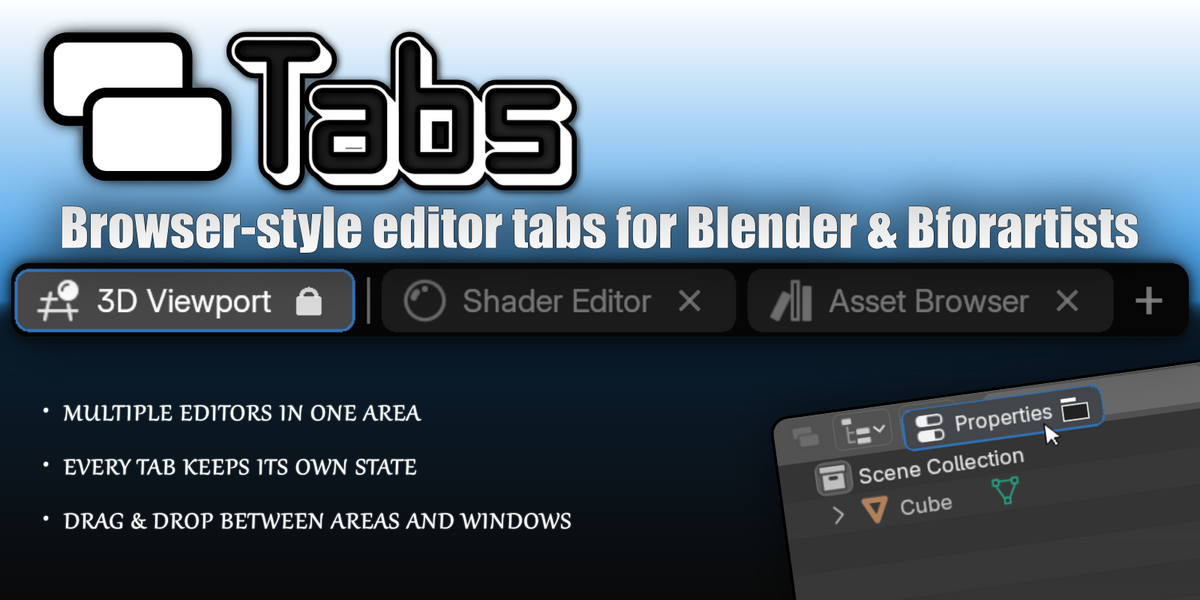
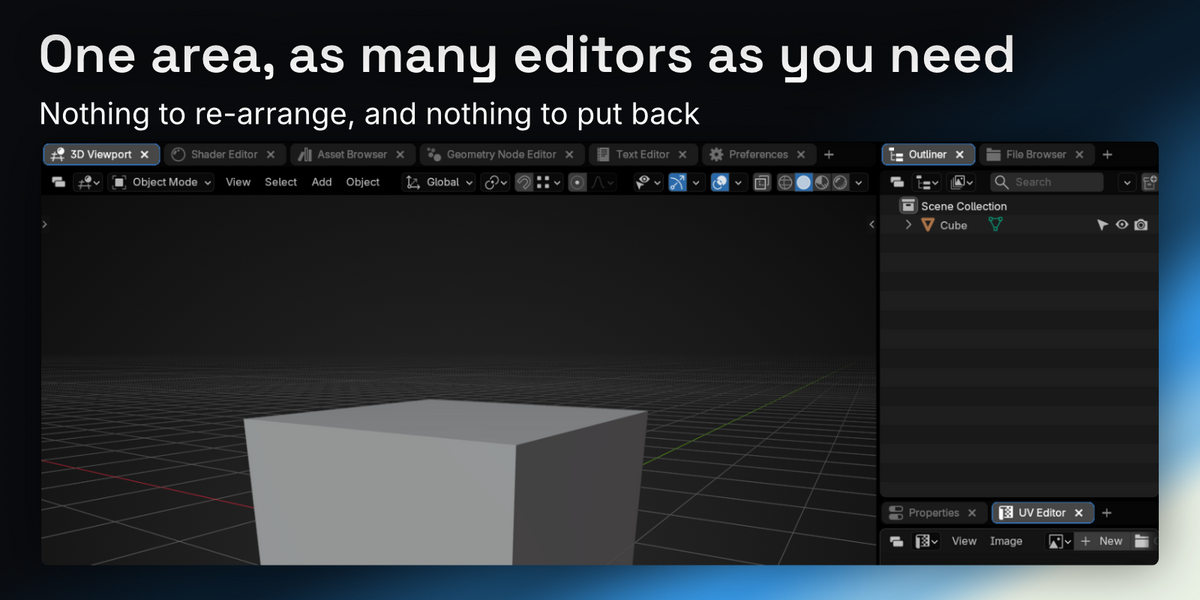
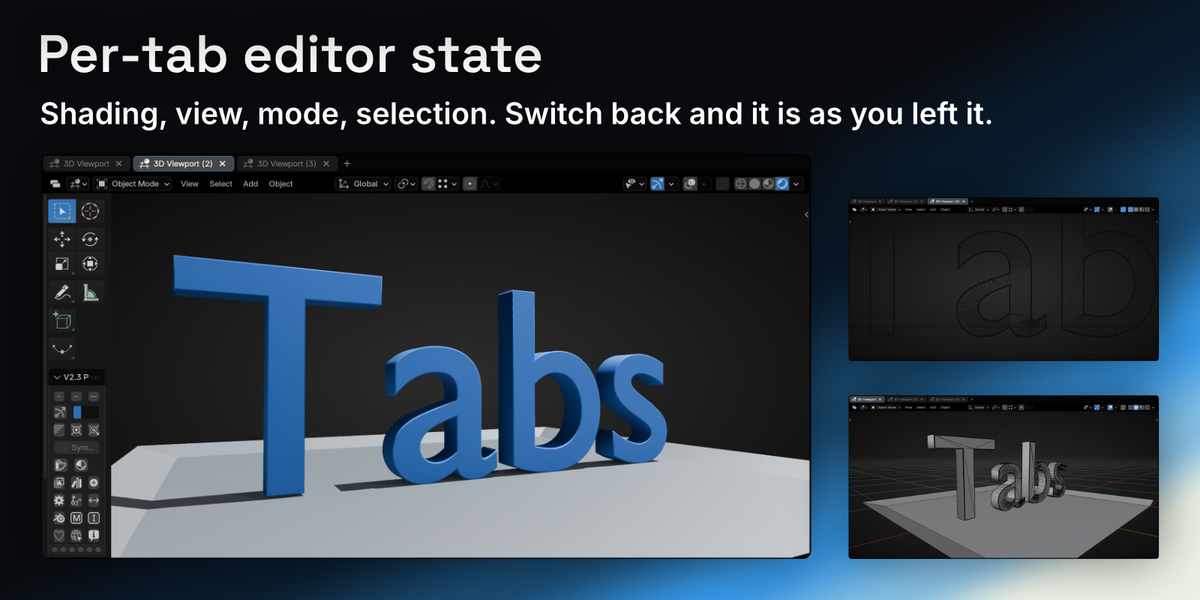
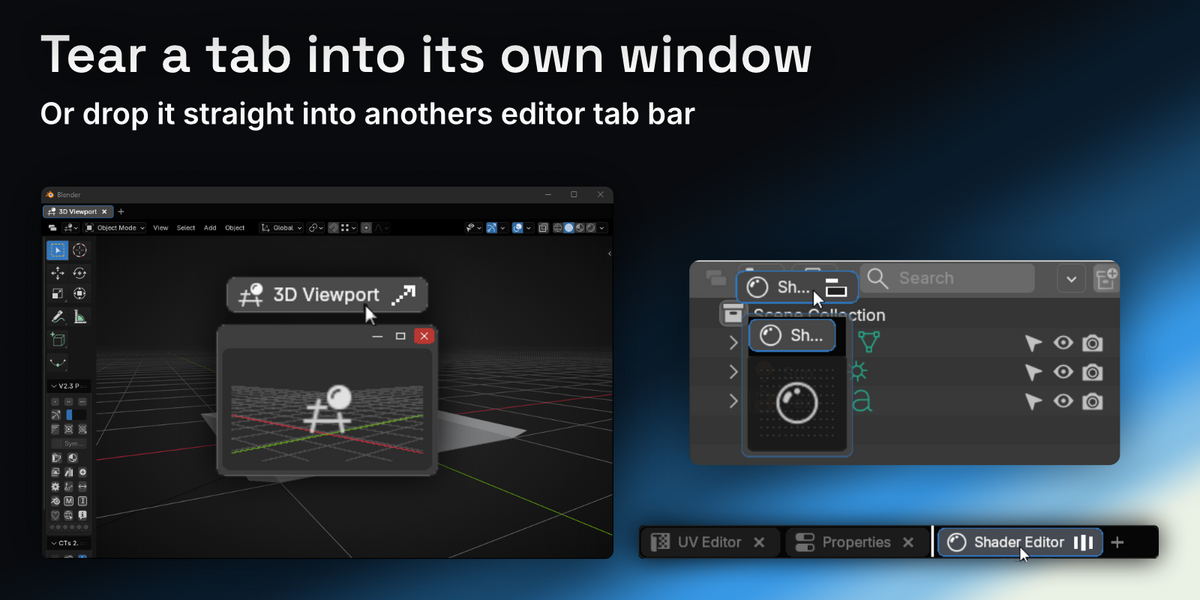
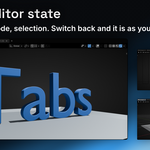
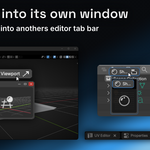
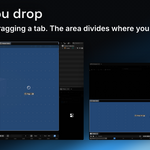
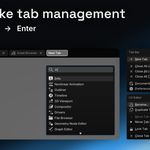
Full Documentation — installation, showing the tab bar, adding tabs, moving tabs between areas, splitting with a tab, area edges, locked tabs, saving & loading, and settings.
Quick start
-
Install: drag the downloaded zip into the Blender window (or
Edit > Preferences > Add-ons > Install from Disk…). -
Start in either place: press
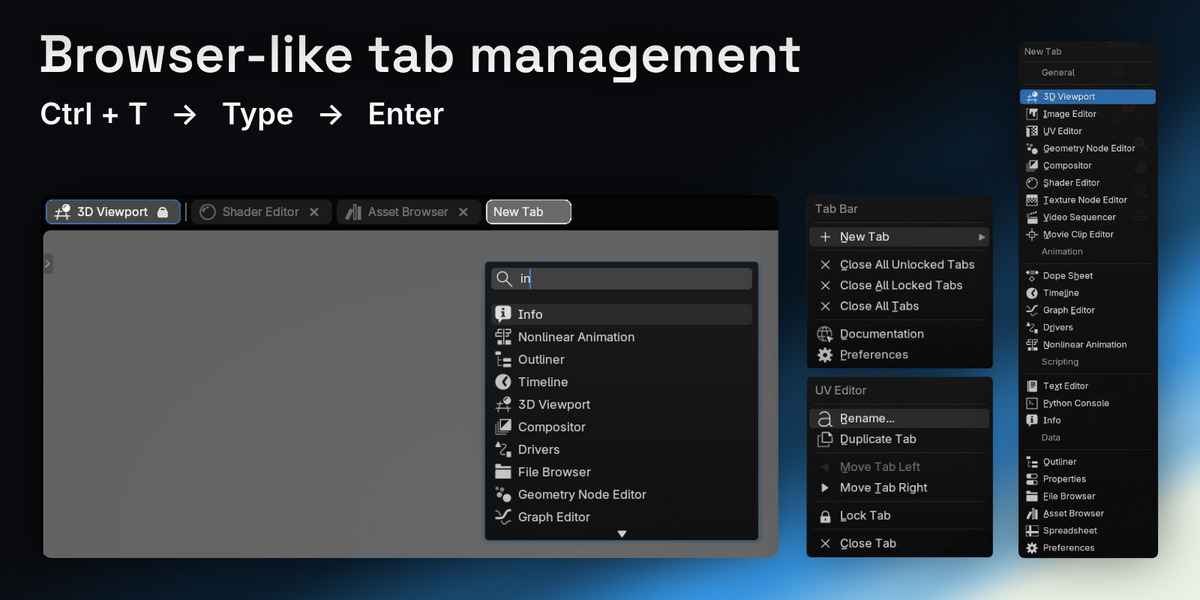
Ctrl+Tin any editor and search for the one you want, or click the Tabs button in the editor's header to raise an empty bar. Both get you a tab bar — the shortcut skips straight to adding a tab. - From there: + at the end of the bar adds another, and right-click a tab for its menu or the bar for the whole-bar one. Each tab is a full editor and keeps its own state.
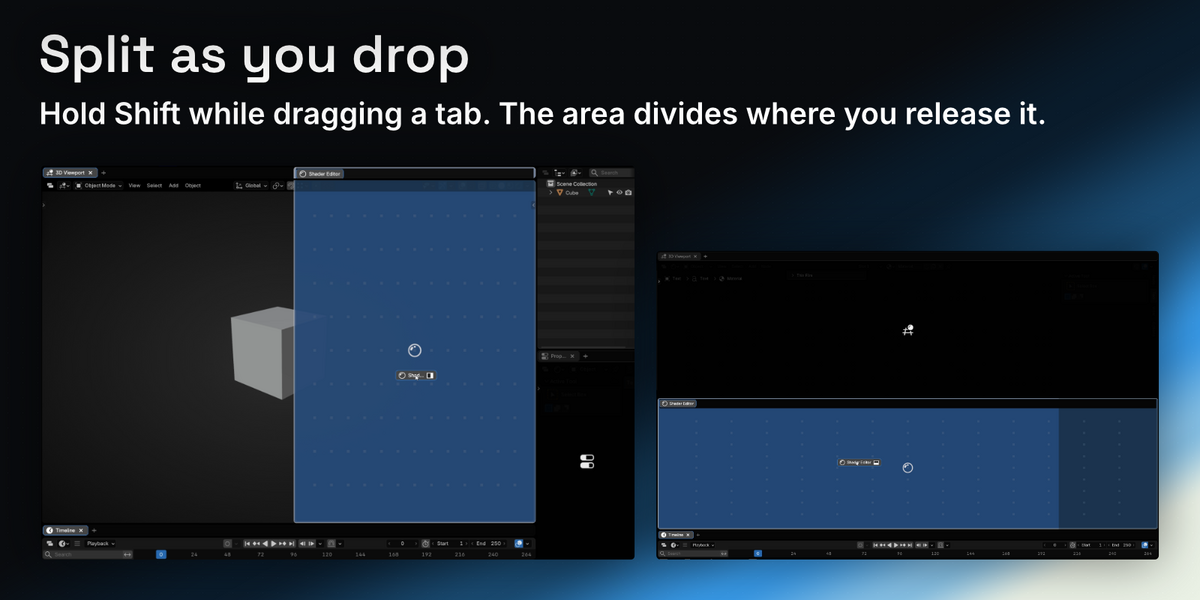
- Drag a tab to move it: onto another bar and it lands there, onto a bar-less header and that editor gains a bar, anywhere else and it tears off into its own window. Hold Shift on the drop to split the editor under the cursor instead — add Spacebar and the seam follows your cursor.
Tabs are saved into the .blend and come back with the file.
Have questions about this product?
Login to message
Discover more products like this
Workflow workspace quality-of-life ui interface window Editor-Tabs bforartists layout productivity tabs tab