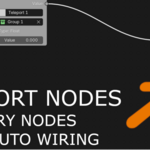
Teleport Nodes: Smart Auto-Wiring
 Miguel Angel Guisado Gallardo


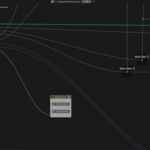
Installation Teleport Nodes uses Blender’s modern Extension system.
Open Blender 4.2 or higher.
Go to Edit > Preferences > Get Extensions.
Click the drop-down arrow in the top right corner and select Install from Disk.
Select the
TeleportNodes_vX.X.zipfile (do not unzip).The add-on is now active! You will find the Teleport tab in the Geometry Nodes N-Panel (press 'N' in the editor).
Quick Start: The 1-Click Setup The fastest way to use Teleport Nodes is via hotkey:
Select any node on your canvas that has an active output.
Press
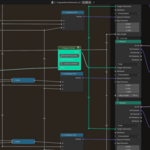
Ctrl + Shift + T.The add-on will automatically wrap the output into an Emitter, spawn a receiver Portal, and auto-wire any existing connections through the new system.
Manual Setup & Converting Reroutes
-
Manual Connections: Add an Emitter (
Shift+A > Teleport > Teleport Emitter) and a Portal. On the Portal node, use the drop-down menu to select your target Emitter. - Convert Reroutes: Have a messy string of native Blender Reroute dots? Highlight them all, open the N-Panel, and click Convert Selected Reroutes. They will instantly be upgraded into a clean Emitter/Portal setup.
N-Panel Management Use the N-Panel to manage complex graphs:
- Folders: Type a name in an Emitter's "Folder" box to group it.
- Colors: Click the color swatch next to an Emitter to color-code your routing nodes.
- Jump to Source: Click the magnifying glass icon on any Portal (or in the N-Panel) to instantly pan your camera back to its Emitter.
Maintenance & Baking
- Smart Purge: Instantly delete unlinked Portals or unused Emitters to keep your N-Panel clean.
- Clear Ghosts: Blender sometimes leaves behind invisible "ghost" node trees when deleting groups. Click this to deep-scan and purge them, keeping your file size small.
- Bake Wires: Ready to share your file? Click this to permanently convert all Teleport systems back into standard Blender cables. (Note: This is a destructive action—save a backup first!)
Have questions about this product?
Login to message
| Blender Extension Compatible | Yes |
| Published | about 2 months ago |
| Blender Version | 4.2 - 5.2 |
| Extension Type | Add-on |
| Render Engine Used | Cycles, Eevee |
| License | Mit |
