Terrain Seam Blend -Ground to Object Material Blending
 blenderustad
Requirements
Blender 4.2.0 or later (Extensions platform). Verified on Blender 4.2.0 and 5.2.0 LTS on Windows; other OSes and versions are unverified.
Install
Blender Preferences > Get Extensions > the menu in the top corner > Install from Disk, then select Terrain_Seam_Blend.zip. Enable the add-on. If you're replacing an older version, restart Blender afterward so its Python modules reload cleanly.
First use
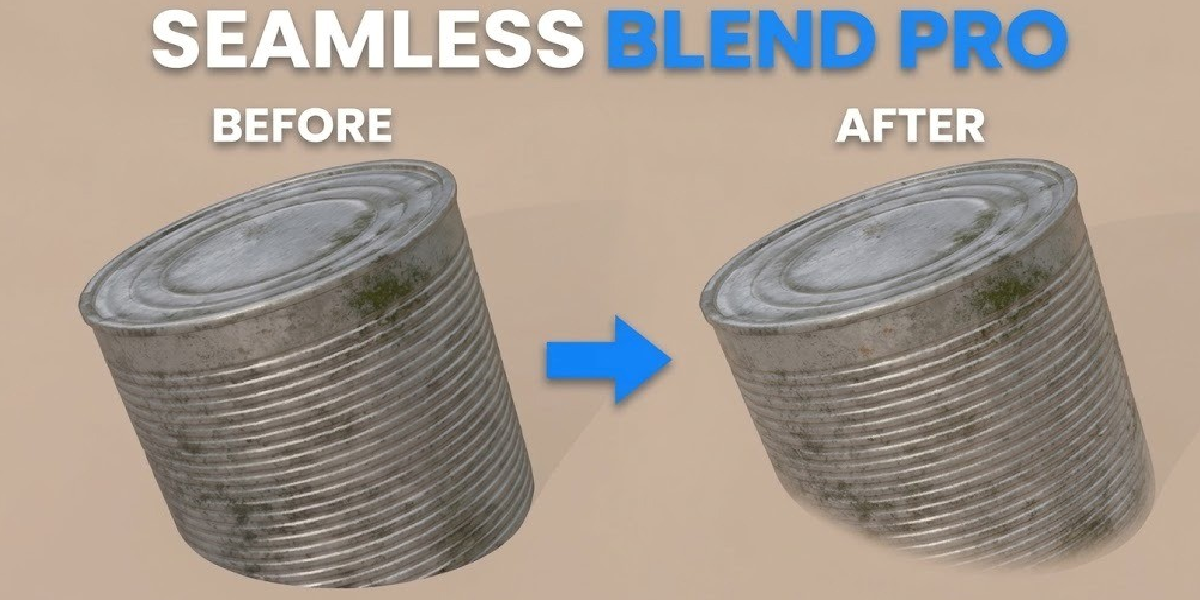
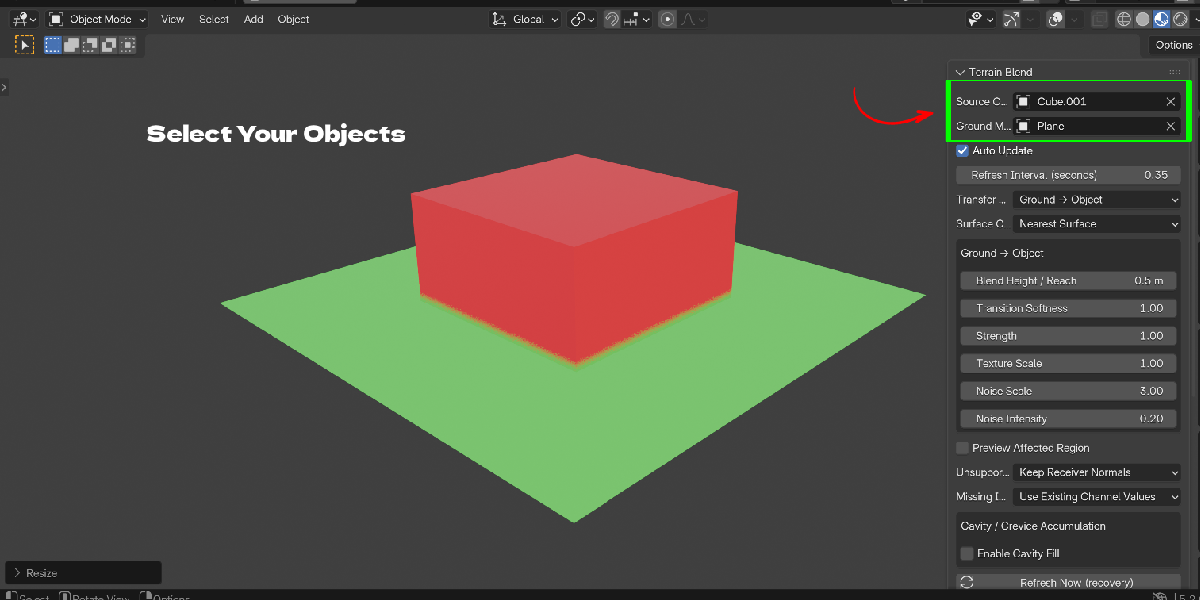
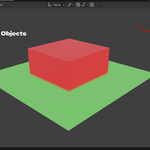
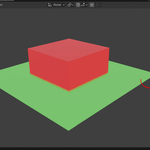
Open the 3D Viewport's N-panel and find the Terrain Blend tab. Select the mesh that should receive the blend (the receiver), set the Ground / Donor field to the second mesh, and click Create Blend. The receiver's material now blends with the donor near their contact zone, and Auto Update (on by default) keeps it current as you work.
Every panel and setting
- Receiver / Ground / Donor — the active selected mesh is the receiver; the Ground / Donor field picks the other mesh. Once a blend exists, both are shown read-only; use Remove Blend before retargeting.
- Create Blend / Refresh Now / Remove Blend — Create Blend validates the pair and starts (or safely reuses) a blend. Refresh Now force-recompiles from the originals. Remove Blend restores both originals and discards generated data.
- Auto Update — on by default; automatic refreshes pause while off, and Refresh Now becomes the manual path.
- Refresh Interval — minimum gap, in seconds, between expensive automatic refreshes (default 0.35s). Raise it on dense meshes or heavy cavity settings to reduce rebuild frequency.
- Transfer Mode — Ground → Object, Object → Ground, or Both Directions (strengths auto-normalize in Both so they sum to at most 1).
- Surface Correspondence — Ground Projection (a directional ray cast; misses receive no transfer) or Nearest Surface (closest donor point, including undersides).
- Projection Direction / Reverse Projection Direction / Maximum Projection Distance — shown when using Ground Projection; world-space ray direction and cutoff distance per transfer direction.
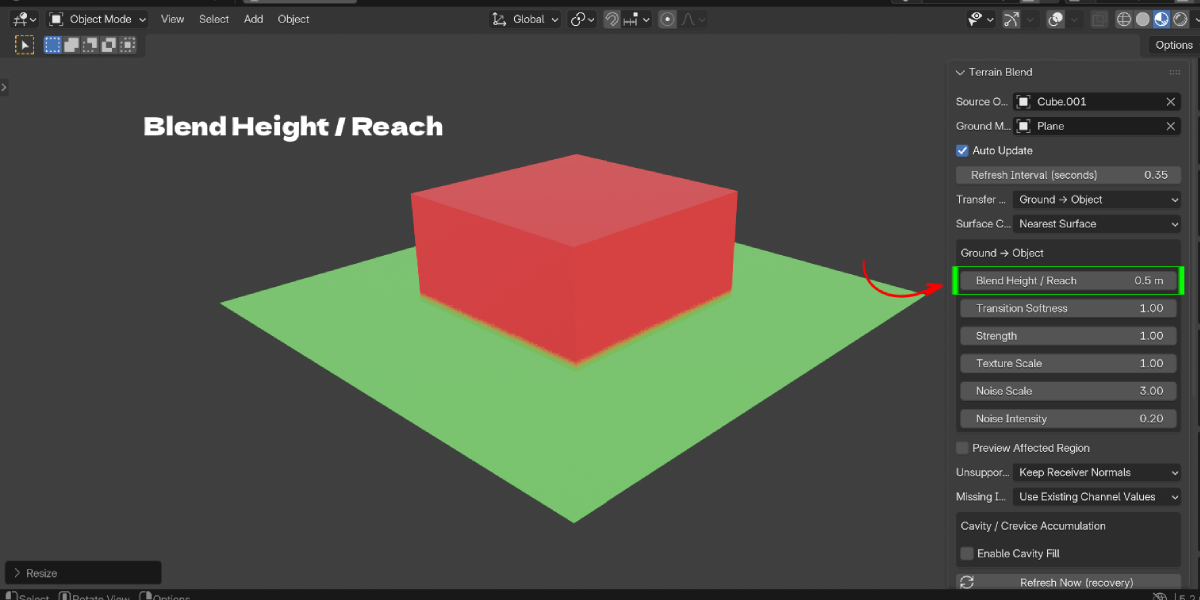
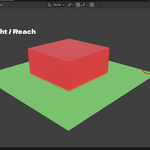
- Blend Height / Reach — world-space distance the contact band reaches from the donor surface; zero disables that direction's transfer.
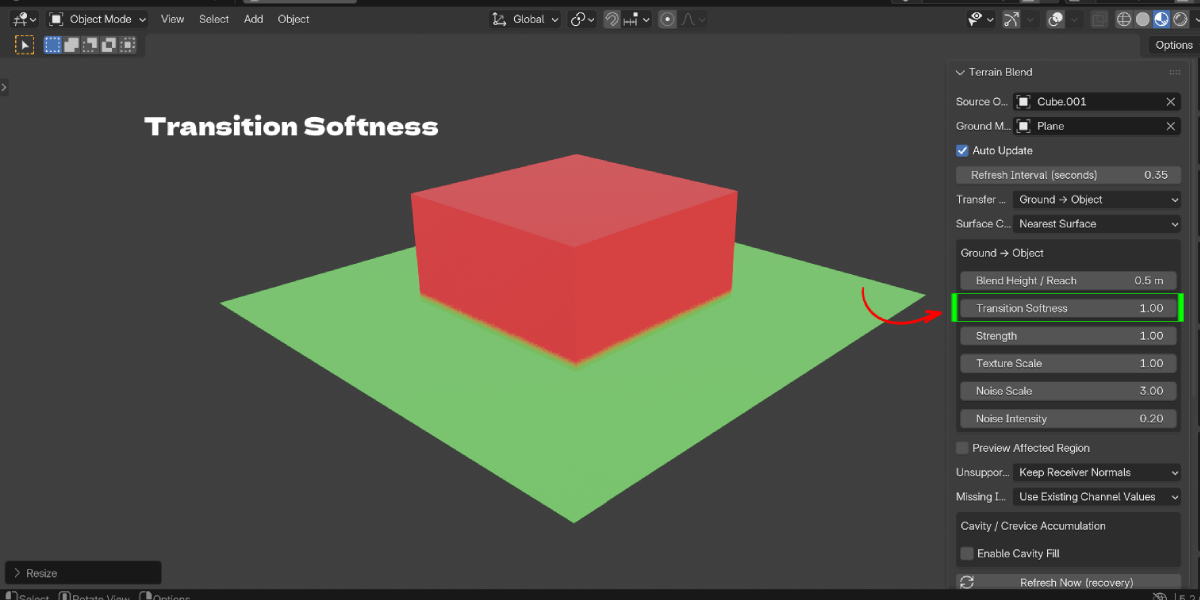
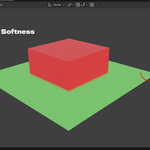
- Transition Softness — fade fraction within the reach band; 1 is a full smooth falloff, 0 a narrow edge.
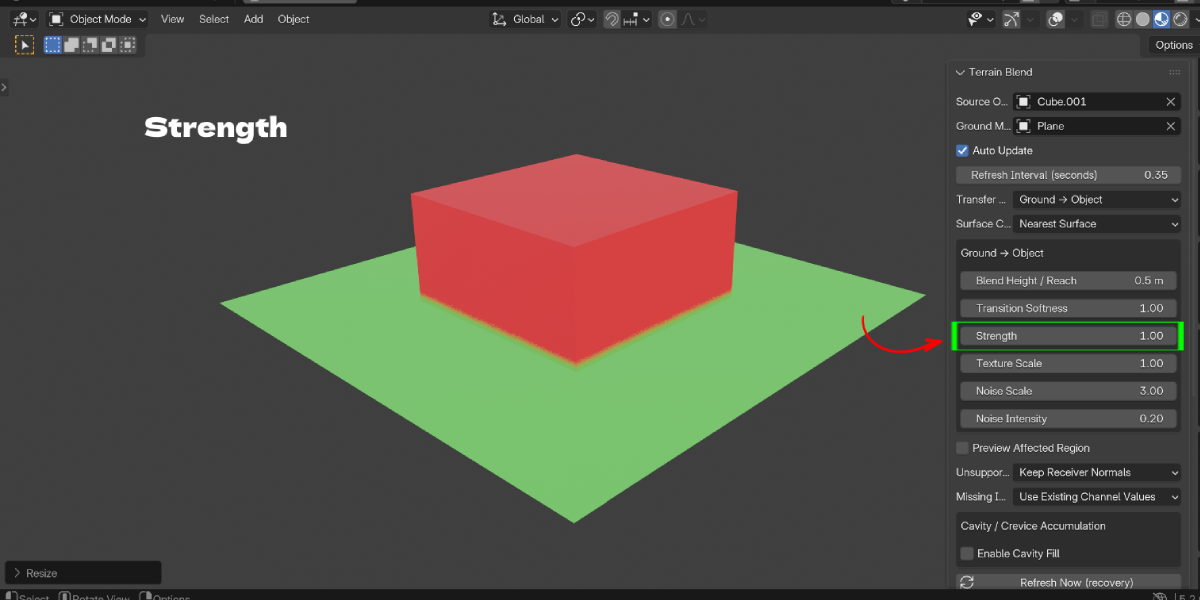
- Strength — contribution of the transferred material.
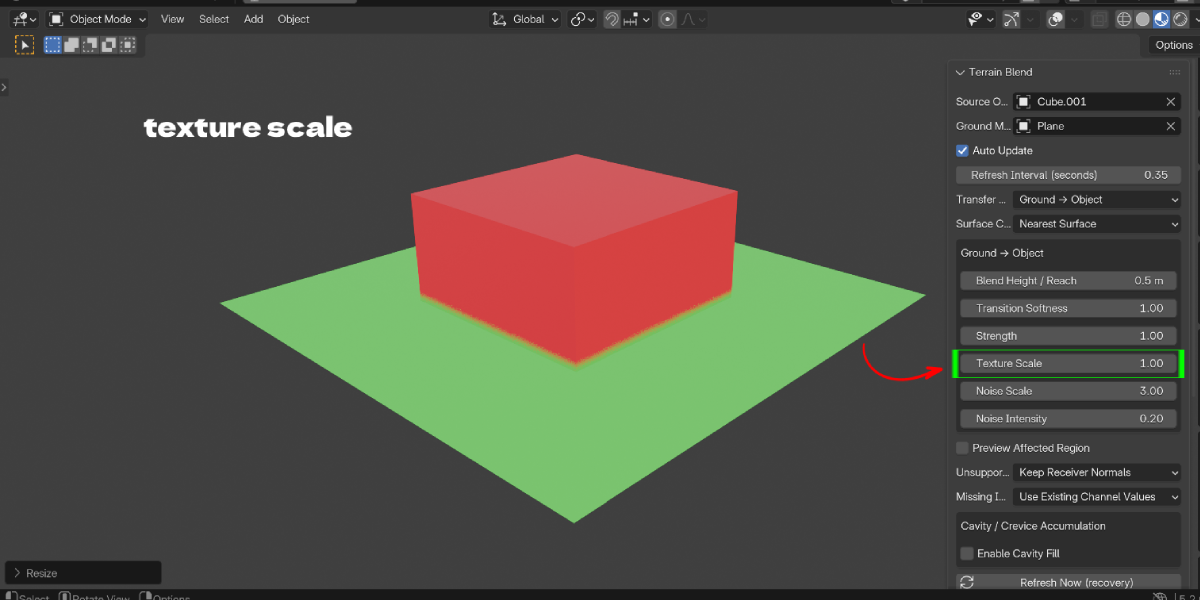
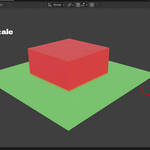
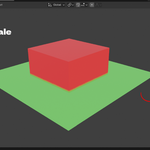
- Texture Scale — multiplies donor texture coordinates; 1 preserves the donor's original scale.
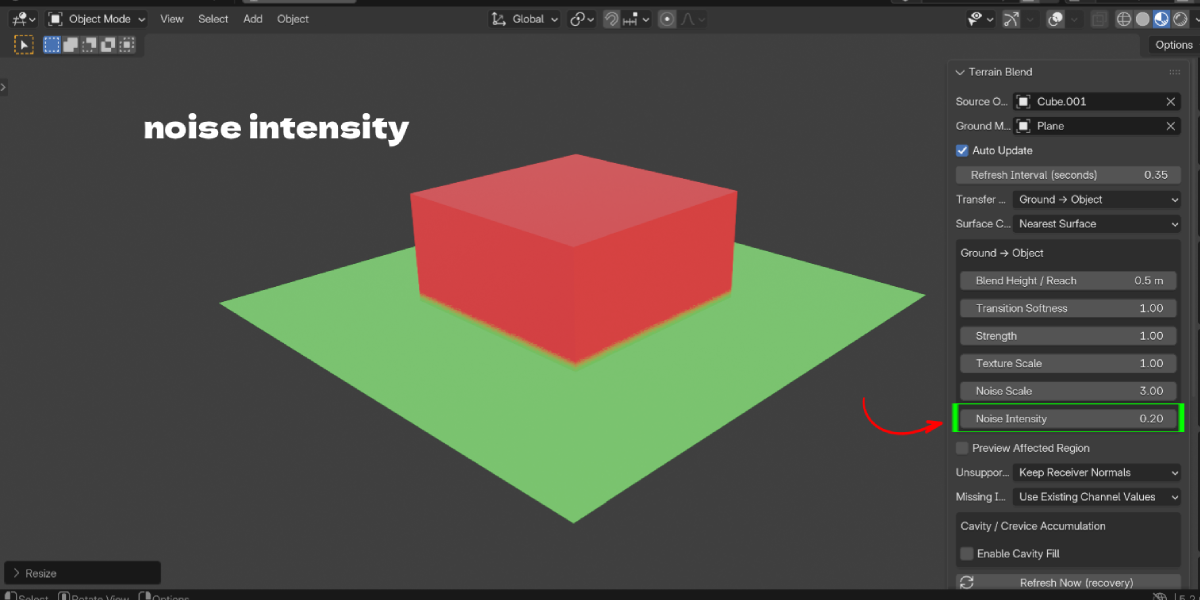
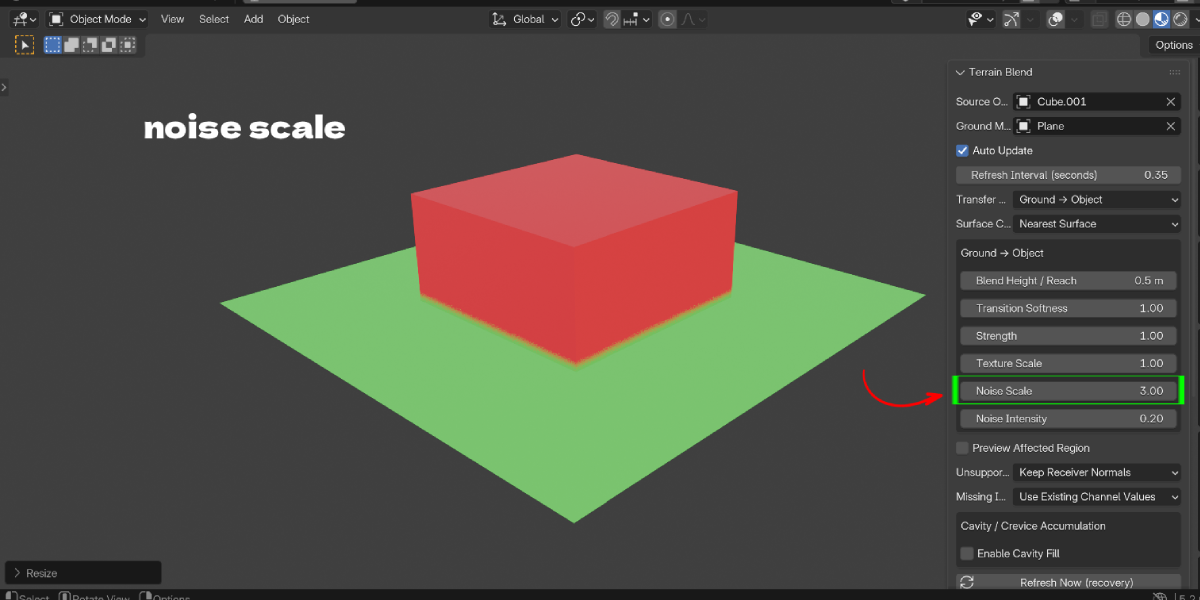
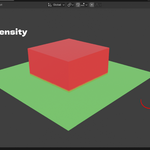
- Noise Scale / Noise Intensity — world-space frequency and amount of procedural variation in the reach band, for an organic (non-straight) blend edge.
- Preview Affected Region — temporarily shows the contact/cavity mask as black-and-white emission instead of shaded materials, for checking coverage.
- Unsupported Normal Channels — Keep Receiver Normals (preserve the receiver's existing normal data with a warning) or Stop with Error.
- Missing Images — Use Existing Channel Values (fall back to the Principled input's constant, with a warning) or Stop with Error.
-
Cavity / Crevice Accumulation — enable to add ground appearance inside modeled recesses:
- Amount / Coverage — how shallow a recess still counts.
- Accumulation Strength — contribution inside selected cavities.
- Cavity Detection Scale — world-space neighborhood radius (needs reasonably dense geometry).
- Edge Softness / Noise Breakup — smooth the coverage threshold and break it up procedurally.
- Accumulation Scope — Near Ground Contact (fades by distance to the donor) or Whole Object Cavities.
- Contact Range — proximity fade distance, shown only in Near scope.
- Upward-Facing Surfaces Only — restrict accumulation to upward-facing geometry.
- Painted Mask Group — optional vertex group to manually weight where cavity fill is allowed.
- Apparent Thickness — bump-only shading relief; does not move geometry.
- Preview Cavity Mask — shows the final stored cavity contribution directly.
Presets and shortcuts
There are no presets or keyboard shortcuts; every control is exposed directly in the N-panel for live tweaking.
Limitations
- Exact multi-material region selection on a donor supports planar layouts up to 128 triangles; larger or non-planar multi-material donors need the documented manual-bake workflow.
- Tangent-space normal maps on the donor are not transferred into the receiver's tangent basis; the receiver's own normal channel is preserved under the default policy.
- External image files are not watched on disk — reload them in Blender if their pixels change outside the file.
- Animated or render-farm pipelines should wait for the panel to show "Up to date" before a final render; a synchronous refresh before every frame is not guaranteed.
- Actual mouse/keyboard viewport interaction (dragging gizmos, modal G/R/S) was not independently verified by the developer in this environment; RNA-driven transform and property changes were tested instead.
Performance tips
Raise the Refresh Interval on dense meshes or when Cavity Fill is enabled, since cavity detection and sampling run on Blender's main thread and can pause interaction while processing. Reduce Cavity Detection Scale or disable Cavity Fill while blocking out a scene, then re-enable for final lookdev.
Troubleshooting
- "Create Blend doesn't do anything" — make sure you're in Object Mode with the receiver selected and a Ground / Donor mesh chosen; Create Blend reports an error in the status line if either is missing.
- "Blend doesn't update when I move the object" — check that Auto Update is enabled; Blender's normal event loop must be running (it doesn't refresh headless between script-driven frame changes).
- "Dirt isn't showing up in the crevices" — confirm Cavity Fill is enabled, increase Coverage or Cavity Detection Scale, and check the mesh has dense enough geometry in that area; Preview Cavity Mask shows exactly what's being detected.
- "Viewport feels slow after enabling cavity" — raise the Refresh Interval, lower Cavity Detection Scale, or work with Auto Update off and use Refresh Now while you block out the scene.
- "My material isn't transferring correctly / looks wrong" — check it against the included MATERIAL_SUPPORT.md; unsupported node setups (arbitrary shader Groups, Volume/Displacement links, non-planar multi-material donors over 128 triangles) need the documented manual-bake fallback.
- "A connected image shows as a flat color instead of a texture" — that image is missing or unavailable; by default the addon falls back to the Principled input's constant value and warns, per the Missing Images policy.
- "Panel shows 'Update failed'" — check the wrapped error text in the panel; correcting the underlying input (e.g. picking a valid donor) retries automatically on the next change.
Have questions about this product?
Login to message
| Blender Extension Compatible | Yes |
| Published | about 9 hours ago |
| Blender Version | 3.2 - 5.2 |
| Extension Type | Add-on |
| Render Engine Used | Blender-Game-Engine, Cycles, Eevee |
| License | GPL |

Discover more products like this
cavity mask terrain blend procedural Shader terrain contact shader seamless blend ground texture crevice dirt non-destructive material blend extension