Texture Ai Upscaler
 P2_limit_sadge


# Documentation
## Installation
1. Download the Texture AI Upscaler ZIP file.
2. In Blender, open Edit > Preferences.
3. Install the ZIP file from Add-ons or Get Extensions.
4. Enable Texture AI Upscaler.
5. Open the add-on preferences.
6. Click Download / Install Backend.
7. Wait until the backend status shows Installed.
The backend installer downloads Real-ESRGAN-ncnn-vulkan and the default model files after user confirmation.
## Basic Workflow
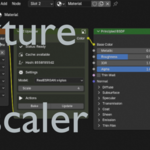
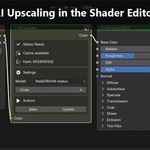
1. Open a material in the Shader Editor.
2. Add Texture > AI Upscaler.
3. Connect an Image Texture color output to the AI Upscaler Color input.
4. Choose a model.
5. Set the scale value.
6. Click Bake.
7. Use Update after changing the source image or node settings.
The node passes the original color through until a generated result is available. After baking, the generated texture is cached and used by the material.
## Model Presets
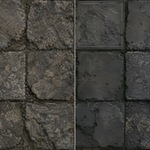
RealESRGAN x4plus is recommended for general textures, photos, scanned images, and most material sources.
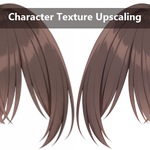
RealESRGAN x4plus Anime is recommended for stylized textures, illustrated images, sharp linework, and anime-like sources.
## Cache Location
Generated images are cached beside the saved .blend file by default.
If the .blend file has not been saved yet, Blender uses a temporary cache location.
You can choose a custom cache folder in the add-on preferences.
## Hardware Notes
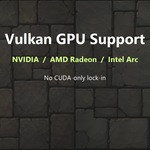
Texture AI Upscaler uses Real-ESRGAN-ncnn-vulkan.
This means it is not limited to CUDA-only NVIDIA workflows. It can run on Vulkan-capable NVIDIA, AMD Radeon, and Intel Arc GPUs.
Vulkan-capable hardware and current GPU drivers are required.
## Troubleshooting
If the backend is not installed, open the add-on preferences and click Download / Install Backend.
If Blender says online access is disabled, enable online access in Blender preferences before downloading the backend.
If baking fails, try a smaller source image first and confirm that the source image is saved or available as a Blender image datablock.
If a very large texture takes a long time, reduce the scale value or test with a smaller texture before processing final assets.
If the output does not update after changing settings, click Update on the AI Upscaler node.
Have questions about this product?
Login to message
| Blender Extension Compatible | Yes |
| Published | 5 months ago |
| Blender Version | 5.0 - 5.1 |
| Extension Type | Add-on |
| Render Engine Used | Cycles, Eevee |
| License | Mit |
Discover more products like this
shader-node Vulkan shader editor GPU ai Real-ESRGAN texture image Material resolution upscale PBR