Texture Channels
 Rynor
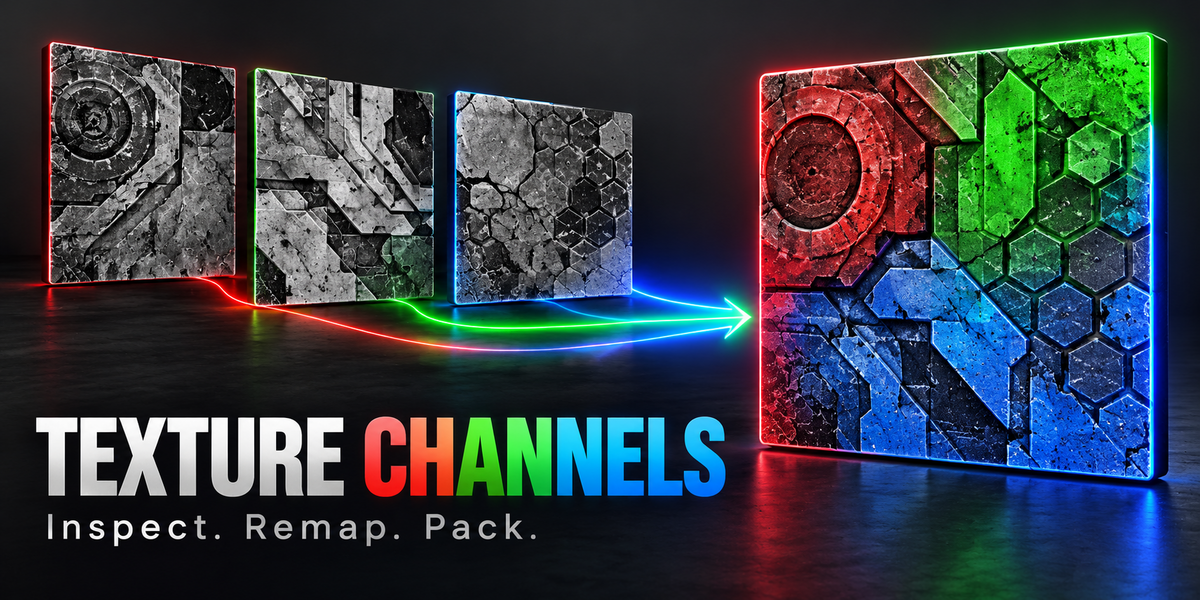
Installation and first launch
Keep texture_channels-1.4.0.zip compressed. Open Edit > Preferences > Get Extensions, open the menu and choose Install from Disk. Select the addon ZIP and enable Texture Channels. If you downloaded an outer package containing guides and images, extract that outer package first and install only the addon ZIP inside it.
Choose Texture Channels from the editor type selector in the upper-left corner of any area. A graph is initialized for the current scene. Click Open studio in its header to open the graph and viewer together in their own window. Alternatively, select an Image Texture node in the Shader Editor, press N and use Texture Channels > Open channel studio. F3 > Open Texture Channels and Ctrl Shift C in a node editor also open the studio. Without a selected texture, use Load on an Image node.
Pack an ORM texture
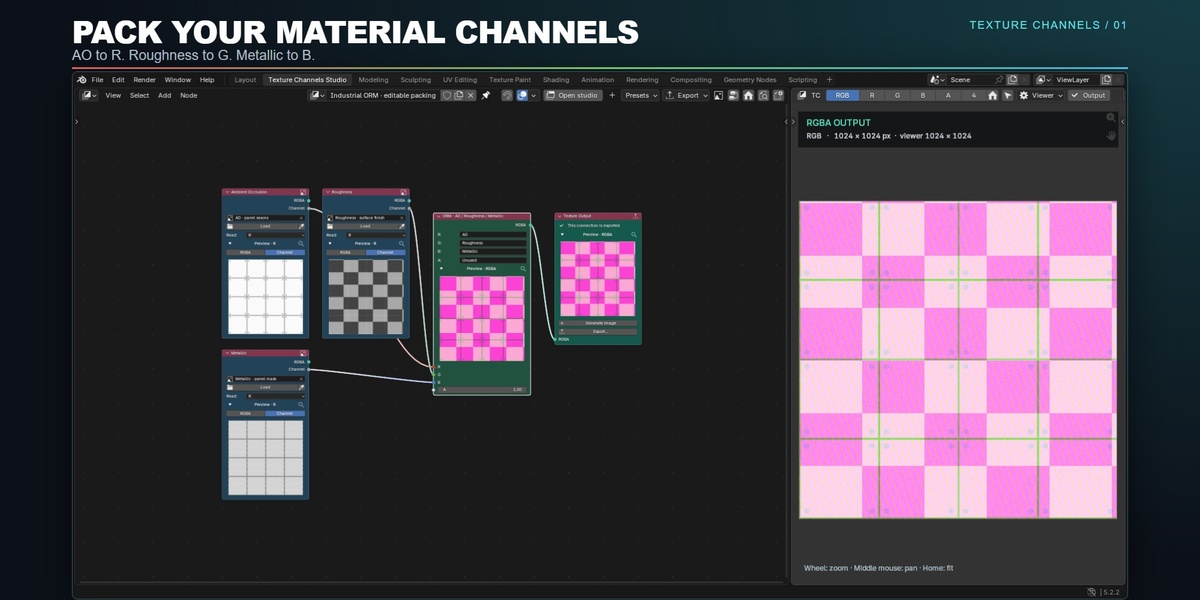
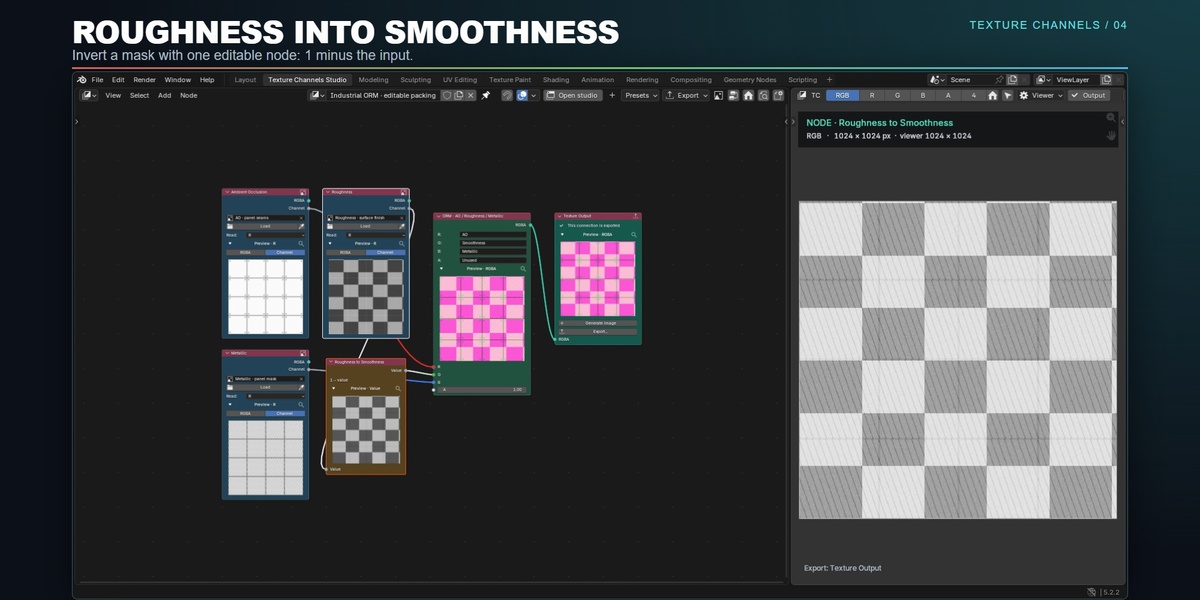
1. Open Presets and choose ORM. The editable packing assigns ambient occlusion to R, roughness to G and metallic to B.
2. Choose or load the appropriate images in the Image nodes. Select the source channel using Read. For a grayscale source, R is normally sufficient, but verify the data in the viewer.
3. Connect scalar channel outputs to R, G and B on Combine RGBA. Use a constant for an unused channel. Connect Combine RGBA to Texture Output.
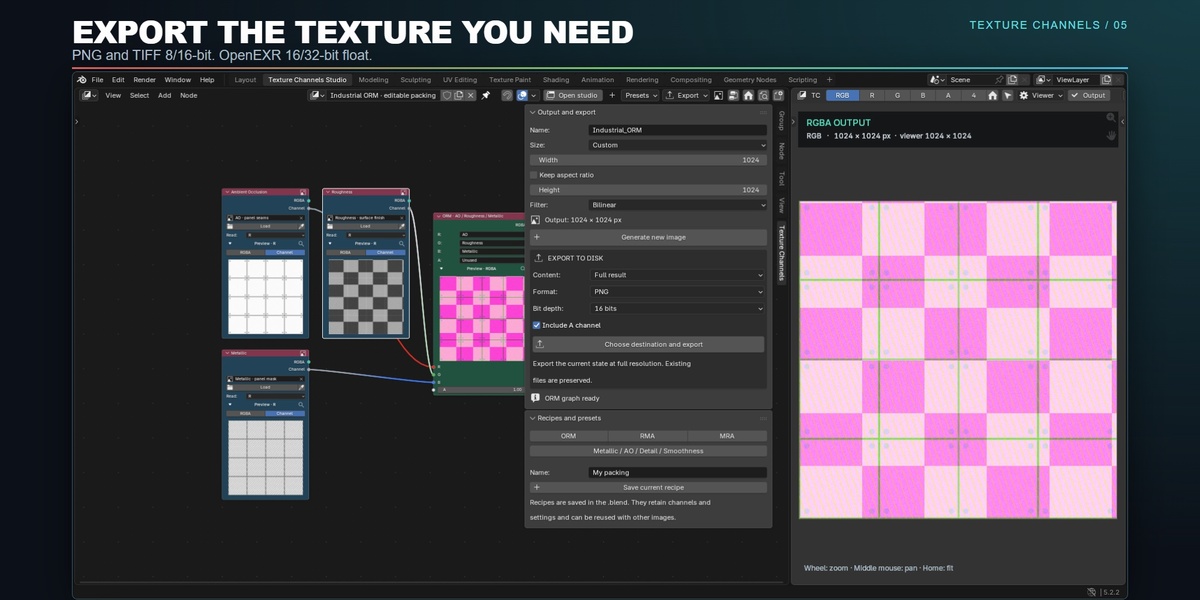
4. Choose the output dimensions and sampling under the output controls. Use Nearest for discrete masks or Bilinear for smooth interpolation.
5. Inspect RGB and the individual channels, then choose Generate or Export. Export uses the current connected output; generating an image first is optional.
Nodes and connections
Image supplies a complete RGBA output and a selected scalar Channel output. Separate Channels exposes R, G, B, A and luminance L. Extract Channel reads one channel from an RGBA input. Invert computes 1 minus the value; muting this node bypasses its inversion. Constant Value supplies a uniform scalar. Combine RGBA assembles four scalars, using each input number when no wire is connected. Texture Output defines the single final result.
Connect RGBA sockets to RGBA and scalar outputs to channel inputs. Use Separate Channels or Extract Channel when converting an RGBA stream into a scalar. Native reroutes are supported. Keep exactly one Texture Output node connected and active. Cycles, missing inputs and incompatible sockets produce a controlled error rather than an export.
Inspect intermediate results
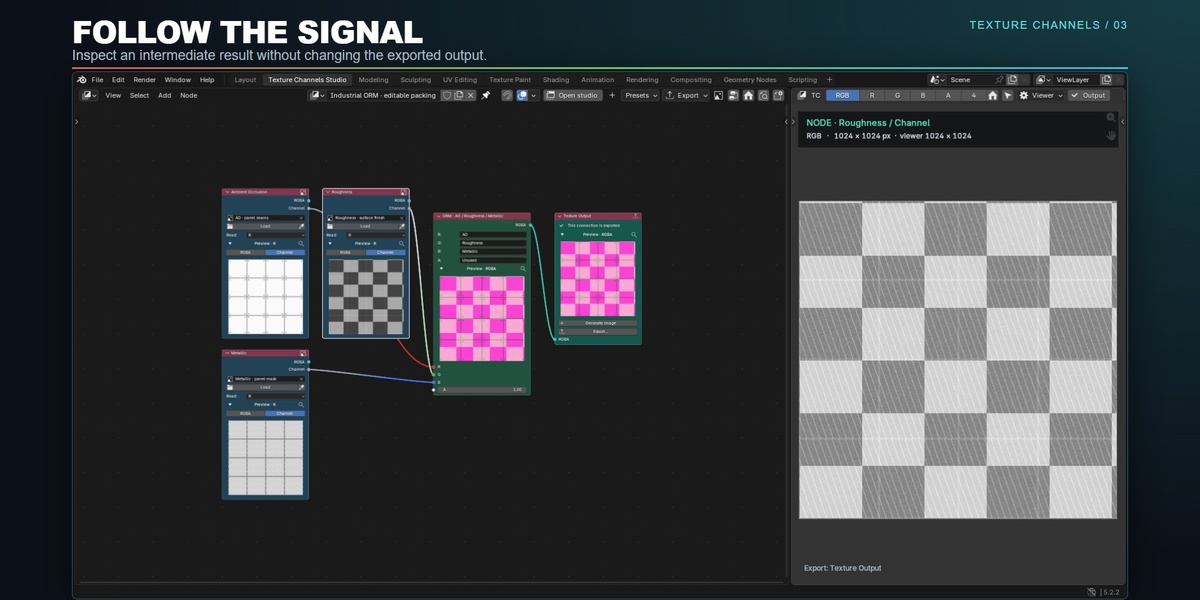
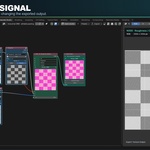
Select a node to follow its result, or click its magnifier to inspect a particular output. Follow selected node controls automatic following. Disable it to keep an inspection pinned. Click Output to return to the final output. Generate and Export always use Texture Output, even when the viewer shows an intermediate node.
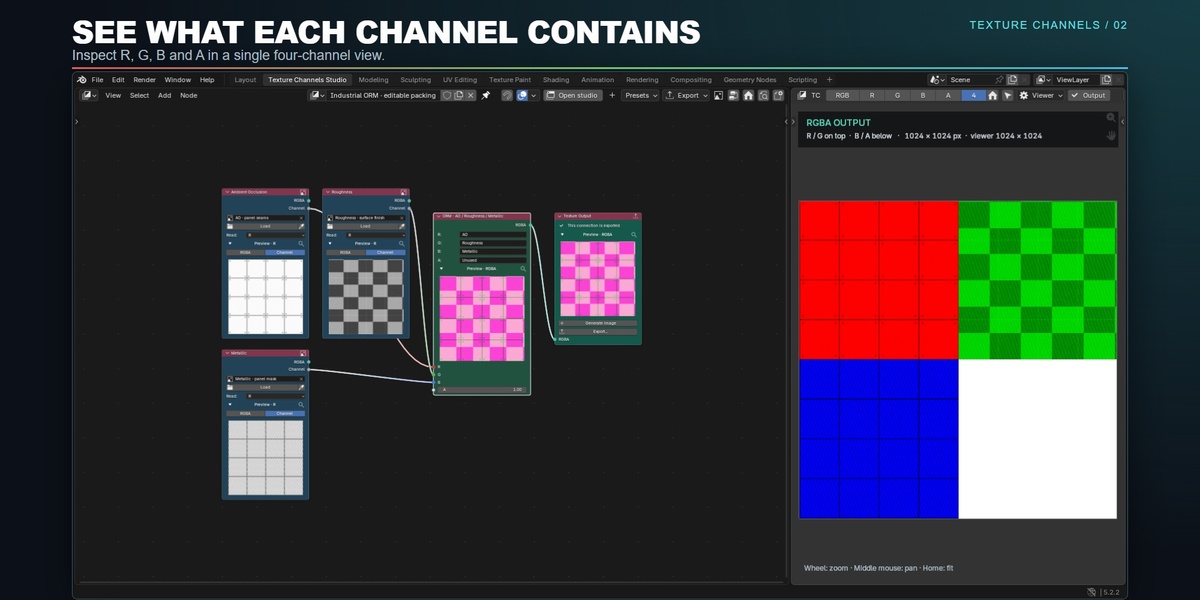
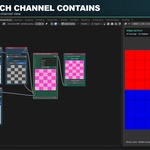
Choose RGB, R, G, B, A or 4 channels. In the grid, R and G are above B and A. Tint R G B adds display tint. Show transparency changes only the RGB display. Original, Result and Before / after provide comparison modes; choose a reference image for a comparison. These display controls do not change exported channel values.
Navigate and organize
Use the mouse wheel to zoom and the middle mouse button to pan. Home or Comfortable view fits a readable graph; Frame all includes a larger graph. Drag the divider to resize graph and viewer. Arrange arranges nodes using their connections and current sizes. Ctrl Z and Ctrl Shift Z undo and redo graph edits and layout changes.
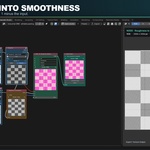
Use the arrow beside Preview to collapse an individual node preview. The image menu can collapse or expand all previews. Collapsing removes only those thumbnails; it does not disable processing or alter the final output. Refresh viewer rereads source pixels and rebuilds previews when needed.
Dimensions and filtering
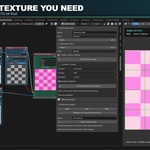
Choose the largest source, smallest source, main source or a custom width and height. Keep aspect ratio derives custom height from the largest source when one exists. Sources are fitted to the output rectangle. Nearest preserves discrete source values; bilinear is simple spatial interpolation and is not an area antialiasing filter for strong reductions.
Viewer quality uses a longest side of 512, 1024 or 2048 pixels. Per-node previews use samples up to 256 pixels and preserve aspect ratio. Generate and export use full output dimensions. Inspection statistics describe the viewer sample, not an exhaustive full-resolution scan. The memory limit estimates working buffers, not all of Blender memory.
Generate and export
Generate creates a new floating Non-Color image, packed and retained in the project. The material insertion option adds nodes to the active local material without replacing its existing connections. Export writes files using the current graph, even when no generated image exists.
PNG and TIFF support 8 or 16 bits and RGB or RGBA output. Single-channel extraction is grayscale. TIFF is uncompressed. OpenEXR uses ZIP compression and 16 or 32 bits float; grayscale extraction repeats the selected value in RGB. Choose Full result, One channel or Separate RGBA. Name by content uses the labels on Combine RGBA as filename suffixes.
PNG and TIFF clip values outside 0 to 1 and report clipping. Half-float EXR supports values up to approximately plus or minus 65504; use 32-bit EXR for larger finite values. NaN and infinity are rejected. File exports are external writes and cannot be undone with Ctrl Z. Existing files are preserved with numbered suffixes; if a multi-file export fails, only files newly created by that export are removed.
Save graphs and recipes
Save the project to retain graphs, recipe entries and preview-collapse choices. Personal recipes store node structure, values, positions and muted connections, without embedding file paths or images in the recipe. Loading a recipe tries to retain sources by a unique label or node name. Previous preset graphs remain available through the native graph selector. External images still depend on their source files unless packed separately.
Data interpretation
The addon processes the values exposed by the current image buffer. It does not apply gamma conversion, premultiplication or normal-map renormalization. R, G, B and A are independent data channels. Luminance is 0.2126 R plus 0.7152 G plus 0.0722 B. Loading through an Image node creates a separate Non-Color image datablock; existing source pixels, file bytes and color-space settings are not modified.
Troubleshooting
If a preview says No result, check missing images, input wires and socket types. Keep one connected Texture Output. If a source was edited outside the studio, use Refresh viewer. For an extensive graph, use Frame all or pan rather than reducing text to an unreadable size. For a memory-limit error, reduce output dimensions or choose an appropriate working limit. Large operations occupy Blender until the synchronous computation finishes.
For support, contact the creator through the Superhive product page. Include your addon version, Blender version, operating system, reproduction steps and the exact error text. Share a minimal project only when you have permission to share its contents.
 Included
Includes 12 months of
- Support from Rynor
- Product updates
Extend this product’s Support Period +12 months: 50% of product price
Have questions before purchasing?
Login to message
| Blender Extension Compatible | Yes |
| Published | 5 days ago |
| Blender Version | 4.5 - 5.2 |
| Extension Type | Add-on |
| Render Engine Used | Cycles |
| License | GPL |

Discover more products like this
texture export masks orm texture channels Channel Packing roughness Node Workflow metallic