Throwback Blender Interface
 one99addons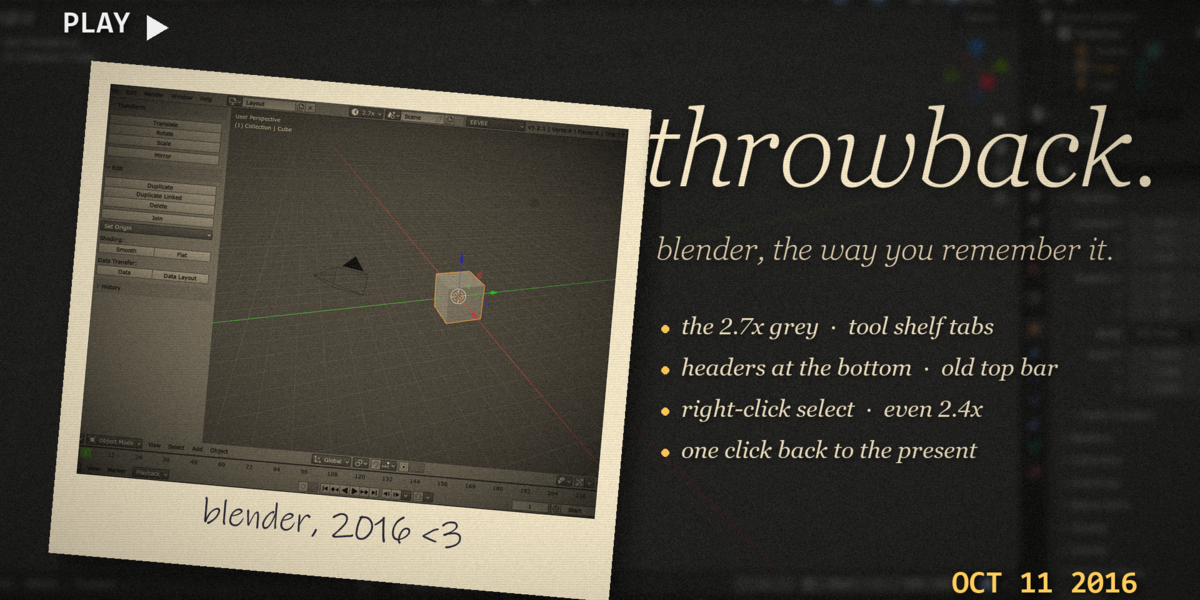
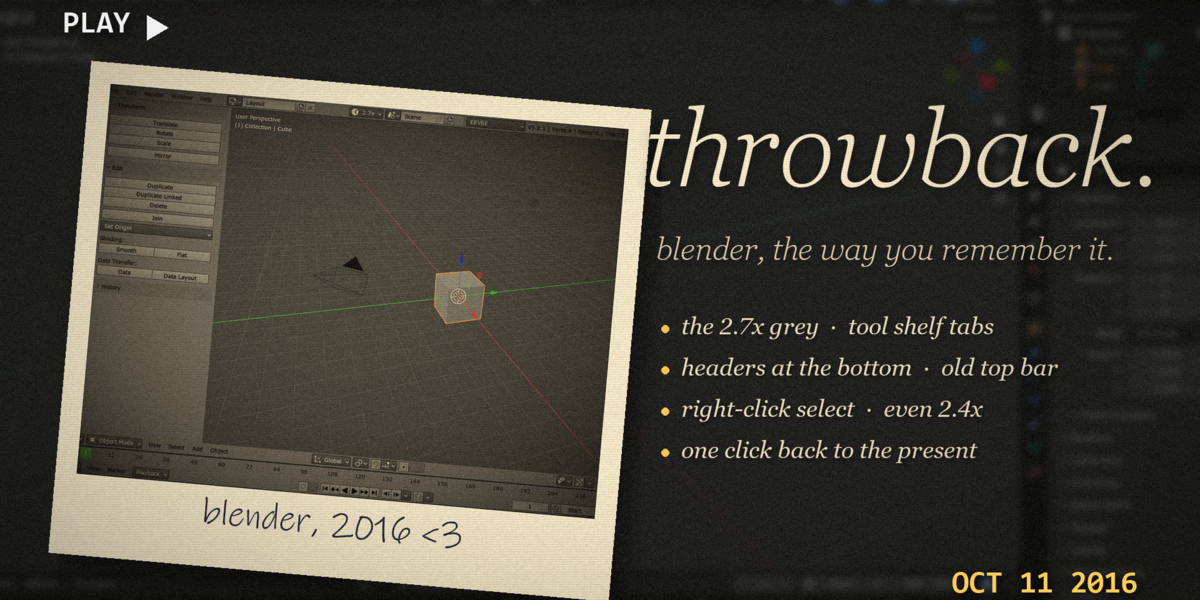
Throwback - Documentation
1. Install
- Download throwback_v1.0.0.zip. Do not unzip it.
- In Blender: Edit > Preferences > Add-ons, click the drop-down arrow at the top right and choose Install from Disk...
- Pick throwback_v1.0.0.zip and tick "Throwback" in the list.
- If Auto-Save Preferences is off, click Save Preferences (bottom left).
2. Where to find it
- The clock button at the right of the top bar, next to the Scene selector. It shows the era while the old look is on.
- The same menu is in Edit > Preferences > Add-ons > Throwback.
3. How to use it
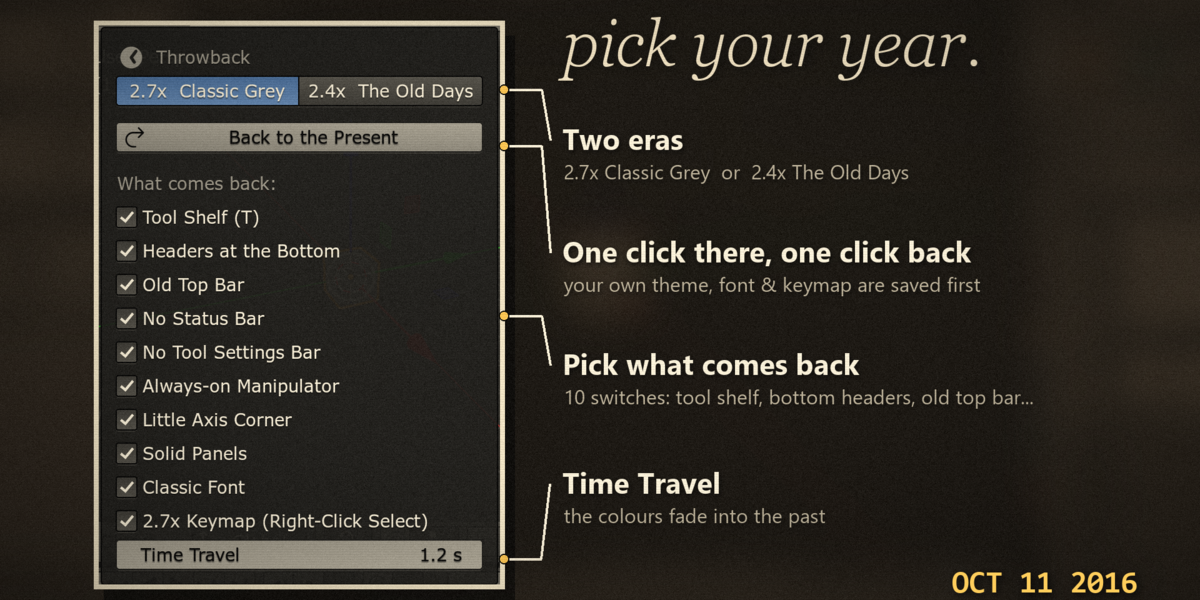
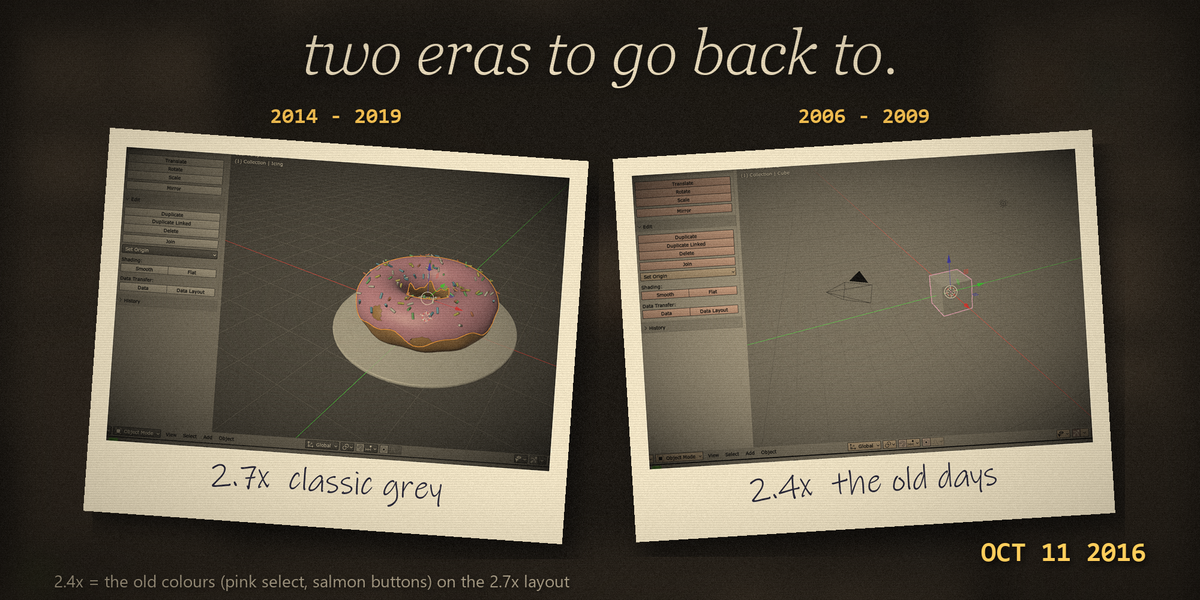
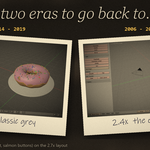
- Click the clock button and pick an era: 2.7x Classic Grey or 2.4x The Old Days.
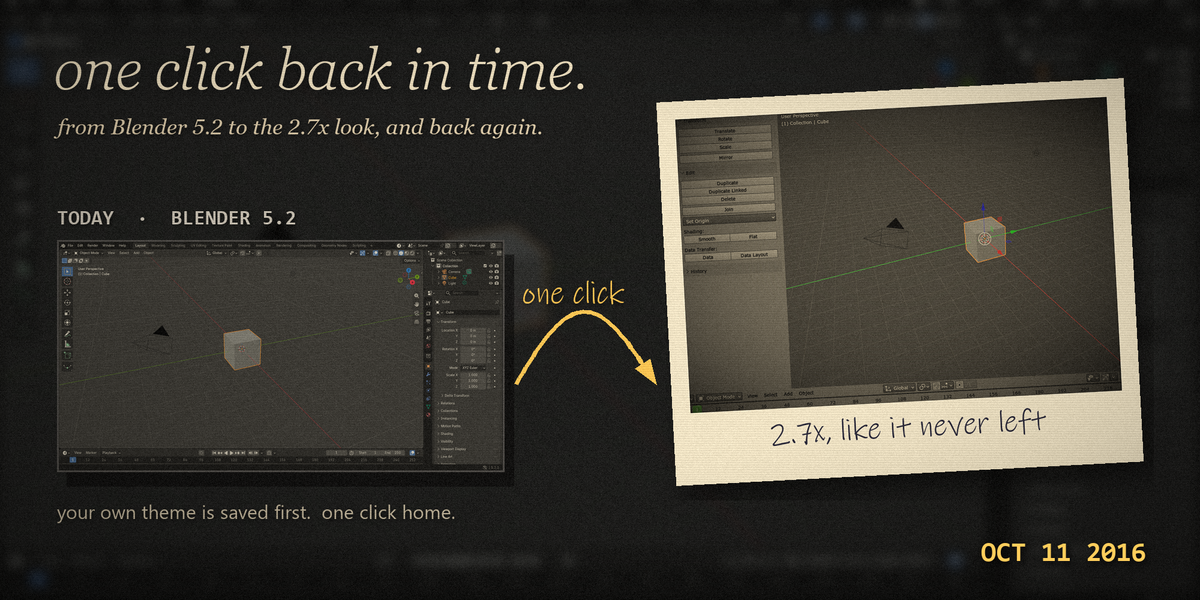
- Click Go Back in Time. The colours fade into the old look, then the layout changes.
- When the Tool Shelf appears on the left, click its Tools tab once. Blender remembers the tab you pick.
- To switch era while the old look is on, pick the other era and click Travel to <era>.
- To go home, click Back to the Present. Your own colours, layout, font and keymap come back.
4. Settings
- Era: 2.7x Classic Grey (2014-2019) or 2.4x The Old Days (2006-2009).
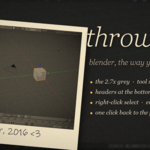
- What comes back: Tool Shelf (T), Headers at the Bottom, Old Top Bar, No Status Bar, No Tool Settings Bar, Always-on Manipulator, Little Axis Corner, Solid Panels, Classic Font, 2.7x Keymap (Right-Click Select). Each one can be switched on or off, even while the old look is on. The keymap is off by default.
- Time Travel: how long the colour fade takes, from 0 (instant) to 5 seconds. Default 1.2 s.
5. Troubleshooting
- The shelf shows the Item tab: Blender always lists its own Item tab first. Click Tools once and it stays.
- Someone I sent my .blend to sees headers at the bottom: header positions are saved inside .blend files. Right-click a header > Flip to Top fixes it, or they can open the file with Load UI off.
- A new editor I split off has its header on top: toggle Headers at the Bottom off and on, or reload the file.
- The font did not change to DejaVu Sans: it is used only if installed. Put DejaVuSans.ttf in the add-on's fonts folder or install it on your system, then switch Classic Font off and on. Otherwise Verdana is used.
- My shortcuts changed: the 2.7x Keymap switch is on. Untick it to get your own keymap back.
- Install error? Make sure you picked the .zip itself, not an unzipped folder, and that you are on Blender 5.2 or newer.
6. Updating
- Click Back to the Present first. Then download the new zip from your Superhive library, uninstall the old version in Edit > Preferences > Add-ons, restart Blender, then install the new zip.
7. Uninstall
- Click Back to the Present, then Edit > Preferences > Add-ons, expand Throwback and choose Uninstall.
- Switching the add-on off while the old look is on also restores your theme, layout, font and keymap.
Support
- Have a question, a bug or an idea for a new feature? Mail me at [email protected]. Please include your Blender version and operating system.
$1.99
Have questions about this product?
Login to message
| Published | 1 day ago |
| Blender Version | 5.2 |
| Extension Type | N/A |
| License | Mit |
Discover more products like this
classic right click select old ui nostalgia tool shelf blender-279 interface Blender 2.7+ theme retro