 one99addons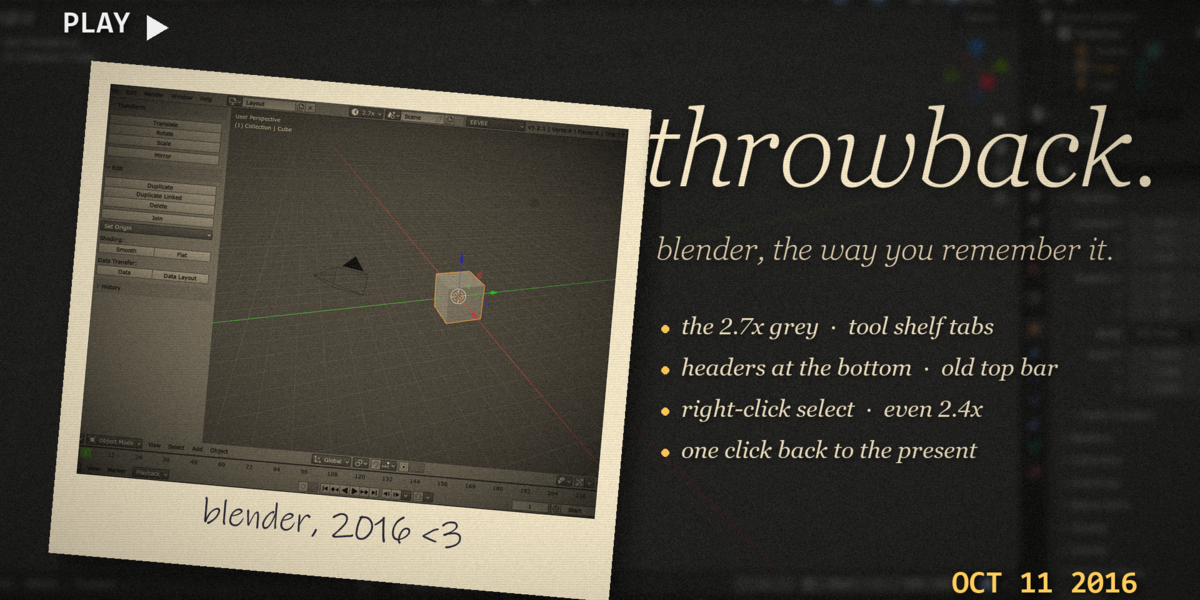
📼 Throwback
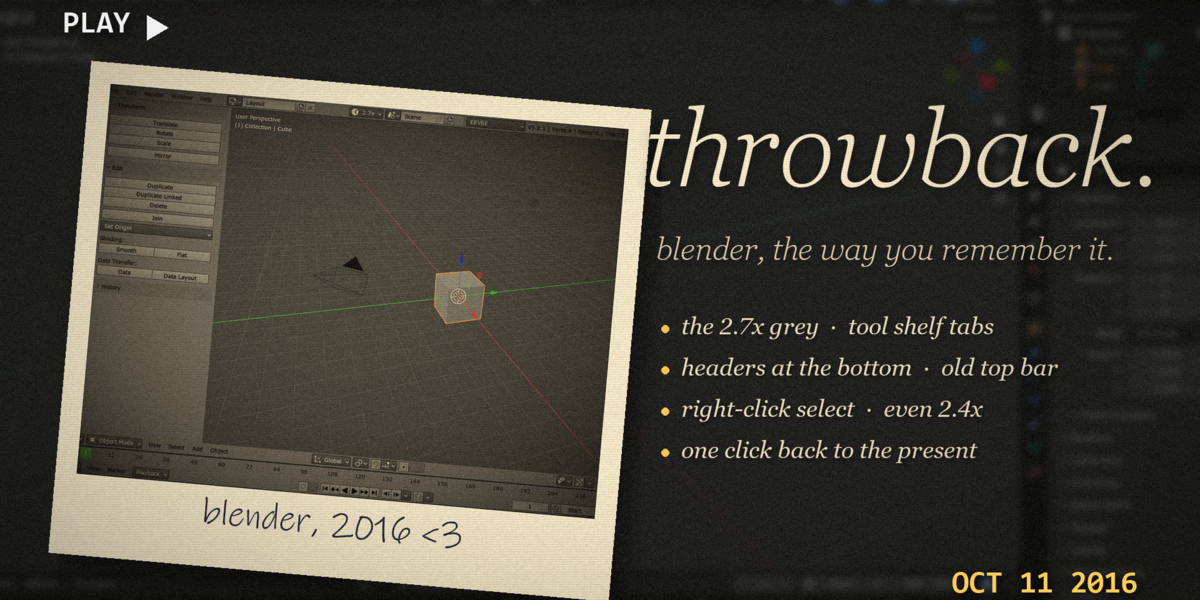
Blender, the way you remember it. One click back to the 2.7x look. One click home.
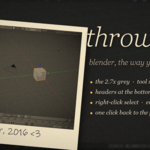
Throwback gives Blender its old look back: the classic 2.7x grey theme, the Tool Shelf with its Tools / Create / Relations / Animation / Physics tabs, headers at the bottom, the old top bar with scene stats and, if you dare, right-click select. There is even a 2.4x era. Your own theme is saved first, and Back to the Present puts everything back exactly as it was.
The problem
A lot of us learned Blender on 2.7x: the grey interface, the T shelf full of buttons, the header under the 3D View, right-clicking the default cube (and then deleting it). Blender 2.8 changed all of that, and it was the right call, but some of us still miss it. Getting the old look back by hand means hunting down an old theme file, flipping every header, moving the sidebar, fixing the font... and then doing it all again in reverse when you want the new look back.
What it does
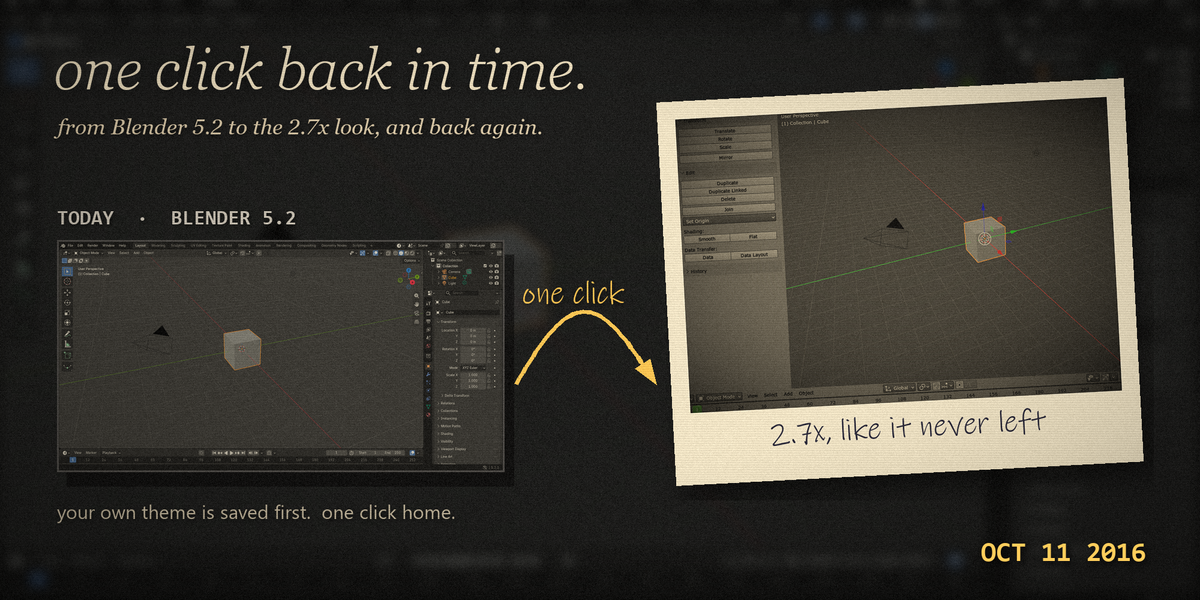
- One click back in time. Click the clock button in the top bar and press Go Back in Time. The colours fade into the old grey over 1.2 seconds (you can change that), then the layout clicks into place.
- The 2.7x theme, rebuilt colour by colour. About 450 theme colours set by hand against real 2.7x screenshots: the #727272 grey, light grey shaded buttons with black text, the dark viewport, black wireframes, orange selection, the green frame line in the timeline, red/green floor axes and the classic blue for menus and toggles.
-
The Tool Shelf is back. The 3D View sidebar moves to the left with vertical tabs, and the classic tabs come back with their buttons:
- Tools: Transform (Translate, Rotate, Scale, Mirror), Edit (Duplicate, Duplicate Linked, Delete, Join, Set Origin, Smooth / Flat, Data Transfer), History (Undo, Redo, Undo History, Repeat Last).
- Create: Mesh, Curve, Lamp and Other primitives, one button each, like before.
- Relations: Group, Parent Set / Clear, Make Single User, Link/Transfer Data, Make Local.
- Animation: Insert / Remove Keyframe, Motion Paths, Bake Action.
- Physics: Rigid Body Tools (Add Active / Passive, Change Shape, Calculate Mass, Bake To Keyframes, Connect).
- Grease Pencil: add Blank / Stroke / Monkey, Draw Mode.
- In Edit Mode: Mesh Tools (Slide Edge, Smooth Vertex, Extrude, Inset, Subdivide, Loop Cut and Slide, Knife, Spin, Screw, Remove Doubles...) and a Shading / UVs tab (smooth / sharp, recalculate normals, Unwrap, Mark / Clear Seam).
- Headers at the bottom. 3D View, Timeline, Graph Editor, Dope Sheet, NLA, Node Editor, Image Editor, Sequencer, Text Editor, Console and Movie Clip Editor get their header at the bottom, like 2.7x. Outliner and Properties keep theirs on top (they always did).
- The old top bar. Workspaces become a dropdown like the old screen layouts, the render engine is a dropdown on the right, and the scene stats sit in the top bar again: v5.2.1 | Verts:8 | Faces:6 | Tris:12 | Objects:1/3 | ... | Cube.
- The small details. No status bar, no tool settings bar, the little axis in the corner, solid (non-overlapping) panels and the always-on move manipulator on the selected object.
- Classic font. Blender used DejaVu Sans back then. Throwback uses it if it is installed, otherwise Verdana, the font the old Blender font was modelled on.
- Right-click select (optional). One switch turns on Blender's own built-in Blender 27X keymap: right-click select, Space for search, W for specials, T and N for the shelves. Off by default, because it changes your muscle memory.
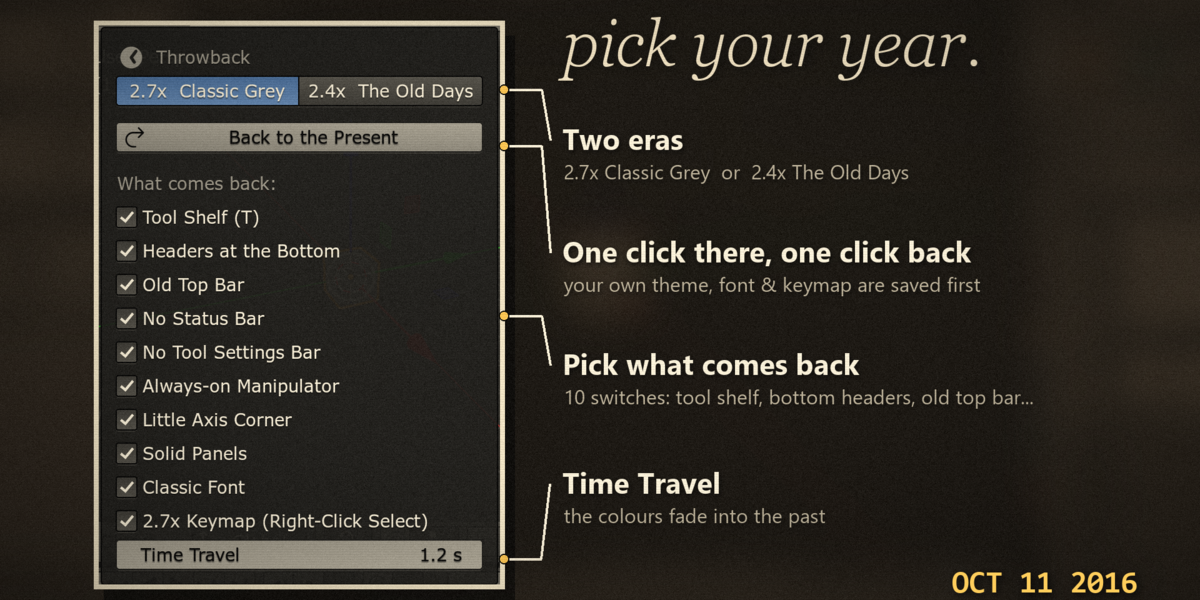
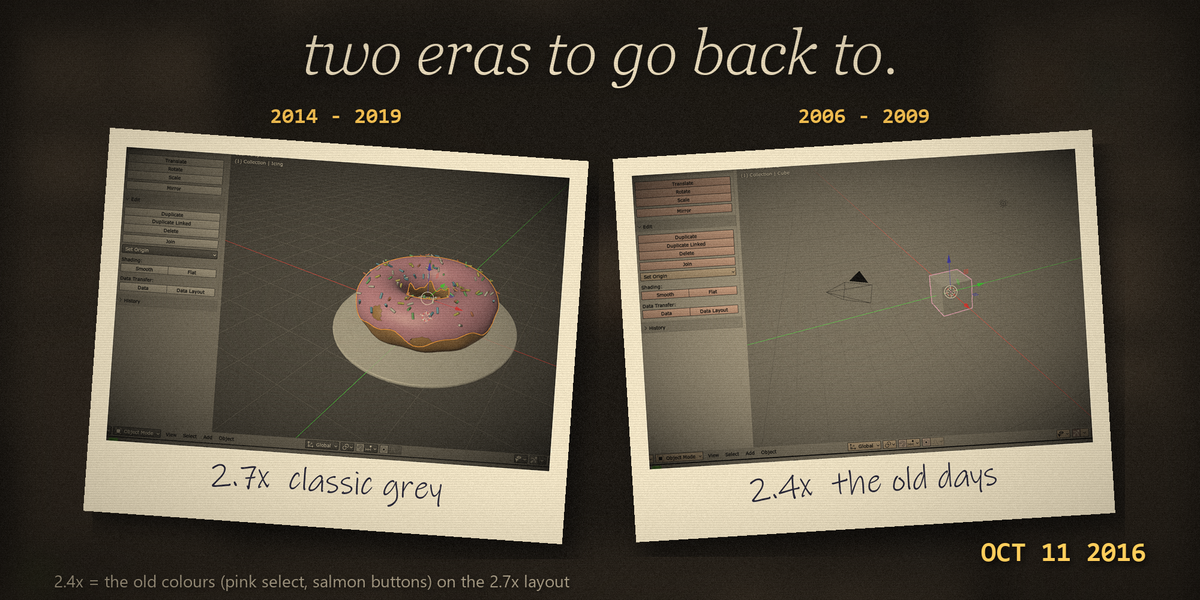
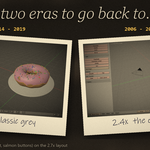
- Two eras. 2.7x Classic Grey (2014-2019) and 2.4x The Old Days (2006-2009): lighter grey viewport, pink selection, salmon and blue-grey buttons. Switch between them from the same menu.
- One click home. Back to the Present fades your own colours back and restores your layout, font, keymap, status bar and toolbar. Before the very first trip, Throwback writes everything it is going to change to a backup file, so you get your theme back, not just Blender's default.
Tested in Blender 5.2.1
- Default scene, clean preferences: one click on Go Back in Time, a 1.2 s colour fade, then the 2.7x layout.
- Then Back to the Present: every one of the ~450 theme colours came back to its exact original value (checked value by value), plus header positions, sidebar side, toolbar, status bar, font and keymap.
- Switching the add-on off while the old look is on also restores everything.
- Quitting Blender keeps the old look for next time (it is saved with your preferences).
Settings
Click the clock button at the right of the top bar (it shows the era while the old look is on). The same menu is in Edit > Preferences > Add-ons > Throwback.
- Era: 2.7x Classic Grey or 2.4x The Old Days.
- Go Back in Time / Travel to / Back to the Present.
- What comes back (each one can be switched on or off, even while the old look is on): Tool Shelf (T), Headers at the Bottom, Old Top Bar, No Status Bar, No Tool Settings Bar, Always-on Manipulator, Little Axis Corner, Solid Panels, Classic Font, 2.7x Keymap (Right-Click Select, off by default).
- Time Travel: how long the colour fade takes (0 = instant, up to 5 s).
Great for
- Anyone who learned Blender on 2.7x (or 2.4x) and misses the feel.
- Following old tutorials (the famous donut, anyone?) with a screen that looks like the video.
- Teachers recording "then vs now" comparisons.
- Nostalgia videos, retro streams and screenshots for memes.
- People who simply prefer a mid-grey interface with black text.
Tips
- When the shelf appears, click the Tools tab once: Blender always lists its own Item tab first, and remembers the tab you pick.
- Only turn on the 2.7x keymap if you really want right-click select: it changes most shortcuts.
- Want the real old font? Put DejaVuSans.ttf (free, DejaVu fonts licence) into the add-on's fonts folder or install it on your system, then switch Classic Font off and on.
- Set Time Travel to 0 for an instant switch.
Requirements and install
Blender 5.2 or newer (made and tested on 5.2.1 LTS). Windows, macOS or Linux. No internet, no external libraries.
- Download throwback_v1.0.0.zip (do not unzip it).
- In Blender: Edit > Preferences > Add-ons, open the drop-down arrow at the top right, choose Install from Disk... and pick the zip.
- Tick Throwback. Then click the clock button in the top bar and press Go Back in Time.
Limits
Throwback changes your theme and preferences, so it saves a backup first and gives you Back to the Present: use it before uninstalling (switching the add-on off also restores everything). The icons are Blender 5's icons, because add-ons can't swap the icon set. A few new things have no 2.7x version (asset shelf, geometry nodes, the new toolbar tools); they just get the grey colours. Header positions and the left sidebar are stored inside .blend files, so someone opening your file without Throwback sees bottom headers (right-click > Flip to Top fixes it). Some 2.7x tools no longer exist in Blender 5 (Blender Internal, Hemi lamps, the old Grease Pencil panel), so there are no buttons for them. The 2.4x era is a colour theme on top of the 2.7x layout.
Made by one99addons.