Tide — Blender Asset Round-Trip
 SIPPO-STUDIO


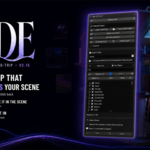
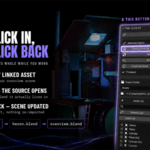
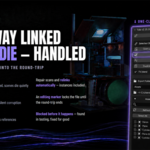
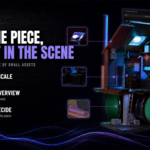
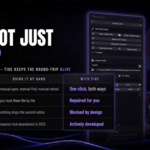
Applies to Tide v2.15.9 · Blender 5.1 (verified on 5.1.1) · By SIPPO-STUDIO. Panel location: 3D Viewport > Sidebar (N) > Tide tab. The full user manual (English and Japanese, 19 pages each) is included with your purchase.
1. Installation & requirements
| Blender version | 5.1 only (verified on 5.1.1). It will not install on other versions |
| OS | Developed and tested on Windows. Designed to run on macOS / Linux as well |
| UI language | English; switches to Japanese automatically if Blender's UI language is Japanese |
| Prerequisite | Your working .blend must be saved — without a file path there is nowhere to export to |
-
Edit > Preferences > Add-ons > Install, pick
Tide_v2_15_9.py - Enable Tide in the add-on list
- Press N in the 3D viewport — the panel is in the Tide tab of the sidebar
Updating: disable and remove the old version first. Two versions loaded at once can leave buttons unresponsive.
Migrating from old versions: scenes made with the legacy method (direct scene-level links) show a "Convert Legacy Links to Instances" button in the list. One click converts them to the current instance-Empty method (undoable). Settings migrate automatically.
2. Quick start — your first round-trip
One cube, one full loop. Five minutes.
Step 1 — Set up. Save a new scene (e.g. MyLevel.blend). Move the default cube somewhere and rename it Crate_A.
Step 2 — Export it as a link. Select Crate_A. It appears as a green row in the panel's Export Queue (green = ready). Press Link. "Done: 1 succeeded, 0 skipped" means it worked. Nothing looks different — but the object now lives in Assets/Crate_A/Crate_A.blend, and what is in your scene is an instance Empty linking it.
Step 3 — Dive in. With the Empty selected, press Open Linked File. The asset opens in a second Blender window, camera and light included. Edit something. Save and close the window.
Step 4 — Come back. Back in your scene, press Reload Links at the top of the panel. Your edit appears. That's the loop.
Changed your mind? Select the Empty and press Local — the object returns as ordinary local data, with its original position, rotation and scale restored exactly.
3. How Tide works
When you press Link, for each target:
-
AssetName/AssetName.blendis created inside your export folder, and the object moves into a collection of the same name (world transform baked in) - The asset file ships with a preview camera and a sun light — visible and workable the moment you open it
- Inside the asset, that collection is the active one, so anything you add while editing joins it automatically — assets grow every time you open them
- In your scene, the original object is replaced by an instance Empty that looks identical, sitting at the origin with scale 1
- Placement data (position / rotation / scale) is recorded in
transforms.json— the source of truth when making things local again or restoring from trash
Folder layout
MyLevel.blend          your overview scene (must be saved)
Assets/                export folder (name configurable, relative recommended)
  Locker_A/
    Locker_A.blend     the asset itself (collection + camera + light)
    Locker_A.blend.bak automatic backup on overwrite
    .editing           editing marker (exists only while open)
  Plant_S/
    Plant_S.blend
  transforms.json      placement records
  tide_log.txt         diagnostic log (append-only, English)
  _Trash/              where deleted assets are parked
Don't rename these by hand. Renaming files or folders inside Assets in your file manager breaks links (repairable with Link Repair, but avoidable). Use Rename Collection in the panel instead — it renames the collection, the file, the folder and the placement records together, safely.
4. Panel reference
Reload Links / Health Check — Reload Links reloads every linked file in the export folder; this is the button you press after editing an asset. Assets open in another Blender are protected. The magnifier button runs a Health Check (chapter 7).
Selected Object — operations on the active asset Empty: Open Linked File (opens the source .blend in a separate window), Open Linked Folder, Repair Link (Auto), Rename Collection, Duplicate Asset, Delete Asset. The bottom of the box always shows the linked file name — or "(not linked)".
Export Folder — where assets are exported (default Assets, created next to your saved .blend). Choosing a folder outside your project stores an absolute path and Tide warns you; keep it relative if you ever plan to move or share the project folder.
Asset List — a collapsible overview of the assets in your scene. The header dropdown sets the export unit (Per Object / Per Collection). Checkboxes pin items into the queue and are unchecked automatically on success, so stale checks can't cause accidents. Clicking a row selects that item in the viewport, and vice versa. Filter, Refresh List, Select All, Clear. The eye icon and slider control the visibility and size of the asset Empties' cross axes.
Export Queue and Link / Local — export targets are the viewport selection ∪ the checked list items. Every target is shown as a coloured row before you run anything: green = ready to export, grey = already linked (a target for Local instead), red + reason = skipped. The Link and Local buttons enable themselves only when they have at least one valid target. Results appear under the queue and in tide_log.txt.
Trash — when _Trash has content, a box appears with Restore from Trash and Empty Trash (confirmed, permanent).
5. Exporting in detail
| Unit | Target | When to use it |
| Per Object (default) | Each selected MESH / CURVE object | Growing props individually — the basic mode |
| Per Collection | The local collection each selected object directly belongs to | Multi-part assets (a shelf plus its clutter) that should live in one file |
Per Collection looks at the direct parent only — it never walks up the hierarchy, so selecting something directly under a huge container collection will not silently export the whole floor.
Skip reasons — what the red rows mean
| Shown as | Meaning / fix |
| cameras/lights/Empties are not exported | These types are never exported on their own. To include a light in an asset, use Per Collection |
| unsupported type | Only MESH and CURVE objects export in Per Object mode |
| has a parent (Alt+P to clear) | Parented objects are skipped to prevent double-transform accidents |
| has child objects | Same, from the other side. Clear the relationship — or use Per Collection |
| a linked asset with this name already exists | To replace it, make it Local first. Different thing? Rename Collection. Want a second placement? Alt+D the Empty |
| export name collides with another item | Two selected items would produce the same safe file name. Rename one |
| not in a collection | Per Collection mode, and the object is not inside a local collection |
| open in another Blender | The asset is being edited right now. Close that window — or, if you are sure nothing has it open, press "Clear Editing Marker" |
| linked data | Data linked from other files cannot itself be exported |
When an export overwrites: the old file is always backed up as .bak before being replaced — nothing is deleted silently.
6. Editing an asset
Select the asset's Empty → Open Linked File → the asset opens in a second Blender window. Edit freely; anything you add joins the asset's collection automatically. Save → close the window → press Reload Links in your scene. Done.
The editing marker (.editing)
Opening an asset drops an editing marker in its folder, recording the process ID of the Blender that opened it. While the marker is alive, that asset shows red in the export queue, overwriting exports are blocked, it is protected from Reload Links (your in-progress edits can't be rolled back under you), and it refuses to be renamed.
Closing the child Blender expires the marker automatically — Tide watches the process, so even a crash self-recovers. The Clear Editing Marker button exists only for the rare case where you know nothing has the file open.
Opening the same asset twice asks for confirmation: two windows editing one file means the later save wins. Stick to one window per asset.
7. Local, rename, duplicate, delete
Making things local — the Local button targets the selected asset Empties; Make All Links Local (F3 search) converts every link in the export folder at once. Making local restores the exact position, rotation and scale recorded at export time. With several Alt+D-duplicated Empties, only the active one is made local — the other placements keep their links.
Rename Collection — renames the collection inside the asset file → the file → the folder → the placement records, then relinks and reconnects the Empty. Refused if the name is taken, or while the asset is being edited. An orphan folder squatting on the target name is auto-parked into _Trash and the rename continues.
Duplicate Asset — duplicates a linked asset as a fully independent asset (the original is untouched). A free name is suggested automatically and a new Empty is placed at the same position, selected and ready. Alt+D on the Empty = "one more of the same thing" (another placement of the same asset). Duplicate Asset = "a variant I'll edit separately".
Delete Asset — removes every placement of the asset (including Alt+D copies) and its link, and parks the files in Assets/_Trash. Nothing is permanently deleted. Restore from Trash moves the folder back, relinks it and places an Empty at the recorded position. Empty Trash permanently deletes the contents (confirmed; cannot be undone).
After a Ctrl+Z on Delete Asset: undo restores the placement but the files stay in _Trash, so the link looks broken. Run Repair Link — it finds the asset in _Trash and restores it automatically.
8. Link repair & Health Check
Links break when folders get renamed or moved by hand, when a delete is undone, or when a project migrates. Tide repairs in three tiers:
-
Repair Link (Auto) — name-drift repair (the file exists but the collection inside drifted; names are re-aligned, folder name included) → candidate search (scans the export folder for a .blend whose contents match,
_Trashexcluded) →_Trashrecovery. If nothing is wrong you get "OK: {} has no problems", so it doubles as a health probe. - When several candidates match — "Repair aborted: multiple files contain '…'". Tide refuses to guess rather than relink the wrong file.
- Pick .blend and Relink (manual) — run it from F3 search and choose the correct file yourself.
Health Check (the magnifier button) inspects the whole export folder and reports in a popup and in tide_log.txt:
| Item | Meaning | Action |
| Orphan folders | Asset folders no library references | "Move Orphan Folders to Trash" parks them all |
| Broken links | Links whose file can't be found | Run Repair Link on the affected assets |
| Open in another Blender | Live editing markers | Normal if you are editing. If not, Clear Editing Marker |
| Backups | Counts of .bak / .blend1 | Prune manually when they pile up — recent ones are your recovery material |
| _Trash | File count and size of the trash | Empty Trash when you're sure |
tide_log.txt collects exports, skips, warnings and health reports in English (rotating at 500 lines). Attaching it to a bug report speeds things up a lot.
9. The safety net
| Mechanism | What it does |
| Editing markers (PID-tracked) | Markers record their owning process. When that Blender closes — or crashes — the marker expires by itself. No permanent locks |
| .bak backups | Every overwrite parks the old file as .bak first. Nothing is deleted silently |
| Atomic writes | Asset .blends and transforms.json are written to a temp file, then swapped in. A crash mid-write can't corrupt the existing file |
| Edit-mode guard | Export, make-local and rename refuse to run in Edit Mode (unapplied edits would be lost) |
| Name-collision guards | Same-safe-name selections, clashes with existing assets, and renames onto occupied names are all stopped before running |
| Multi-placement protection | With several Alt+D placements, making one local never silently destroys the others |
| Pre-flight visibility | Everything that will be skipped shows up red, with its reason, before you run |
| Delete = park, not destroy | Deleting an asset moves it to _Trash. Restore brings back the files, the link and the placement |
10. Troubleshooting
| Symptom | Cause and fix |
| The Link button is greyed out | No green (ready) targets. Check the red rows' reasons. If the file is unsaved, save it first |
| Export skipped: "open in another Blender" | A child Blender still has that asset open. Close it and retry. Only if nothing has it open, use Clear Editing Marker |
| My edits don't show up in the scene | Did you save in the child Blender? The order is save → close → Reload Links |
| Reload says "some linked collections are empty" | The collection inside an asset file was lost. Run Repair Link |
| Local aborted: "correct data not found" | The link is drifting. Repair Link first, then Local again |
| Deleted an asset, undid it, now the link is broken | Expected — the files are still in _Trash. Repair Link restores them automatically |
| I renamed a folder by hand | Repair Link searches for candidates. If it can't decide, use Pick .blend and Relink |
| Rename refused: "already exists" | The name is taken. Ghost data-blocks of deleted objects are ignored automatically; if a real owner exists, tidy it first |
| The Empty cross axes are in the way | Hide them with the eye icon in the Asset List; resize with the slider |
| No panel | Press N, look for the Tide tab. Check the add-on is enabled and Blender is 5.1 |
11. Limitations
- Blender 5.1 only (only the verified version is declared)
- Per Object exports support MESH / CURVE. Cameras, lights and Empties can't be exported alone (Per Collection can carry them inside an asset)
- Parented objects don't export as-is (Alt+P first)
- Simultaneous multi-user editing of one project folder is not a supported workflow (editing markers protect Blenders on the same machine)
Support
Questions and bug reports are welcome through this product page — attaching tide_log.txt helps a lot. Updates are free.
Tide — developed by SIPPO-STUDIO · sippo-studio.netlify.app
Have questions about this product?
Login to message
| Published | about 2 months ago |
| Blender Version | 5.1 |
| Extension Type | N/A |
| Render Engine Used | Cycles |
| License | GPL |

Discover more products like this
asset management Workflow Link diorama Level Design scene organization linked library gamedev modular