 gonextaz
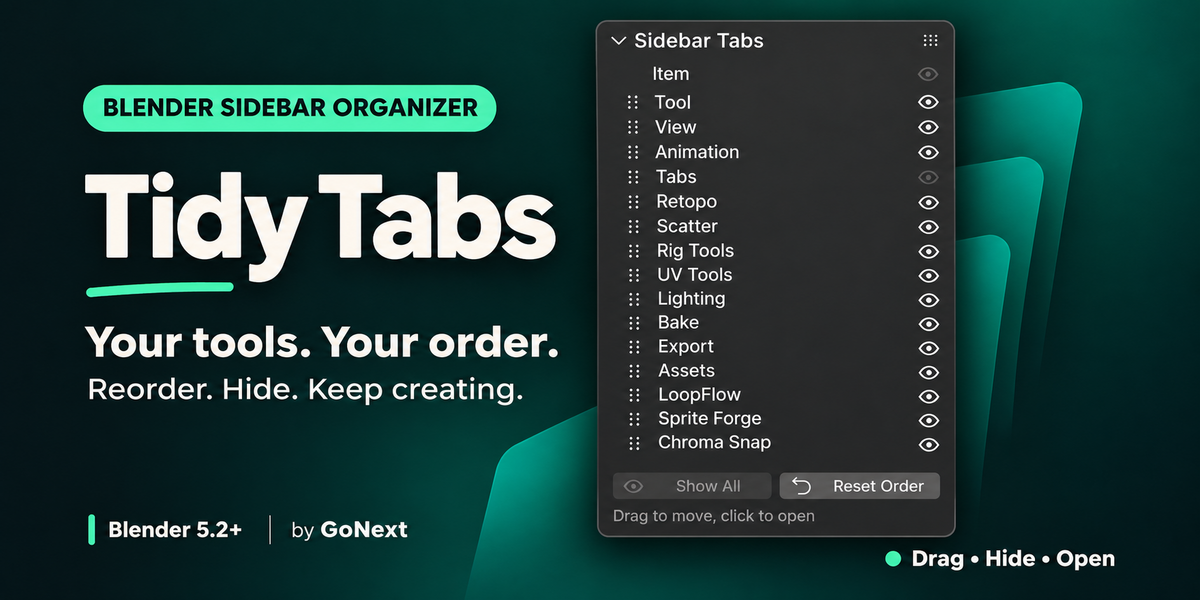
Tidy Tabs — Quick Start
Requires Blender 5.2 or newer.
Installation
- Download tidy_tabs-1.0.0.zip. Keep the file zipped.
- In Blender, open Edit > Preferences > Get Extensions.
- Open the menu at the top right and choose Install from Disk.
- Select the ZIP file and complete the installation. Make sure Tidy Tabs is enabled.
Open Tidy Tabs
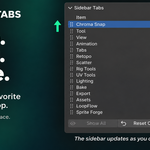
Move your pointer over a supported editor, press N to open its sidebar, and select the Tabs tab.
Organize your sidebar
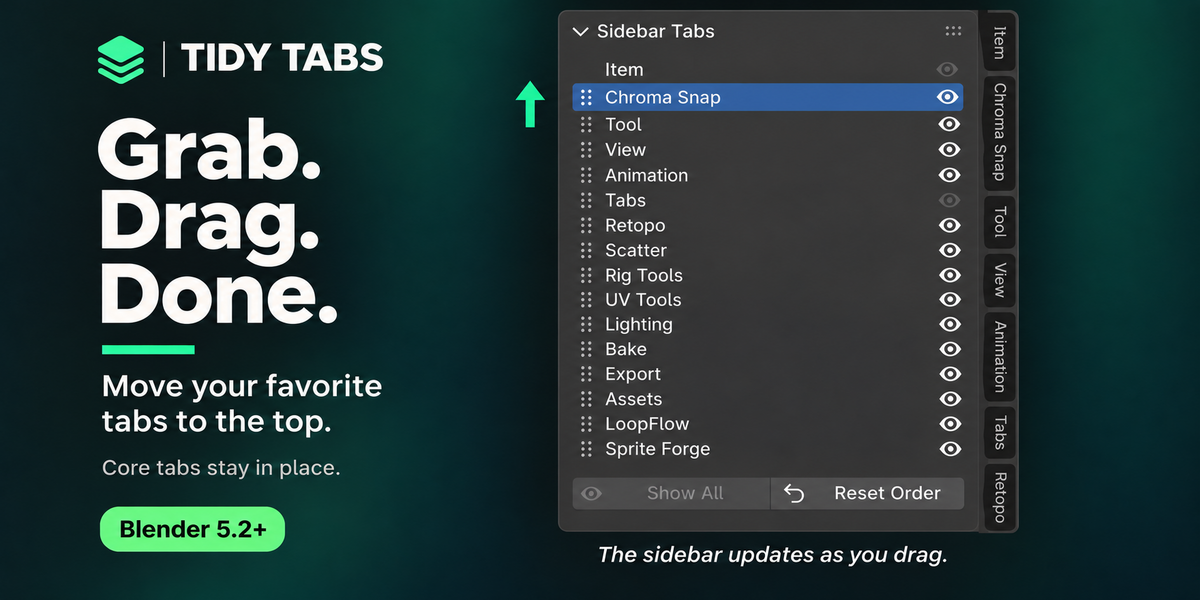
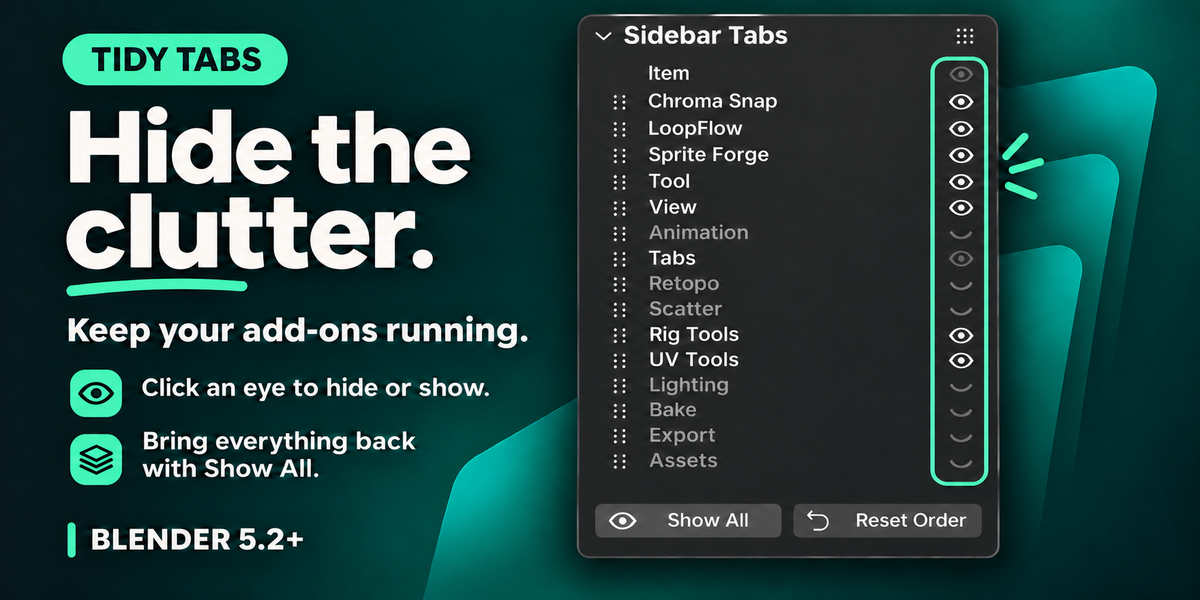
- Reorder: Drag a tab’s name or grip dots up or down. The sidebar updates as you drag.
- Cancel a drag: Press Esc or right-click before releasing.
- Open a tab: Click its name in the list.
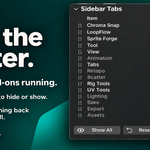
- Hide or show: Click the eye beside a tab.
- Focus: Ctrl+click an eye to show only that tab alongside protected tabs. Ctrl+click again to show them all.
- Restore visibility: Click Show All.
- Restore default order: Click Reset Order.
Automatic saving
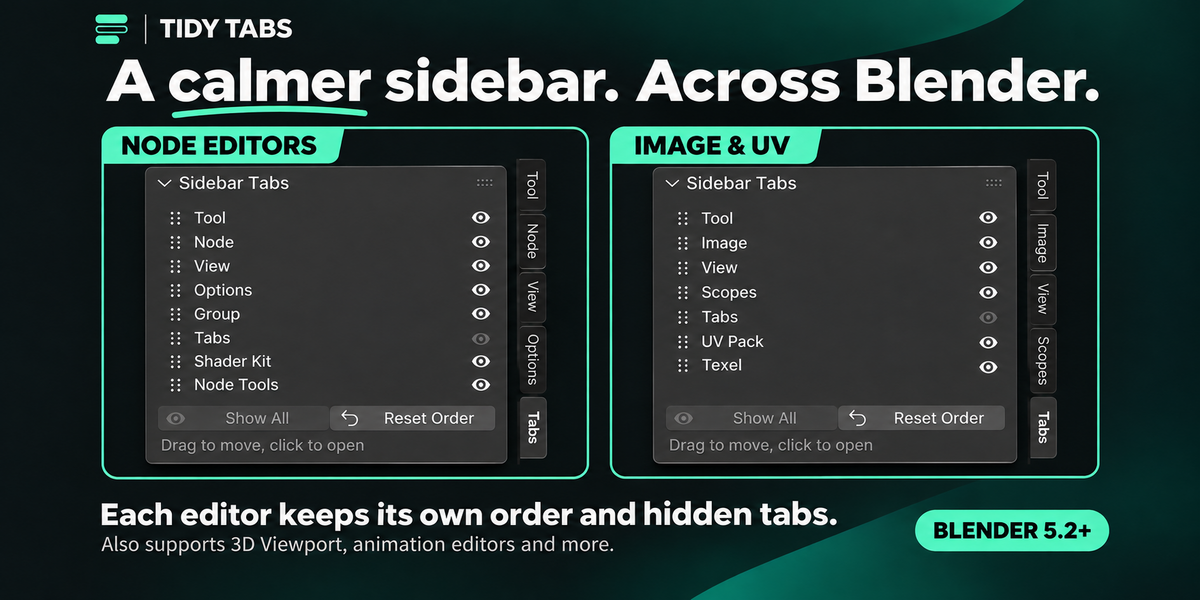
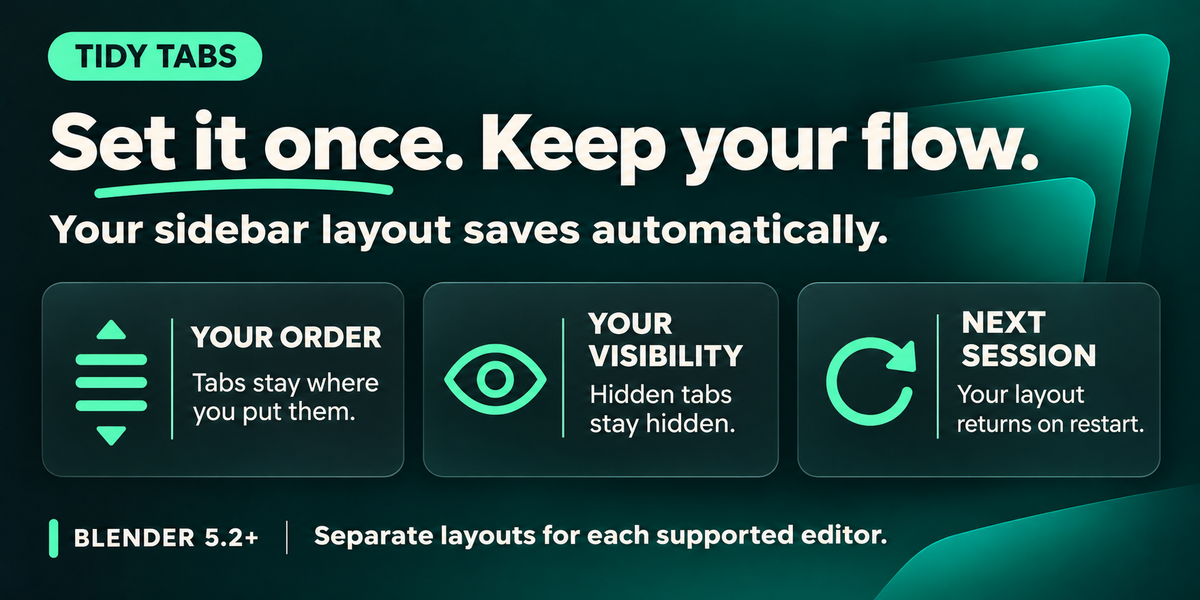
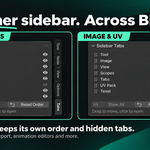
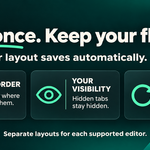
Your order and hidden tabs save automatically and return when you restart Blender. Each supported editor keeps its own layout. New add-on tabs appear at the bottom.
Preferences
Open Edit > Preferences > Add-ons and find Tidy Tabs.
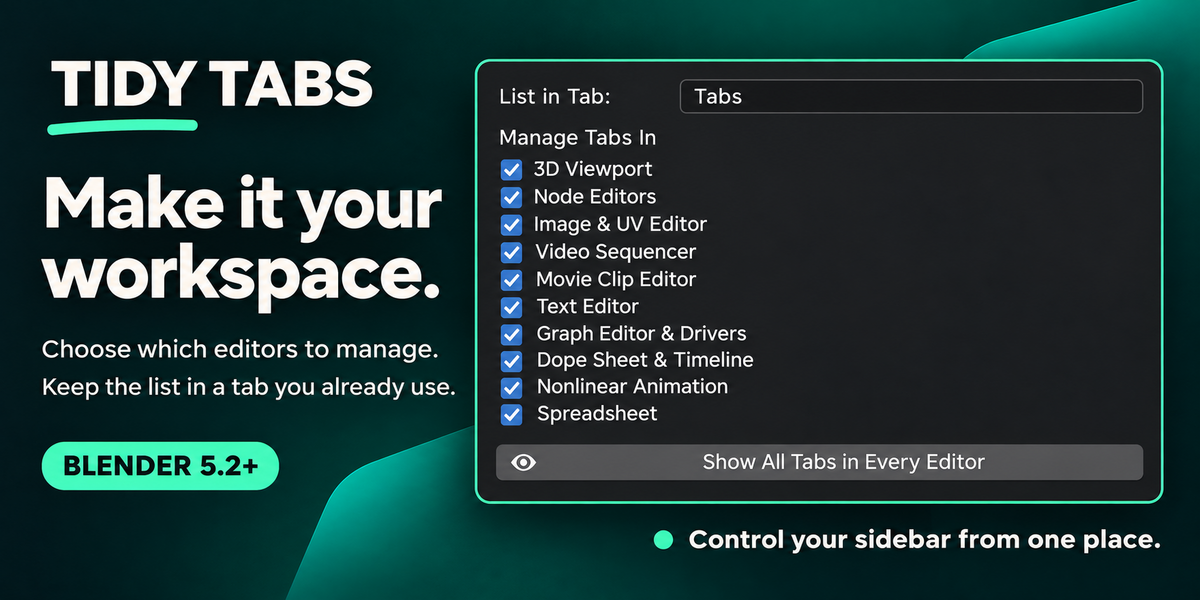
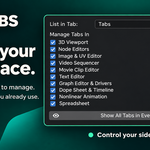
- List in Tab: Choose the tab that contains the list. Enter an existing tab name, such as View, to keep the controls there.
- Manage Tabs In: Choose which editors Tidy Tabs manages. Switching an editor off restores its default order and visibility.
- Show All Tabs in Every Editor: Restore all hidden tabs across managed editors.
Supported editors
3D Viewport; Node Editors, including Shader, Geometry Nodes and Compositor; Image & UV Editor; Video Sequencer; Movie Clip Editor’s right sidebar; Text Editor; Graph Editor & Drivers; Dope Sheet & Timeline; Nonlinear Animation; and Spreadsheet.
Protected tabs
Some Blender core tabs, such as Item, cannot be moved or hidden. These appear at the front without drag grips and with inactive eye controls. The tab containing the Tidy Tabs list also stays visible so you can always access it.
Troubleshooting
No list appears: Check that the editor is enabled under Manage Tabs In. Sidebars with fewer than two tabs to sort do not get a list. Editors without tabbed sidebars have nothing to organize.
Arrow buttons appear instead of grips: Tidy Tabs has switched to its fallback controls. Use the arrows to reorder tabs.
Unexpected tab order: Disable other sidebar tab managers, click Reset Order, and arrange your tabs again.
Disabling Tidy Tabs
Disabling the add-on restores the default tab order and visibility. Your saved layout remains on disk and returns when you enable Tidy Tabs again. Your .blend files are not changed.
Have questions about this product?
Login to message
| Blender Extension Compatible | Yes |
| Published | about 2 hours ago |
| Blender Version | 5.2 |
| Extension Type | Add-on |
| Render Engine Used | Cycles, Eevee |
| License | GPL |
Discover more products like this
productivity Tab Manager workspace interface Addon Management Workflow Sidebar hide tabs tidy tabs n-panel sidebar organizer reorder tabs