TightWear: Bodysuits, Tights, Socks and Gloves From Your Character's Body
 Meshwright
TightWear 1.0.0 documentation
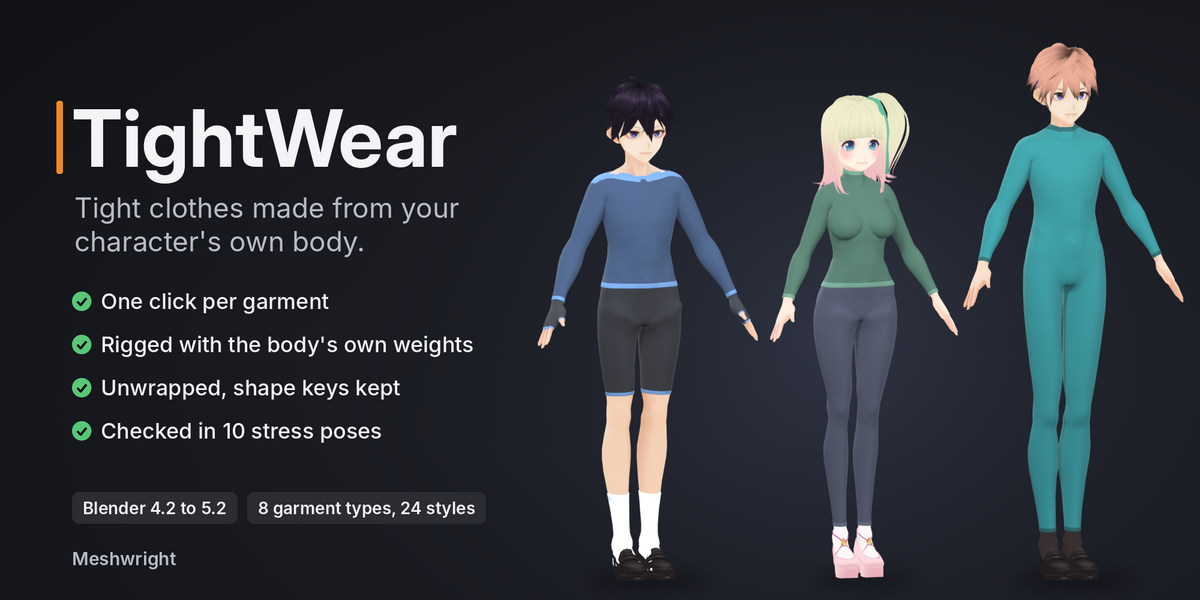
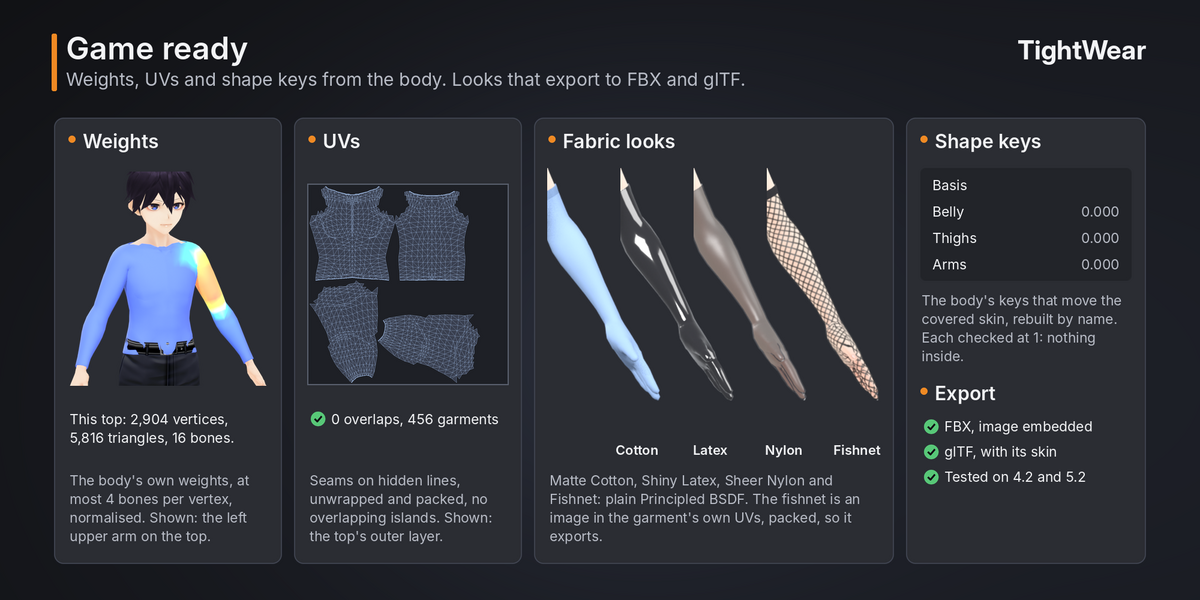
TightWear makes tight garments from your character's own body: bodysuits, leggings, tights, socks, gloves, arm sleeves, tops and shorts. One click gives a new object that is rigged to the body's armature, unwrapped, keeps the body's shape keys, and exports with the body as FBX or glTF. Your body mesh is never changed.
Blender 4.2 to 5.2 (tested on 4.2.23 LTS and 5.2.2). Pure Python, no extra packages, no internet access. Licence GPL-3.0-or-later. Maintainer: Meshwright.
Quick start
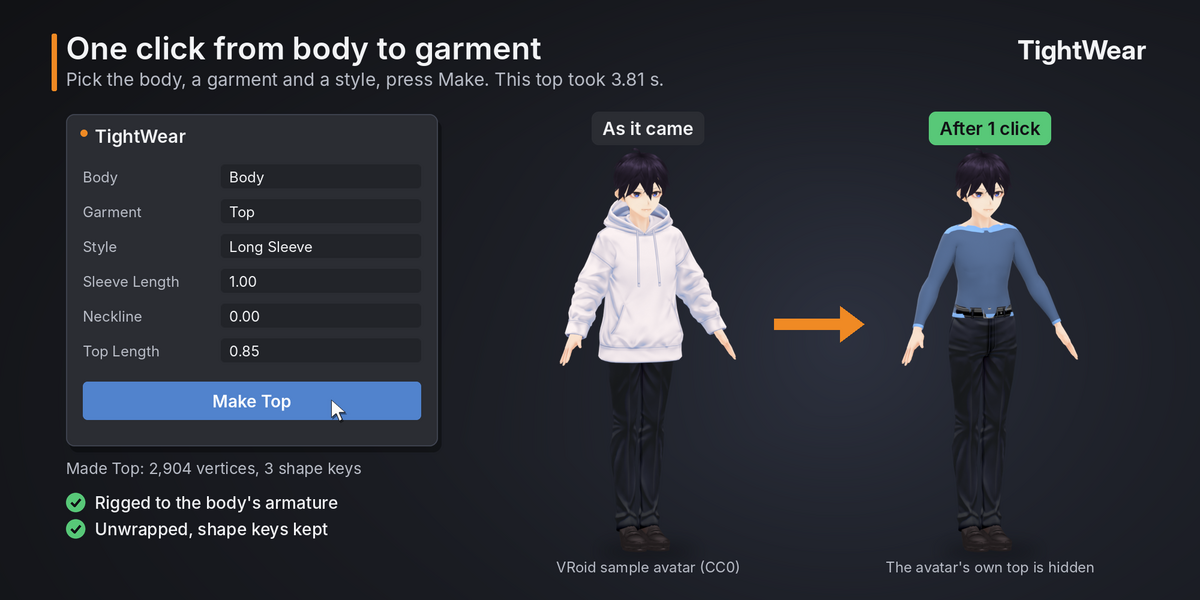
- Select your character's body mesh.
- In the TightWear tab of the sidebar, click the eyedropper next to Body.
- Pick a Garment and a Style, for example Leggings and Ankle.
- Click Make Leggings. Pose the armature: the leggings move with the body.
Install
- In Blender, open Edit > Preferences > Get Extensions.
- Click the arrow in the top right corner and choose Install from Disk.
- Pick tightwear-1.0.0.zip.
- Open the 3D Viewport sidebar (press N) and click the TightWear tab.
Make your first garment
- Select your character's body mesh and click the eyedropper next to Body (Use Active Object). The panel shows the armature it found.
- Pick a Garment, for example Leggings, and a Style, for example Ankle.
- Move the sliders if you like (Leg Length, Rise).
- Click Make Leggings.
- The new object "Leggings" appears next to the body, selected. Pose the armature: the leggings move with the body.
Click Make again with other settings to get another garment. Each Make adds a new object, so you can keep several versions and delete the ones you do not want. Ctrl+Z undoes a Make in one step.
Garments and sliders
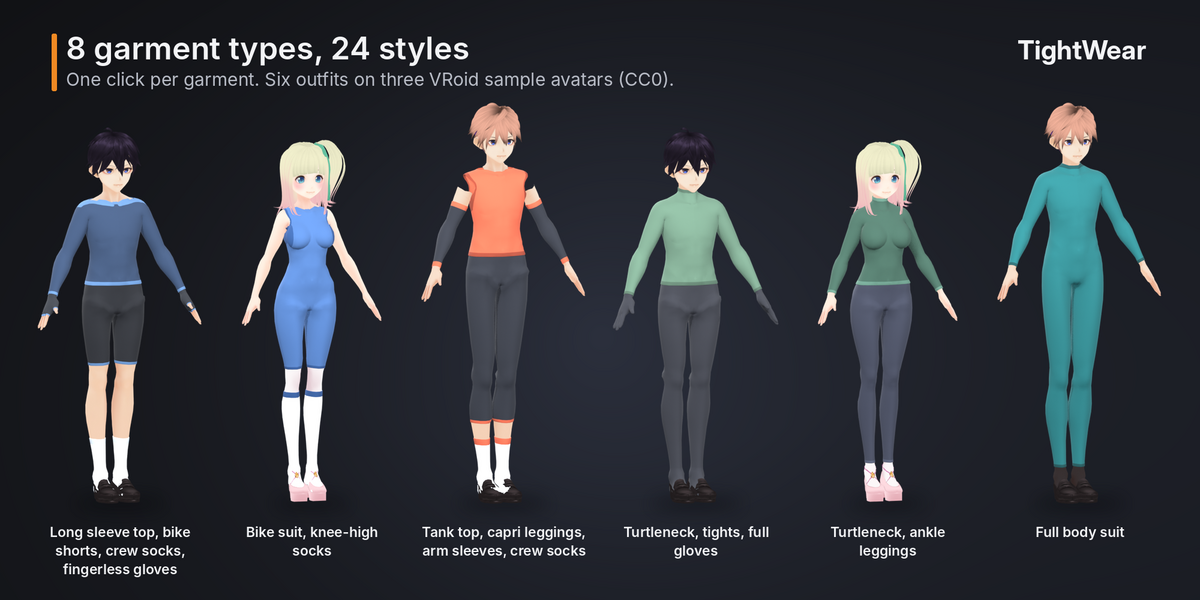
- Bodysuit: Leotard, Long Sleeve Leotard, Full Body Suit, Bike Suit. Sliders: Leg Length, Sleeve Length, Neckline.
- Leggings: Ankle, Capri, Spats. Sliders: Leg Length, Rise.
- Tights: Tights (with feet). Sliders: Rise.
- Socks: Ankle, Crew, Knee-High, Over the Knee, Thigh-High. Sliders: Sock Height.
- Gloves: Full, Fingerless, Opera. Sliders: Glove Length, Fingerless.
- Arm Sleeves: Long, Forearm. Sliders: Sleeve Length.
- Top: Crop Top, Tank Top, Long Sleeve, Turtleneck. Sliders: Sleeve Length, Neckline, Top Length.
- Shorts: Bike Shorts, Hot Pants. Sliders: Leg Length, Rise.
A Style only sets the sliders. Change the sliders after picking a style.
- Leg Length: 0 is a leotard leg line (Bodysuit) or the shortest shorts. 1 is the ankle.
- Sleeve Length: 0 is sleeveless. Then a cap sleeve, a short sleeve, three-quarter. 1 is the wrist. For Arm Sleeves it is how far up the arm the sleeve reaches from the wrist.
- Neckline: -1 is a turtleneck, 0 a crew neck, 1 a deep scoop.
- Sock Height: 0 ankle, 0.25 crew, 0.5 knee-high, 0.75 over the knee, 1 thigh-high.
- Glove Length: 0 wrist, 0.5 mid forearm, 1 above the elbow.
- Top Length: 0 crop (under the bust), 0.5 waist, 1 hips.
- Rise: the height of the waistband. 0 low, 1 high waist.
Every opening is cut straight across the limb, measured from the bones, so each hem is one clean loop. On sleeveless styles the neckline and the armholes always leave a shoulder strap at least 22 mm wide (on a 1.7 m body). If a deep neckline would cut the strap away, TightWear raises the neckline and says so under the Make button.
Skin Materials
Many avatars keep skin and clothes in one mesh (VRoid does). TightWear builds the garment from the skin faces only. It ticks the skin materials by their names and texture names. Open Skin Materials to check the ticks, and tick or untick materials if needed. Read Materials Again resets the ticks.
Fit and Thickness
- Gap (mm): the space between skin and cloth. 0.5 to 5 mm, 1 mm by default. All millimetre values are for a 1.7 m body and scale with your body's height.
- Fill: how much the cloth bridges dips, like stretched fabric: the cleavage, the navel, the spine, between the toes. 0 follows the skin exactly. Around the armpits and the groin the cloth always follows the skin, so it does not get squeezed into the body when the arms or legs move.
- Thickness (mm): real cloth thickness. The garment has an outside and an inside.
- Single-Sided (Low Poly): one layer of faces instead of a thick shell, half the polygons.
- Hem Bands: a band along every opening with its own material (Hem Colour). The band is a little thicker, like a folded hem.
- Rolled Edge: rounds the open edges of the thick cloth.
- Room for Poses (on by default): Make checks the new garment in the 10 stress poses (see Check Poses) and gives the cloth more room where a pose pushes it into the body or skin pokes out through it, then checks again and keeps the change only if it is better. It takes a few seconds more. Hems stay on their cut lines and nothing goes inside the body at rest.
- Copy All Shape Keys: by default the garment gets the body's shape keys that move the skin it covers. Tick this to copy every key, even the ones that do not change the garment (for tools that need the same key list on body and clothes).
Fabric Look
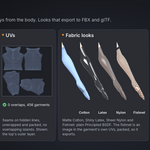
Pick a look and a colour:
- Matte Cotton: soft and matte.
- Shiny Latex: glossy.
- Sheer Nylon: see-through, for stockings and tights.
- Fishnet: a net drawn into an image in the garment's own UV layout. The image is packed into the .blend file and exports like any texture.
Each garment gets its own two materials: " Cloth" and " Hem" (numbered .001 and up when you make more garments of the same type, so each one keeps its colour). They are plain Principled BSDF materials, so FBX and glTF export them.
Check Poses
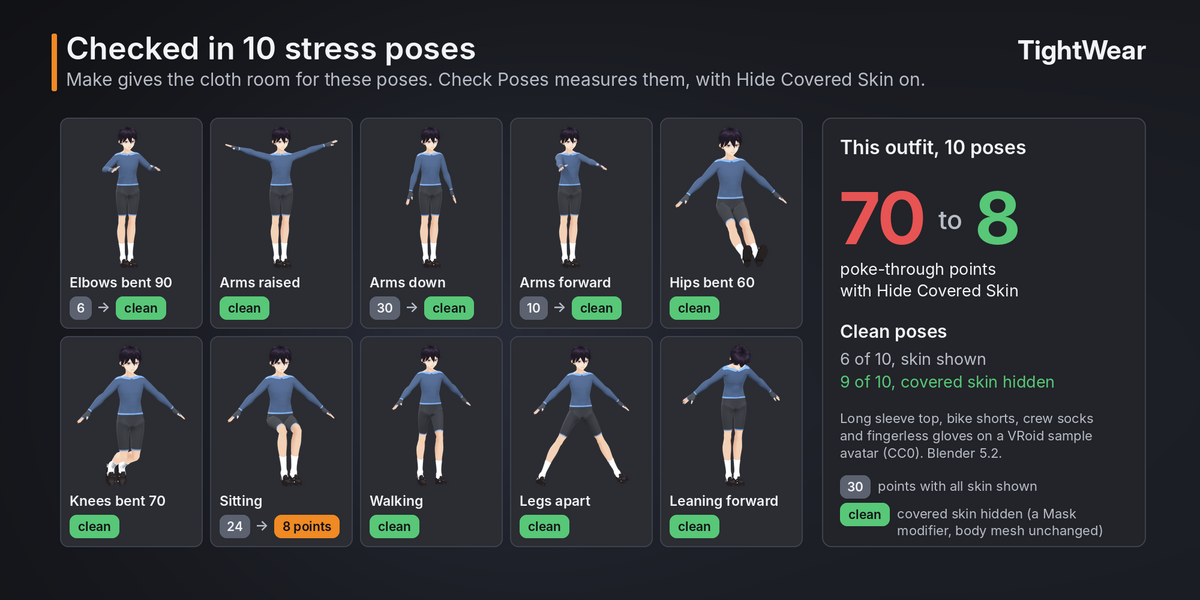
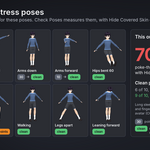
Check Poses puts the armature through 10 stress poses (elbows bent, arms raised, arms down, arms forward, hips bent, knees bent, sitting, walking, legs apart, leaning forward) and counts:
- Cloth inside the body: garment vertices inside the skin.
- Skin poking out: skin points that stick out through the garment.
Folds where skin meets skin (armpit, groin, back of the knee, inside of the elbow) are not counted: any skinned clothing dips in there and it is out of sight. The armature is put back exactly as it was.
The report also gives the clean poses (no cloth inside and no skin poking out) and the worst pose. With Hide Covered Skin on, it also gives the counts where skin shows: hidden skin cannot poke through.
Hide Covered Skin and Show All
Hide Covered Skin adds a Mask modifier ("TightWear hide skin") and a vertex group ("TightWear hidden") to the body. The body mesh itself is not changed. Skin stays visible near hems and openings, so no gap shows when the body moves. This saves polygons and stops skin showing through in game. Show All removes both again.
What the garment object contains
- A mesh made from the body's skin, with the body's object transform and parent.
- An Armature modifier set to the body's armature. Weights are copied from the body: at most 4 bones per vertex, normalised.
- The body's shape keys (see Copy All Shape Keys), with the same names, slider ranges and values.
- UV seams on hidden lines (inner leg, under the arm, the sides), unwrapped and packed with no overlapping islands. The inside of the cloth uses the same UVs as the outside.
- Two materials (cloth and hem band).
- Custom properties "tightwear_settings" and "tightwear_body" (what it was made with).
Export
- VRChat and Unity: export the body, the garment and the armature together as FBX. The garment is a separate object, so you can make a clothing toggle for it. If you used Hide Covered Skin, the Mask modifier is applied by the FBX exporter when "Apply Modifiers" is on.
- glTF and VRM: export with the armature selected.
- Fishnet: use "Copy" path mode and "Embed Textures" in the FBX exporter, or export glTF: the image travels with the file.
Rigs and bodies
TightWear reads bone names from Mixamo, Unreal, Rigify, VRM and VRoid, VRChat and Cats, Auto-Rig Pro, MakeHuman and MPFB, Character Creator, Daz Genesis 8 and 9, and 3ds Max Biped rigs. Rigs with other names are read from where the bones are. The body needs an armature with both arms, both legs, the hips and the neck.
The body can stand in a T-pose or an A-pose. When the arms hang lower than 20 degrees below horizontal, TightWear places the cuts on a copy with the arms raised, so armholes and hems come out the same as on a T-pose avatar. The garment itself is built on your body as it is.
Report
The Report panel and the text "TightWear Report" (Scripting workspace) list the last garment: vertices, triangles, bones, shape keys, hems, and the pose numbers after Check Poses.
Messages
- "Pick the body first": click the eyedropper with the body selected.
- "bones not recognised": the armature is missing arms, legs, hips or neck the add-on can read.
- "no skin faces": tick the skin materials under Skin Materials.
- "could not place the cut at ...": the skin there is open or split into separate pieces. See Limits.
- "the faces of ... point inward": the body's normals are flipped. Select the body, Tab into Edit Mode, select all and use Mesh > Normals > Recalculate Outside.
Limits in plain words
Measured on 12 test bodies (9 VRoid avatars and 3 MakeHuman bodies), 19 styles, 10 stress poses each, on Blender 4.2 and 5.2.
- Tight wear only. No skirts, loose trousers or hoods in 1.0. Openings are straight cuts across the body.
- Hips are the hard case. The garment bends with the body's own weights. When the character sits, or bends 60 degrees at the hips, leggings, tights, shorts and full body suits dip into the skin at the front of the hip and under the buttocks, and skin pokes out there. Clean when bent at the hips: at most 3 of the 12 test bodies. Clean when sitting: none. Over all 10 poses: leggings and tights 88 of 120 poses clean, spats, bike shorts and hot pants 99 of 120, the full body suit 56 of 120.
- Hide Covered Skin removes most of it, because the skin under the cloth is gone: 90% of the poke-through points for leggings and tights, 91% for the full body suit, 82% for bike shorts, 79% for hot pants. Then leggings are clean where skin shows in 108 of 120 poses, the full body suit in 101 of 120. What stays is near the hems, where a band of skin is kept on purpose so no gap shows.
- Better hips start on the body. Paint better hip weights on the body and make the garment again: the garment copies them.
- Tops and arms down. When the arms come down from a T-pose, the upper arm presses into the side of the chest on most avatars, and the skin comes through at the armhole. Clean poses: crop top 106 of 120, tank top 103, long sleeve top 90, turtleneck 68.
- Elbows bent. Arm sleeves and opera gloves dip in at the inside of the elbow on every test body. Hide Covered Skin removes all of it for arm sleeves and 89% for opera gloves.
- Socks and gloves are clean in 95% of the poses; ankle socks, crew socks and fingerless gloves in all of them.
- The body. The skin must be one closed surface. TightWear welds vertices split along UV seams, stitches open seams closer than 0.2 mm and fills holes up to 16 vertices and 45 mm across. A body made of many separate open panels cannot be cut: join and weld the pieces first, or remesh a copy. The body's faces must point outward. Fingerless gloves need finger bones.
- Layering is manual. Each garment is made from the skin on its own: a top made after leggings does not know about the leggings' waistband. Give the outer garment a larger Gap (3.5 mm for a top over leggings made with the defaults), or make the top shorter.
- Shape keys. Each copied key is checked at 1 on its own; combinations are not checked. Drivers on the body's keys are not copied. The garment does not change when you edit the body later: make it again.
- Necklines on coarse avatar meshes follow the mesh's own facets and can show small steps.
- Rigs not tested on a real body: Daz, Character Creator, Mixamo, Unreal, Rigify and Auto-Rig Pro. Their bone names are read (tested on renamed rigs), but no such body was available under a free licence. Also untested: bodies with mirrored (negative) scale, and bodies with Subdivision Surface or other modifiers that change the vertex count before the armature.
- UVs come from Blender's own unwrapper with seams like a sewing pattern, so a tiling texture shows a break at the seams. The fishnet image is 2048 x 2048 and packed into the .blend file.
- English only.
Have questions about this product?
Login to message
| Blender Extension Compatible | Yes |
| Published | 2 days ago |
| Blender Version | 4.2 - 5.2 |
| Extension Type | Add-on |
| Render Engine Used | Cycles, Eevee |
| License | GPL |
