TraceGenius Pro 4.7 - Advanced 2D Image to 3D Mesh Tracer
 Russel Studios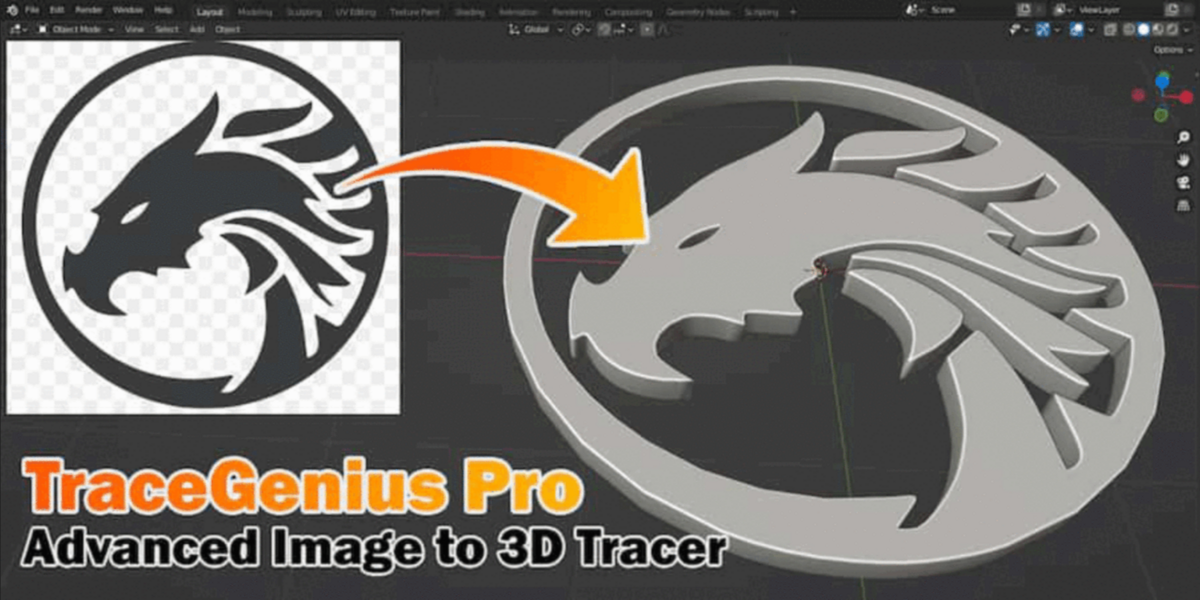
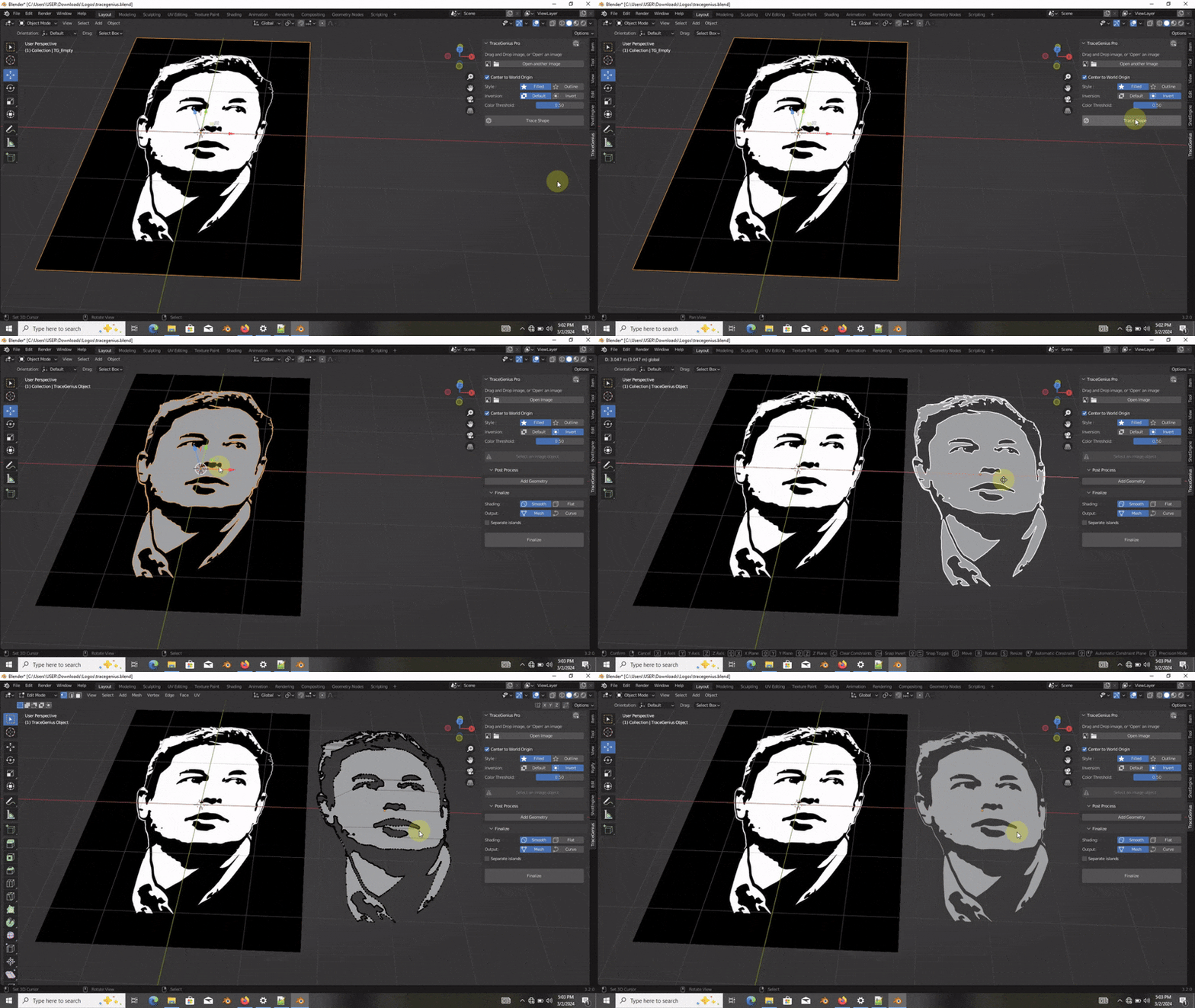
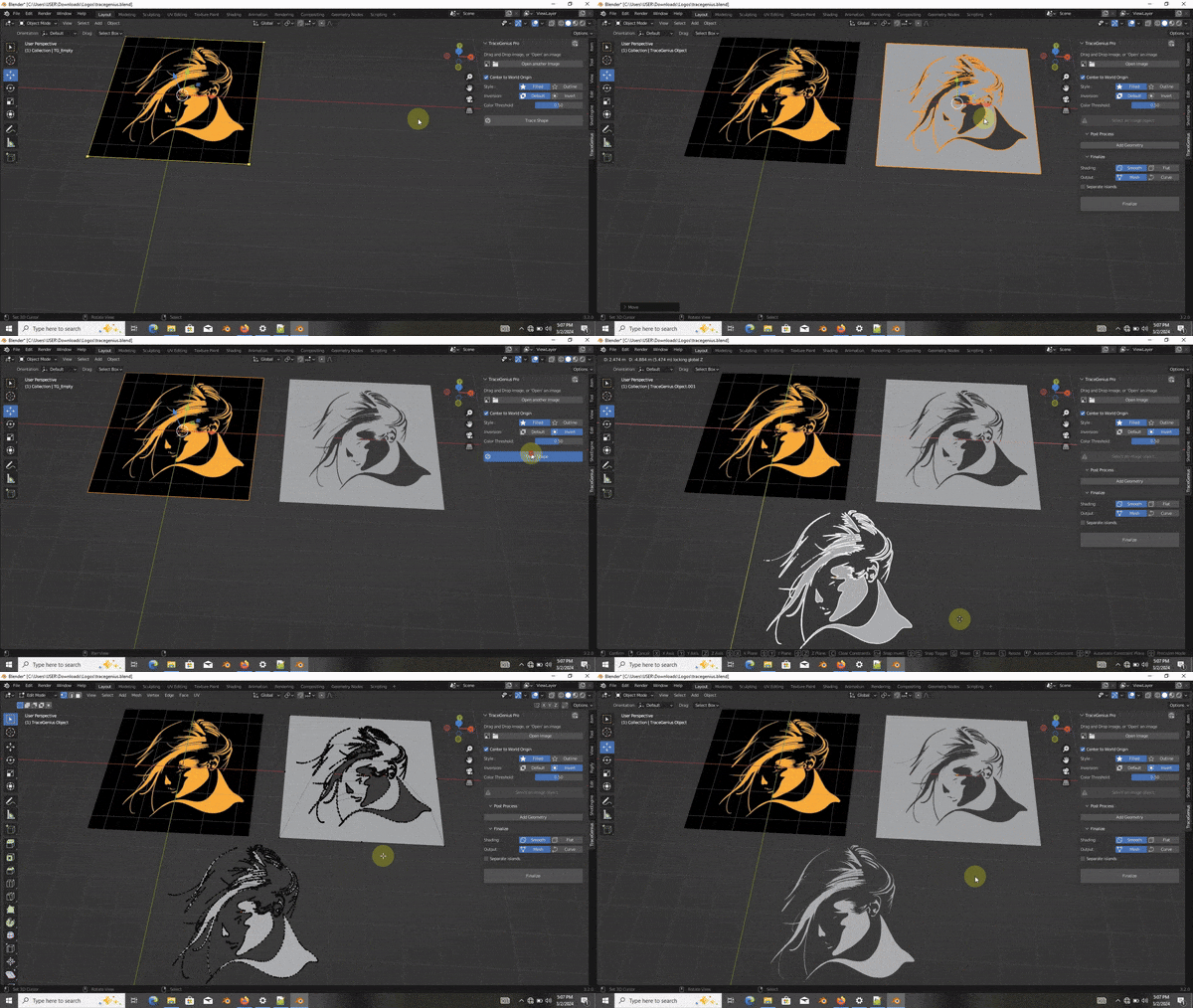
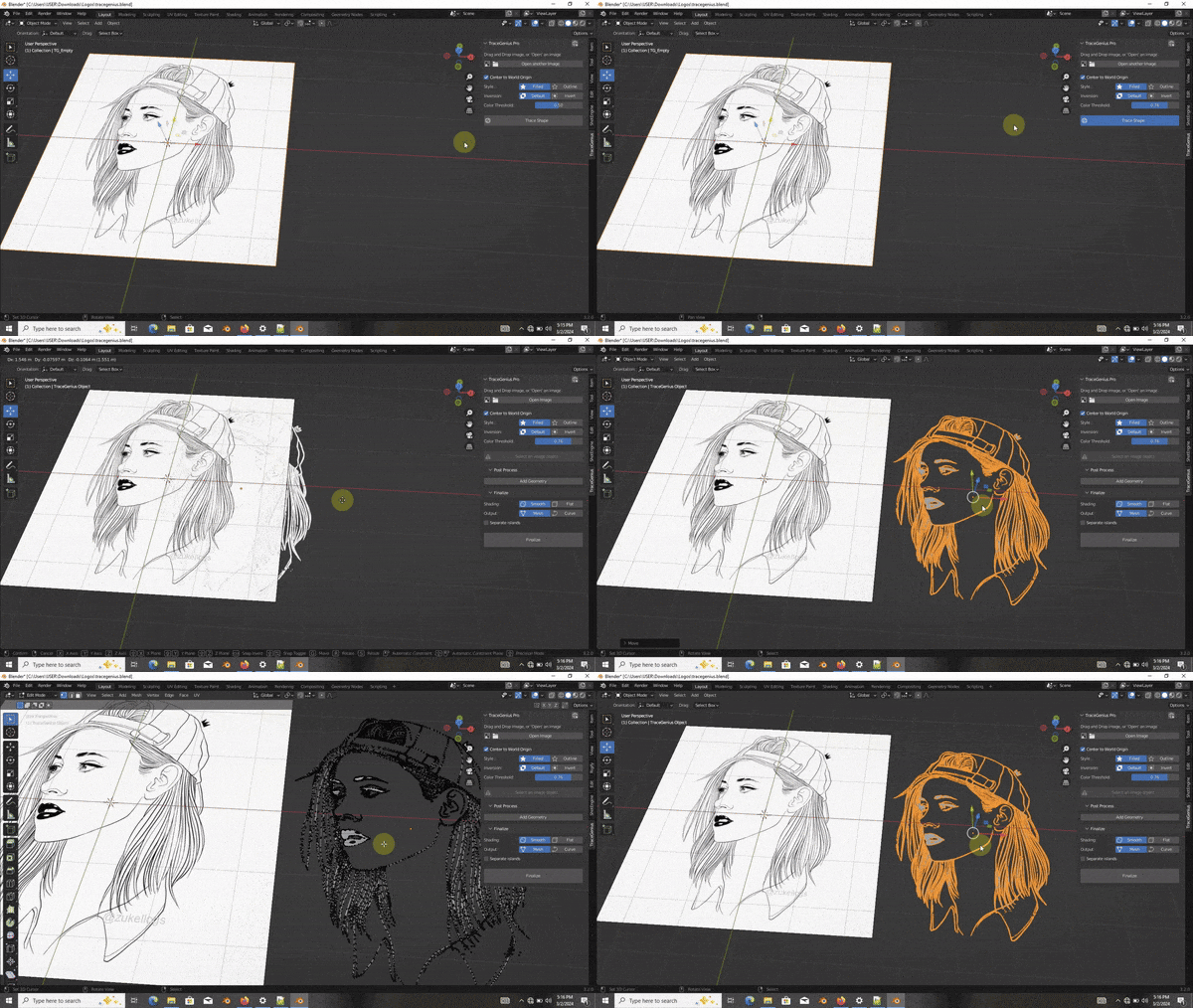
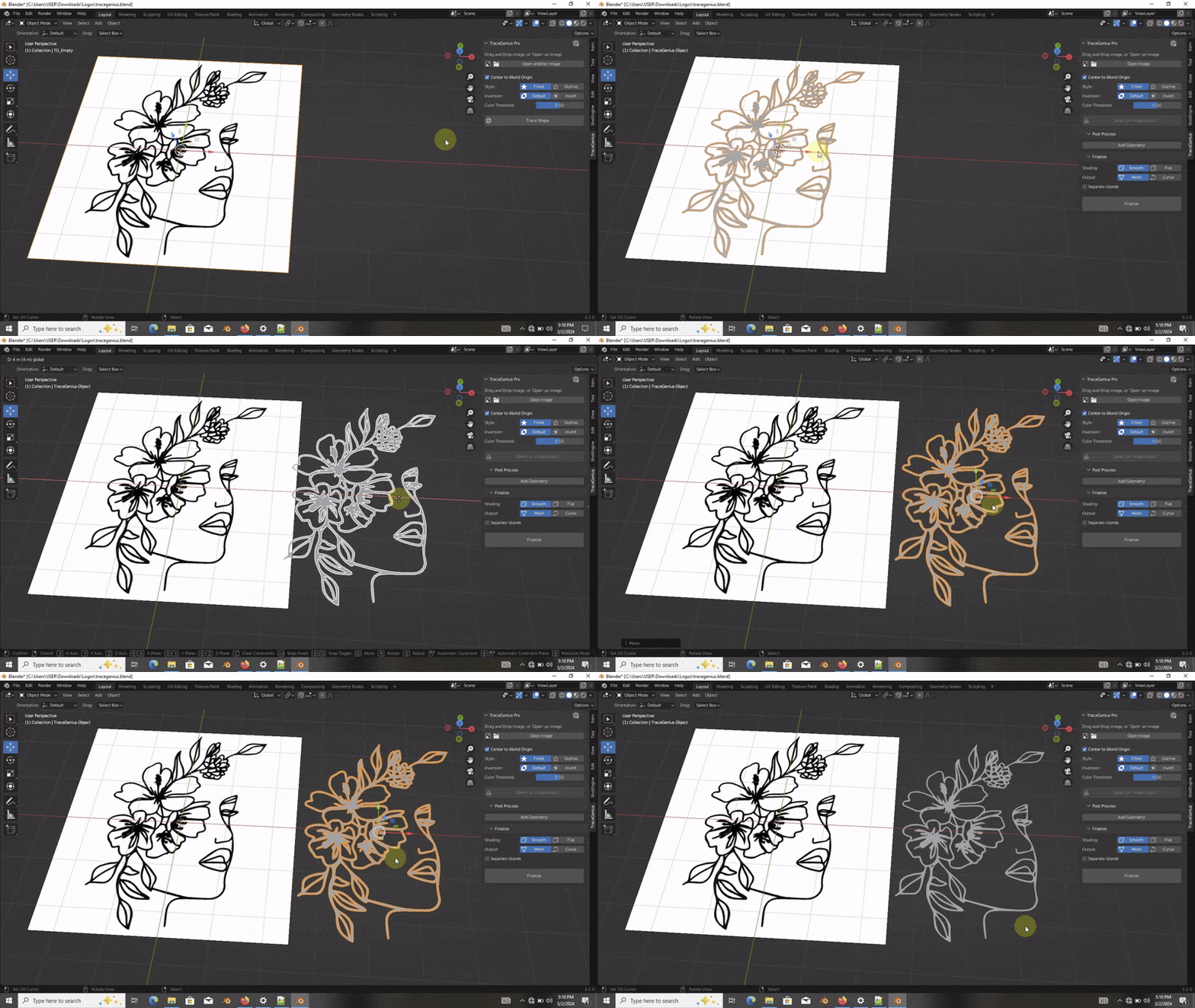
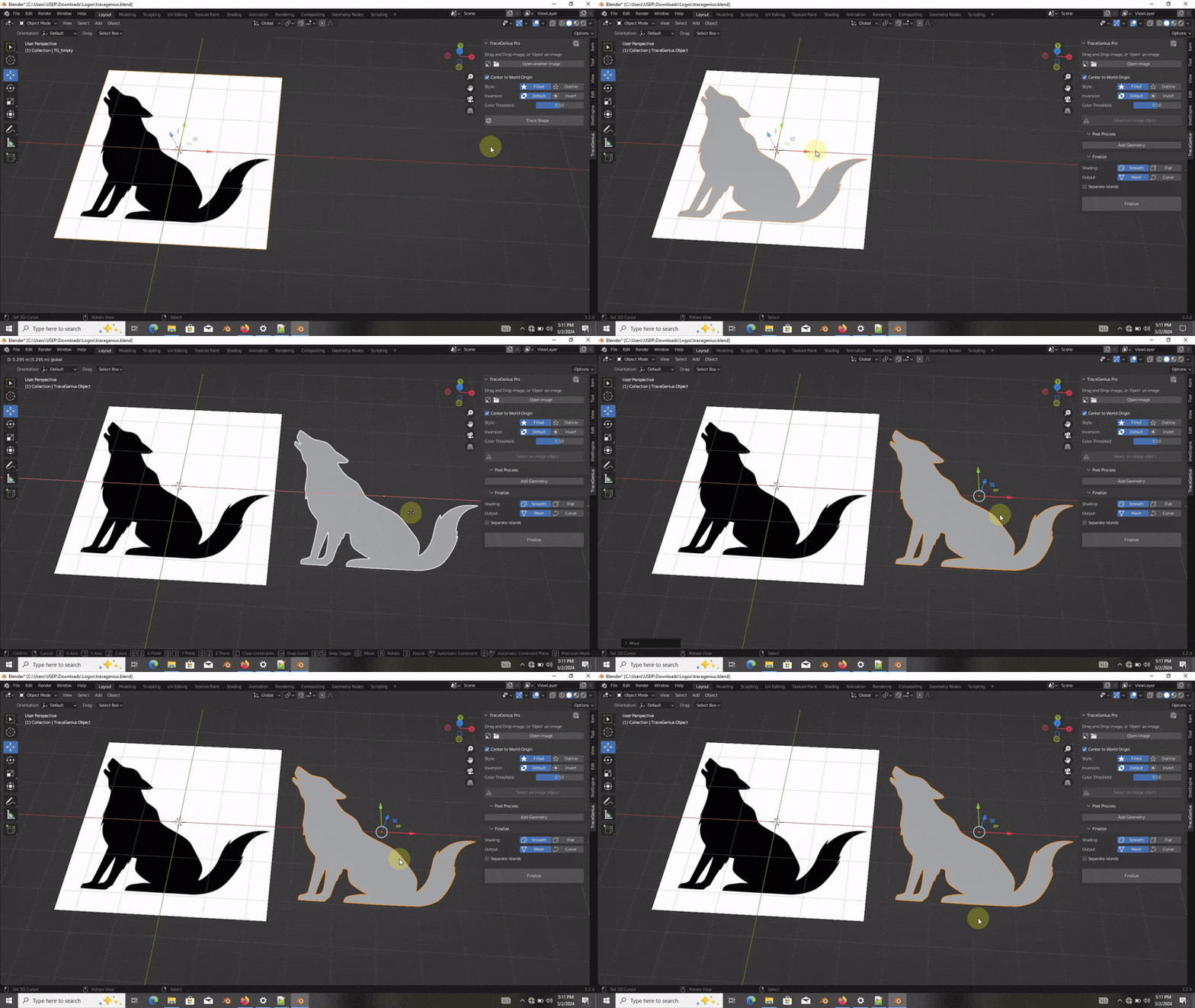
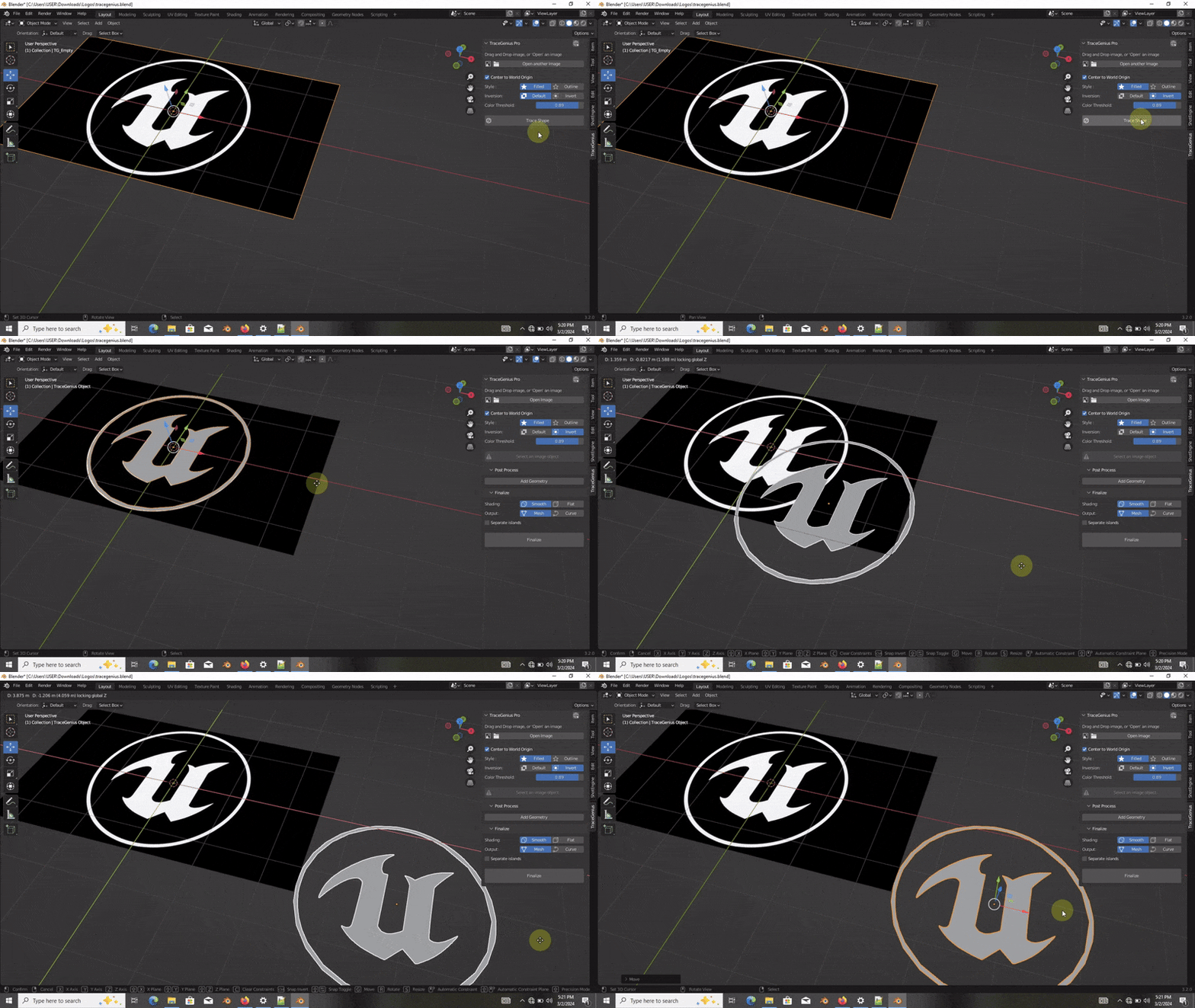
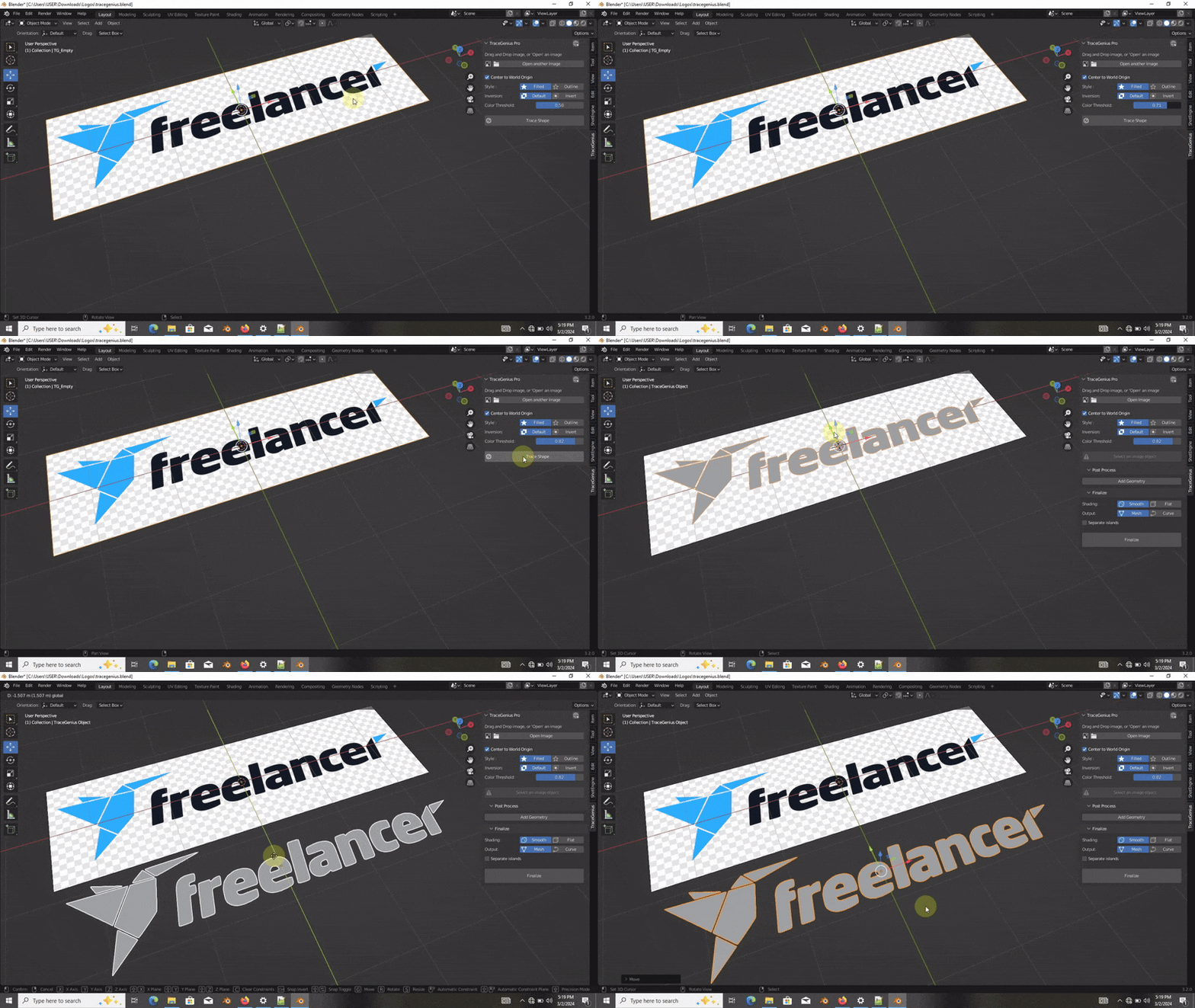
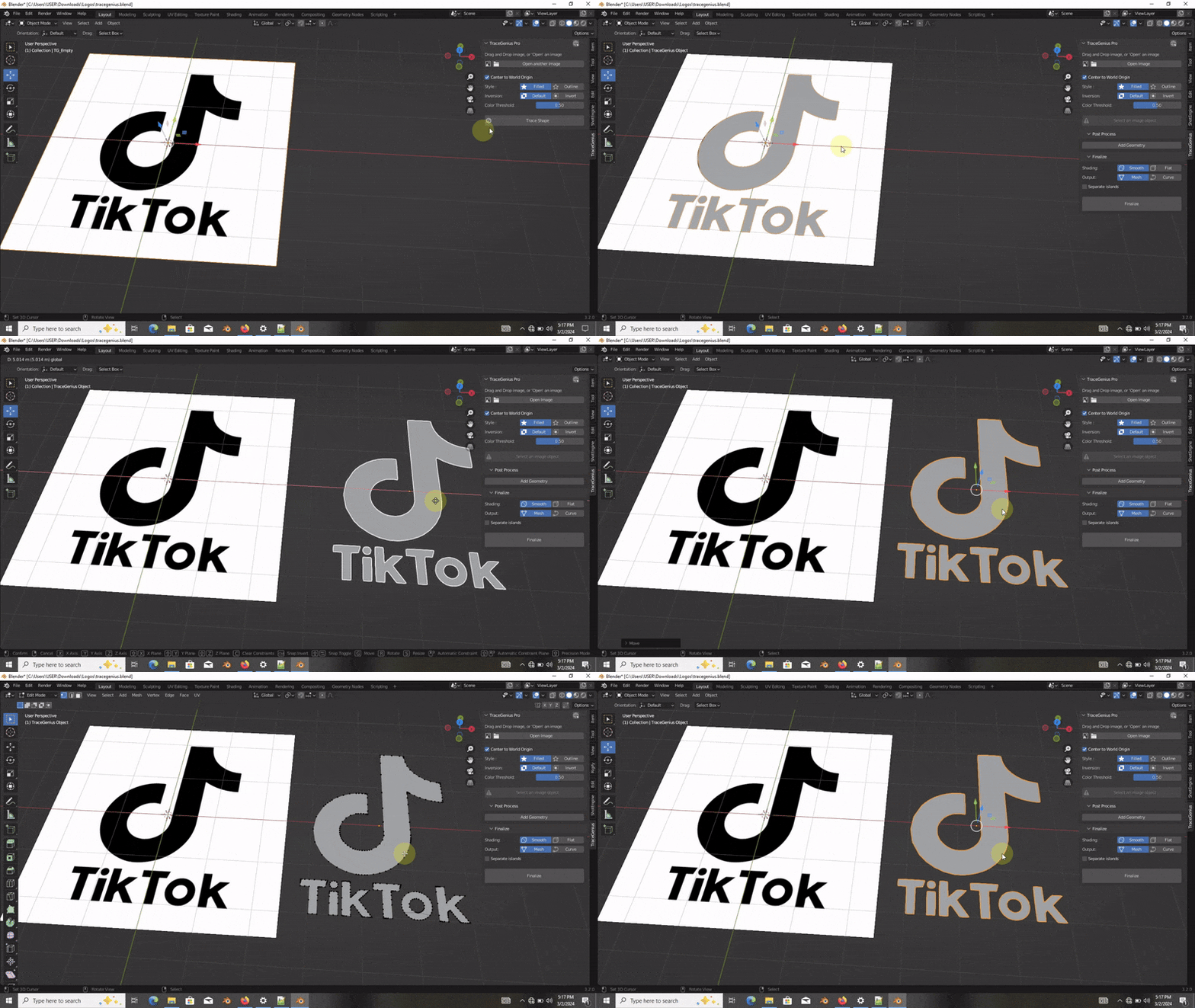
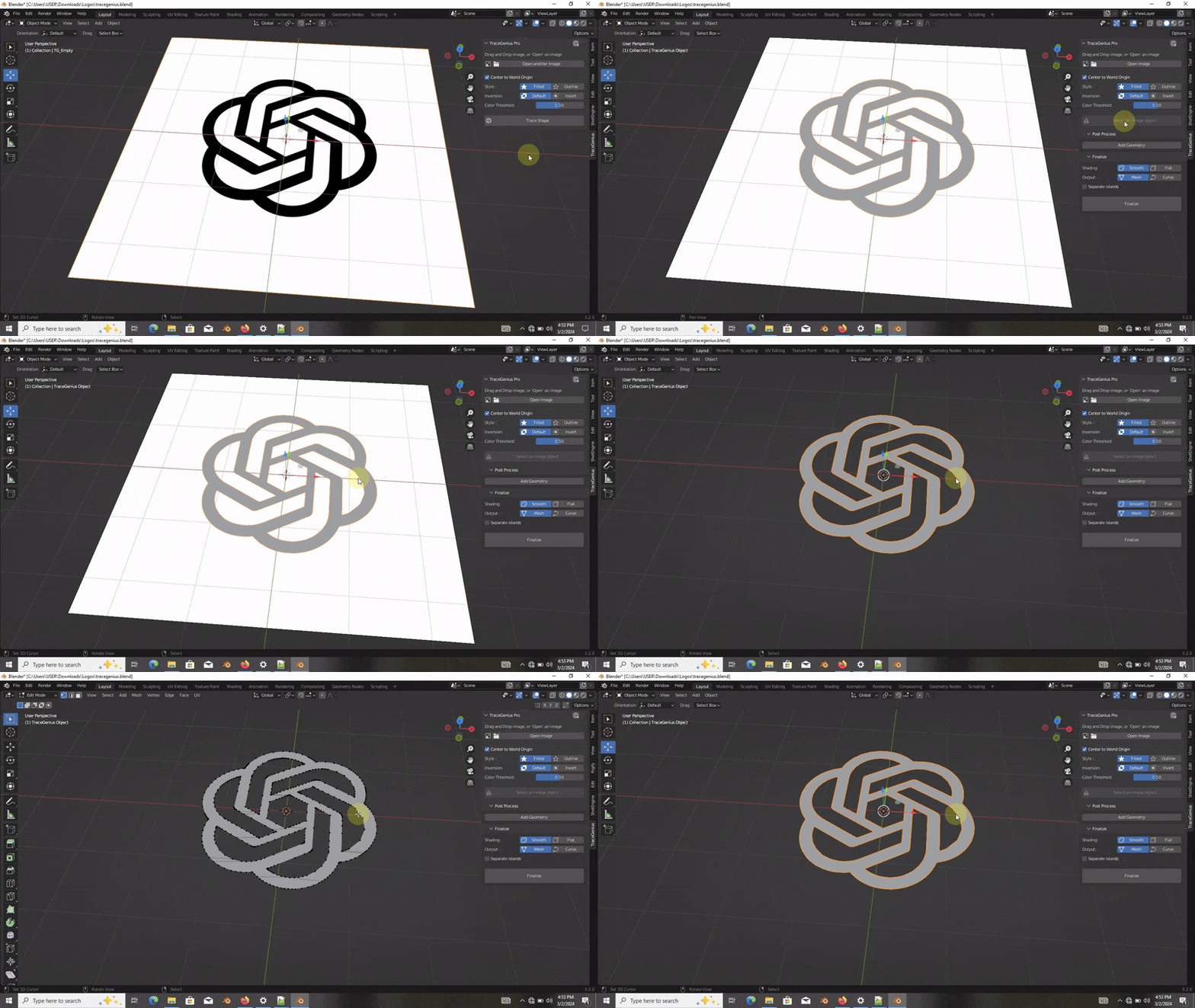
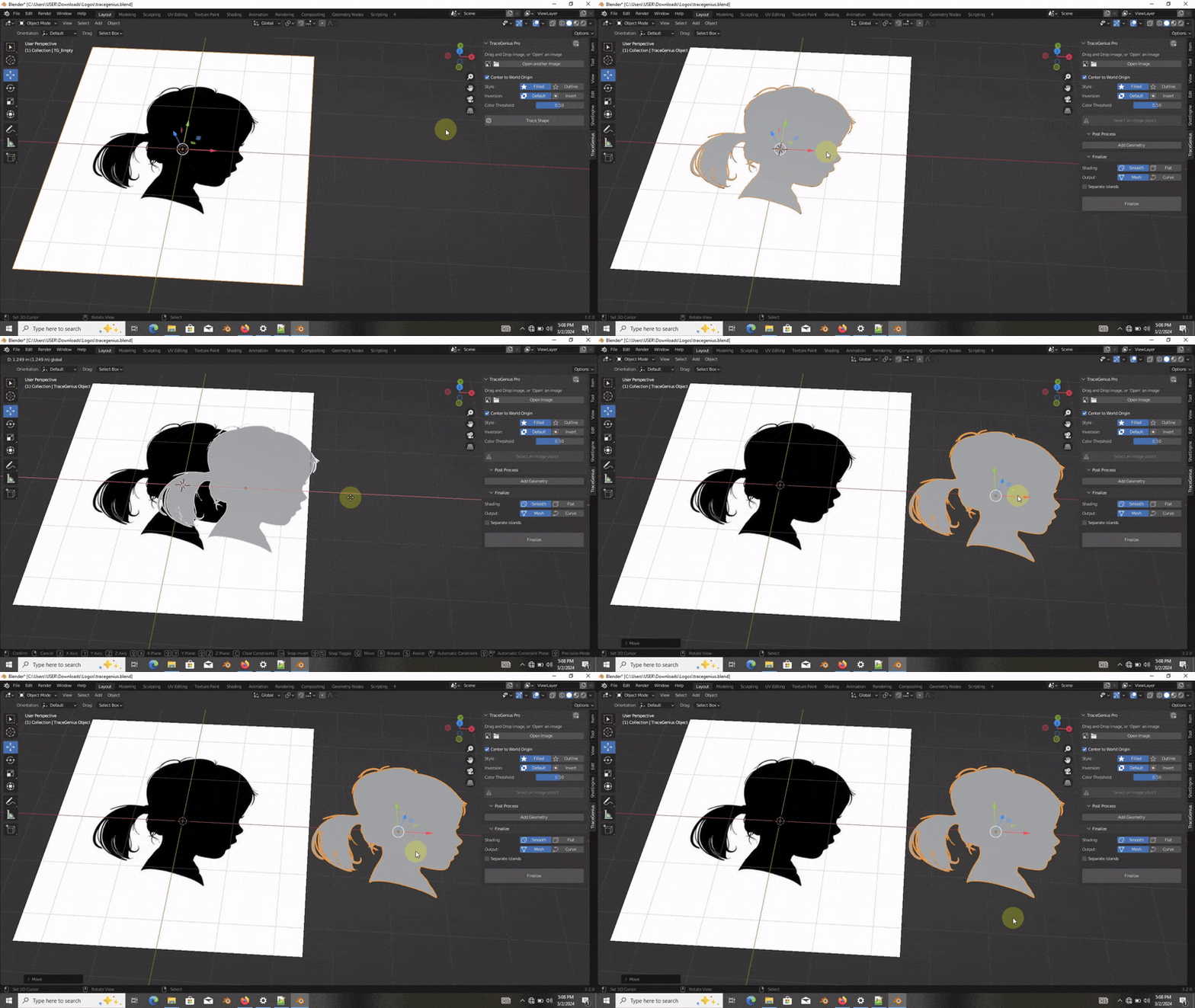
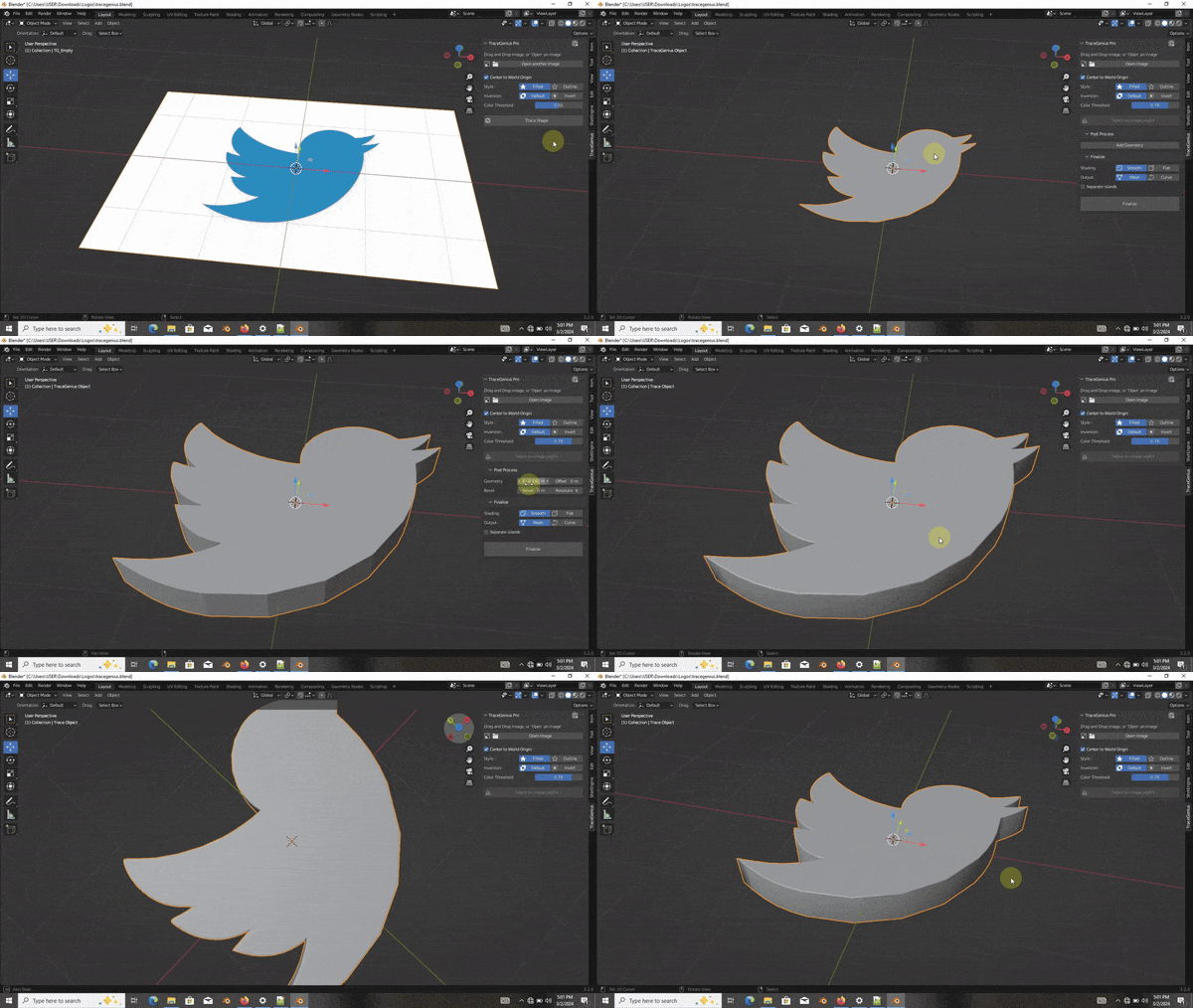
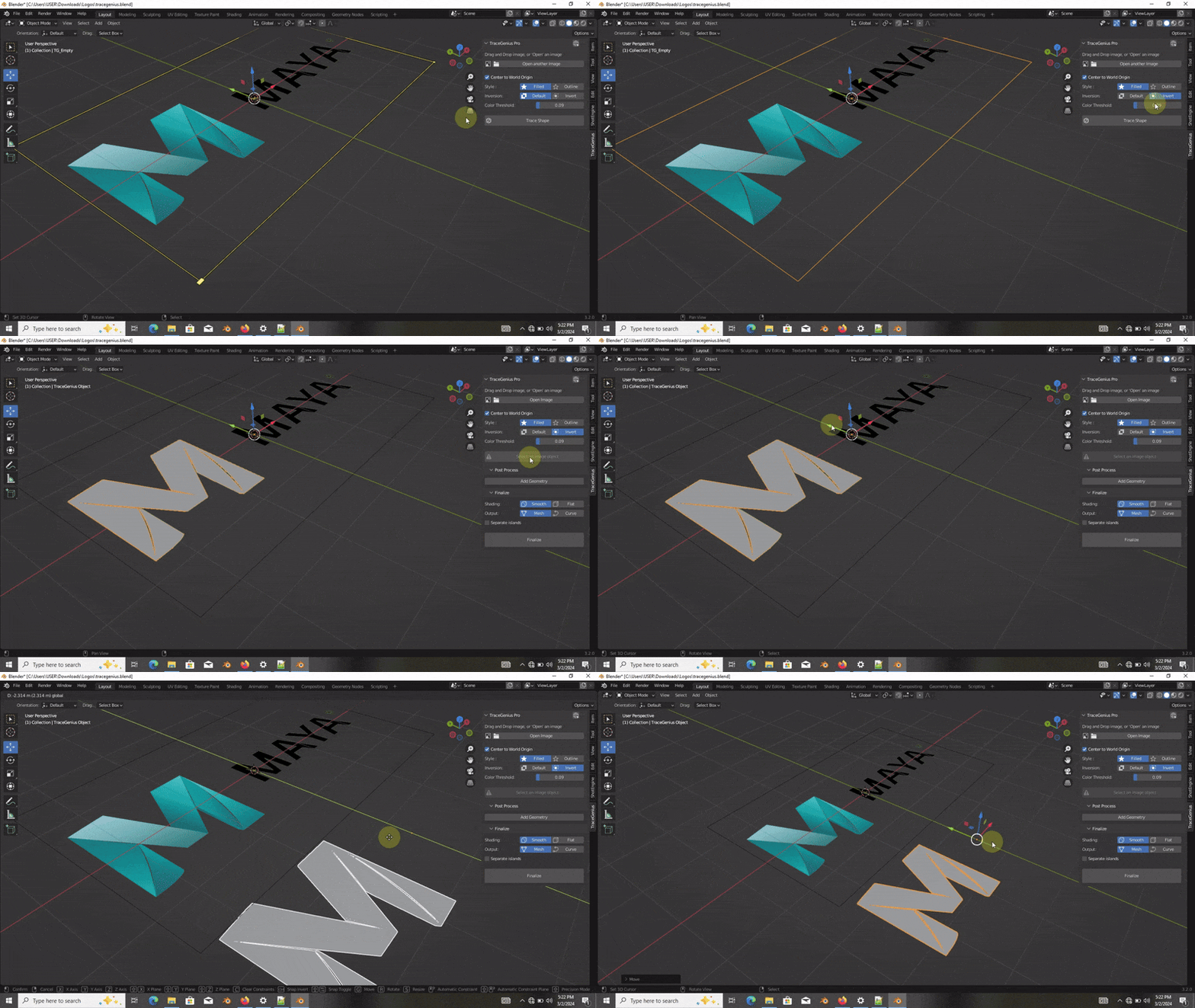
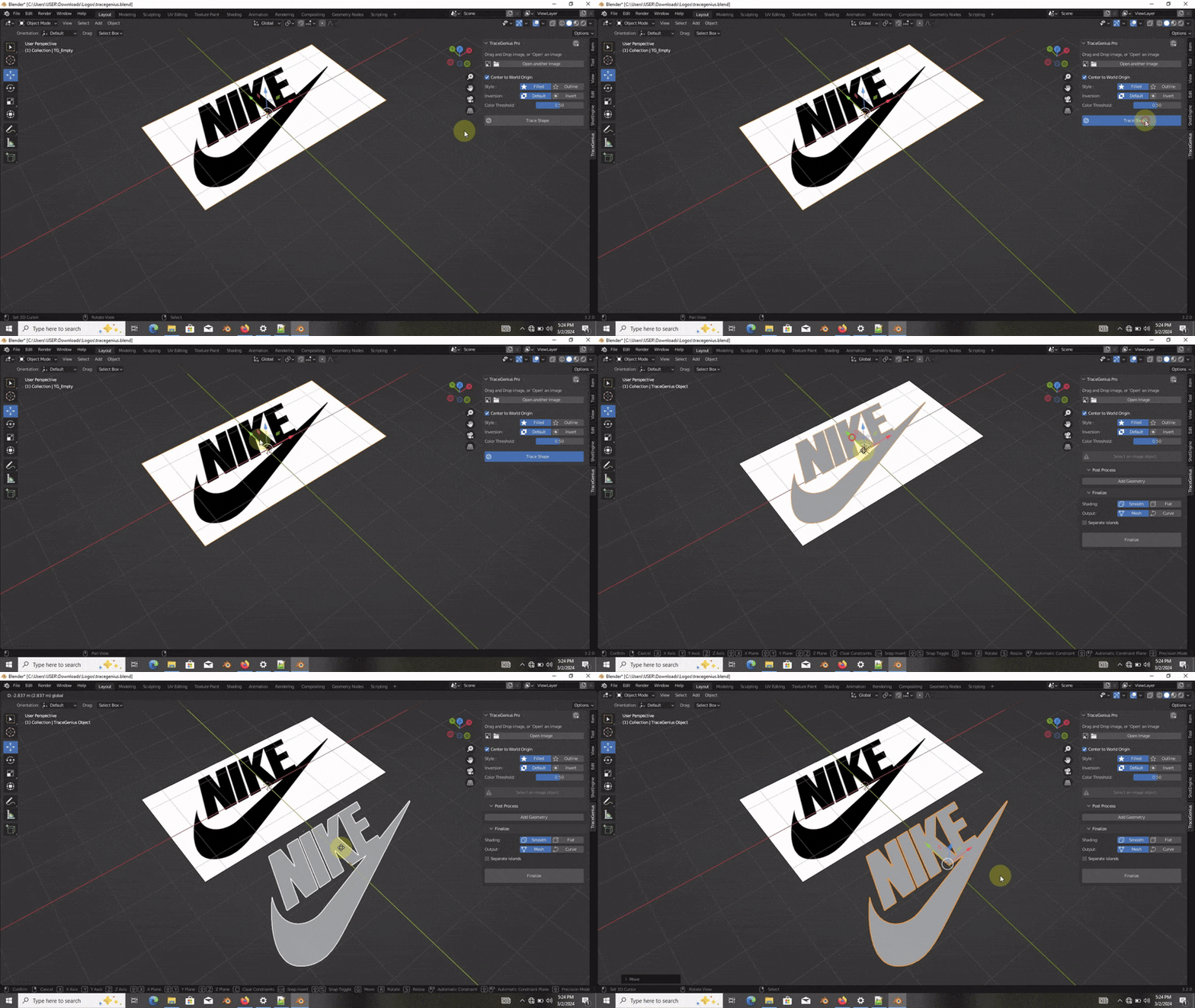
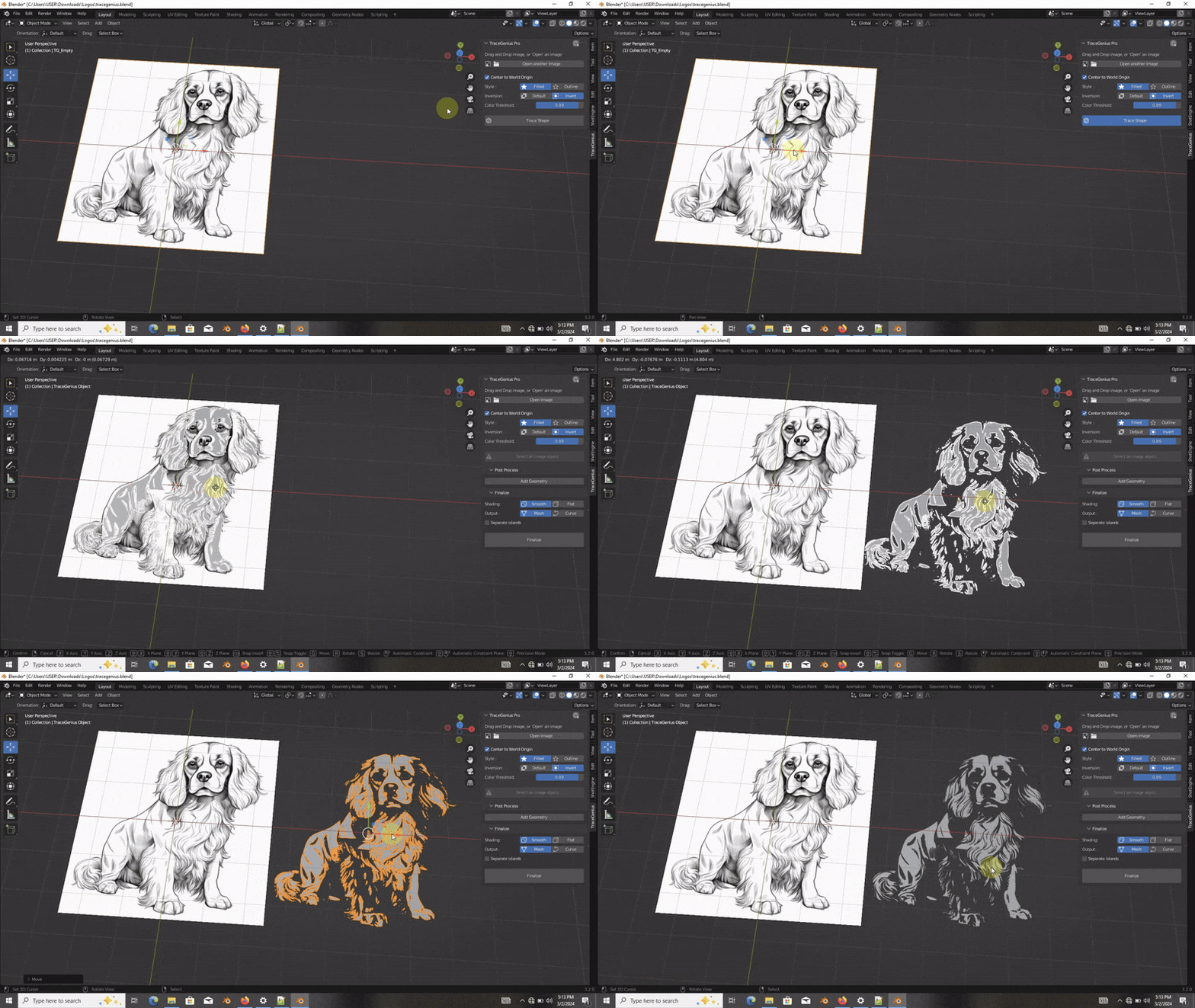
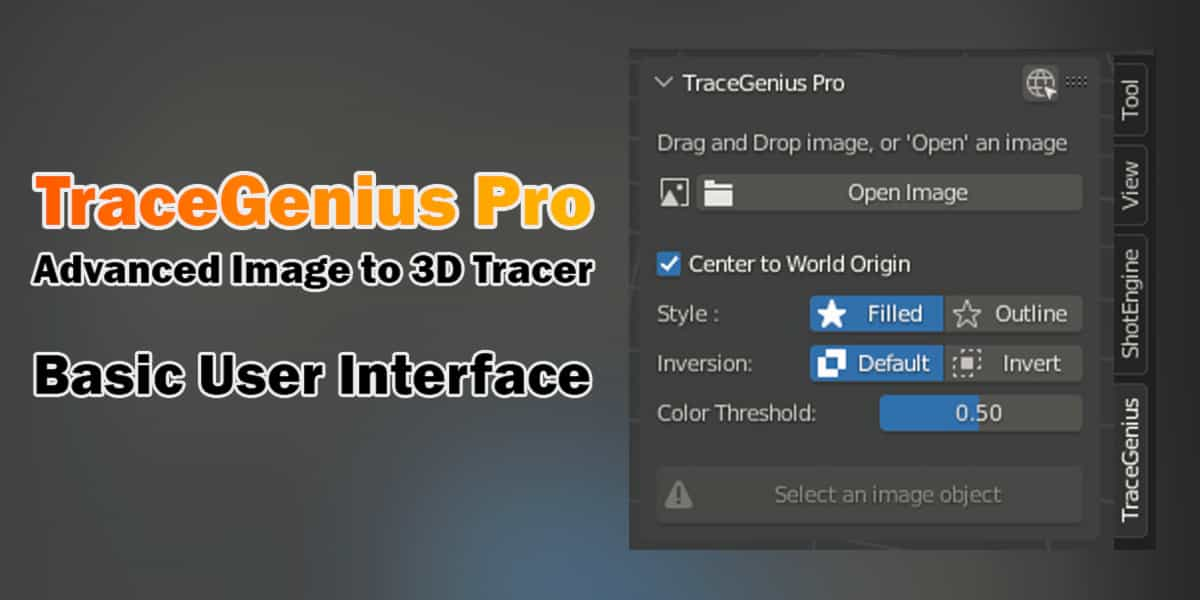
TraceGenius Pro — Product Documentation
Official documentation visible to all buyers and potential customers.
A clear, simple guide that helps you understand exactly what TraceGenius Pro does, how to install it, and how to get your first clean line-art trace inside Blender.
Table of Contents
Quick Summary
System Requirements
Installation (step-by-step)
Quick Start — Trace Your First Image
UI Overview
Core Features & How They Work
Typical Workflows
Troubleshooting & Tips
Updates & Support
1. Quick Summary
TraceGenius Pro is a lightweight, streamlined tracing addon for Blender that uses Blender’s built-in Grease Pencil trace system to convert images into strokes or outlines.
It acts as a simplified and improved front-end for Blender’s native tracing tools, letting you:
Trace images into Meshes and Curves
Create outlines from logos, drawings, and references
Quickly generate line art for further editing or animation
Adjust style, accuracy, threshold, and smoothing parameters
Because it depends directly on Blender’s own Grease Pencil tracing engine, its behavior is consistent with Blender’s internal tools.
2. System Requirements
Blender 2.80 or newer (up to the latest version; uses native GP tracing so it will always remain compatible)
OS: Windows / macOS / Linux
Works best with PNG/JPG/Webp reference images
CPU-based processing; no GPU required
3. Installation (step-by-step)
Open Blender → Edit → Preferences
Click Add-ons on the left
-
If any older version of TraceGenius (Pro or Ultimate) is installed:
Locate it
Deactivate and Remove / Uninstall
Restart Blender if prompted
Click Install… at the top-right
Locate the downloaded
.zipfile for TraceGenius ProSelect it and click Install Add-on
Enable it with the checkbox
Open the TraceGenius Pro panel (see UI Overview)
4. Quick Start — Trace Your First Image (3 minutes)
Add an image to your scene (Image → Reference or Background).
Select the image object.
Open the TraceGenius Pro panel in the sidebar (N-panel).
Choose your tracing style, accuracy, and threshold settings.
Click Trace Shape.
Inspect the result, adjust settings and retrace if necessary.
Finalize the trace or convert the strokes to curves or mesh if desired.
5. UI Overview
TraceGenius Pro uses a simple, compact layout:
Image / Source Panel
Select the active image
Tracing Options
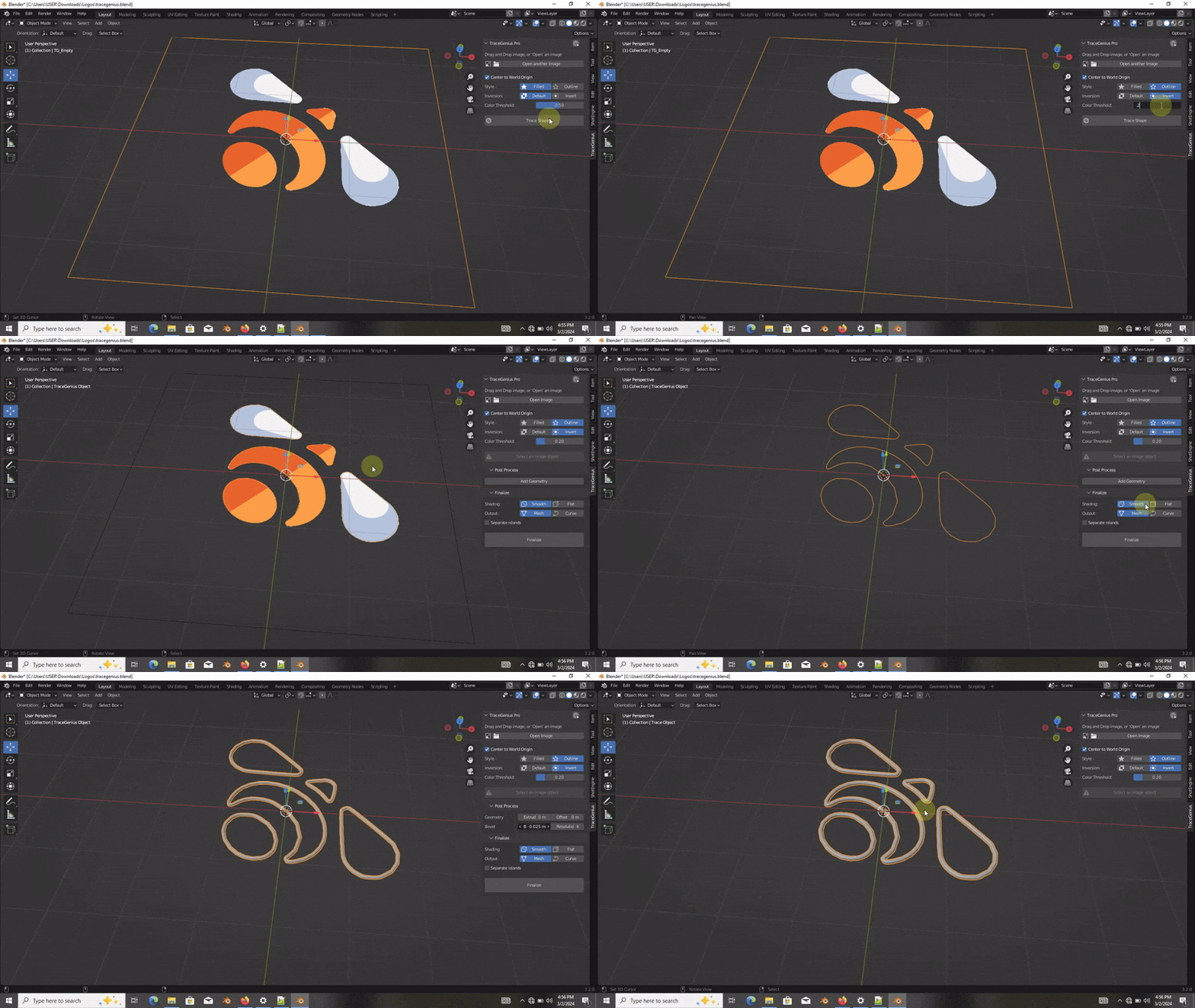
Style
Inversion
Color Threshold
Accuracy
Trace Controls
Trace Shape
Retrace
Finalize
Everything is designed to stay close to Blender’s native Grease Pencil workflow.
6. Core Features & How They Work
✔ Built on Blender’s Grease Pencil Tracing System
TraceGenius Pro uses Blender’s internal GP algorithm to generate vector strokes from a raster image.
This ensures:
Natural integration
Predictable GP behavior
Compatibility with all Blender versions
✔ Style, Accuracy & Threshold Controls
Fine-tune the stroke generation:
Style: outline vs. filled
Accuracy: how closely strokes follow the image
Threshold: sensitivity to dark/light edges
✔ Trace & Retrace Workflow
Try multiple settings until you get the stroke result you want—no need to restart the process manually.
7. Typical Workflows (Recipes)
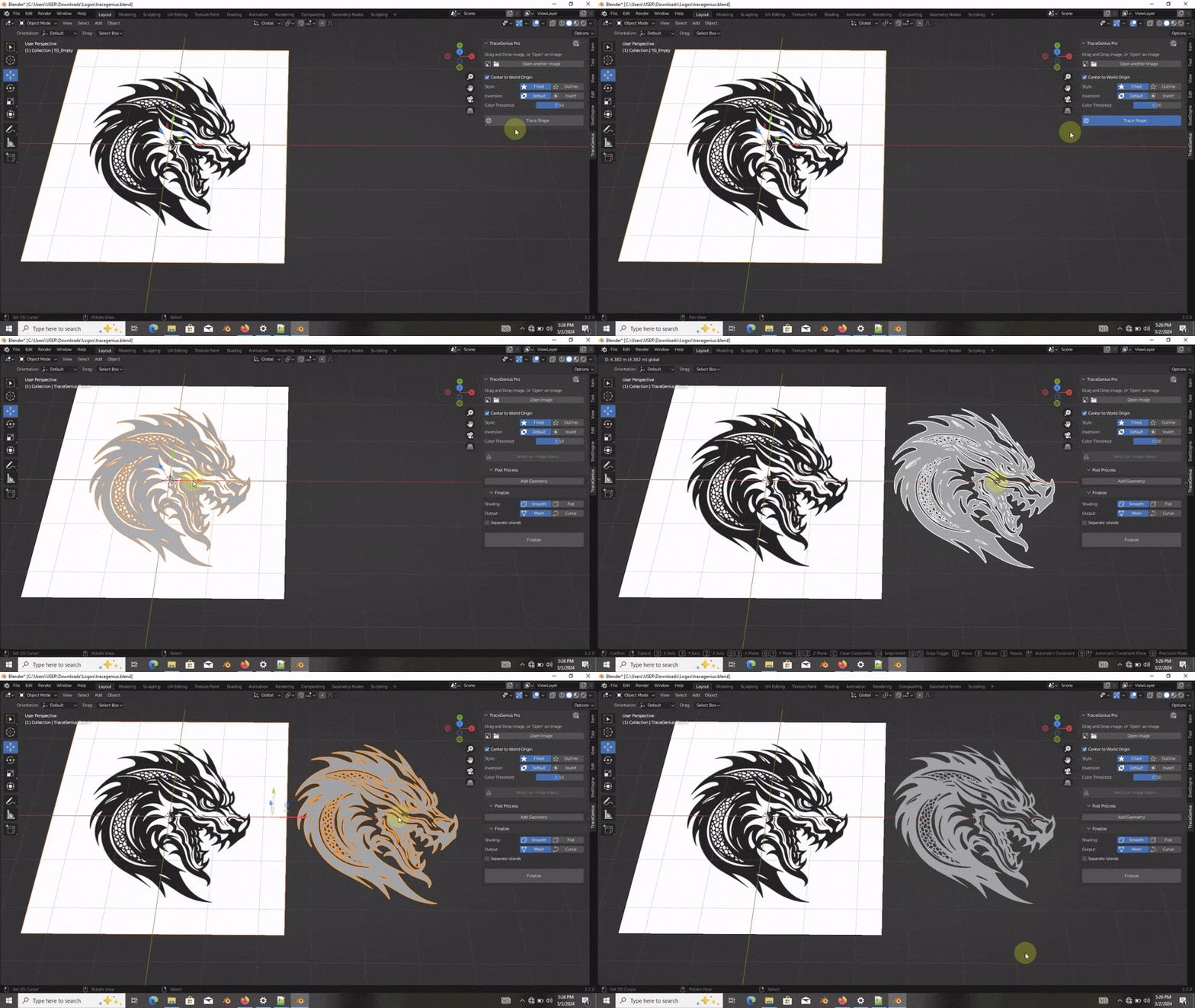
A. Turn a Drawing or Sketch into Traces
Add your scanned image
Choose a medium accuracy & color threshold
Click Trace Shape
Retrace with higher accuracy if more detail is needed
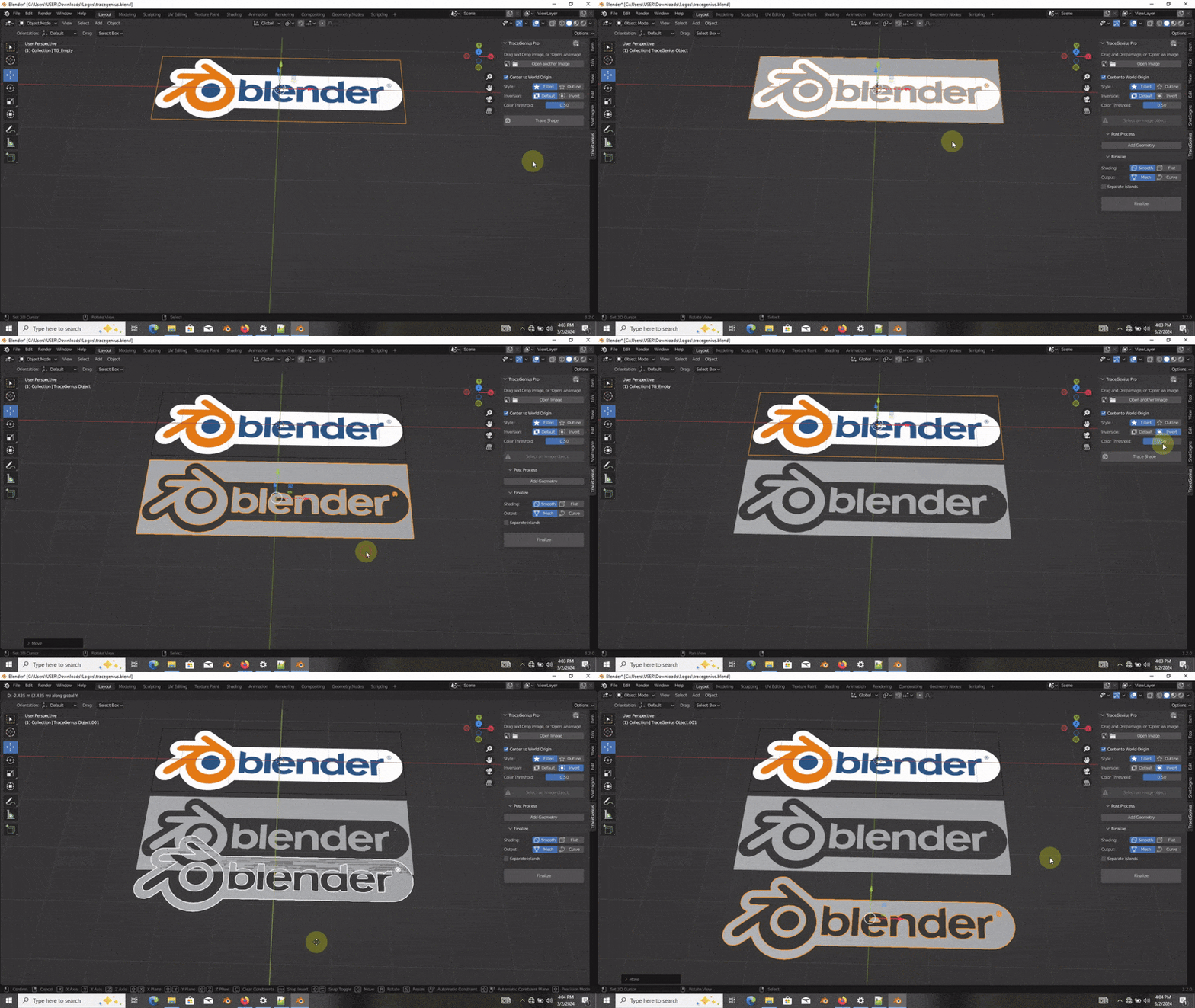
B. Create Simple Outlines from a Logo
Add a logo image
Enable inversion if needed
Choose high threshold (for solid shapes)
Trace
C. Prepare Strokes for Animation
Import reference art
Trace at high Accuracy
Convert strokes to editable Curves
8. Troubleshooting & Tips
Trace missing parts: Adjust threshold to be more sensitive
Addon not visible: Confirm it’s enabled in Edit → Preferences → Add-ons
9. Updates & Support
Updates
TraceGenius Pro receives maintenance updates for compatibility and minor fixes.
Major feature development has moved to TraceGenius Ultimate, which uses a brand-new tracing engine far beyond Blender's Grease Pencil’s limitations.
Support
Email: [email protected]
Or contact via SuperHiveMarket support.
Include your Blender version and a sample image for fastest assistance.
Have questions about this product?
Login to message
| Sales | 5900+ |
| Rating | 92 ratings |
| Published | over 2 years ago |
| Blender Version | 2.8 - 5.0 |
| Render Engine Used | Blender-Internal, Cycles, Eevee |
| License | GPL |
