 NineLine


Product Overview
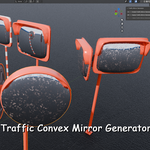
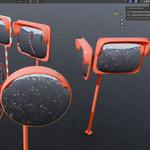
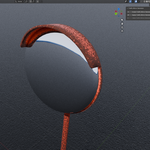
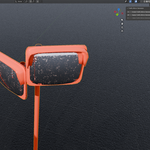
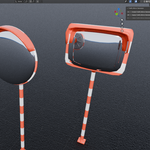
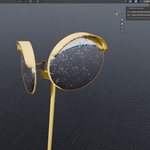
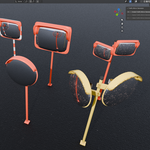
Traffic Mirror Generator is a Blender Geometry Nodes-based tool for creating customizable traffic convex mirror assets. The updated version uses one unified generator object. You can switch between a single mirror setup and a dual mirror setup from the Geometry Nodes modifier settings.
It is provided as a Blender Extension and includes tools for creating a generator object, applying the Geometry Nodes result as a mesh, and baking the final material into texture maps.
Traffic Mirror Generation
· Create a procedural traffic convex mirror asset from the Traffic Mirror tab in the viewport sidebar.
· Use a single unified generator instead of separate Single and Dual create buttons.
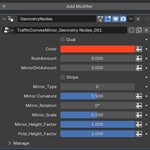
· Switch between single and dual mirror setups using the Dual checkbox in the Geometry Nodes modifier.
· Adjust color, safety stripes, mirror type, mirror rotation, mirror scale, mirror height, pole height, rust amount, and mirror dirt amount.
· Each created generator is prepared as an independent object so multiple generated mirrors can be edited separately.
Apply and Bake Features
· Apply the Geometry Nodes result to convert the generator into a normal mesh object.
· Use the UV map generated by the Geometry Nodes setup for texture baking.
· Bake the final material into BaseColor, Roughness, Metallic, and Normal texture maps.
·
Apply a final baked PBR
material to the object after the bake process is complete.
· Save generated texture files in a Textures folder next to the current Blender file.
Workflow
1. Click Create Traffic Mirror Generator to create a new generator object.
2. Select the generated object in the viewport or the Outliner.
3. Open the Modifiers tab and adjust the TrafficConvexMirror_Geometry Nodes settings. See Section 4 for the main settings.
4. Before baking, save your Blender file first.
5. Click Apply Traffic Mirror Generator to convert the Geometry Nodes result into a mesh.
6. Keep the applied object selected and click Bake Traffic Mirror Generator.
7. During the baking process, Blender may appear temporarily unresponsive. This is normal while texture baking is in progress.
8. After baking is complete, the texture files will be saved in the Textures folder next to the current Blender file, and a baked material will be assigned to the object.
Have questions about this product?
Login to message
| Blender Extension Compatible | Yes |
| Published | 5 months ago |
| Blender Version | 5.1 - 5.2 |
| Extension Type | Add-on |
| Render Engine Used | Cycles |
| License | GPL |
Discover more products like this
props blender 3d useful blender-extension procedual geometrynode traffic simple mirror