Transform Checker
 Tachyon Studio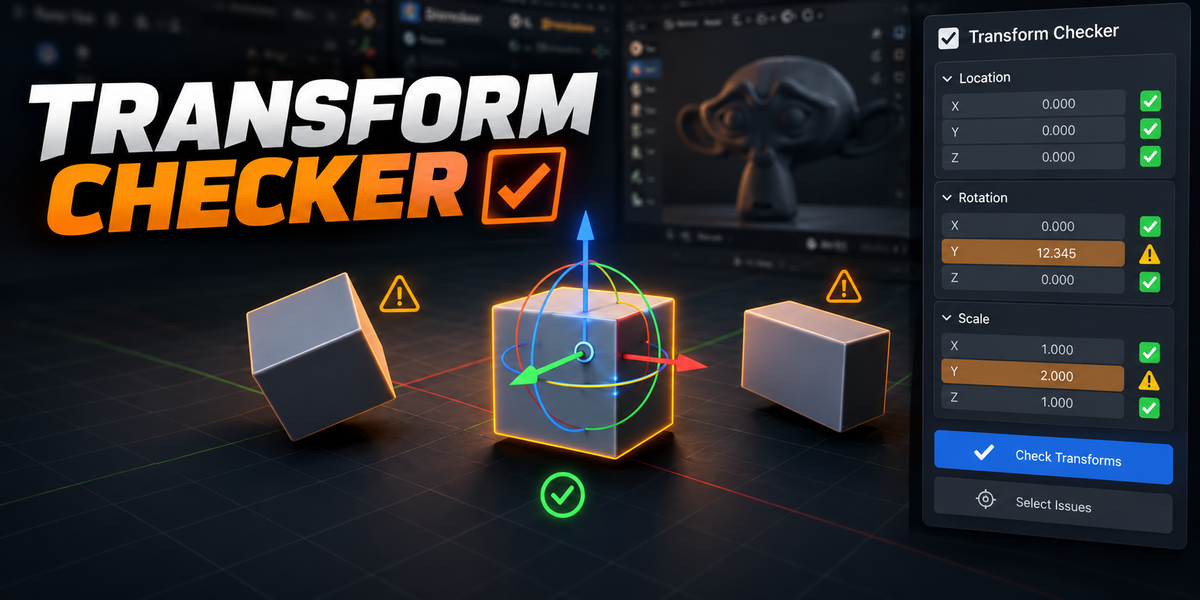
TACHYON STUDIO · DOCUMENTATION
Transform Checker 1.3.4
Version 1.3.4 · Blender 3.3–5.2 · GPL-3.0-or-later
IN THIS GUIDE
01 · Installation02 · Quick start03 · Add-on Preferences04 · Checks and appearance05 · Isolate and ignore06 · Apply selected fixes07 · Packages08 · Troubleshooting and support09 · Performance update10 · Performance Lab01 / DOCUMENTATION
Installation
Choose ONE ZIP format; do not unzip it before installation.
- Blender 4.2–5.2: use
transform_checker-1.3.4-extension-4.2-plus.zip. Open Edit > Preferences > Get Extensions, open the top-right menu and choose Install from Disk. Select the ZIP and install, then enable Transform Checker. - Blender 3.3–4.1: use
transform_checker-1.3.4-blender-3.3-5.2.zip. Open Edit > Preferences > Add-ons > Install, select the ZIP, and enable it. This legacy format is also available for manual installation on newer versions. - For an update, save your work, disable the old standalone add-on, install the new ZIP in the SAME format, then restart Blender. Keep a copy of your blend files before updating. Do not install both standalone formats together.
Designed for Blender 3.3–5.2; release tests run on 3.3.21, 4.3.2 and 5.2.0 LTS on Windows. macOS and Linux have not been validated. Requires working viewport GPU support. No separate account, internet connection or pip installation is required by this add-on. Demo meshes in the listing illustrate the checker and are not an included asset library.
02 / DOCUMENTATION
Quick start
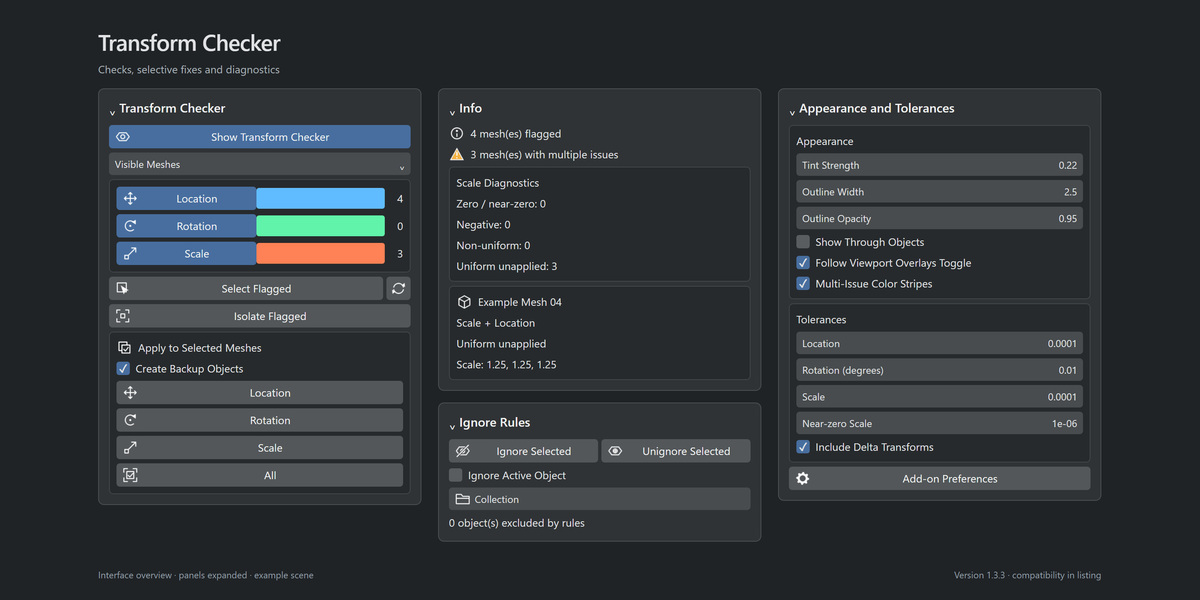
In the 3D View press N and open Transform Check. Show Transform Checker is enabled in the factory defaults; existing scenes retain any explicitly saved on/off choice. Rotation and Scale checks start enabled; turn on Location when needed. Core Utilities and Ultimate Utilities are unchanged and can remain installed alongside this standalone add-on.
Checker rows use a narrow, right-aligned count column, with the remaining width available to the check toggle and color swatch.
03 / DOCUMENTATION
Add-on Preferences
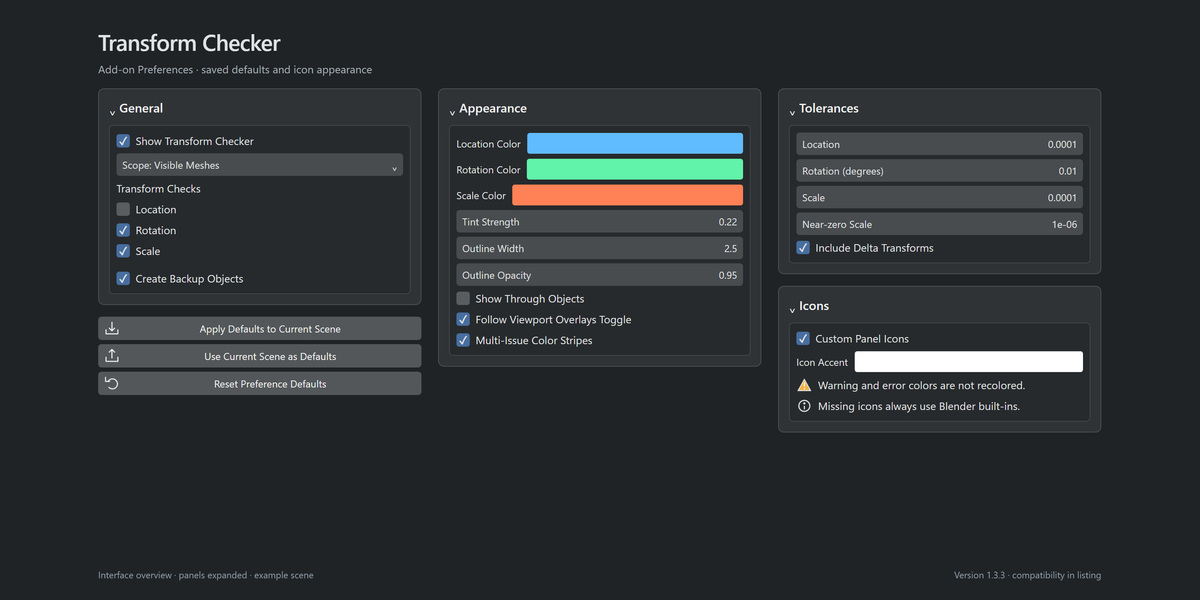
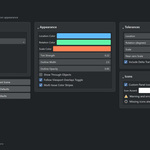
Open Edit > Preferences > Add-ons > Transform Checker, or use Add-on Preferences at the bottom of the sidebar's Appearance and Tolerances section. The General, Appearance and Tolerances tabs configure defaults for checker visibility, scope, transform checks, backups, colors, tint, outline, X-ray, multiple-issue stripes, thresholds and delta transforms.
Defaults are copied into new/unconfigured scenes when first used. Existing configured scenes keep their saved settings, including the effective defaults from older add-on versions. Editing preferences does not change an open scene.
- Apply Defaults to Current Scene replaces only that scene's checker settings after confirmation; it supports Undo and does not apply transforms.
- Use Current Scene as Defaults copies its checker settings to preferences.
- Reset Preference Defaults restores factory defaults after confirmation, without changing scene settings.
Ignore rules, collections, object transforms and isolation snapshots remain scene-specific and are never copied by these actions. Preferences persist using Blender's Auto-Save Preferences; if it is disabled, use Save Preferences.
The Icons preferences tab controls Custom Panel Icons and Icon Accent. The 32px icons are white by default and tinted at runtime; warning/error parts keep their semantic colors. Disable custom icons to use Blender's built-ins. Missing or corrupt masks and background Blender use the built-in fallback too. Icon preferences apply immediately to every panel and are not copied by the scene/default copy actions. Reset Preference Defaults also resets icon appearance.
04 / DOCUMENTATION
Checks and appearance
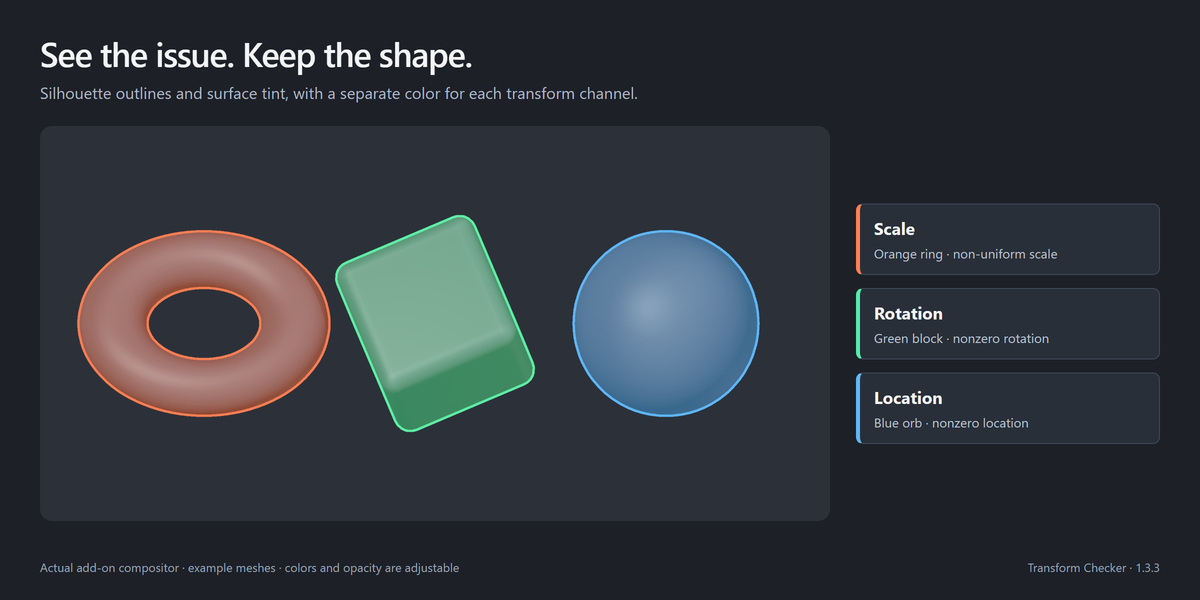
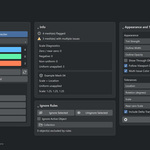
The overlay outlines evaluated mesh silhouettes and tints surfaces without changing materials. It respects modifiers, holes, local view, hidden objects, and optional selected-only scope. Appearance and Tolerances contains colors, tint strength, outline width/opacity, X-ray and tolerance controls.
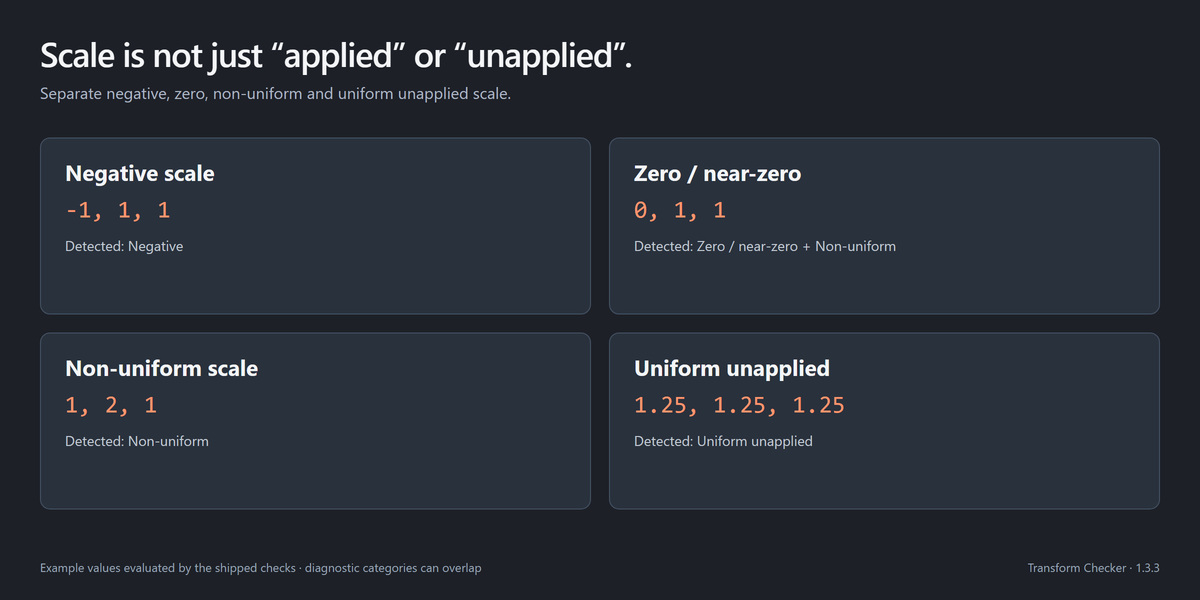
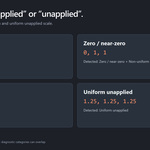
Expand Info (closed by default) for flagged-mesh and multiple-issue totals, Scale Diagnostics and active-object details. Scale Diagnostics distinguishes negative scale, zero/near-zero scale, non-uniform magnitudes, and uniform unapplied scale. Categories can overlap; the active object's full issue list and scale values appear in the same section. Checks use local channels and optional delta transforms, not inherited parent motion. The near-zero threshold defaults to 0.000001 and is independent of the normal scale tolerance.
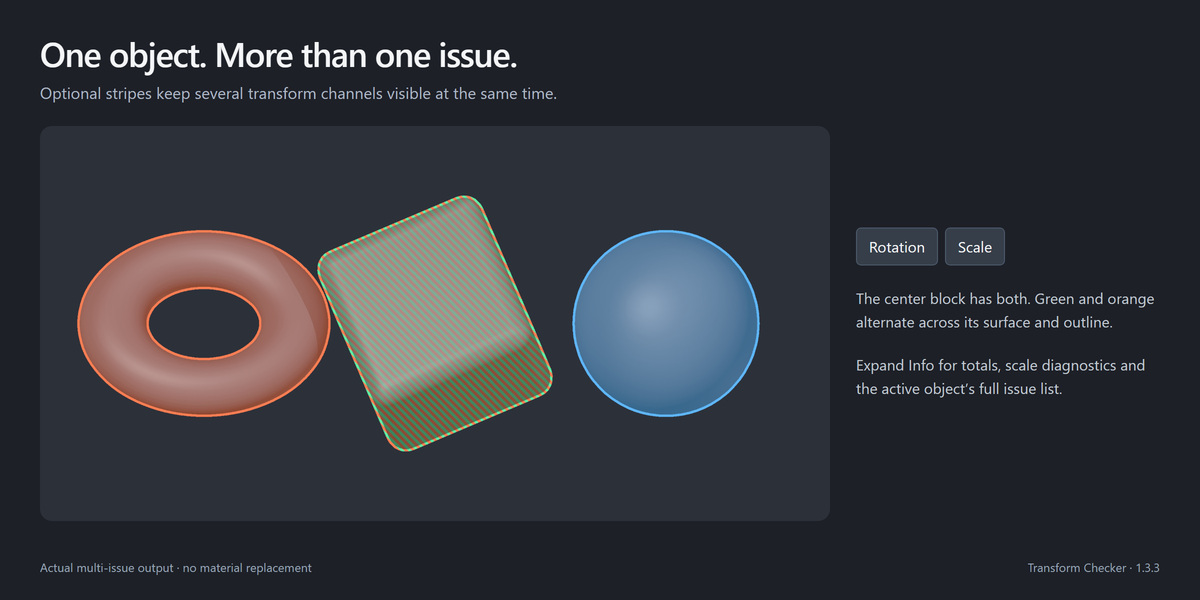
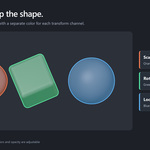
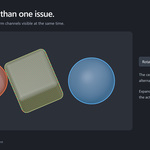
Multi-Issue Color Stripes alternates channel colors over the surface and outline: scale orange, rotation green, location blue. Multiple scale hazards use a lighter alternating scale color. Turn stripes off to use Scale > Rotation > Location priority. Counts and the active-object diagnosis still show all issues.
05 / DOCUMENTATION
Isolate and ignore
Isolate Flagged temporarily hides other visible objects in the current View Layer. Restore Visibility restores only that snapshot; previously hidden objects stay hidden. Each View Layer has its own snapshot, including renamed objects/layers. The snapshot is saved with the blend file so Restore works after reopening it. Disabling this add-on restores active isolation. Objects created after isolation are not part of its snapshot.
Ignore Rules can ignore/unignore selected objects or the active object. Pick a collection and enable Ignore Collection and Children to exclude its entire hierarchy. Membership in any ignored collection wins, even if an object is also linked elsewhere. Ignored objects are omitted from selection, isolation targets, diagnostics and fixes, but still occlude other objects. Rules are stored in the blend file; linked objects/collections cannot be edited directly.
06 / DOCUMENTATION
Apply selected fixes
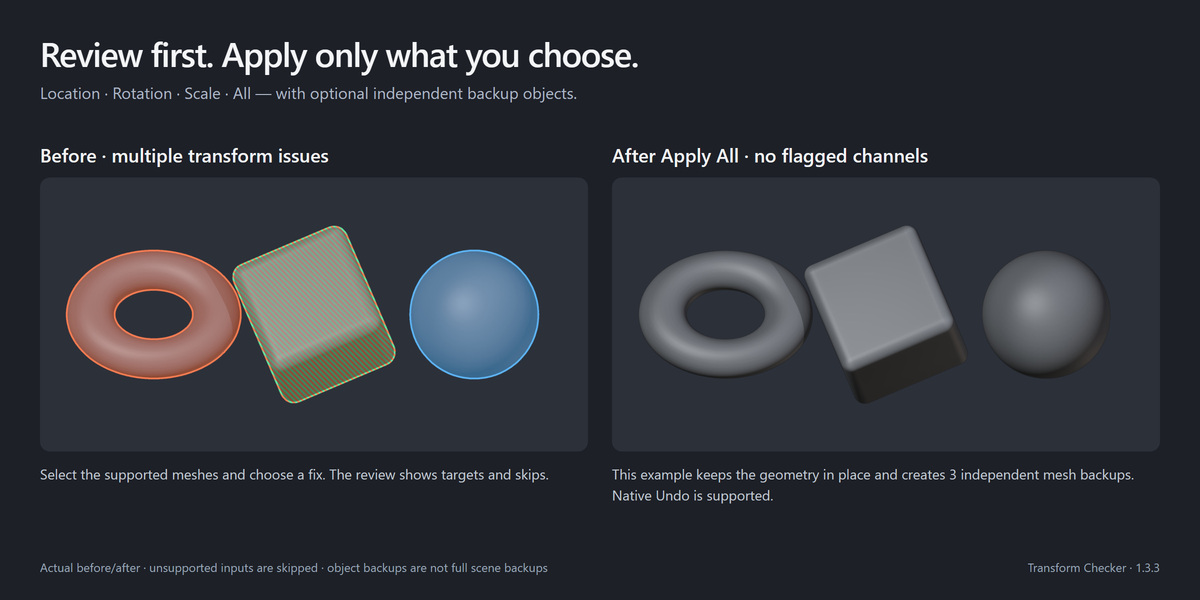
Apply to Selected Meshes contains Location, Rotation, Scale, and All buttons, stacked vertically in that order. They act only on selected supported meshes in Object mode, independently of the checker display toggles. All applies location, rotation and scale together, with one optional backup per object. Location moves the origin and resets the location channels to zero while keeping mesh geometry in place. A review dialog shows targets, skips, and whether shared meshes will become independent. They use Blender's native Apply Transform and preserve source world-space geometry, including unanimated shape keys and child placement. Shared-data siblings are not modified. Modifiers remain unapplied; applying transforms can change modifier distances just as with Blender's native command.
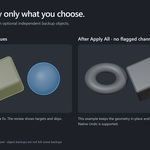
Create Backup Objects is on by default and can be disabled. Backups have their own mesh data in _TransformChecker_Backups, are ignored by the checker, and are hidden in viewport and renders. To inspect a backup, enable its viewport monitor toggle in the Outliner. It is a detached snapshot of the source object before the fix. Mesh/material assignments are copied; material datablocks and external modifier targets are still references, not full-scene snapshots.
Fixes skip ignored, linked/override, constrained, animated, rigged, and delta- transformed objects, reporting why. Location, Scale and All also skip zero/near-zero scales that first need manual correction. Native Undo is available for the operations. Rotation and Scale do not apply Location; only Location and All do. Fixes never clear delta transforms.
Solid surface geometry determines overlay occlusion; material transparency, volumes/strokes and viewport clipping regions are not sampled. Overlays do not appear in final renders.
07 / DOCUMENTATION
Packages
Use the intact transform_checker-1.3.4-blender-3.3-5.2.zip with Preferences > Add-ons > Install / Install from Disk. The separate native Extensions ZIP is for Blender 4.2 and newer. Enable only one format of the standalone add-on.
Tachyon Studio. Licensed GPL-3.0-or-later; see LICENSE.
08 / DOCUMENTATION
Troubleshooting and support
- No overlay: enable Show Transform Checker and at least one relevant check, confirm the mesh is visible and not ignored, and check the Selected/Visible scope. If Follow Viewport Overlays Toggle is enabled, turn on viewport overlays.
- Location is off in factory defaults. Turn it on to flag nonzero location.
- If an icon keeps a custom accent after an update, open Preferences > Icons and set Icon Accent to white. Scene tint colors are separate.
- A fix is skipped: read its review/report, switch to Object mode and consult the restrictions above. Do not remove animation or rigging simply to bypass a safety check; use Blender's appropriate native workflow for those objects.
- Backup recovery: find
_TransformChecker_Backupsin the Outliner, enable viewport visibility and unhide the desired backup. Restore manually, or use Undo immediately after a fix. Backups are not complete scene backups. - For support, join our Discord support community, or use the creator messaging button on the Superhive product page. Include the add-on and Blender versions, operating system/GPU, reproduction steps, exact error text and a small non-sensitive sample file if possible. Discord is optional and is not required to use the add-on.
09 / PERFORMANCE UPDATE
What changed in 1.3.4
Evaluated mesh arrays and GPU buffers are reused during ordinary transforms. Colors, tint and outline changes avoid rebuilding geometry. Visible-scope selection and sidebar diagnostics reuse cached work, and geometry/mask work is skipped when no meshes are flagged. Fixing operators, scene settings and defaults are unchanged.
The first draw, actual mesh/modifier edits, animated deformation and manual Refresh can still be expensive. Caching retains additional RAM per viewport. Selected Meshes with Show Through Objects can reduce occluder work if that display mode fits your task; with Show Through Objects off, clean objects still provide occlusion.
This update reduces repeated checker work, not Blender's own scene evaluation or drawing cost. It does not promise a particular overall frame rate. Windows release checks covered Blender 3.3.21, 4.3.2 and 5.2.0 LTS; macOS and Linux remain untested.
10 / PERFORMANCE LAB
Try the included test scenes
Extract transform_checker-1.3.4-documentation-and-demo.zip and open documentation/index.html for the offline manual, FAQ, release notes and illustrated test checklist. This ZIP is not an add-on installer.
With one copy of Transform Checker 1.3.4 enabled, open documentation/demo/Transform_Checker_Performance_Lab.blend. It contains synthetic test fixtures and does not install or embed executable add-on code. Choose a scene from Blender's top-bar Scene selector:
- 01 - Diagnostics Playground: local and delta transforms, parenting, occlusion, and two animated examples.
- 02 - Dense Stress 100: the default scene, with 100 separate dense meshes and 3,276,800 evaluated mesh triangles. Labels add a little geometry.
- 03 - Object Stress 1000: 1,000 lightweight meshes for checking object-count overhead.
Wait for the first overlay draw, then compare orbit/pan/zoom with Show Transform Checker off and on. Test G/R/S on one mesh and cancel with Esc; try selection, tint and outline changes. A Subdivision change is a real geometry rebuild, so test it separately. Press Home over the viewport to frame everything after switching scenes. Rotation and Scale start enabled; Location is intentionally off.
For a before/after comparison, use the same scene and viewport in separate Blender runs with versions 1.3.3 and 1.3.4. Never enable both versions together. These are interactive fixtures, not an automatic FPS benchmark. Save experiments under another filename to keep the starting fixture intact.
-
$3.74 $4.99
For 1 person (1 seat). Commercial use included.
-
$14.97 $19.96
For a team of up to 6 people (6 seats). Commercial use included.
-
$37.43 $49.90
For a studio of up to 20 people (20 seats). Commercial use included. Need more than 20 seats? Contact us directly.
Have questions about this product?
Login to message
| Blender Extension Compatible | Yes |
| Published | 15 days ago |
| Blender Version | 3.3 - 5.2 |
| Extension Type | Add-on |
| Render Engine Used | Cycles |
| License | GPL |
Discover more products like this
modeling Transforms mesh location viewport Workflow scale cleanup diagnostics rotation