 HRB store


Triplanar Displace — Documentation
WHAT IT DOES
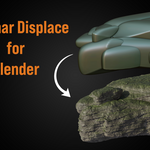
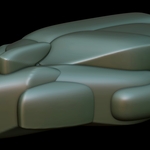
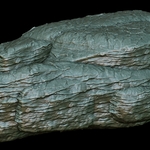
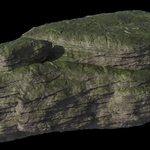
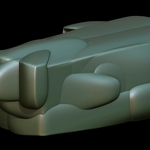
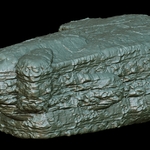
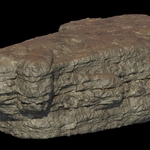
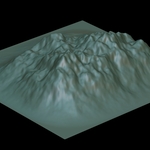
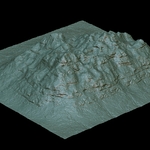
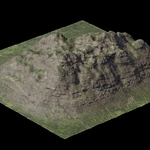
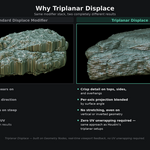
Triplanar Displace is a Blender addon that displaces mesh geometry using a texture projected simultaneously from three axes (X, Y, Z). The three projections are blended together based on the surface normal angle, giving you clean, stretch-free displacement on every face of your mesh — tops, sides, and overhangs — with no UV unwrapping required.
REQUIREMENTS
- Blender 4.2 or higher
- A subdivided mesh (the more geometry, the finer the displacement detail)
INSTALLATION
1. Download triplanar_displace.zip
2. In Blender, go to Edit → Preferences → Add-ons → Install from Disk
3. Select the .zip file
4. Enable Triplanar Displace in the list
The addon adds a Triplanar tab to the N-panel (press N in the viewport).
QUICK START
1. Select a mesh object
2. Open the N-panel → Triplanar tab
3. Click Add Modifier
4. Go to the modifier stack (wrench icon) and find Triplanar Displace
5. Assign a greyscale displacement texture to Texture X, Y, and Z
6. Adjust Strength and Tiling per axis to taste
PARAMETERS
Global
Midlevel (default 0.5)
The grey value that produces zero displacement. 50% grey = no change. Darker pushes inward, lighter pushes outward.
Blend Sharpness (default 4.0)
Controls how abruptly the three axis projections blend at seams. Low values give a smooth gradual blend, high values give a sharper transition.
Per Axis — X, Y, Z
Texture
The image used for displacement on this axis projection. Greyscale images work best.
Strength (default 0.05)
How much this axis contributes to the final displacement, in Blender units.
Tiling (default 1.0)
How many times the texture repeats per Blender unit. Increase to make the texture smaller and more detailed.
Flip (default Off)
Swaps the U and V texture coordinates, effectively rotating the texture 90°. Useful when a texture reads better horizontally than vertically on a given axis.
TIPS
Subdivision matters.
Displacement moves actual vertices, so you need enough geometry to capture the detail in your texture. Add a Subdivision Surface modifier above Triplanar Displace in the stack and set the level to 4–6 for fine detail.
Use the same texture on all three axes for uniform rock or ground surfaces. Assign different textures per axis when you want horizontal layering on top (Z axis) and vertical cracking on the sides (X/Y axes).
Midlevel controls direction.
If your displacement is going inward when you expect it to go outward, set Midlevel to 0 and use a positive Strength, or flip the Strength value negative.
Tiling and real-world scale.
If your object is scaled, apply the scale first (Ctrl+A → Scale) before adding the modifier to get predictable tiling values.
Blend Sharpness and seams.
If you notice visible seams where the three projections meet, lower the Blend Sharpness value (try 1.5–2.5) to soften the transition zone.
COMPATIBILITY
- Blender 4.2 and above
- Works with Cycles and EEVEE
- Displacement is geometry-based (actual vertex movement), not a normal/bump approximation — what you see in the viewport is what you get in the render
SUPPORT
For questions or issues, contact via the product page on Superhive.
-
$9.75 $13
 Included
Includes 12 months of
- Support from HRB store
- Product updates
Extend this product’s Support Period +12 months: 50% of product price
Have questions before purchasing?
Login to message
| Blender Extension Compatible | Yes |
| Sales | 20+ |
| Published | 4 months ago |
| Blender Version | 4.2 - 5.2 |
| Extension Type | Add-on |
| Render Engine Used | Arnold, Cycles, Eevee, Freestyle, Luxrender, Mental-Ray, Octane, Vray, Yafaray |
| License | GPL |