True Image Editor V2 Update
 topchannel1on1


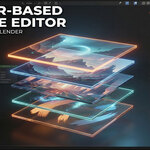
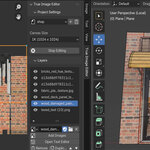
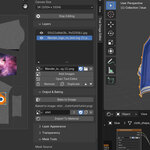
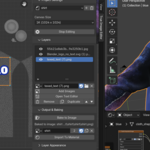
True Image Editor — Quick Documentation
Checking for errors/reporting errors
1. Opening the Addon
After installing the addon, go to Blender’s Image Editor.
Open the N-Panel (press N on the keyboard).
You will see a new tab called True Image Editor.
This is where all tools, layers, and controls live.
2. Creating a New Project
Click New Project to start a fresh editing session.
Each project stores its own layers, masks, transforms, and settings.
You can create multiple projects inside the same blend file.
To switch between them, use the Projects dropdown.
3. Importing Images
Inside your project, click Add Image.
You can import:
Single images
Multiple images at once
PNG, JPEG, EXR, WEBP, etc.
Each imported image becomes its own layer inside the editor.
4. Working With Layers
Every layer appears in the Layer Stack.
You can:
Reorder layers
Toggle visibility
Rename layers
Duplicate layers
Delete layers
Click a layer to select it. The active layer is the one you edit.
5. Transforming Images
With a layer selected, use the Transform Controls:
Move
Scale
Rotate
Reset transform
You can drag the gizmo directly in the Image Editor for fast positioning.
6. Blending Modes & Opacity
Each layer has:
Opacity slider (to fade it)
Blending mode dropdown
(Normal, Multiply, Add, Lighten, etc.)
These work exactly like common image editors.
7. Masks & Selections
You can mask any layer.
Create Mask From Selection
Use Blender’s built-in selection tools (Box Select, Lasso, etc.)
Then click Create Mask from Selection.
Paint Masks
Toggle Mask Paint Mode to paint on the mask directly:
White = visible
Black = hidden
Soft brushes for smooth transitions
You can clear or invert the mask at any time.
8. Cropping
Select a layer and click Crop.
A crop box appears in the editor.
Drag the handles to adjust the crop region.
Confirm to finalize the crop on that layer.
9. Image Tiling
Enable Tiling on any layer to repeat it across the canvas.
You can adjust:
Tile X/Y
Offset
Scale
Useful for patterns, textures, or backgrounds.
10. Color Adjustments
Each layer includes simple but effective color tools:
Brightness
Contrast
Saturation
Hue Shift
Tint
These affect only the selected layer.
11. Text Tool
Click Add Text to create a text layer.
You can edit:
Font
Size
Color
Alignment
Position
This is great for creating labels, titles, or UI elements inside Blender.
12. Custom Transparency
Override how transparency is handled by enabling the Transparency Controls.
You can:
Force alpha
Reduce or increase transparency
Mix alpha with color
Great for overlays and compositions.
13. Gradient Masks
Enable Gradient Mask on a layer to create soft transitions.
Choose between:
Linear
Radial
Adjust the direction and strength directly in the editor.
14. Baking the Final Image
When you’re happy with your layers, click Bake Image.
Baking creates a new Blender Image datablock containing:
All layers merged
All transforms applied
Masks and color adjustments
Any transparency
This baked image can be used in:
Shaders
Textures
UI work
Export to files
15. Saving Your Work
All projects, layers, and masks are saved inside the .blend file.
No extra files or folders needed.
When you reopen the file, everything loads exactly as you left it.
16. Notes
The addon works entirely inside the Image Editor.
It does not replace the Shader Editor or UV Editor.
Some very large images may impact performance depending on your GPU.
