Turntable Studio – One-Click 360° Turntables for Reels, Posts & Portfolio
 Wondart
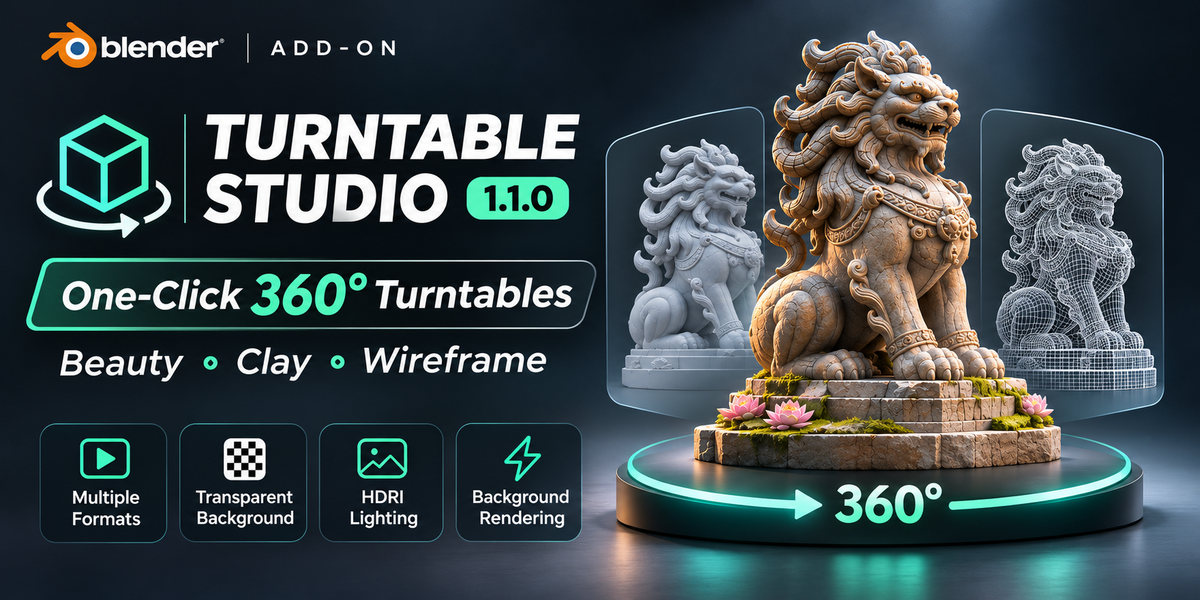
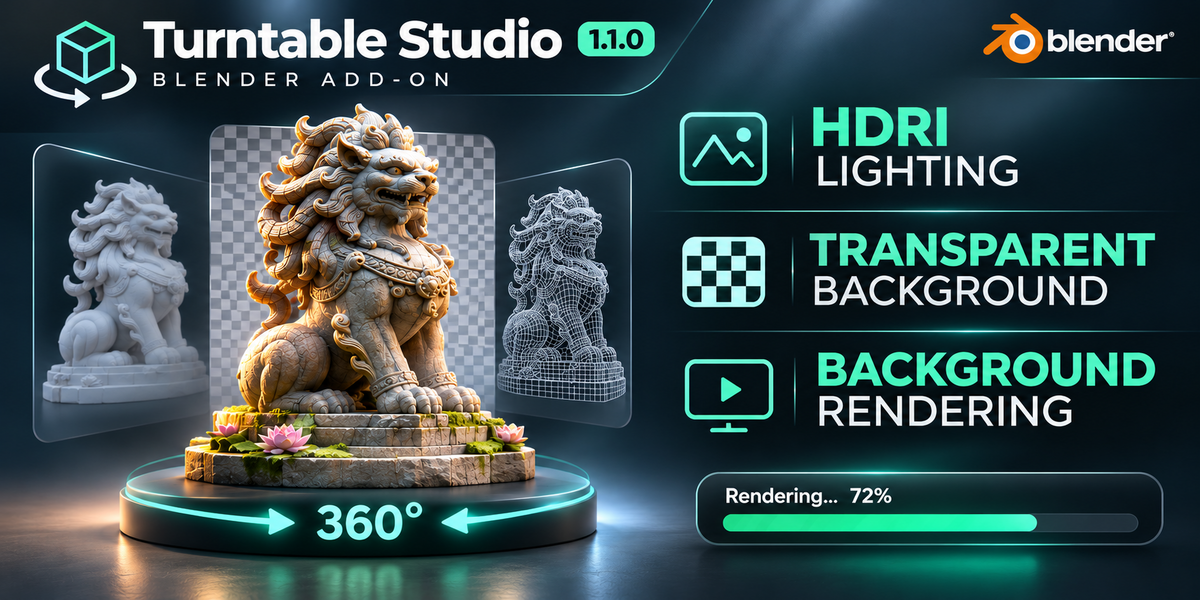
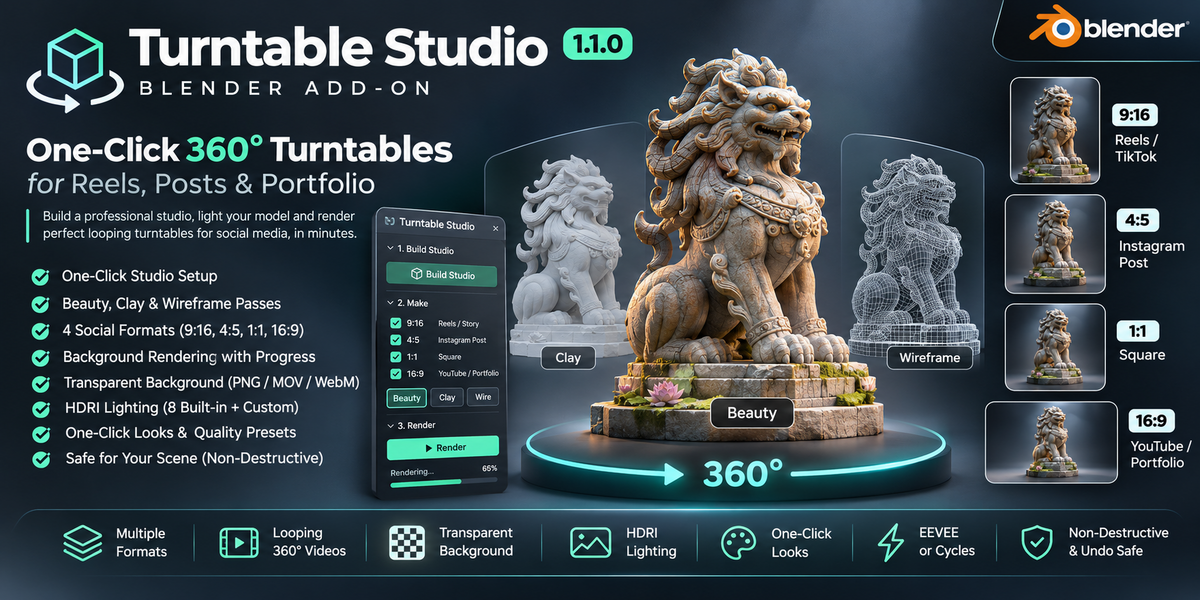
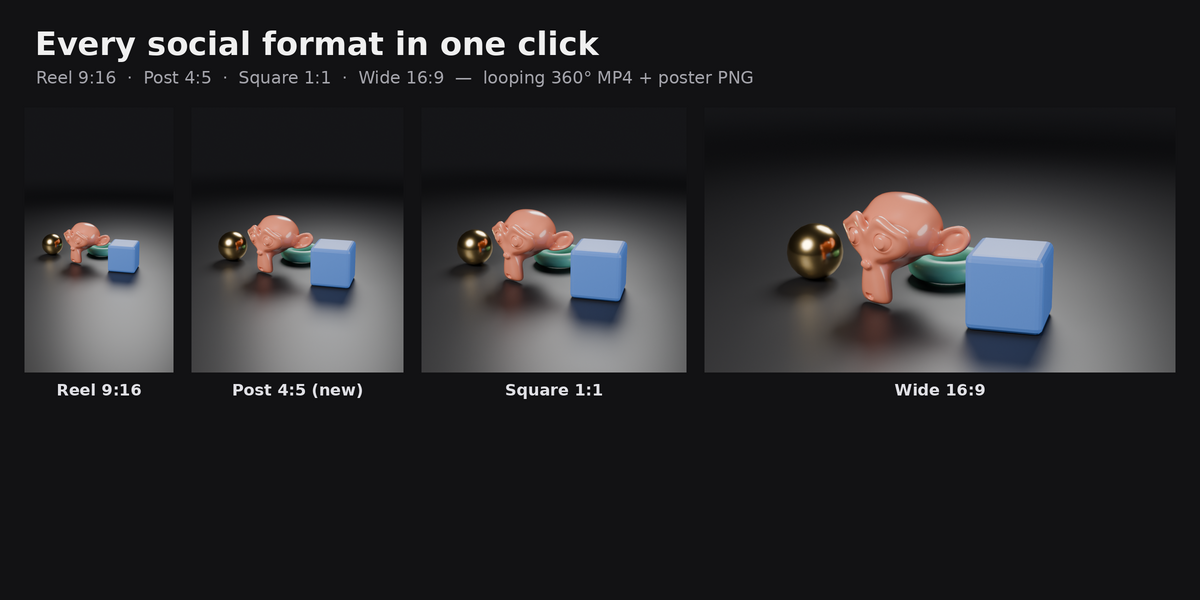
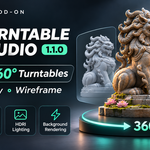
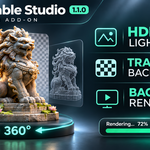
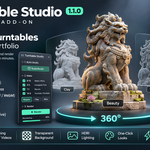
Showing your 3D work on social media should take one minute, not one evening of setting up cameras, lights and render settings.
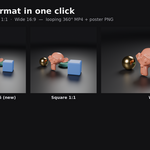
Turntable Studio builds a clean photo studio around your model in one click: a seamless backdrop, professional lighting and a camera that orbits your model and automatically fits it in the frame. Then one more click renders perfectly looping 360° videos and poster images in every format you need: Reels / TikTok / Shorts (9:16), Instagram posts (4:5), square (1:1) and YouTube / portfolio (16:9).
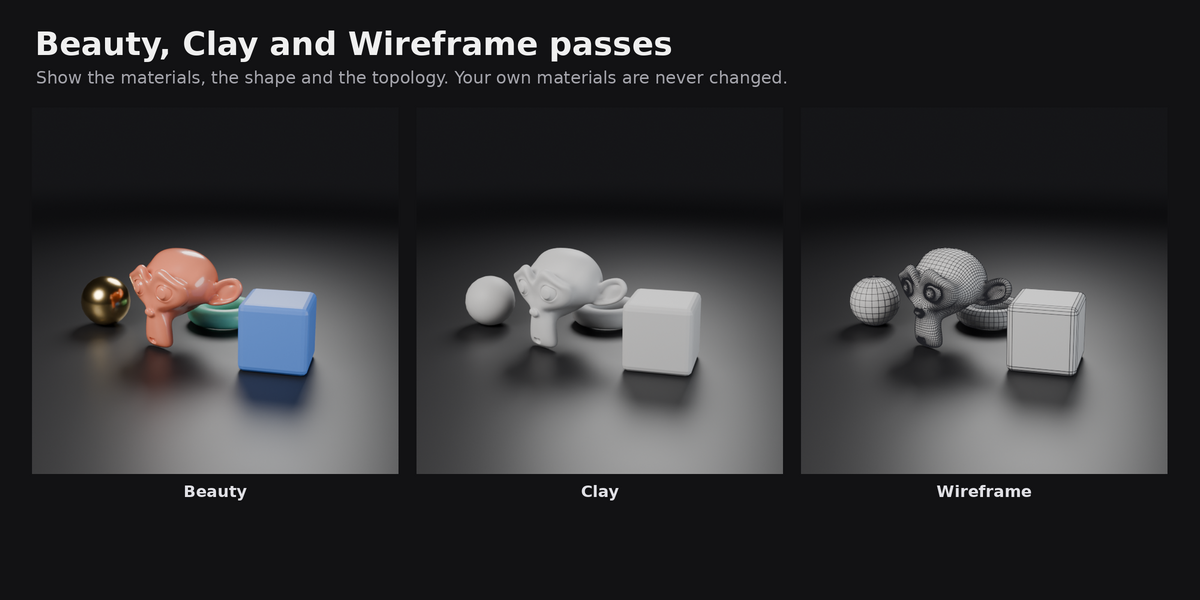
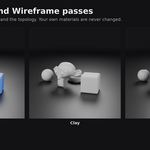
Want to show your topology? Tick Wireframe and Clay and you get the same spin with a clay material and clean mesh lines, which is great for ArtStation and client presentations. Your own materials, objects and settings are never changed: everything Turntable Studio adds lives in its own collection, temporary materials are removed after each render, and Remove Studio gives you back your original world.
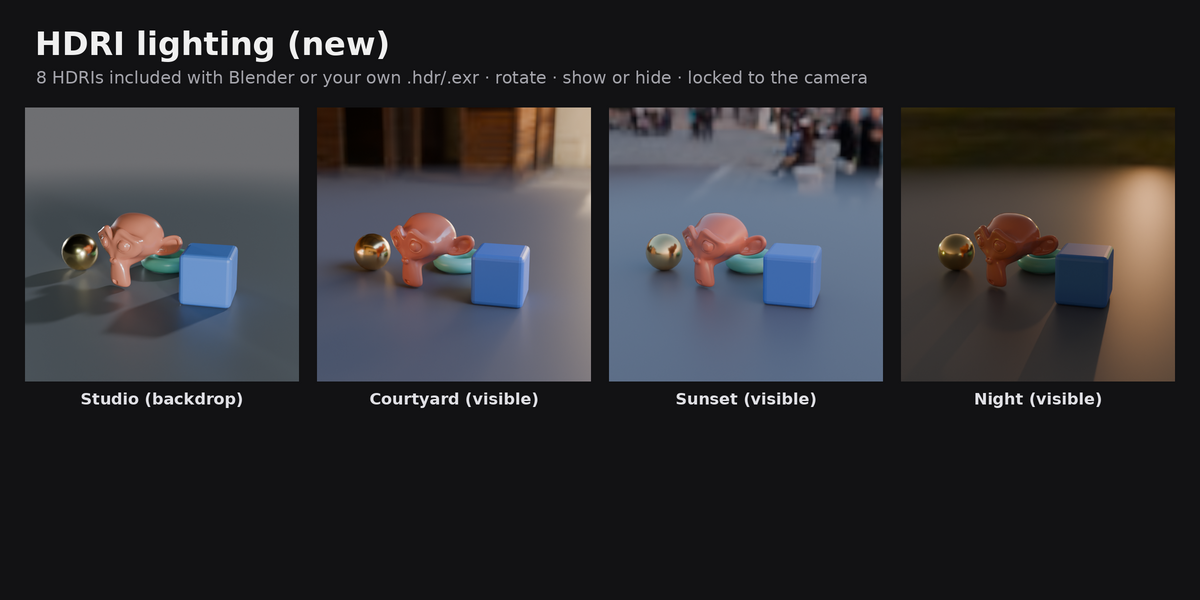
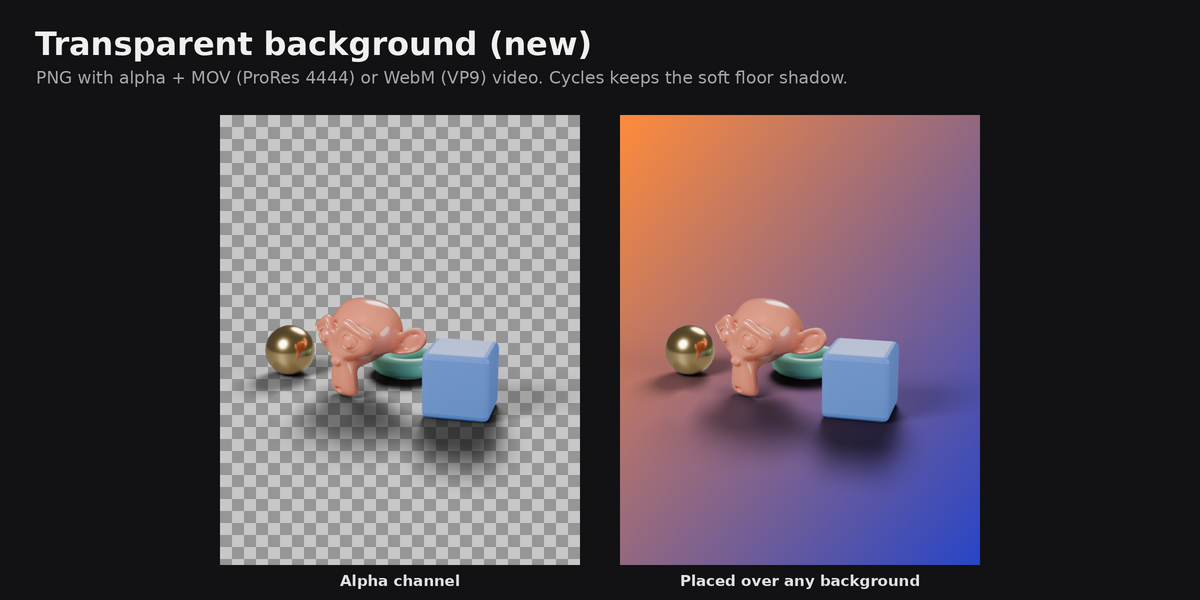
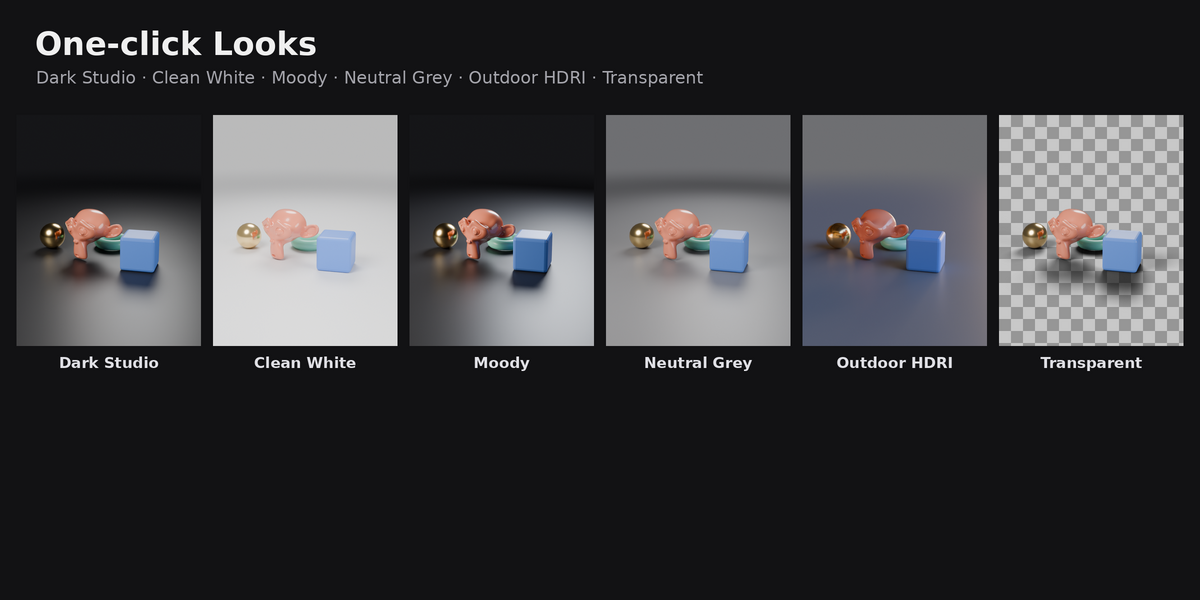
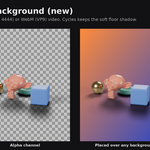
New in 1.1: rendering runs in the background with a progress bar (Blender stays usable), transparent backgrounds (PNG + MOV/WebM video with alpha), Instagram 4:5 format, HDRI lighting with 8 built-in environments or your own HDRI, one-click Looks, and a cleaner panel with simple controls up front and pro settings under Advanced.
Features
- One-click studio: seamless backdrop, floor with soft shadows and reflections, 3-point lighting, auto-framing camera
- 4 social formats in one render: Reel 9:16 (1080x1920), Post 4:5 (1080x1350), Square 1:1 (1080x1080), Wide 16:9 (1920x1080)
- 3 passes: Beauty (your materials), Clay, Wireframe (real mesh edges over clay, quads stay quads)
- Perfect loops: the spin ends exactly where it starts. MP4 (H.264) video plus a poster PNG for every format and pass
- Background rendering with progress bar: keep working while it renders; see which clip is rendering and the time left; Stop or Esc any time
- Transparent background: PNG posters with alpha, MOV (ProRes 4444) for video editors or WebM (VP9) for websites; keeps the floor shadow in Cycles
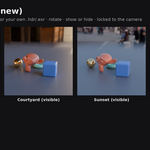
- HDRI lighting: 8 HDRIs included with Blender (Studio, Courtyard, City, Forest, Interior, Sunrise, Sunset, Night) or your own .hdr/.exr; rotation, strength, show as background, lock to camera
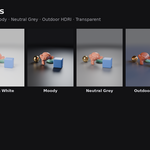
- One-click Looks: Dark Studio, Clean White, Moody, Neutral Grey, Outdoor HDRI, Transparent
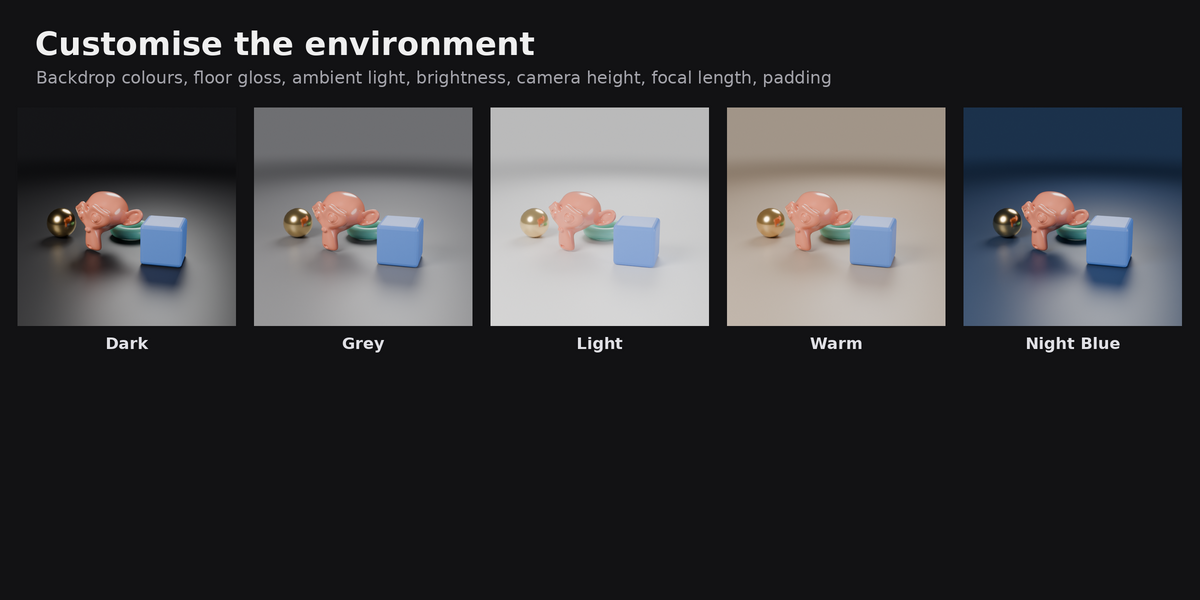
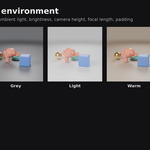
- Customise the environment: backdrop colours (Dark, Grey, Light, Warm, Night Blue, Custom), floor on/off and gloss, ambient light, brightness, camera height, focal length, padding
- Quality presets: Draft, Standard, High, or Custom samples and resolution
- EEVEE or Cycles
- Safe for your scene: never changes your objects, materials or render settings; full Undo support; your world is restored when you remove the studio
- Works with meshes, curves and text objects, and with several objects at once (wireframe pass: meshes)
How to use
- Install: Edit > Preferences > Get Extensions > ⌄ (top right) > Install from Disk… and pick
turntable_studio-1.1.0.zip. - In the 3D Viewport press N and open the Turntable tab.
- Select your model (one or more objects) and click Build Studio.
- Pick a Look (for example Dark Studio, Clean White or Transparent).
- Under Make, choose formats (9:16, 4:5, 1:1, 16:9) and passes (Beauty, Clay, Wire).
- Choose EEVEE (fast) or Cycles (most realistic) and a quality: Draft for a quick test, Standard or High for the final render.
- Click Render. Watch the progress bar, or keep working. Click Open Folder to find your videos and posters (by default in a
turntablefolder next to your .blend file). - Done with the shots? Click Remove to delete the studio and get your original world back.
Optional: the Environment, Camera and Output panels let you change the backdrop colour, lighting or HDRI, camera height, padding, spin length (frames / FPS) and output folder. Pro settings (samples, resolution %, clay and wire colours, floor gloss, ambient, transparent video type, HDRI strength and lock-to-camera) are under Advanced.
 Included
Includes 12 months of
- Support from Wondart
- Product updates
Extend this product’s Support Period +12 months: 25% of product price
Have questions before purchasing?
Login to message
| Blender Extension Compatible | Yes |
| Dev Fund Contributor | |
| Published | about 2 hours ago |
| Blender Version | 4.2 - 5.3 |
| Extension Type | Add-on |
| Render Engine Used | Cycles, Eevee |
| License | GPL |