 Ronin
Ronin
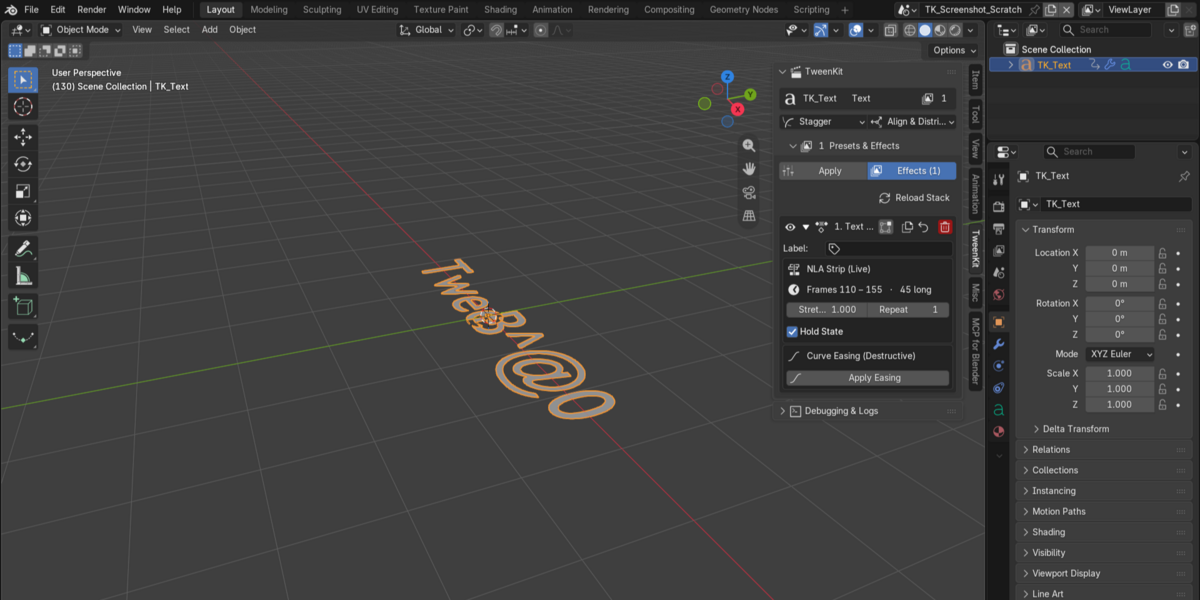
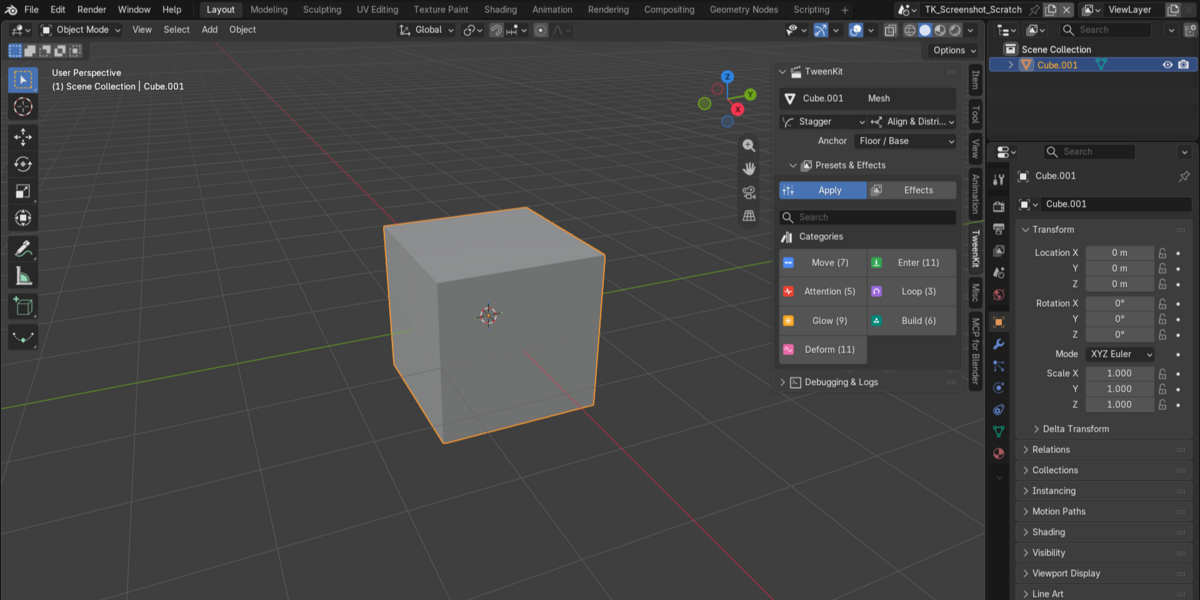
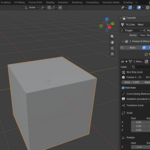
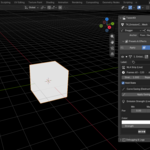
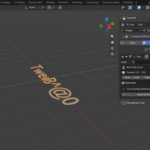
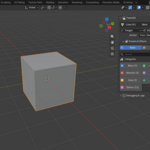
Turn static scenes into dynamic animations — in seconds.
TweenKit is a non-destructive animation toolkit for Blender built to make motion creation faster, more intuitive, and more creative.
Explore 92 ready-to-use animation presets for objects, cameras, lights, text, emissive materials, and meshes. Apply an effect with one click, combine multiple animations, experiment freely, and remove anything you don't need.
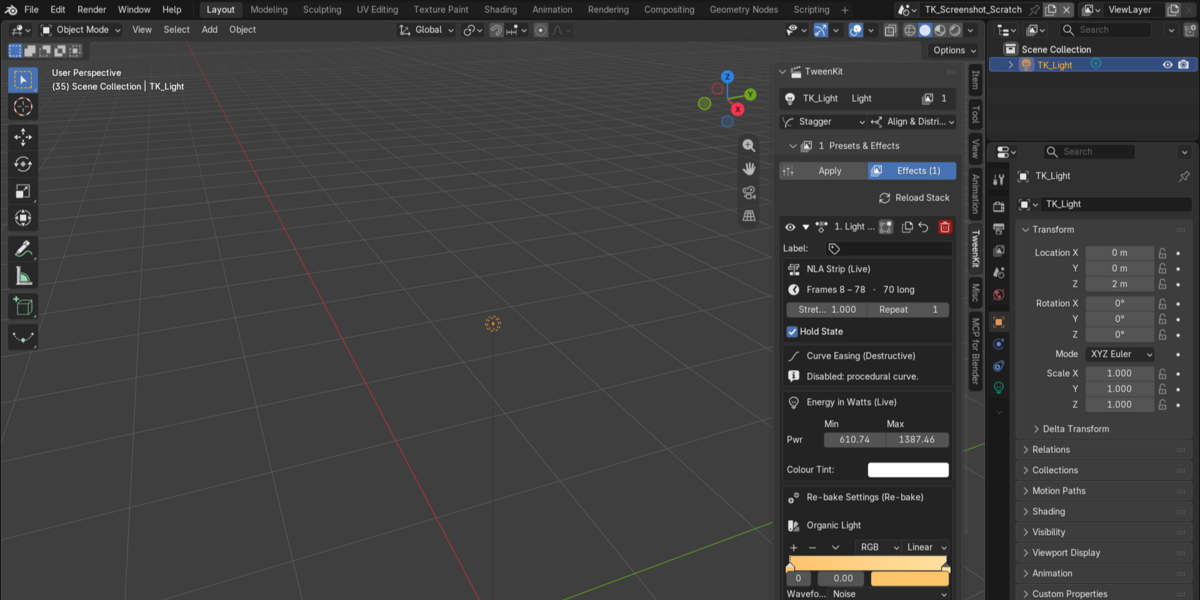
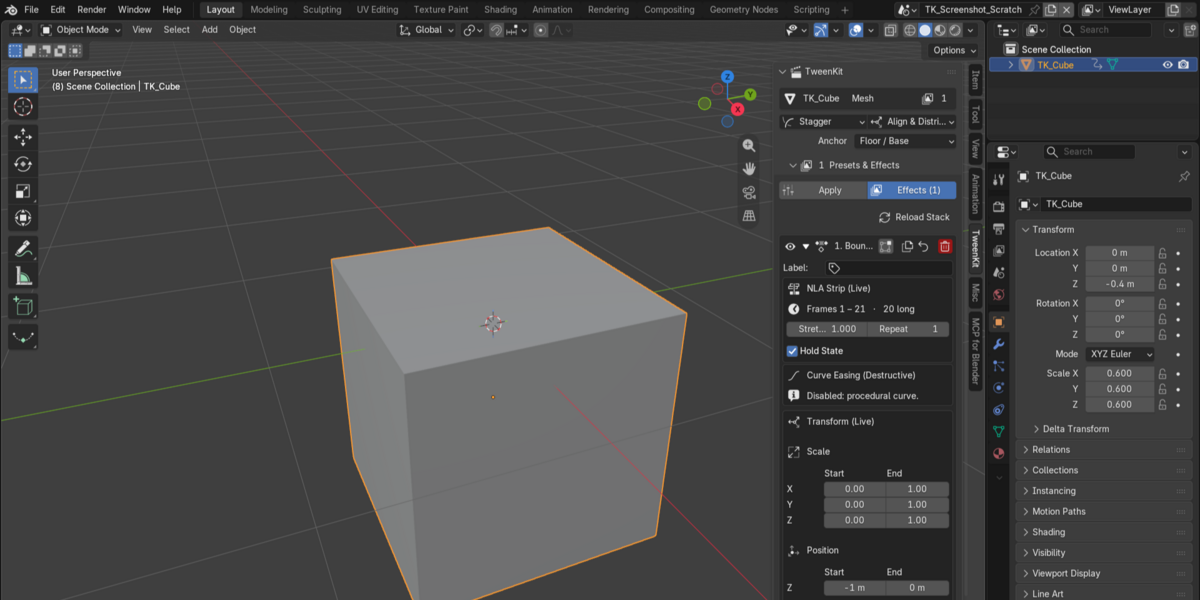
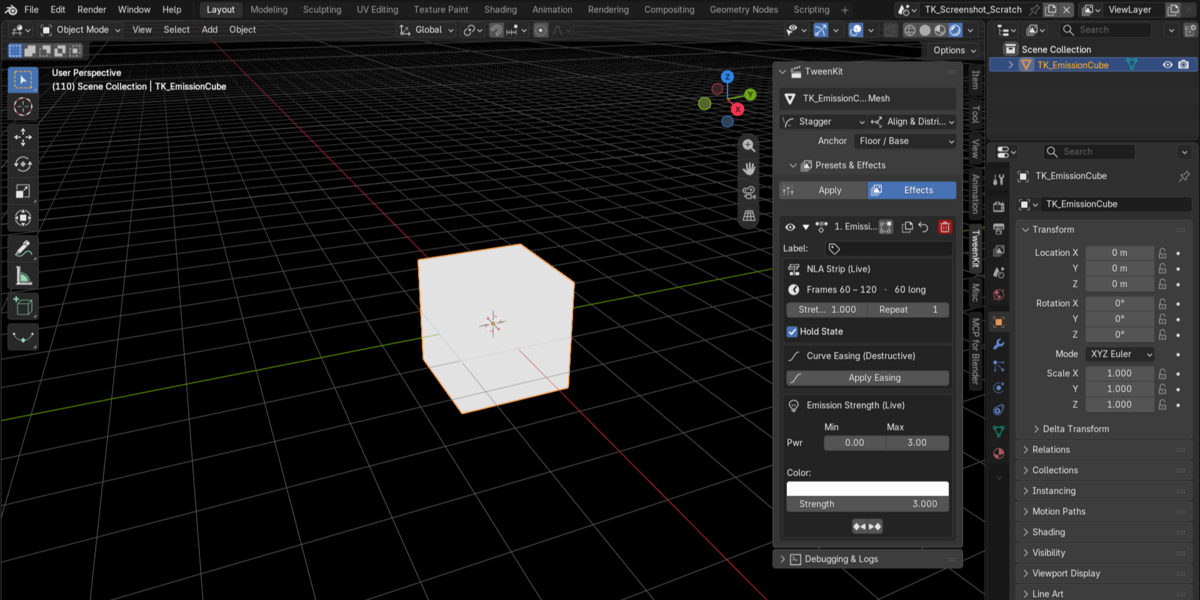
Every effect is kept on its own NLA track, giving you the freedom to build complex motion while keeping your original animation safe.
Create. Experiment. Stack. Refine.
With TweenKit, adding motion becomes less about managing keyframes and more about making things move.TweenKit is a procedural toolkit for Blender designed to help you create complex visual systems and environments faster using Geometry Nodes and automated workflows. The goal is to reduce repetitive setup work while giving you procedural control over the final result.🎬 What Can I Animate with TweenKit?
TweenKit is designed to help you quickly add motion to different elements of your Blender scenes.
The current library includes animation presets for:
🎭 Objects — Movement, rotation, scaling, bouncing, shaking, and more.
📷 Cameras — Dynamic camera movement and cinematic motion.
💡 Lights — Animated light movement and visual effects.
🔥 Emissive Materials — Dynamic emission and material-based animation.
🔤 Text — Animated entrances, exits, and motion effects.
🧩 Meshes — Deformation and motion effects for supported geometry.
With 92 ready-to-use presets, TweenKit gives you a flexible starting point for creating everything from subtle motion to more energetic and stylized animation.
The available presets and features may evolve as TweenKit continues to develop.TweenKit is designed to generate and manipulate procedural systems such as: Procedural environments Buildings and architectural elements Roads and urban layouts Vegetation and natural elements Scattered and instanced objects Modular environments Procedural effects Large-scale scenes The available features depend on the current MotionForge version.- Download the TweenKit
.zipfile. - Open Blender.
- Go to Edit → Preferences → Add-ons.
- Click Install from Disk…
- Select the TweenKit
.zipfile. - After installation, find TweenKit in the Add-ons list.
- Enable the checkbox next to TweenKit.
You can save your Blender preferences if you want TweenKit to remain enabled automatically the next time you launch Blender.
🎯 What Can Affect Animation Results?
Animation results can sometimes depend on more than the selected preset or visible settings.
Factors such as:
Object transforms
Object scale and origin
Existing animation data
NLA track configuration
Scene frame rate
Scene frame range
Blender version
The selected object or object type
can affect how an animation behaves.
For more consistent results, keep your Blender version, scene settings, object transforms, and animation setup consistent when working across different projects.
Tip: If an animation behaves differently than expected, test the same preset on a simple object in a clean Blender file. This can help determine whether the issue comes from TweenKit or from the existing scene setup.Procedural results can depend on more than the visible parameters. Changes to things such as: Asset collections Object transforms Asset order Blender version Geometry Nodes behavior Random seeds Scene settings can affect the final result. For consistent results, keep your assets, parameters, and Blender version consistent.This is often related to the object's transform scale.
Before applying TweenKit animations, check the object's transforms and make sure its scale is appropriate for your scene.
If necessary, apply the object's scale:
Object → Apply → Scale
Also make sure your scene uses consistent units and dimensions. Inconsistent object scales or scene units can cause animation effects to behave differently than expected.
If a TweenKit animation doesn't behave as expected, start with these checks.
1. Make sure TweenKit is enabled
Go to:
Edit → Preferences → Add-ons
Search for TweenKit and make sure the add-on is enabled.
2. Check your selected object
Make sure you have the correct object selected before applying an animation.
Some effects may behave differently depending on the type of object or animation data already present.
3. Check the object's transforms
Verify the object's:
- Location
- Rotation
- Scale
- Origin
Inconsistent transforms, especially unapplied scale, can affect how an animation behaves.
If necessary, apply the object's scale:
Object → Apply → Scale
4. Check your existing animation
If the object already contains animation data, make sure the existing animation is valid and behaving correctly.
TweenKit is designed to work alongside existing animation through the NLA system, but unusual or incompatible animation setups may produce unexpected results.
5. Check the NLA tracks
TweenKit effects are stored on their own NLA tracks.
Open the NLA Editor and verify that the TweenKit effect was created correctly.
Check that:
- The TweenKit track exists.
- The NLA strip covers the expected frame range.
- The track or strip has not been muted or disabled.
- The strip is not being affected by another NLA track.
6. Check the timeline and frame range
Make sure the current frame is inside the range where the animation is supposed to play.
Also check the scene's:
- Start frame
- End frame
- Current frame
- Playback range
📍 Animations Behave Differently Than Expected
If an animation appears to move, rotate, or scale incorrectly, check:
- Object transforms
- Object origin
- Object scale
- Existing animation
- NLA tracks
- Scene frame range
- Animation preset settings
Incorrect object origins and transforms can be particularly important for animations involving rotation, movement, or scaling.
⚠️ TweenKit Is Causing an Error in Blender
If you encounter an error while using TweenKit:
- Note the exact error message.
- Record your Blender version.
- Record your TweenKit version.
- Note which preset or feature caused the problem.
- If possible, try reproducing the issue in a new Blender file.
- Check whether the problem occurs with a different object or preset.
- Include the relevant information when contacting support.
Screenshots or a short screen recording can also make troubleshooting much easier.
📋 When Reporting an Issue
Please include:
- TweenKit version
- Blender version
- Operating system
- Name of the animation preset
- Description of the problem
- Exact error message, if available
- Steps to reproduce the issue
- Screenshot or screen recording, if possible
The more information you provide, the easier it is for us to reproduce and investigate the problem.
🔄 Still Having Problems?
If you've gone through the checks above and the issue persists, contact the Ronin Team with the relevant information.
We're happy to help troubleshoot the issue and use your feedback to improve future TweenKit updates.Start with these checks: Make sure the generator is enabled. Check that the required input objects or collections exist. Check that the generation parameters are not set to zero. Make sure the required assets are available. Check object visibility and transforms. Check for Geometry Nodes errors. Restart Blender and try again. Objects are generated in the wrong location. Check: Object origins Object transforms Scene scale Input geometry Generator settings Collection transforms Incorrect origins are particularly important when objects are being procedurally scattered or instanced. MotionForge is causing an error in Blender. If you encounter an error: Note the exact error message. Record your Blender version. Record your MotionForge version. Note which generator or feature caused the problem. If possible, reproduce the issue in a new Blender file. Send the relevant information when reporting the issue. Screenshots or a short screen recording can also make troubleshooting much easier.TweenKit supports Blender versions 4.2 through 5.2. Always check the version requirements before updating Blender.
Can I open a TweenKit project on another computer?
Yes, but make sure the other computer has: A compatible Blender version. The same or compatible MotionForge version. Any required asset libraries. Any external textures or resources used by the project. For portable projects, make sure external dependencies are properly packaged or transferred.
🐛 Reporting a Bug
When reporting a bug, please provide as much information as possible:
TweenKit version
Blender version
Operating system
Description of the problem
Steps to reproduce the issue
Error messages, if available
Screenshots or screen recordings, when possible
The more information you provide, the easier it is for us to identify the cause and fix the problem.
💡 I Have a Feature Request. Can I Suggest It?
Absolutely.
TweenKit is designed to evolve based on real production needs and user feedback. If you have an idea for a new feature, improvement, or animation preset, we'd love to hear about it.
When suggesting a feature, please explain:
What you are trying to accomplish
How you currently achieve it
Which part of the workflow is difficult, repetitive, or time-consuming
What you would like TweenKit to automate or improve
This helps us better understand the problem behind the request and prioritize features that provide practical value to Blender artists.
📬 Contact Support
Send your bug reports, feature requests, and feedback to:
— Ronin Team
💼 Can I use content generated with TweenKit in commercial projects?
Yes. Content generated using TweenKit can be used in your own projects, including commercial projects, subject to the terms of the TweenKit license.
However, you are responsible for checking the licenses of any third-party assets, models, textures, materials, or other resources included in your project.
📦 Can I redistribute TweenKit itself?
No.
The TweenKit addon, its source code, and any included proprietary resources may not be redistributed, resold, or repackaged unless explicitly permitted by the applicable license.
Your license to use TweenKit does not grant permission to distribute the addon itself.
📁 Can I share a Blender file containing TweenKit-generated content?
This depends on the specific license terms and how the Blender file is distributed.
If the file contains only content generated with TweenKit, the generated content may generally be used as part of your own project, subject to the TweenKit license.
If the Blender file also contains the TweenKit addon, proprietary resources, or third-party licensed assets, make sure that distributing the file complies with all applicable licenses.
When in doubt, review the relevant license terms before distributing the file.Yes, generated content can be used in your own projects, including commercial projects, subject to the MotionForge license. However, you should always check the license of third-party assets or resources included in your project. Can I redistribute MotionForge itself? No. The MotionForge addon, its source code, and its included proprietary resources may not be redistributed, resold, or repackaged unless explicitly permitted by the applicable license. Can I share a Blender file containing MotionForge-generated content? This depends on the specific MotionForge license and how the file is distributed. If the file contains the MotionForge addon, proprietary assets, or other licensed resources, make sure the distribution complies with their respective licenses.🎬 Recommended Animation Workflow
A good TweenKit workflow is:
Start Simple → Apply → Preview → Adjust → Stack → Finalize
Avoid applying multiple effects at once before checking how each animation behaves.
Build your animation progressively and add complexity only when necessary.
This makes it easier to understand how each effect contributes to the final result and makes troubleshooting much simpler.
💾 What should I do before applying animations to a complex scene?
Save your Blender file first.
Then:
Test the animation on a simple object.
Confirm that the selected preset behaves as expected.
Check the object's scale and transforms.
Preview the animation before adding additional effects.
Verify the NLA tracks created by TweenKit.
Save a working version of your file.
Add additional effects gradually.
This makes experimentation safer and gives you a clean version to return to if something doesn't behave as expected.
::%
If you cannot find an answer here, contact TweenKit Support at [email protected].
When contacting support, please include:
Blender version
TweenKit version
Description of the issue
Steps to reproduce the problem, if possible
Screenshots or error messages, when available
We are always working to improve TweenKit and make animation workflows faster, more flexible, and easier to use.
Your feedback helps us identify problems, improve existing features, and shape future updates.
Have questions about this product?
Login to message
| Published | 2 days ago |
| Blender Version | 4.2 - 5.2 |
| Extension Type | N/A |
| Render Engine Used | Blender-Internal, Blender-Game-Engine, Cycles, Eevee |
| License | GPL |
Discover more products like this
animation3d addon blender 3DMotionGraphics 2026addon 3D animation tool 2026-add-ons-for-blender blender