 Skava
Skava


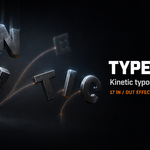
TypeMotion — documentation
v1.1.1 · Blender 4.2 LTS and later (tested on 5.2) · Windows / macOS / Linux
1. Installing
Edit, then Preferences, then Add-ons, press the arrow button in the top right corner, choose Install from Disk, and pick the downloaded zip. Tick the checkbox to enable it.
2. Three steps
- Add a text object and type your text.
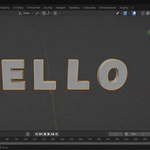
- With it selected, press N, open the "TypeMotion" tab, choose whether to split by letter, word or line, and press Split Into Letters.
- Pick an effect and press Animate.
Play from the start frame and the line animates in, letter by letter.
3. What splitting does
Your text is converted into one mesh object per unit, gathered into a collection named after the text object. The original text object is hidden — not deleted — so you can bring it back, change the wording, and split again.
Each unit's origin sits at its own centre, which is why scaling and spinning look right rather than swinging around the start of the line.
Spaces produce no object. Letters made of several shapes, like i, j and the percent sign, are kept together.
4. Split By: letter, word or line
- Letter — one object per letter. The classic kinetic-typography look, and the most objects to handle.
- Word — one object per word. This is what most lower thirds and subtitles actually use: a three-word title animates as three beats rather than eighteen, and the type stays readable while it moves.
- Line — one object per line, for titles that arrive a line at a time.
Text on more than one line is handled properly in every mode. The A of one line and the C of the next occupy the same column, so a purely sideways look would weld them into one object; TypeMotion sorts the shapes into lines first, and uses the number of lines in your string to tell a real line break from the gap under the dot of an i.
Words are worked out the same way: your string says how many letters each word has, so the shapes of a line are handed out by counting, with the widest gaps used as a fallback if a font runs its glyphs together.
5. Timing
- Start Frame — when the first letter begins.
- Stagger — frames between one letter starting and the next. This is the setting that matters most: it is what makes the line read as typography rather than as one object moving. Try 2 to 4 for something snappy, 6 to 10 for something stately.
- Randomness — how far each letter may drift off the beat, as a fraction of the stagger. A little of this, around 0.2 to 0.4, stops the rhythm sounding like a metronome. The first letter always stays on the start frame, and the Seed makes it repeatable.
- Duration — how long one letter's animation lasts. Letters overlap when Duration is larger than Stagger, which is usually what you want.
- Order — forward, reverse, random, or outwards from the centre.
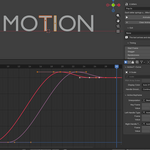
- Easing — the shape of the motion between keys. See section 7.
The panel shows the frame everything ends on — entrance, hold and exit together — so you can set your render range before rendering.
6. Exits and the hold
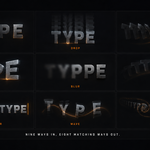
Every entrance except Wave has an opposite. Choose one in the Exit panel and press Animate once: the letters arrive, stand completely still for the Hold, then leave. There is a button beside the exit dropdown that picks the mirror of whatever entrance you have selected — Pop In becomes Pop Out.
- Hold — frames the text stays completely still after the last letter has arrived. This is the part of a title an audience actually reads, so give it enough: a second or two, 24 to 48 frames, is normal for a lower third.
- Exit Order — leave in the order they arrived, or in any of the four orders. Reverse is the one to reach for: the first letter in becomes the last one out, which reads as the line unwinding.
Every exit begins from exactly the resting pose the entrance finished on, so there is no jump at the moment the hold ends. That is measured on the evaluated frame, not assumed from the keyframe values.
Wave is the exception. It is a continuous ripple rather than an entrance, so there is nothing for an exit to take over from; choosing one is harmless, and the add-on tells you it was skipped.
7. Easing
The Easing dropdown changes the character of an effect more than any other setting, for no extra work.
- Smooth — eases in and out of every key. The safe default, and what earlier versions always did.
- Linear — constant speed, no easing. Mechanical, and right for a ticking counter or a deliberately robotic feel.
- Ease Out — fast away, gentle arrival. The most natural looking of the set for entrances.
- Back — pulls past the target and comes back. A definite snap.
- Bounce — lands, bounces, lands again. Cartoon weight.
- Elastic — wobbles around the target before settling. Very springy, and easy to overdo.
Easing only changes the shape of the curve between keys, never the values at them, so an entrance still lands exactly at rest and an exit still starts exactly at rest however springy the setting. Typewriter's on and off switching is left alone — a bouncing visibility switch is nonsense.
8. Effect settings
Only the settings the chosen effect and exit actually use are shown, so nothing on screen is doing nothing.
- Distance — how far letters travel (Drop, Slide, Scatter, Wave, Jitter, and their exits).
- Overshoot — how far past the resting place a letter goes before settling. 0 is flat, 1 has a snap (Pop, Drop).
- Turns — how far letters rotate, in full turns (Spin, Flip).
- Direction — which way letters come from (Slide). Slide Out leaves by the opposite side, so the line carries on the way it was going.
- Seed — a different random arrangement (Scatter, Jitter, the Random orders, and the stagger Randomness).
9. Wave is different
Eight of the nine entrances play once and end at rest. Wave is a continuous ripple that loops across the whole frame range, so it does not settle — that is intended, and it is why Wave ignores Start Frame in the way the others use it, and why it has no exit.
10. Changing your mind
- Re-applying an effect replaces the previous one. Nothing stacks, so try every entrance and exit pairing on the same text without cleaning up.
- Clear Animation removes the keyframes, keeps the letters, and puts them back at their resting places even if you were parked halfway through an effect.
- Clear Split deletes the letters and unhides the original text.
11. After animating
The result is ordinary keyframes on ordinary mesh objects. Retime them in the Graph Editor, change the easing by hand, add your own material, render on a farm — none of it needs this add-on. You can uninstall it and the animation still plays.
To shade the letters, give the original text object a material before splitting; every letter inherits it.
12. Troubleshooting
Split says there is nothing to split. The text is empty, or the font produced no geometry. Check the text has visible characters.
Two letters merged into one object. They overlap horizontally — common in script and italic fonts where letters lean into each other, and in pairs like g and j where one tail reaches under its neighbour. Add a little letter spacing on the text object and split again, or split by word instead.
The animation ends before all letters have appeared. Look at the frame the panel reports and extend your scene range. With an exit chosen that figure includes the hold and the exit.
The text leaves too soon. Raise the Hold. It counts from the moment the last letter has arrived, not from the start frame.
The exit looks like it teleports. It should not — every exit starts from the resting pose. If a letter jumps, something else is animating it as well; check for a second action or a constraint on that object.
Letters have no material. They inherit the text object's material at the moment of splitting, so assign it before splitting, or after splitting assign it to the letters.
I want a fade, not a movement. Effects here are transforms and visibility only. A true opacity fade depends on how your material is built, so it is left to you — animate the material's alpha, or use Pop, which reads as an appearance.
13. Changelog
v1.1.1 — maintenance release. The package ships the full licence text and an updated README (install, first run, uninstall). No changes to the tools.
v1.1.0 — exits and the hold. Eight exit effects, one for every entrance except Wave, each starting exactly where the entrance finished; a Hold setting so arrive, wait and leave is a single operation, with its own exit order. Splitting by word or by line as well as by letter, and text on several lines now splits correctly in every mode. Six easings, from Linear to Elastic, that change the character of any effect. A randomness slider on the stagger. Flip In and Flip Out now swing on their top edge like a real split-flap panel. Clear Animation returns the letters to their resting places. 147 automated checks.
v1.0.0 — first release. One-click split with multi-piece letters handled, nine staggered effects, four orders, per-effect settings, and non-destructive clear.
Have questions about this product?
Login to message
| Published | about 2 months ago |
| Blender Version | 4.2 - 5.2 |
| Extension Type | N/A |
| Render Engine Used | Cycles, Eevee |
| License | GPL |
Discover more products like this
intro credits text effects animated-text titles kinetic typography typewriter motion graphics Text animation typography lower-thirds mograph