 ARLN
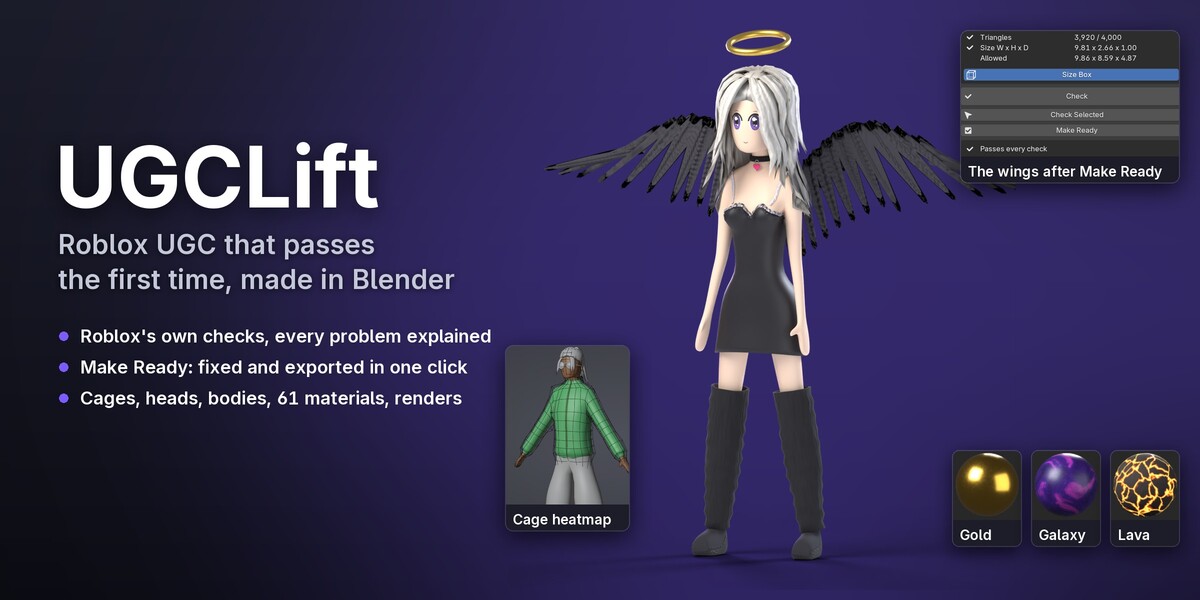
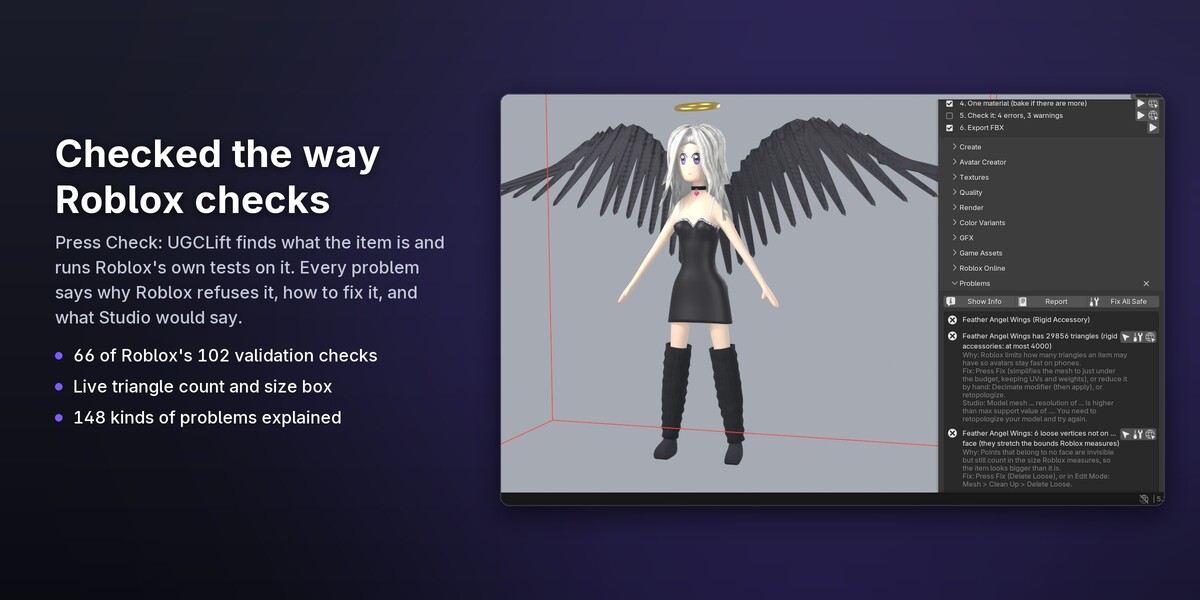
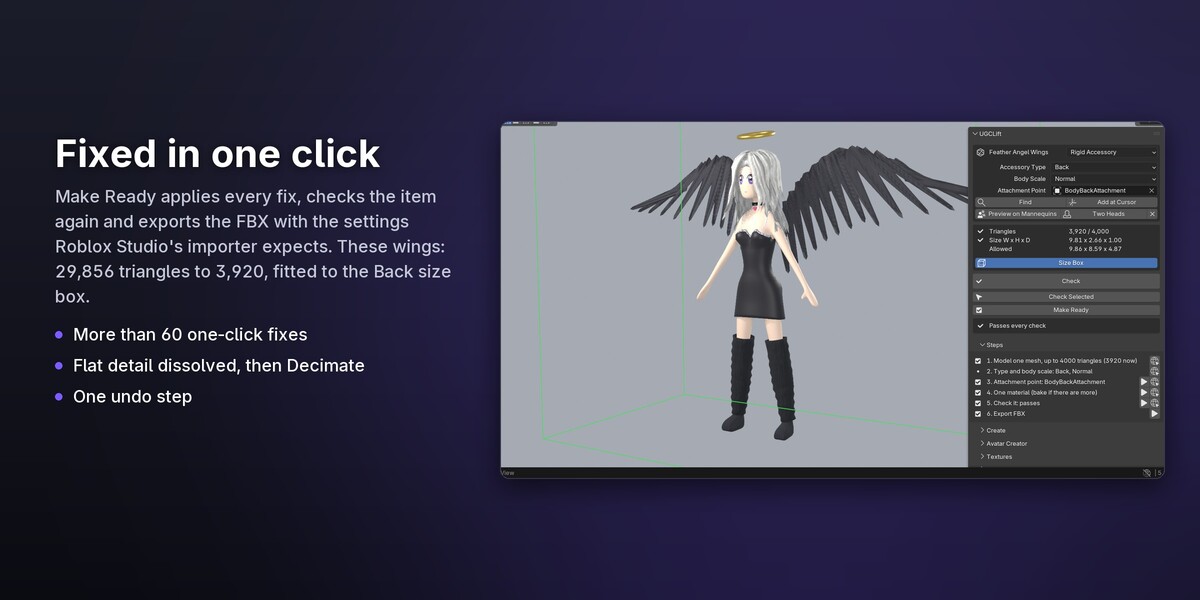
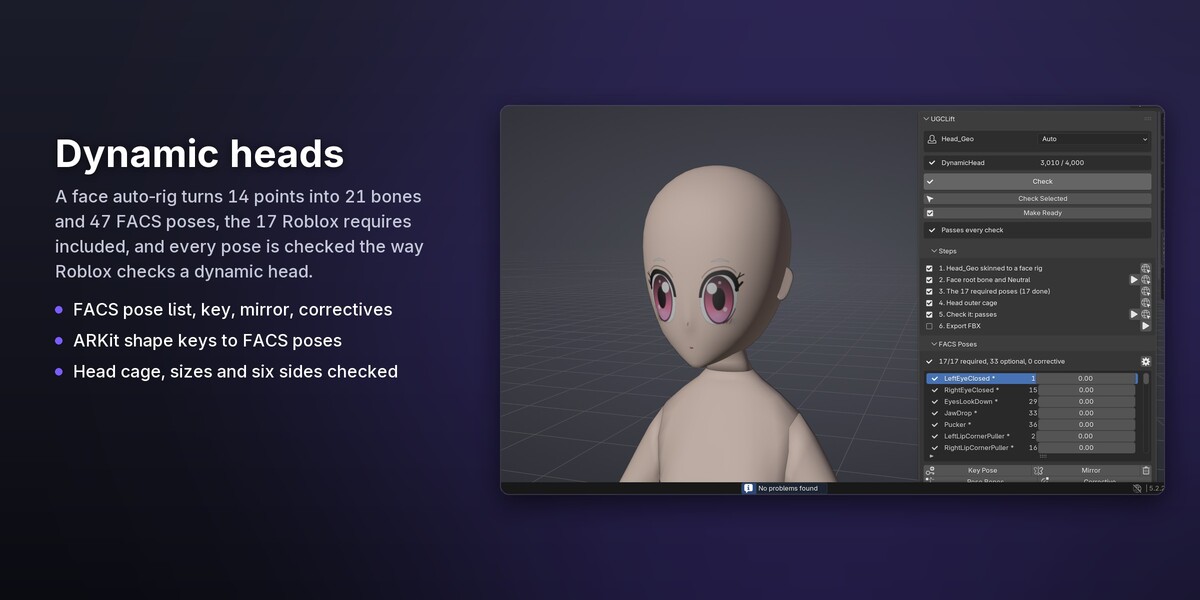
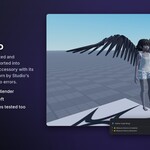
UGCLift checks avatar items for Roblox UGC the way Roblox's upload validation does, shows each problem in the viewport, fixes the safe ones in one click, and exports files with the settings Roblox Studio's importer expects. UGCLift Studio adds the tools to make the items: cages, weights, FACS faces, rigs, animation, PBR textures, renders, an avatar creator and more.
UGCLift is not made by or affiliated with Roblox. Roblox's templates, mannequins and documentation are not included; where a tool needs one, UGCLift asks for your own copy and links to Roblox's page.
Editions
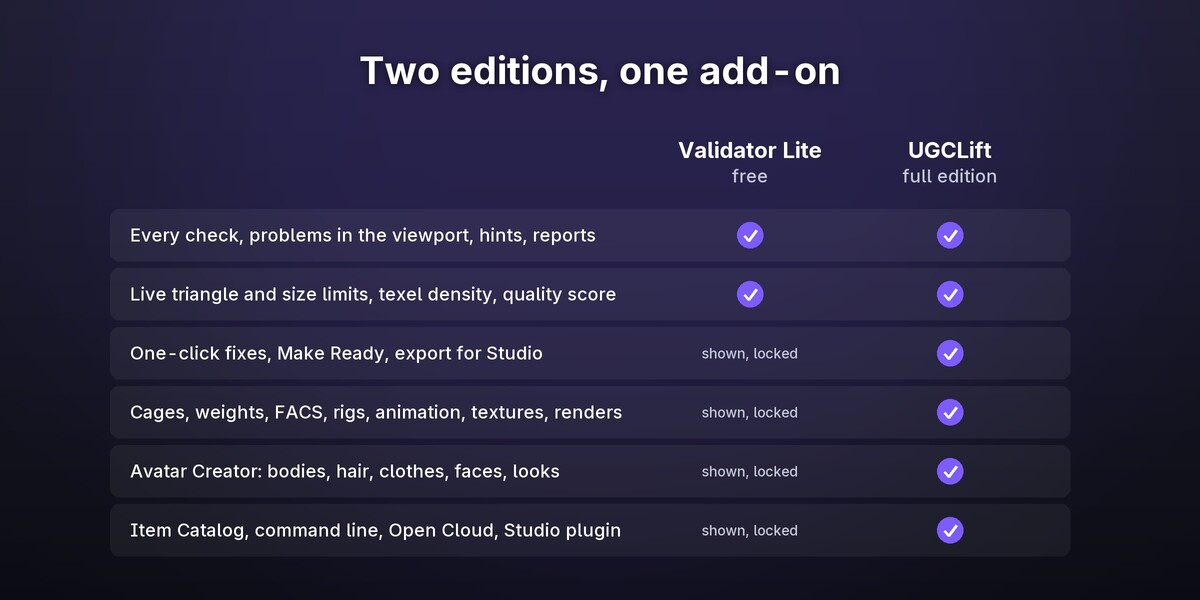
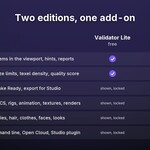
| UGCLift Validator Lite (free) | UGCLift (Studio) | |
|---|---|---|
| Checks for every item type, problems in the viewport, reports | yes | yes |
| Live limits (triangles, size box), texel density, quality score | yes | yes |
| One-click fixes, Make Ready, export | shown locked | yes |
| Authoring tools (cages, weights, FACS, rigs, animation, textures, renders...) | shown locked | yes |
| Avatar Creator, Roblox online (Open Cloud), catalog, command line, Studio plugin | shown locked | yes |
Lite shows every Studio button where Studio has it, with a lock: its tooltip says what it does, and each problem's hint explains how to fix it by hand. Only one of the two can be enabled at a time.
Install
- Blender 5.0 or newer (tested on 5.0.1, 5.1.2 and 5.2.2 LTS).
- Edit > Preferences > Get Extensions > the arrow menu > Install from Disk, pick the
.zip. - The UGCLift tab appears in the 3D View's sidebar (press N).
UGCLift never goes online by itself. Uploads and avatar look-ups run only when you press their button, and only with Blender's Online Access on (Preferences > System > Network).
Units: one Blender unit is one stud. The character faces −Y (Front view), and its left is +X.
Quick start
- With nothing selected, Start Here asks what you are making and where you start: My Model (the selected object gets that type and is checked), A Sample (a ready item in a new scene) or **Something New** (a template).
- Select your item. Its type is found from what it is, and you can change it:
- Rigid Accessory: one mesh, no skinning (hat, hair, glasses...).
-
Layered Clothing: a skinned mesh with
‹name›_InnerCageand‹name›_OuterCage. -
Body: an R15 armature with the 15
*_Geomeshes, their*_OuterCagecages and 19*_Attattachments. -
Dynamic Head:
Head_Geowith FACS poses. - Emote / Animation: an armature's action (emote, animation pack clip, Jump).
- Classic Clothing: a shirt, pants or T-shirt image on the blocky avatar.
-
Makeup: Roblox's makeup template head with
TransferTexture_*layers. - Game Asset: a mesh for an experience (not an avatar item).
- For an accessory, pick its type (Hat, Hair, Waist...) and body scale. With an attachment from Roblox's mannequin (for example
Hat_Att), the size box is measured round it, as Roblox does. - Press Check, or Check Selected for several items.
- Each problem has buttons to select what is wrong (vertices, faces, bones or objects), Fix where the fix is safe, and a link to the Roblox page the rule comes from. With Guide Mode on (the default), each problem also says in plain words why it matters and how to fix it, and the Steps panel lists what to do for that item type.
- Report saves a Markdown and a JSON report into the export folder.
-
Export Active / Export Selected (Studio) writes one file per item into
//UGCLift Export/next to the .blend. Make Ready applies every fix, checks again and exports, as one undo step.
What is checked
All limits, names and page links live in rules/*.toml, one file per item type, each with the date it was checked against Roblox's pages. Where the pages only say "a threshold", UGCLift uses the defaults from Roblox's own validation code, which ships with Roblox Studio.
- Every mesh: triangles, total surface area, overlapping triangles in one plane, loose vertices, zero-area faces, doubled vertices, holes, edges on 3+ faces, flipped normals, n-gons, more than 10 pieces, UVs outside 0–1, materials, texture sizes and missing files, vertex colours, unapplied transforms, modifiers, an item 100 times too small.
- Rigid accessories: 4000 triangles, the size box for 11 types and 3 body scales, no skinning, the attachment's name, opaque ColorMap and NormalMap.
- Layered clothing: 4000 triangles, size, weights (every vertex weighted, at most 4 bones, sums of 1, R15 bones only), left and right shoes, the cages (names, matching vertices and UVs), clothing inside the outer cage, cage distances, cage edits over the item, cage vertices inside the item, and the clothing outside its inner cage.
- Bodies: the 15 parts and their names, triangle budgets per asset, sizes for each body scale measured as Roblox measures them (arms and legs straightened, for the whole body hanging straight down, the joints counted in the most sizes), part cages and their UV counts, 19 attachments in place, the R15 hierarchy, pose angles, hip joints, part order, legs apart, each asset seen from the six sides (Roblox's AssetOpacityValid, drawn pixel for pixel the way its code draws it), and thin or small bits far out that stretch an asset's box past what shows of it (Roblox's BoundingBoxAccurate, its search included).
-
Dynamic heads:
RootFaceJointand the pose frames, at most 150 face bones, the 17 required poses, the 50 FACS names (ARKit names are corrected), correctives, Neutral on frame 0, every pose moving the head and one of its joints at least 0.013 studs or 1 degree (Roblox judges a pose by its joints: "inactive FACS controls"), head size in every pose, the head seen from the six sides, and the outer cage's eye and mouth holes over the parts of the face that move when it blinks and opens its mouth (UGCLift's estimate: Roblox measures that on its server). - Emotes and animation packs: length, frame rate, bones, LowerTorso travel, speed and turning limits.
- Classic clothing: 585 × 559, PNG/JPG, paint outside the template's regions.
- Makeup: layer names and count, texture sizes.
- Game assets: 20 000 triangles a mesh, volume, skinned roots at the origin.
What UGCLift approximates: Roblox measures cage distances with signed distance fields in its engine, and UGCLift measures them from the geometry, so at a threshold it warns instead of failing. What it does not check: things that exist only in Roblox Studio (hidden surface data, the instance schema, moderation) and checks whose numbers Roblox does not publish.
Fixes (Studio)
Merge by Distance, Delete Loose, Recalculate Normals, Move UVs into 0–1, Apply Transforms, renames (cages, body parts, attachments), Limit & Normalize Weights, FACS names and frame keys, Triangulate N-gons, Smart UV Project, Fill Holes, Scale Up 100x, Add Thickness, Palette Texture, Close the Loop, Fit Triangle Budget, Fit in Size Box, Shrink Texture, Delete Interior Faces, Make Opaque. Fixes that change the look ask first. Fix All Safe applies the safe ones in the right order.
Cages, skinning, faces and animation have fixes too: Fit Outer Cage, Fit Both Cages and Re-make Outer Cage (layered cages), Fit Cage to Part (a body part's cage), Weight from Neighbours, Move Root Weights, Move to R15 Bone, Skin to Its Bone and Switch Shoe Side, Set Face Root, Add Neutral Pose and Remove Property (FACS), Delete Invalid Keys, Remove Object Keys, Remove Bone Keys and Remove Position Keys (animation), Renumber Layers (makeup), Make It a Mesh and Pick Attachment (attachments), Resize to Template (shirts and pants) and Remove Emission. Make Ready applies every fix an error offers, these included, then checks and exports.
Export (Studio)
FBX with the settings from Roblox's export pages: FBX Unit Scale, −Z Forward / Y Up, embedded textures, no leaf bones, no vertex colours, custom properties for heads, bodies and emotes, the action baked over the scene's range. glTF (.glb) is an option.
In Roblox Studio:
- Accessories and clothing: File > Import 3D, then Avatar > Accessory Fitting Tool. For layered clothing, pick Clothing and its type (Tee Shirt, Pants, LeftShoe...).
- Bodies: Avatar > Avatar Setup.
- With Studio Manifest on (Export panel) and the UGCLift Companion plugin installed (**Install Studio Plugin), Import Manifest** sets the accessory type, body scale and Marketplace thumbnail camera for you.
- Fix Joints (the same plugin), with a body selected: moves every joint Roblox's validation finds too far from where its part meets the next (AttachmentBoundsValid) just inside Roblox's own bounds. Avatar Setup cuts a body into its 15 parts by itself and keeps the body's rig, so on short limbs a joint can land past the cut.
Layered clothing (Studio)
- Copy the inner cage from Roblox's layered clothing template (your copy) and name it
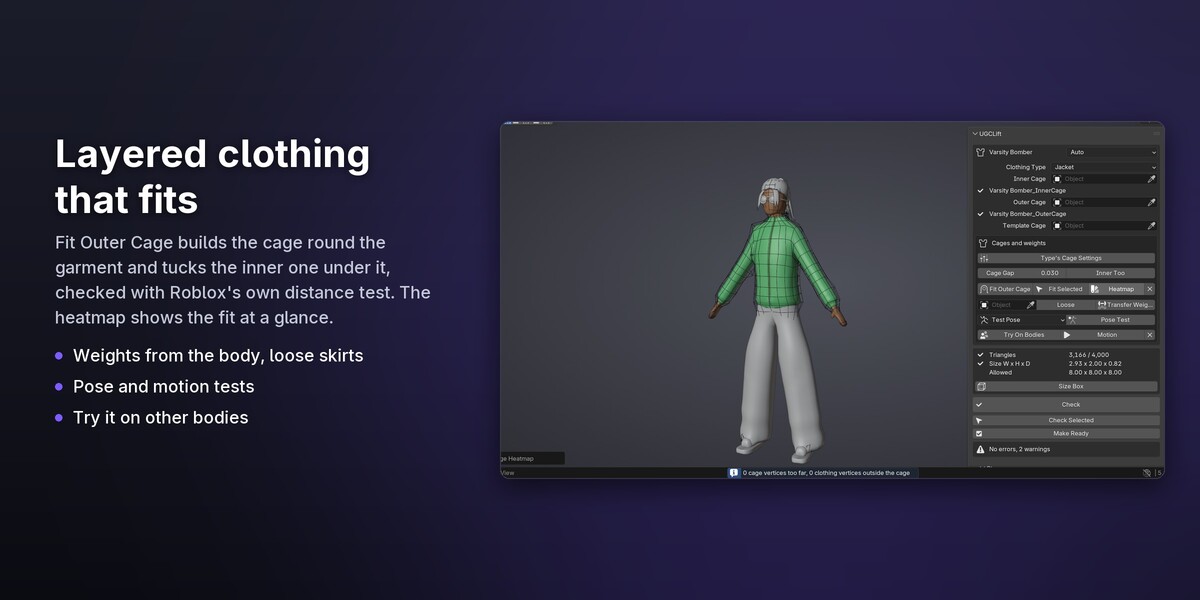
‹item›_InnerCage. - Fit Outer Cage makes the outer cage from it, moved out just enough to cover the clothing (plus the Cage Gap), with folds kept down and nothing moved where there is no clothing. It runs in the background; Esc changes nothing. Inner Too also pulls the inner cage in under clothing that is tighter than the body. Type's Cage Settings sets Cage Gap, Inner Too and Loose to what the Clothing Type starts from (a dress hangs loose, brows and lashes lie on the skin, a jacket leaves room for what goes over it). **Fit Selected** is the cage brush: paint vertices of the outer cage in Edit Mode (circle select, C) and only those are fitted again; the rest of the cage keeps your hand edits.
- Heatmap colours the outer cage by its distance to the clothing, and the clothing red where it pokes out.
- Transfer Weights copies weights from a body (for example Roblox's mannequin), 4 bones a vertex. Loose lets a skirt, dress or coat hang between the legs.
- Test Pose, Pose Test and Motion Test show how the weights move the cloth, and how much skin pokes through.
- Try On Bodies puts the clothing on every other caged body in the scene, as Roblox does.
Bodies (Studio)
-
Create Attachments: all 19
*_Attpoints where Roblox's specification puts them. -
Rig Body from 15 Parts: an R15 armature for the 15
*_Geoparts, in I, A or T pose. - Cages from Template: the 15 outer cages from your copy of Roblox's body cage template, fitted to each part, keeping the template's topology and UVs.
- The joints are checked where Roblox's validation wants them (AttachmentBoundsValid): each near the end of its part where it meets the next, measured along the straightened limb.
- One mesh for Avatar Setup: set a single body mesh, or the armature that deforms it, as a Body. It is then checked against Avatar Setup's requirements instead of the 15-part rules: 10,742 triangles in all, the size, the R15 rig and the pose if it has one (each part as its faces weigh to the bones), and the face: a face rig of its own (FACS poses in its custom properties, which Avatar Setup keeps) or the eye and mouth pieces Avatar Setup needs to make one. Export writes the mesh with its rig; in Roblox Studio run Avatar Setup on it, then Fix Joints.
Dynamic heads (Studio)
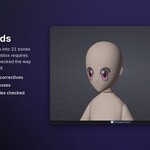
- Place Face Points → Build Face Rig: put 14 points on the face, get 21 face bones with soft weights and 47 of the 50 FACS poses, the 17 required ones included.
- Set Up FACS, then the list of 50 poses: Add Pose, Key Pose, Mirror, Remove, Corrective (2–3 poses together).
- Preview Expression: the five expressions Roblox's validation tries (blinks, mouth open, happy, sad), and a weight slider for each pose.
- Poses from Shape Keys: FACS or ARKit shape keys become bone poses.
More tools (Studio)
- Classic clothing: paint on a 3D blocky avatar straight into Roblox's 585 × 559 template.
-
Textures:
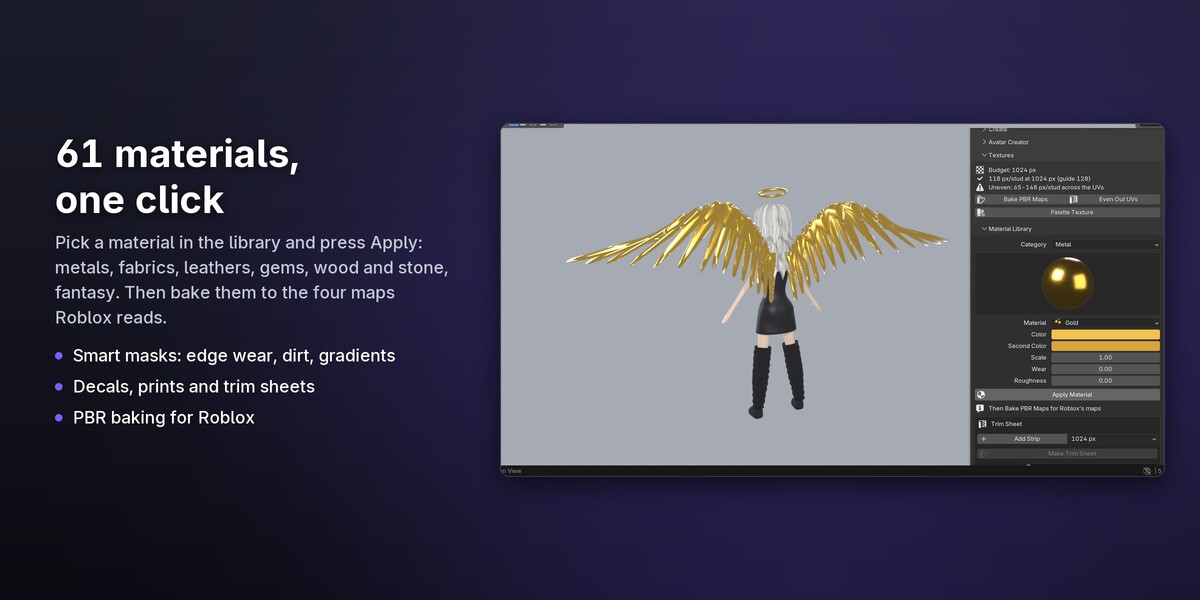
- Bake PBR Maps (Color, Normal, Roughness, Metalness from any material or a high-poly mesh);
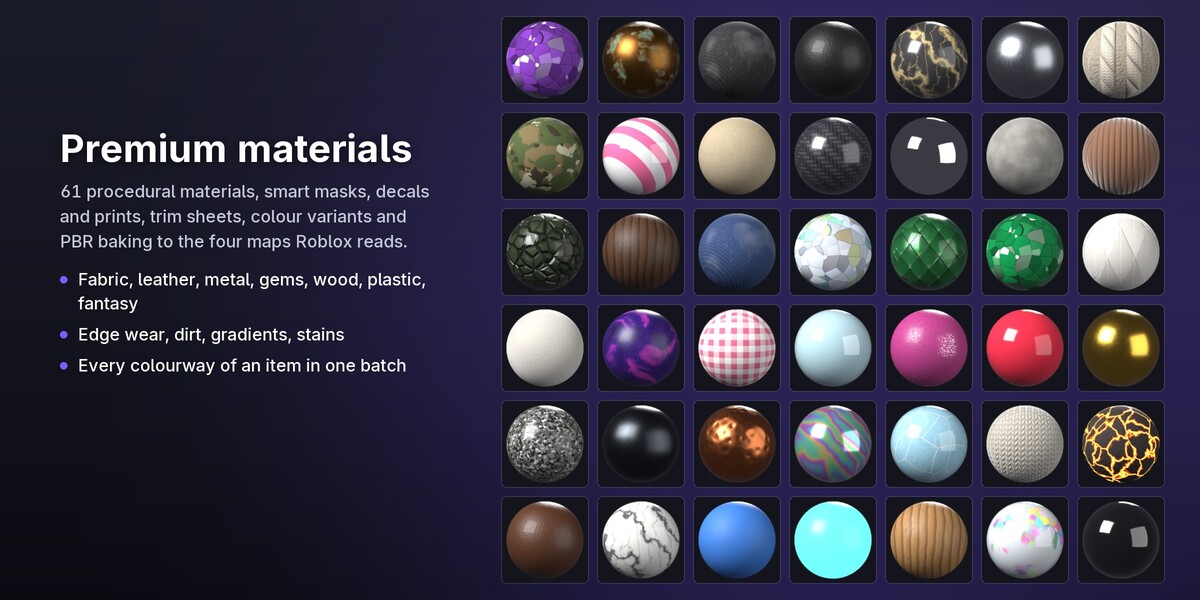
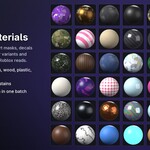
- Material Library (61 procedural materials) and Trim Sheet (library materials as strips of one sheet; Lay on Strip puts the selected faces on a strip);
- Smart Masks (edge wear, dirt, AO, gradient, stains);
- Decals & Prints;
- Even Out UVs;
- Palette Texture;
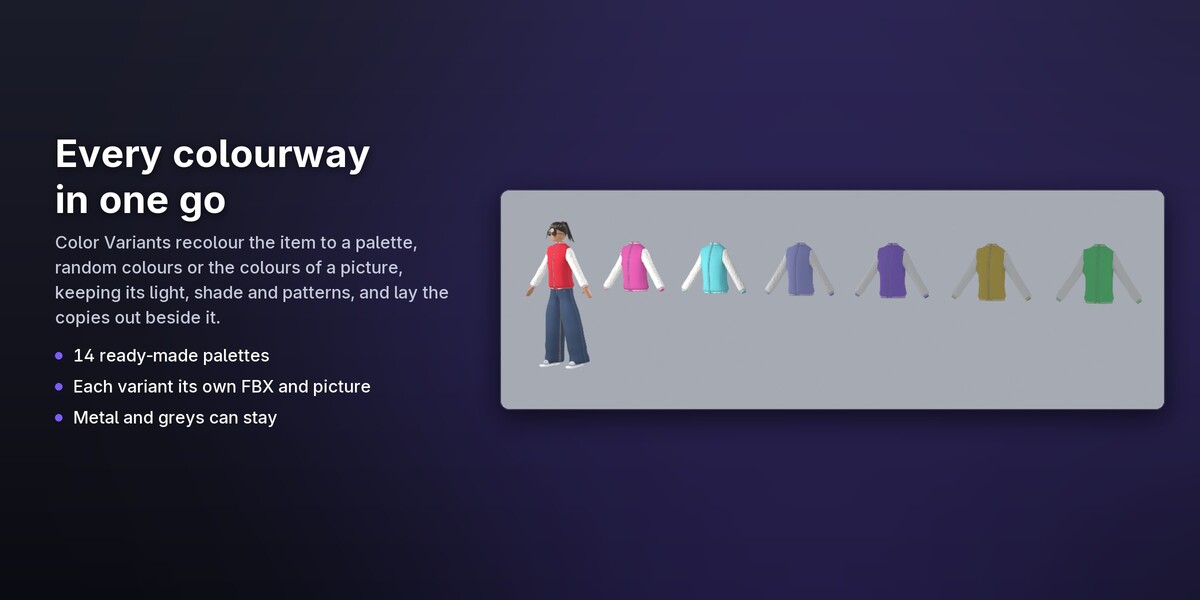
- Color Variants.
-
Rig & Animation:
- IK/FK controls;
- retargeting from Mixamo, BVH or Rokoko onto R15;
- animation packs (9 clips, a check, and a Save to Roblox sheet);
- R6 rigs, KeyframeSequence export and import, R15↔R6 conversion;
- a pose library, onion skin and key reduction;
- camera cutscenes to Luau.
- Makeup: checks and export for Roblox's makeup template head (your copy).
- Quality score (both editions): 0–100 with tips, UGCLift's own measure of what Roblox's pages ask for.
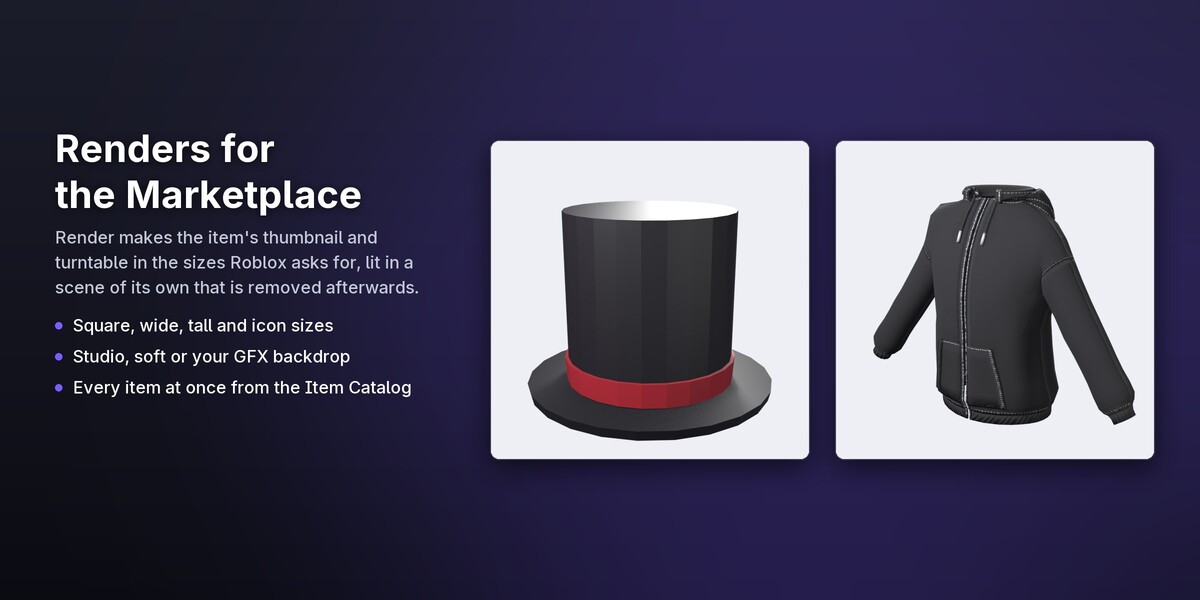
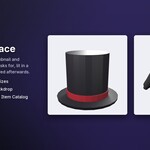
- Render: Marketplace and GFX pictures and turntables, in a separate scene that is removed afterwards.
- Roblox online: Upload, Upload New Version, Asset Versions, Roll Back (Open Cloud with your own API key, stored in the add-on's preferences and sent only to apis.roblox.com), Avatar Reference by user name.
-
Item Catalog: check, fix, export or render many items in one go. Command line:
blender file.blend -c ugclift list|check|fix|export|render. -
Game assets:
- a VFX library and flipbooks;
- hair from curves;
- terrain heightmap and colormap;
- Roblox model import (.rbxm/.rbxmx/.rbxl/.rbxlx);
- low-poly weapons, an FPS viewmodel;
- mesh effects, Beam and Trail textures.
- GFX: Roblox avatar import and auto-rig, face expressions, backdrops, a blocky avatar.
- Templates and samples: hairstyles, wings, halo, aura, shoes from feet; sample scenes for every item type.
Avatar Creator (Studio)
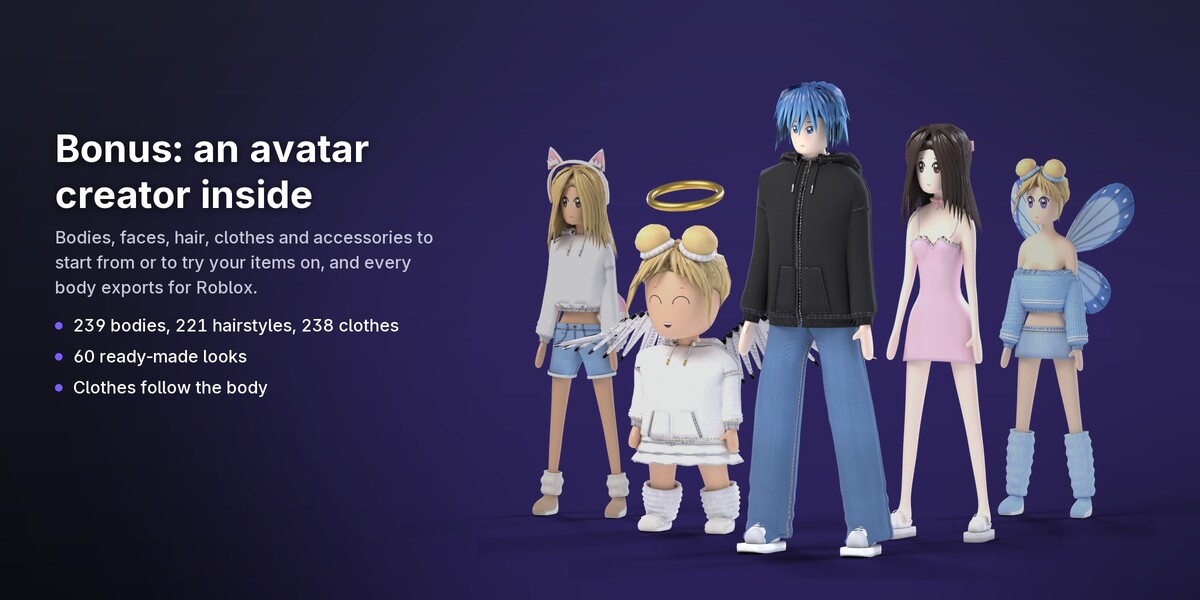
Open Creator (UGCLift tab > Avatar Creator) turns Blender into an avatar creator:
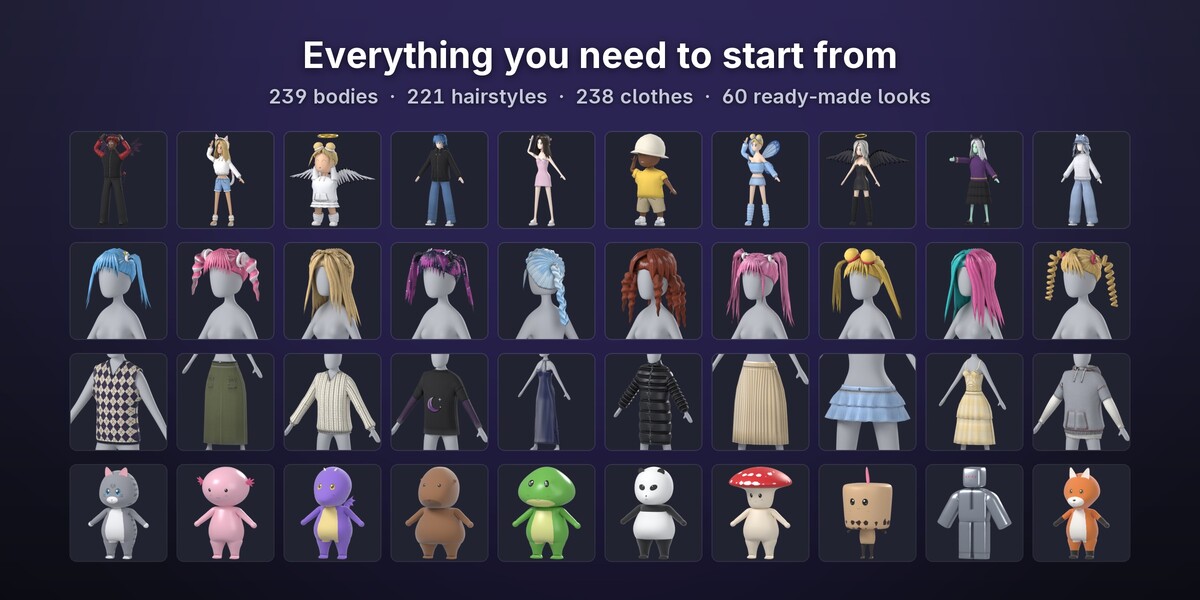
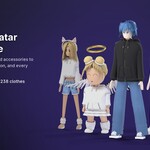
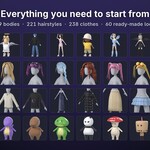
- 239 bodies (people, anime, blocky, minis, animals, fantasy) and a face and body customiser;
- 200 hairstyles with dyes and finishes;
- clothes and accessories, prints, tattoos and patterns;
- ready-made looks, saved avatars and saved items.
The Check Avatar button checks the body against Roblox's rules for bodies, including the Marketplace modesty policy, and every item's triangles and pieces.
Exports for Roblox:
- Export for Roblox (an accessory being edited), Export All Accessories, Export Colourways.
- Export Clothing for Roblox (a garment being edited): layered clothing skinned to the body's R15 rig, with its cages from a Roblox layered clothing file you pick (your copy). The inner cage is tucked under the garment so it never sinks into other bodies. A pair of shoes is written as a left and a right file. In Roblox Studio: File > Import 3D, then the Accessory Fitting Tool (Clothing, and the type the report names).
- Export Body for Roblox: one closed mesh within Roblox's triangle budget on an R15 rig, with the 19 attachments, a 2048 px colour map and a moving face (50 FACS poses that close the painted eyes and open the mouth). Avatar Setup bakes the whole body into one 1024 px map, so the face's UV islands get 1.6 times more room than the rest to stay sharp. In Roblox Studio: Avatar > Avatar Setup, with "Handle face as 2D decal" off, because the face comes with the body; then select the set-up body and press Fix Joints (UGCLift Companion plugin).
-
Export Body in 15 Parts: the body the way Roblox's own bodies are made, without Avatar Setup. It is cut into the 15 parts (
‹Part›_Geo), each closed, with an outer cage on each from Roblox's body cage template you pick (your copy, an FBX with the 15‹Part›_OuterCage, such as Roblox's mannequin with cages). The head cage's eye and mouth holes go onto the painted face. It also writes the R15 rig, the 19 attachment points and the moving face onHead_Geo. The head has its own 1024 px colour map, so the face is sharper than in Avatar Setup's one map for the whole body. In Roblox Studio: File > Import 3D, Rig Type R15, Rig Scale Rthro (Rthro Narrow for a Slender body, Default for a Classic one), then UGC Validation as a Body. Every one of the Creator's 239 bodies exports this way and passes UGCLift's checks of the 15 parts, and every one checked in Roblox Studio so far passes its UGC Validation, with only PropertiesSensible left until the body is published.
Languages
The interface, problem texts and hints are in English, Ukrainian, Spanish and Brazilian Portuguese (Preferences > Interface > Translation). Saved reports stay in English. Roblox's own names (R15, FACS poses, asset types) stay as Roblox writes them.
Troubleshooting
- A button is greyed out or does nothing: select the item it works on. For example, FACS buttons need the head, and Creator exports need the item being edited.
- "Blender's Online Access is off": turn on Allow Online Access in Preferences > System > Network, only if you want to upload.
- "Add your Open Cloud API key in UGCLift's preferences first": create a key on Roblox's Creator Dashboard with Assets read and write, and paste it into the add-on's preferences.
-
"Pick one of Roblox's layered clothing files": download Roblox's layered clothing samples from its documentation and pick one of them (an FBX with an
*_InnerCage). - Roblox Studio shows PropertiesSensible (HSRData) on a body: the same publish step as below, on the body's cages. Roblox checks it on its server when the body is published.
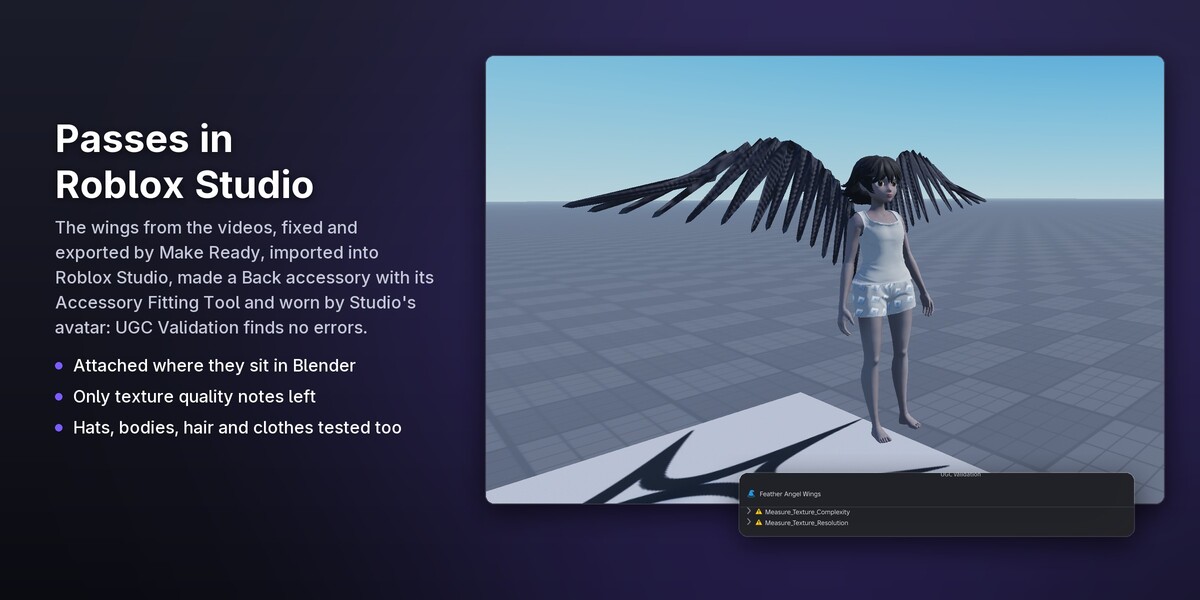
- Roblox Studio shows HSRMeshIdsMatch or PropertiesSensible on layered clothing: the Accessory Fitting Tool's hidden-surface data (HSRData, a temporary id, no HSRAssetId yet). Roblox's own code checks these only on its server when you publish, so Studio's UGC Validation shows them for every item the tool makes, uploaded or not (tested 31 October 2026 with Upload to Roblox on). No file can set them; publish as usual.
License
The code is GPL-3.0-or-later. Roblox's templates, mannequins, models and documentation are not part of the add-on.
Have questions about this product?
Login to message
| Blender Extension Compatible | Yes |
| Published | about 1 hour ago |
| Blender Version | 5.0 - 5.2 |
| Extension Type | Add-on |
| Render Engine Used | Cycles, Eevee |
| License | GPL |
Discover more products like this
roblox avatar FACS RobloxStudio Character Creator layered clothing FBX Export validation cage roblox ugc roblox accessories ugc