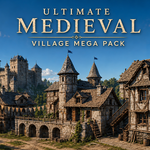
Ultimate Medieval Village Mega Pack
 Haseeb Ahmed


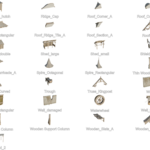
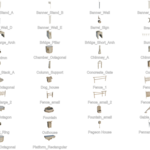
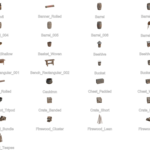
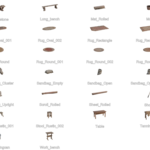
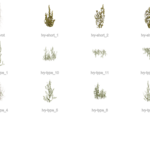
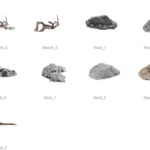
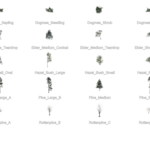
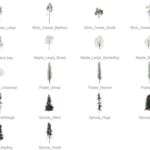
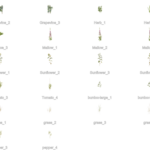
Setup Guide for Blender (Asset Browser)
This pack is 100% pre-configured for the Blender Asset Browser, complete with thumbnails and categorization. Follow these steps to link the library to your Blender setup permanently:
Step 1: Extract the Files
Download and extract the Medieval Mega pack.zip to a dedicated, permanent folder on your computer.
Example path:
Documents / 3D Assets / Medieval Mega Pack
Step 2: Open Blender Preferences Open Blender and navigate to the top menu. Click on Edit > Preferences.
Step 3: Add the Asset Library Path
On the left-hand side of the Preferences window, click on the File Paths tab.
Scroll down to the section labeled Asset Libraries.
Click the + (plus) icon.
Navigate to the folder where you extracted the Mega Pack in Step 1 and click Add Asset Library.
Step 4: Name & Save
Double-click the name field of your newly added path and name it something recognizable (e.g., "Medieval Mega Pack").
Click the menu icon in the bottom left of the Preferences window and ensure Save Preferences is checked so the library loads every time you open Blender.
Have questions about this product?
Login to message
| Sales | 10+ |
| Published | 5 months ago |
| Blender Version | 4.5 - 5.1 |
| Render Engine Used | Cycles, Eevee |
| Misc Data | Uvs-Unwrapped, Normal-Mapped, Textured |
| License | Creative Commons |

Discover more products like this
action history 3d-medieval-models 15th century 19Th 3d-old-scroll vegitation PRO Trees 3d model of a village 3dnature