Ultimate N-Panel Organizer
 Vertex 404


Ultimate N-Panel Organizer
Documentation and usage guide for Blender 4.5+
Ultimate N-Panel Organizer helps you keep the Blender Sidebar (the N-Panel) clean and easy to use. It focuses on the add-on panels you see in the N-Panel.
What this add-on does
- Hide add-on panels you do not use
- Rename panel titles to match your workflow
- Change the order panels appear in
- Save and load presets
- Use different presets per Blender mode
- Export and import your setup between Blender versions
Where to find it
Open the 3D Viewport and look in the top header near the mode menu (Object, Edit, Sculpt). You will see the Ultimate N-Panel Organizer button there.
You can also open this documentation by pressing Manual in the add-on panel.
Why you might want it
If you use several add-ons, the N-Panel can become crowded. This add-on helps you keep the panels you need easy to find and keep the rest out of the way.
- Keep only your daily tools visible
- Use clearer names for your panels
- Place favorite panels at the top
- Use different layouts for different Blender modes
- Keep your setup when moving to another Blender version
Installation
- Download the add-on ZIP file.
- In Blender, drag and drop the ZIP file into the 3D Viewport, or install it through Blender Preferences.
- Enable the add-on if Blender asks.
- Save Preferences so it stays enabled next time.
Quick start
1. Open the organizer
- Open the 3D Viewport.
- Look at the top header near the mode menu.
- Click the organizer button to open the panel.
2. Organize your N-Panel
- Use Search and the filter menu to find what you want.
- Turn entries on or off using the checkboxes.
- Rename entries by editing the name field.
- Use Move Up and Move Down to reorder.
- Click Apply + Save.
3. Create a preset
- In Presets, click New.
- Save your layout as a preset.
- Load that preset anytime you want to switch layouts.
4. Use Preset Automation
- Enable Restore last preset on startup if you want Blender to restore your layout automatically.
- Enable Enable mode preset switching if you want mode-based layouts.
- Create at least one preset first, then assign presets to modes in the automation area.
5. Export your setup
- In Presets, click Export.
- Save the file somewhere safe.
- In another Blender version, use Import to bring everything back instantly.
Key features
Hide and show panels
- Use the checkbox to control visibility.
- Keep only what you use on screen.
Rename panels
- Type your own names to make panels easier to understand.
- Helpful when several add-ons use similar naming.
Change panel order
- Select an entry and use Move Up or Move Down.
- Place your most-used panels near the top.
Presets
- Save your layout and load it later.
- Useful for different projects and workflows.
Preset Automation (per mode)
- Use different presets for different modes.
- When enabled, the add-on can load the right preset when you change modes.
Respects mode only add-ons
- Some add-ons only show panels in specific modes by design.
- The organizer does not force them into modes where they do not belong.
Export and Import
- Export your setup to a file and import it later.
- Perfect for moving to another Blender version or computer.
How it works
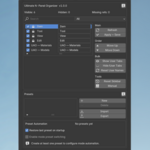
The organizer shows a list of N-Panel entries. Each entry can be turned on or off, renamed, and reordered.
Top info line
- Visible shows how many entries are currently visible.
- Hidden shows how many entries are currently hidden.
- Missing refs shows how many saved entries cannot be found right now.
Search and filter
- Use Search to find an entry quickly.
- Use the filter menu, such as All, to narrow what you see.
Main controls
- Refresh updates the list. Use this after installing or removing add-ons.
- Apply + Save applies your changes and saves your layout.
Order
- Move Up and Move Down change the order of the selected entry.
Bulk
- Show User Tabs shows all user entries.
- Hide User Tabs hides all user entries.
- Reset User Names restores default names.
Tools
- Reset Sidebar returns the sidebar to a clean default state.
- Manual opens this documentation.
Presets
- New creates a preset.
- Delete removes the selected preset.
- Export saves presets to a file.
- Import loads presets from a file.
Preset Automation
- Restore last preset on startup loads your last used preset when Blender opens.
- Enable mode preset switching allows presets to load when you change Blender mode.
About Missing refs
This usually happens when a saved layout references an add-on that is not currently available. For example, the add-on may be disabled, uninstalled, or not relevant in the current mode.
Examples and ideas
Clean everyday layout
Keep only your most-used add-on panels visible and hide everything else. Save it as a preset.
Different layouts per mode
Make one preset for Object Mode, another for Edit Mode, and another for Sculpt Mode. This keeps your N-Panel focused while respecting how add-ons are designed to work.
Move to a new Blender version
Export your presets before you upgrade. Import them in the new version so your N-Panel feels the same right away.
Tips for best results
- Use Refresh after add-on changes: if you install, remove, or update other add-ons, click Refresh so your list stays accurate.
- Use Apply + Save often: after a set of changes, click Apply + Save so you do not lose your work.
- Keep a safety preset: create one preset that keeps most entries visible so you always have a safe fallback.
- Keep mode layouts simple: start with one preset per mode and only add more if you really need them.
-
$14.90
Single user license for freelancers, hobbyists, and solo 3D artists. Includes personal and commercial use on unlimited projects.
-
$29.90
Multi user license for small studios and teams of up to 5 users. Includes personal and commercial use on unlimited projects within the same studio or organization.
-
$54.90
Multi user license for larger studios, companies, and organizations with more than 5 users. Includes personal and commercial use on unlimited projects within the same organization.
 Included
Includes 12 months of
- Support from Vertex 404
- Product updates
Extend this product’s Support Period +12 months: 75% of product price
Have questions before purchasing?
Login to message
| Blender Extension Compatible | Yes |
| Sales | 10+ |
| Dev Fund Contributor | |
| Published | 7 months ago |
| Blender Version | 4.5 - 5.2 |
| Extension Type | Add-on |
| Render Engine Used | Arnold, Blender-Internal, Blender-Game-Engine, Cycles, Eevee, Freestyle, Luxrender, Mental-Ray, Octane, Vray, Yafaray |
| License | GPL |
Discover more products like this
n-panel layout presets blender organization productivity Import-Export Workflow ui workspace Sidebar ui customization presets