 Sonneblom Digitaal
What it does
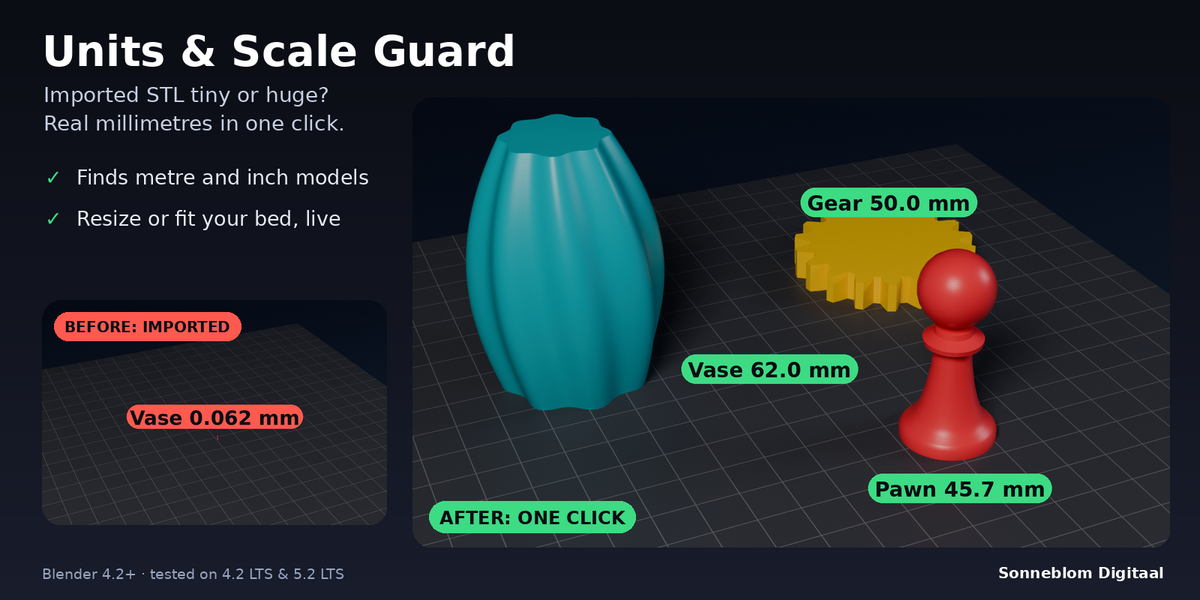
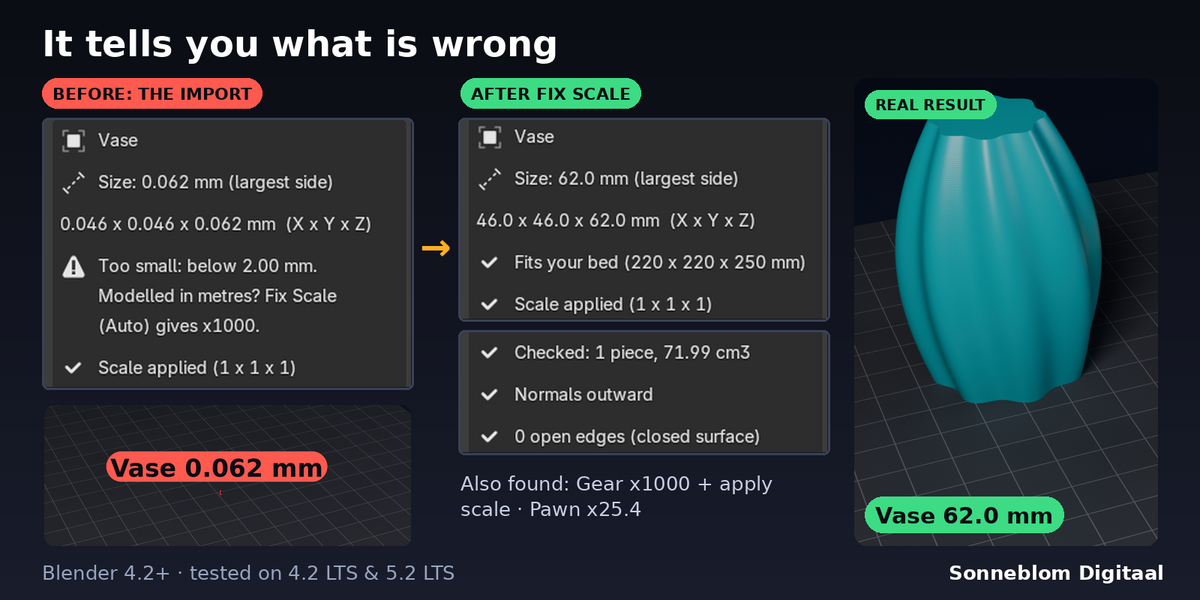
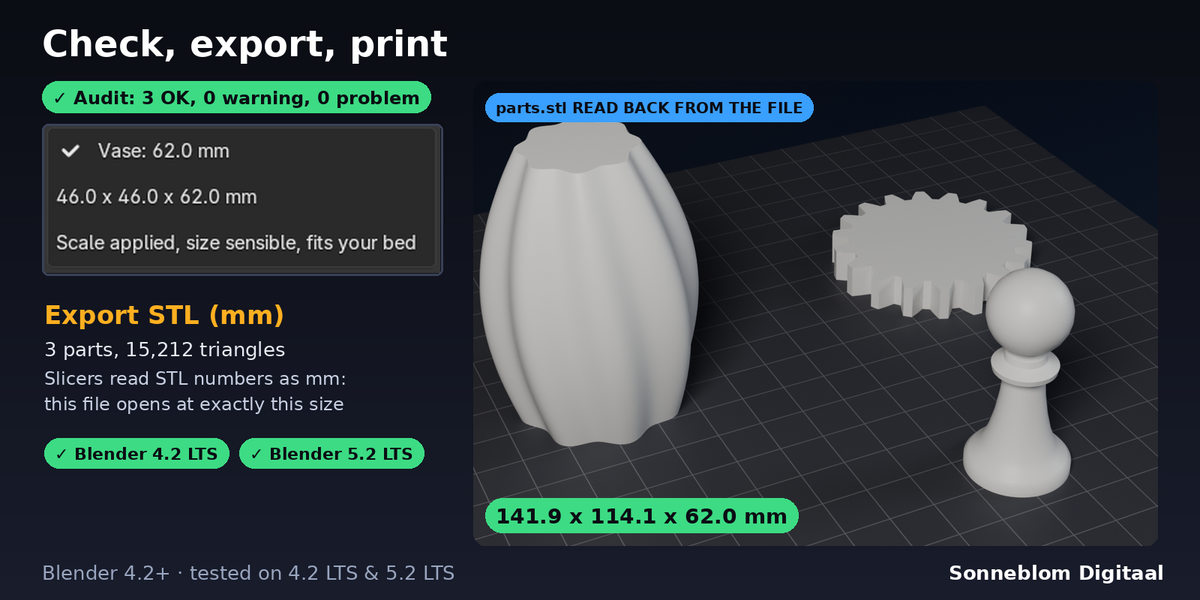
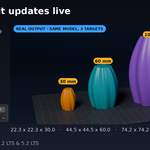
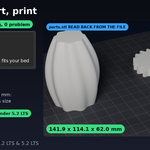
Units & Scale Guard stops the most repeated 3D-printing question in Blender: "why is my STL 1000x too small (or too big)?". STL files have no units, so your slicer reads every number as millimetres. A part modelled in metres, an unapplied 0.001 scale, an inch model or the wrong export tick and the print comes out as a speck or a monster. This add-on shows the size your slicer will see, audits your parts before you export, fixes the size in one click (live, from the original) and exports an STL in millimetres that it reads back to prove it.
Who it's for
Anyone who prints from Blender: makers who model in Blender's default metre scene, people importing STL / OBJ / 3MF files from other tools, and anyone who has been bitten by unapplied scale.
Key features
- Set Up mm Scene: Metric, unit scale 0.001 (1 Blender unit = 1 mm), lengths shown in mm, 3D view clip distance raised so big parts are not cut off. Revert puts your old units back.
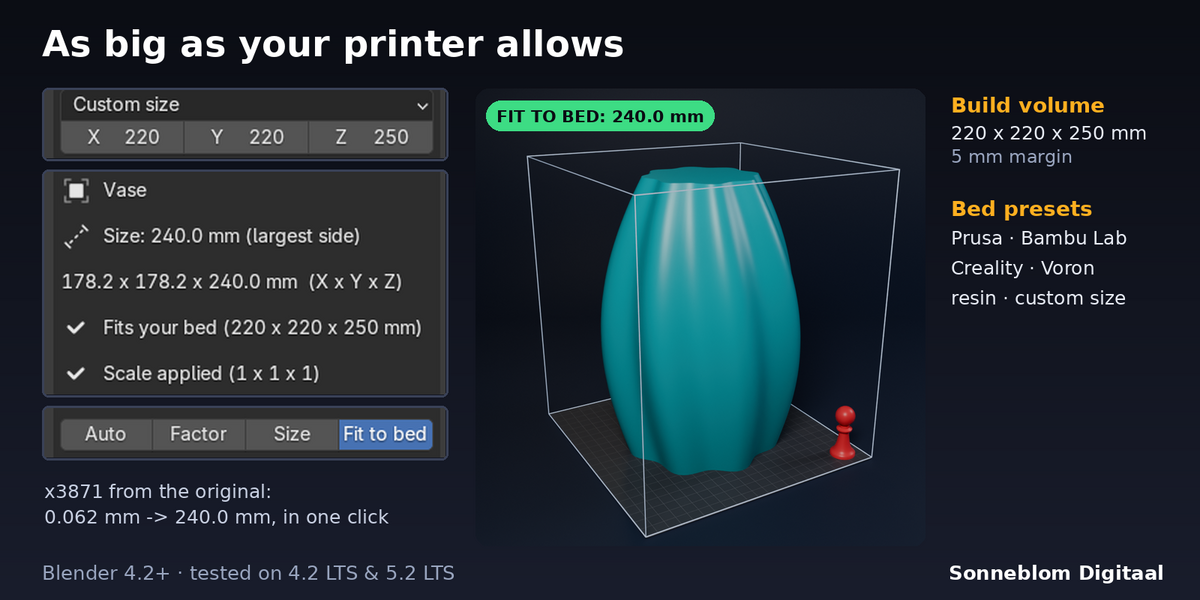
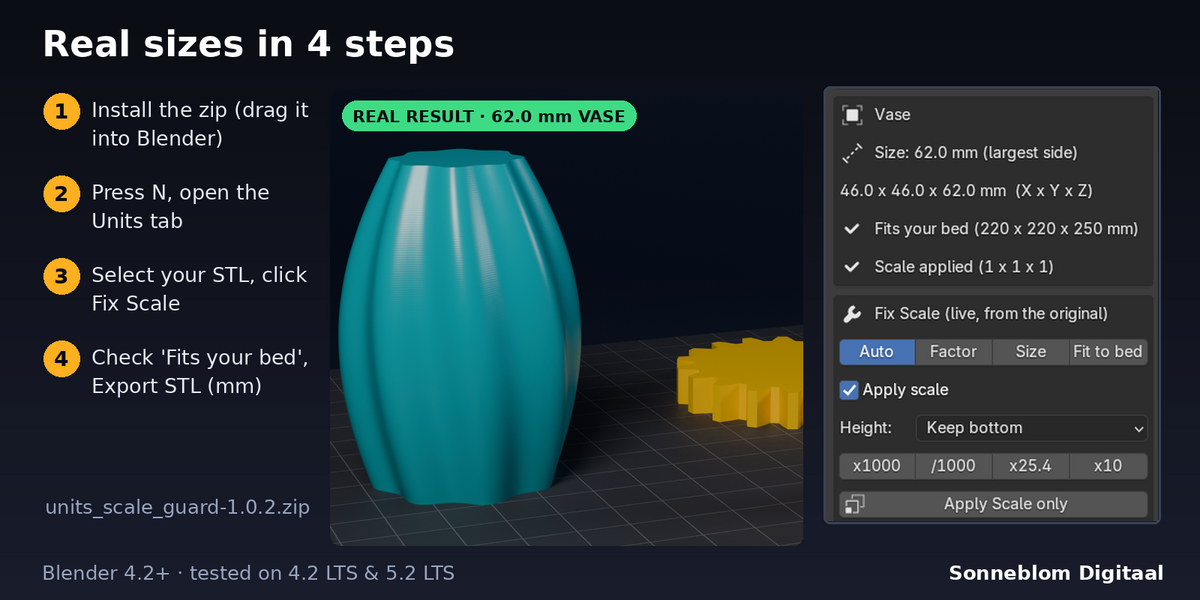
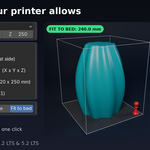
- Live size readout of the active object in the sidebar: largest side and X x Y x Z in mm (modifiers, parents and rotation included), "Fits your bed" for 10 printer presets or your own build volume, and the scale state (applied, unapplied, mirrored, zero).
- Pre-export Audit of the selected parts or all visible meshes: zero scale (names the axis, or the parent that flattens it), mirrored and unapplied scale, too small (modelled in metres), inch models, too big for the bed or 1000x too big, mixed units between parts, empty meshes and non-mesh objects. Every finding says what to do, most have a one-click fix button.
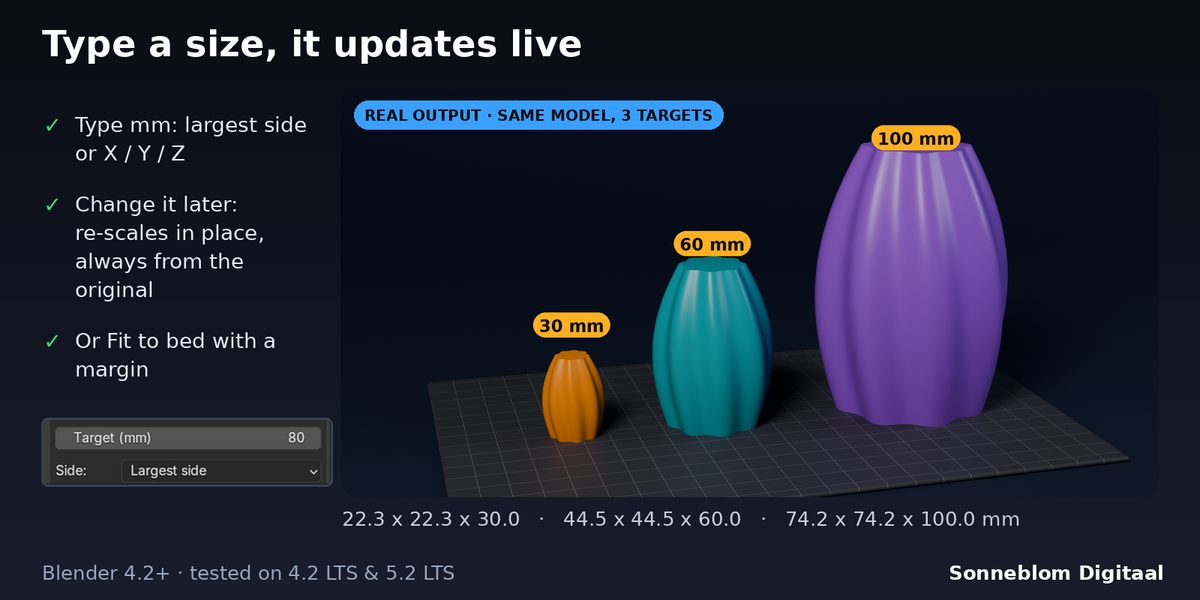
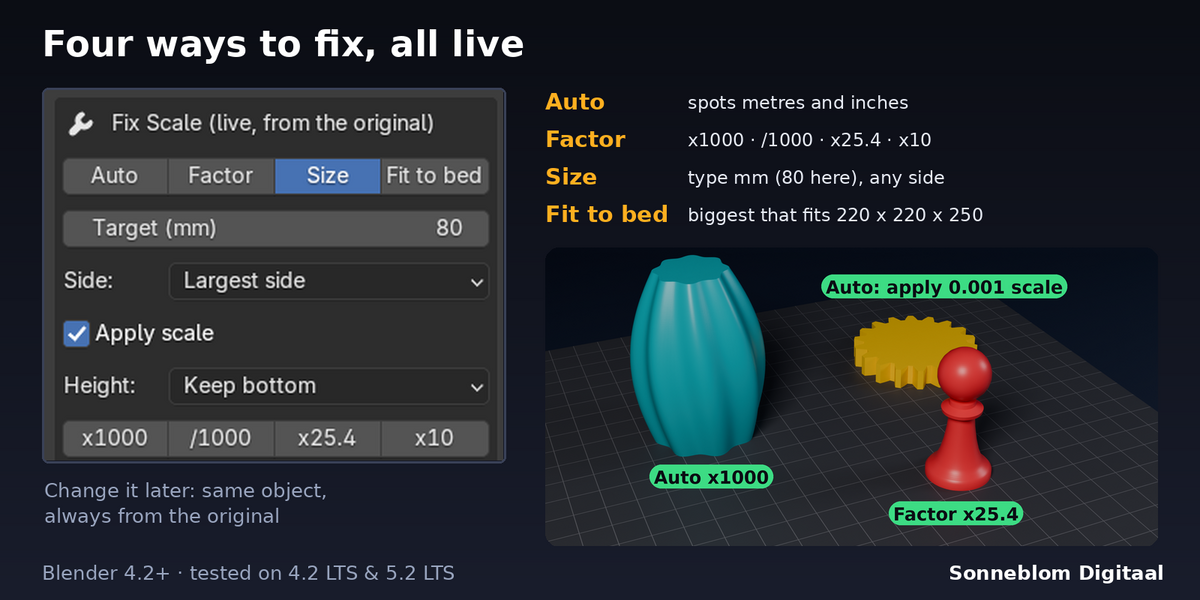
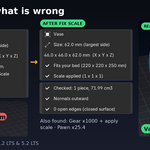
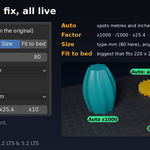
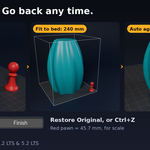
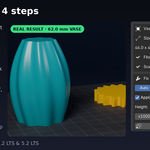
- Fix Scale: Auto (apply the scale and fix a clear unit mistake: x1000 for metres, x25.4 for inches, /1000 for 1000x too big), Factor with x1000, /1000, x25.4 and x10 buttons, Target size (largest side, X, Y or Z in mm) or Fit to bed with a margin. Apply scale bakes the scale into the mesh with the normals kept outward on mirrored objects. Height: keep the bottom where it was, scale around the origin, or drop onto the bed.
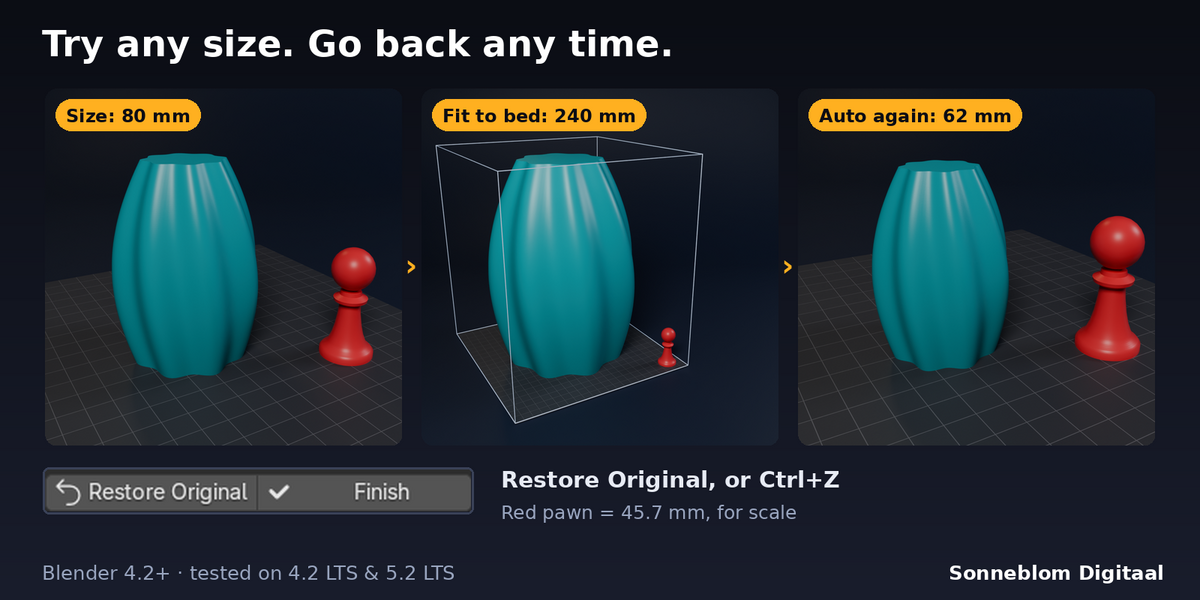
- Live and never cumulative: the settings stay on the object; change the mode, factor, target or unit afterwards and the same object updates in place, always from the stored original. F9 (Adjust Last Operation) works too.
- Mistake recovery: Restore Original (mesh, scale and position exactly as before), Finish (keep the result), Ctrl+Z. Hand edits made after a fix are detected and never overwritten.
- Result check in the panel: pieces, open edges, volume and whether the normals point outward.
- Export STL (mm): audits first and refuses on a problem (tick Export anyway to override; flat zero-scale objects are never exported), writes millimetres whatever your scene unit is (with Blender's own STL exporter at the right scale), then reads the file back and reports its real size and triangle count.
- Units: 1 Blender unit = 1 mm (as slicers read STL, default), 1 cm, 1 m, 1 inch or Scene units. Changing it later re-reads and updates everything live.
How to use
- Select your imported or modelled parts and open the sidebar (N) > Units tab: the panel shows the size your slicer will see.
- Click Audit Selected: every problem is listed with a fix button.
- Click Set Up mm Scene once, then Fix Scale (Auto) or a fix button. Tweak the target size or factor live if you like.
- Click Export STL (mm): the report shows the real size read back from the file.
Compatibility
Blender 4.2 LTS or newer, tested on 4.2 LTS and 5.2 LTS. Extension zip and legacy add-on zip included.
Good to know
- Auto only fixes what the size makes clear. A part that already reads a sensible size (for example a 5 inch model that reads 5 mm) is not flagged on its own; the mixed-units check catches it next to other parts, or use the x25.4 button. Its choice is always shown and one click on another factor overrides it.
- Each object scales around its own origin in X and Y. Parts imported from one STL / 3MF keep their spacing (their origins sit at the world origin); separate parts with their own origins each scale in place.
- Apply scale is refused (with the reason) on meshes shared by linked duplicates or with shape keys: untick Apply scale to set the object's scale instead.
- Export is binary STL, one file for the exported objects. After Fix Scale the mesh itself is in mm, so any other exporter at scale 1.0 writes mm too.
- Leave Edit Mode before fixing. The original stays in the .blend as a hidden mesh until you click Finish or Restore Original.
Support
Questions or a bug? Use the Superhive product page messages and we reply within a day.