Units & Scale Guard
 Sonneblom Digitaal
Units & Scale Guard - documentation
Install
Extension zip (units_scale_guard-1.0.2.zip): Edit > Preferences > Get Extensions > the drop-down arrow at the top right > Install from Disk, pick the zip (or drag the zip into Blender). Legacy zip (units_scale_guard-1.0.2-legacy.zip): Edit > Preferences > Add-ons > Install from Disk, pick the zip and tick the add-on. Use one of the two, not both.
Where it is
3D Viewport > press N > Units tab. The main panel has three boxes (Scene, the active object's size, Fix Scale) and two sub-panels: Pre-export Audit (with Export STL (mm)) and Limits (closed by default).
Step by step
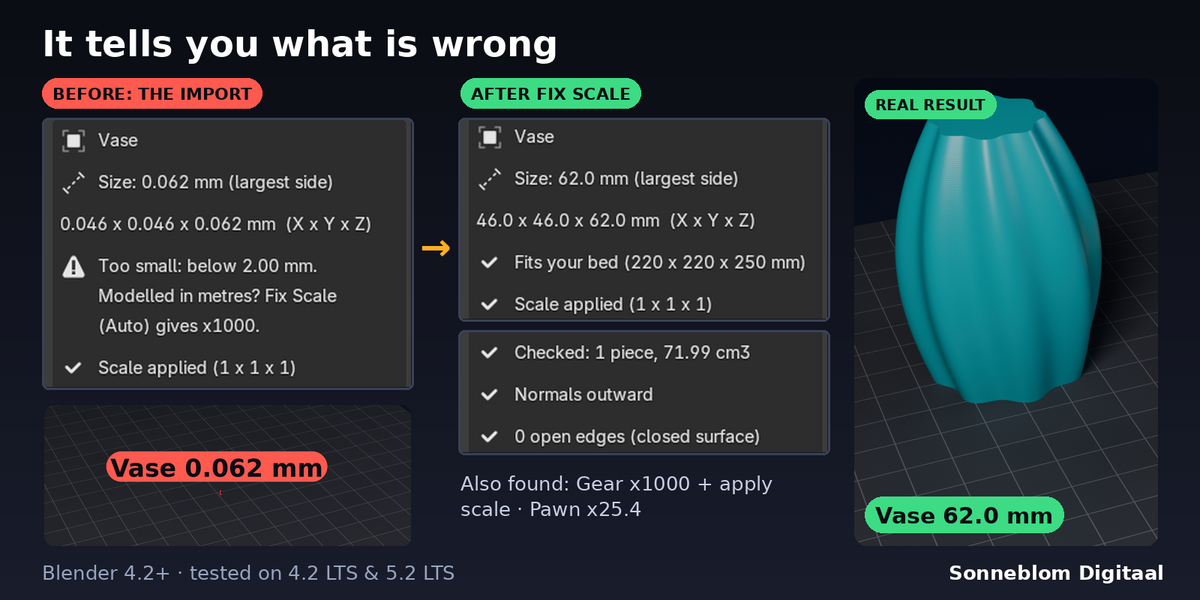
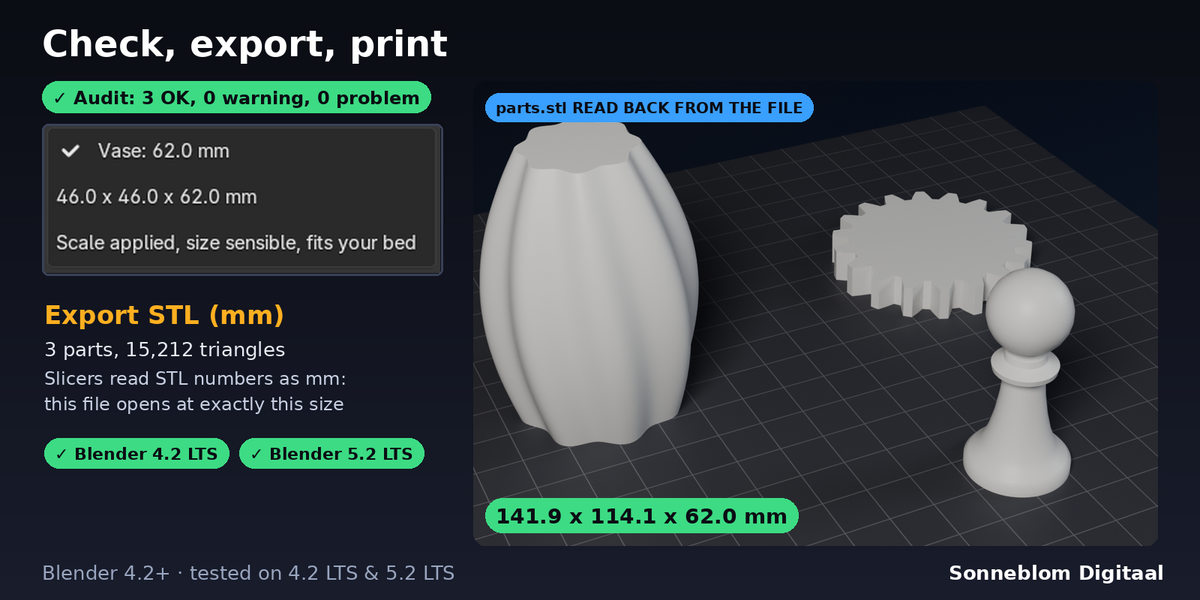
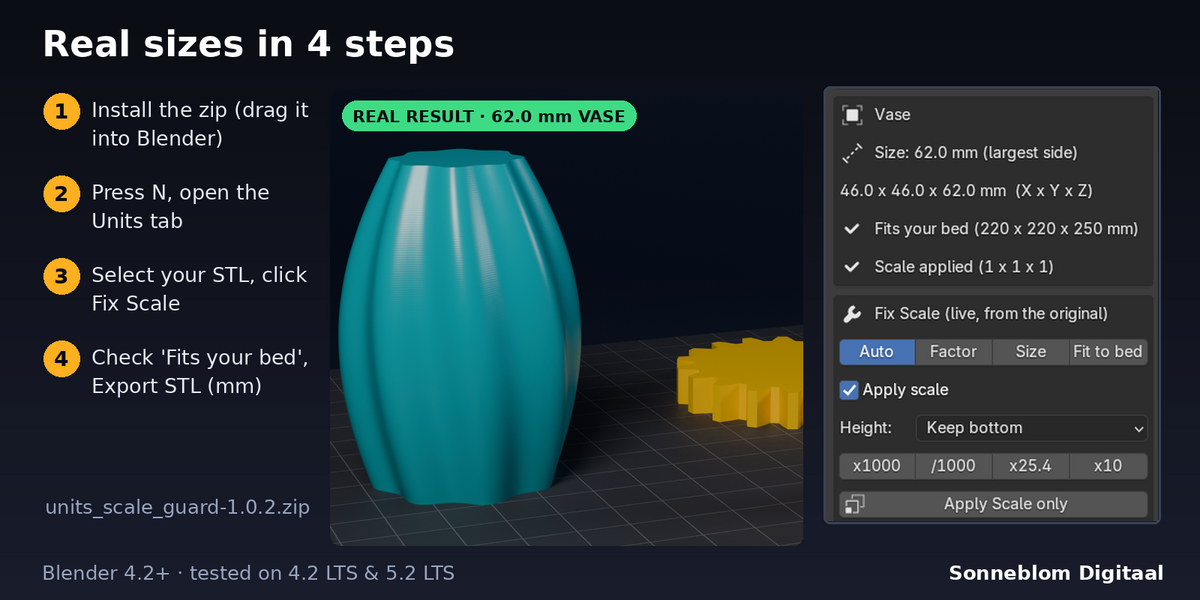
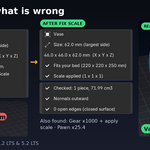
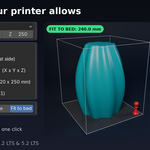
- Look: select a part. The panel shows its largest side and X x Y x Z in mm as your slicer will read them, whether it fits your bed, and its scale state. Pick your printer under Scene.
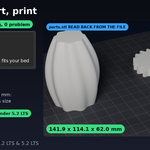
- Audit: select the parts you will export and click Audit Selected (nothing selected = all visible meshes) or Audit All. Each part gets OK, a warning or a problem, with the reason and a fix button. If you move or change a part afterwards the panel says "Changed since the audit".
- Set Up mm Scene (once per file): Blender then shows millimetres everywhere, so what you see is what prints. Revert puts the old units back.
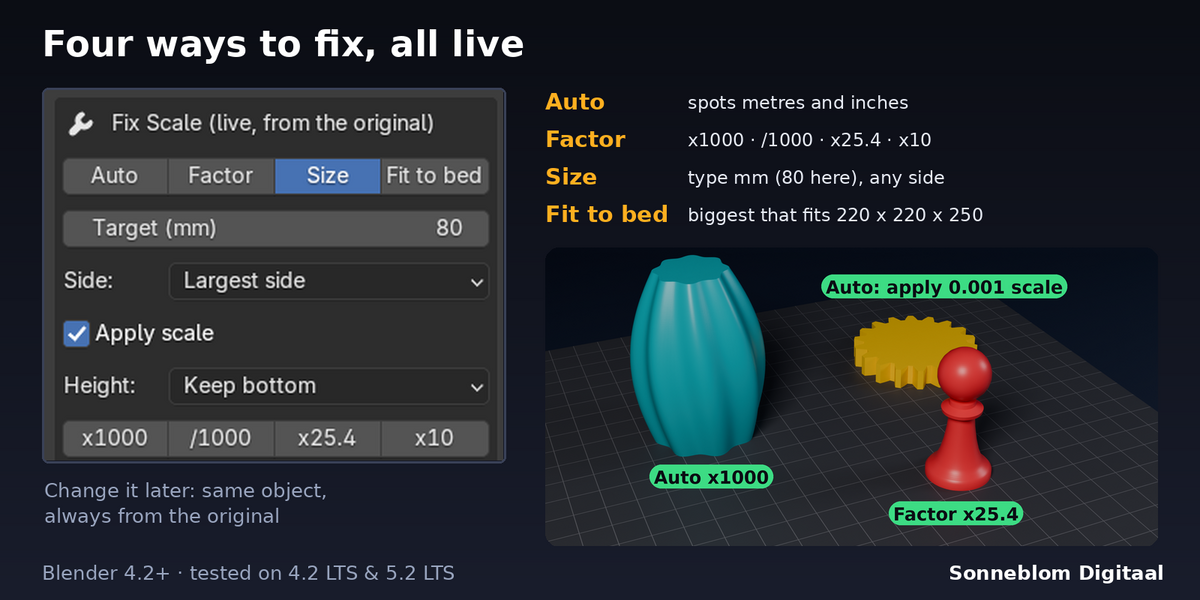
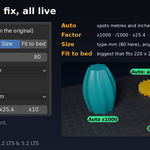
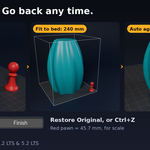
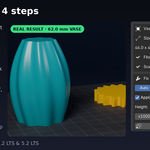
- Fix Scale: with the parts selected, choose Auto (default), Factor, Target size or Fit to bed and click Fix Scale (the panel shows what it will give before you click), or use a fix button in the audit. The quick buttons x1000, /1000, x25.4, x10 and Apply Scale only work the same way.
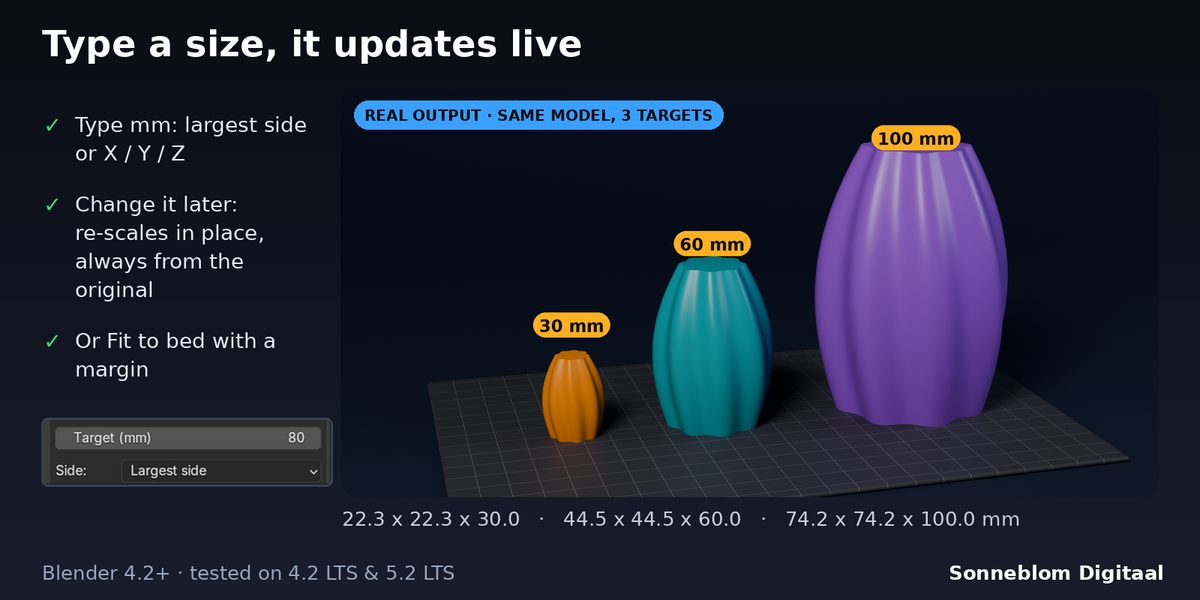
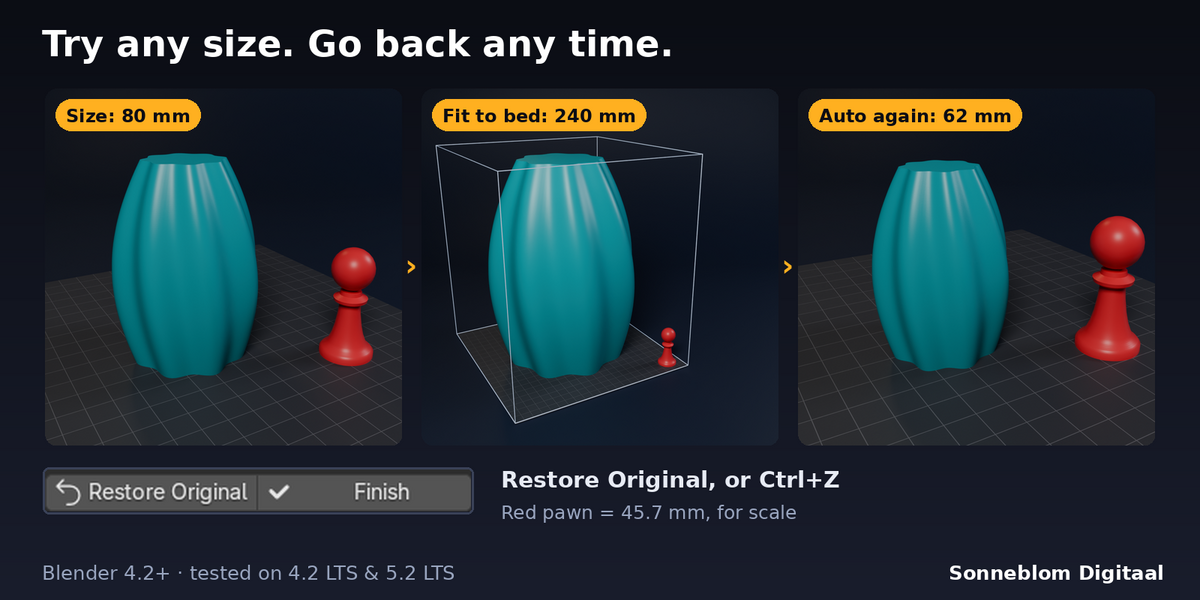
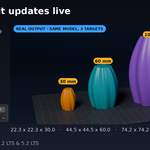
- Adjust live: the fixed object's settings stay in the panel. Change the mode, factor, target, side, Apply scale or Height and the same object updates in place from the original. F9 also works right after clicking.
- Restore Original puts the mesh, scale and position back exactly; Finish keeps the result and forgets the original (do this before editing the mesh by hand).
- Export STL (mm): choose a file. The audit runs first; on a problem nothing is written and the reason is shown (tick Export anyway to override). The report and the panel show the size read back from the written file.
Settings
| Setting | Default | What it does |
|---|---|---|
| 1 Blender unit = | 1 mm (slicer) | How every size is read. 1 mm = what a slicer reads from an STL. Also 1 cm, 1 m, 1 inch, Scene units. |
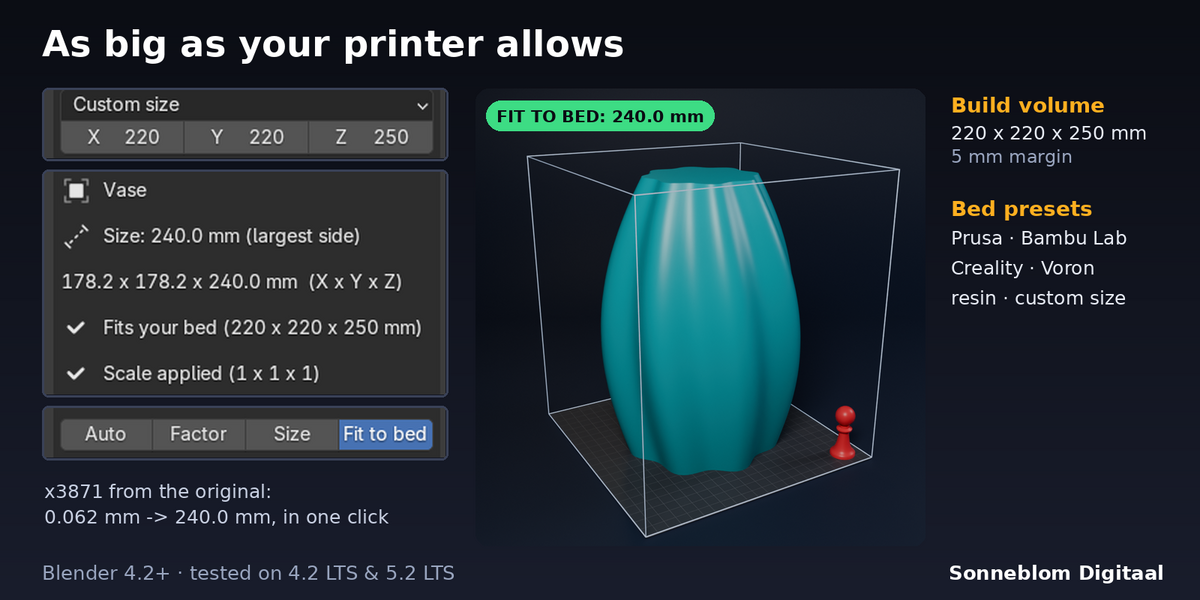
| Printer | Custom size | 10 presets (Ender-3, K1, Prusa MK4 / MINI / XL, Bambu X1 / P1 / A1, A1 mini, Neptune 4, Voron 350, resin). |
| Bed X / Y / Z (mm) | 220 / 220 / 250 | Your build volume, used for Fits your bed, the audit and Fit to bed. |
| Fix | Auto | Auto, Factor, Target size or Fit to bed. |
| Factor | 1.0 | Multiplies the ORIGINAL size (buttons x1000, /1000, x25.4, x10). |
| Target (mm) / Side | 50.0 / Largest side | Exact size of one side: largest side, X, Y or Z (height). |
| Apply scale | On | Bake the scale into the mesh (scale 1 x 1 x 1, normals kept outward). Off: set the object scale. |
| Height | Keep bottom | Keep bottom, Around origin, or Drop onto bed (Z = 0). |
| Smallest sensible size (mm) | 2.0 | Below this a part is flagged too small (Limits sub-panel). |
| Fit margin (mm) | 5.0 | Space kept free on every side by Fit to bed (Limits sub-panel). |
| Export: Selection only / Apply modifiers / Export anyway | On / On / Off | Options of Export STL (mm) in its file browser and F9. |
Tips
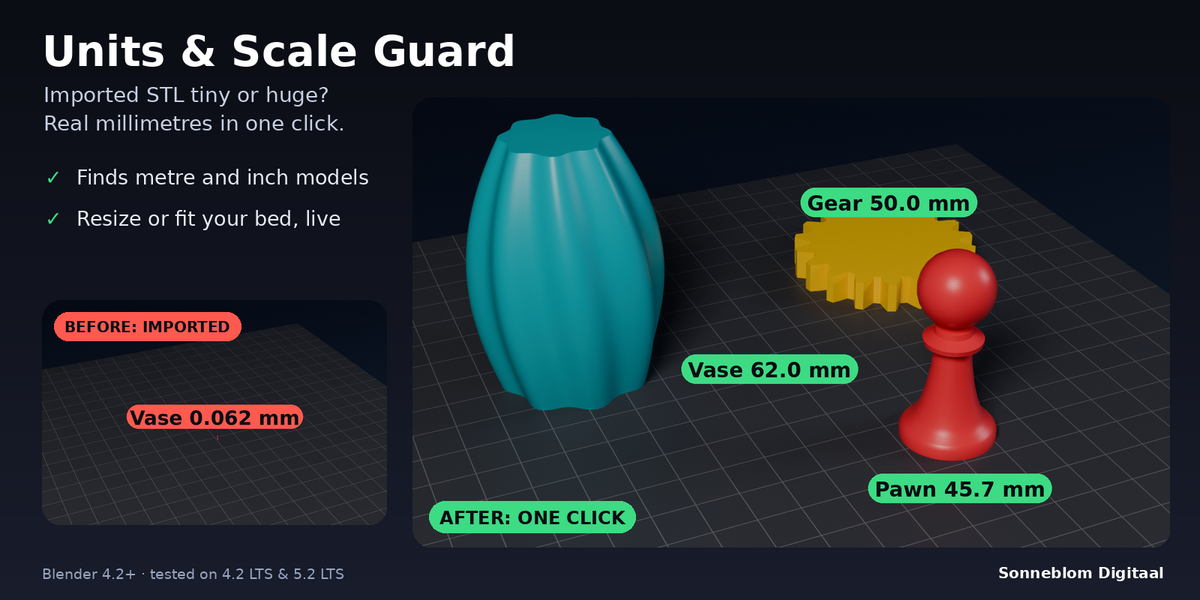
- Imported an STL and it is a speck? Select it, Fix Scale (Auto): x1000. An inch model that reads 1.8 mm gets x25.4.
- Want an exact height? Fix: Target size, Side: Z (height), type the mm value; change it as often as you like, it is never cumulative.
- Blender's own File > Export > STL with "Scene Unit" ticked in a mm scene writes metres: the file is 1000x too small. Leave it unticked, or use Export STL (mm) here.
- The audit's "Mixed units" line catches one part that is about 25.4x, 100x or 1000x off from the others.
Limits
- Auto only fixes what the size makes clear (below 2 mm, or over 1 m and too big for the bed); set Factor or Target size for anything else.
- Objects scale around their own origin in X and Y; Height decides Z.
- Apply scale is refused on meshes shared by linked duplicates and on meshes with shape keys (untick Apply scale instead). Curves and text are reported, not changed: convert them to a mesh first.
- Export writes one binary STL. Leave Edit Mode before fixing or exporting.
Licence
GPL-3.0-or-later. Made by Sonneblom Digitaal.
Have questions about this product?
Login to message
| Blender Extension Compatible | Yes |
| Published | 1 day ago |
| Blender Version | 4.2 - 5.2 |
| Extension Type | Add-on |
| License | GPL |
Discover more products like this
millimeters scale 3d printing Export units slicer apply scale STL