Units & Scale Guard
 Sonneblom Digitaal
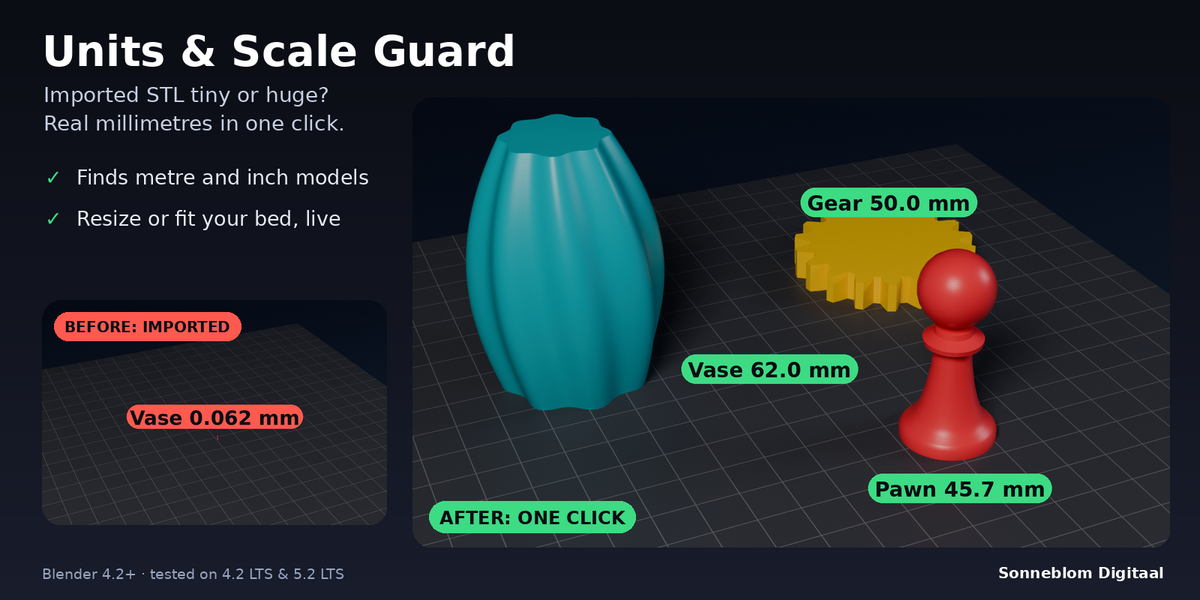
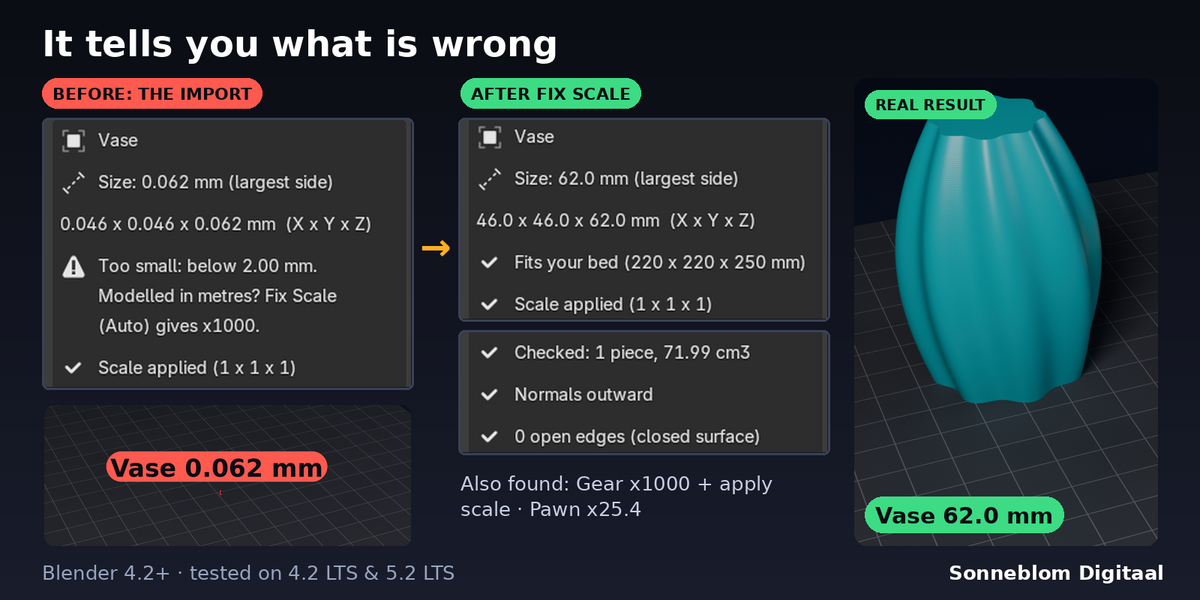
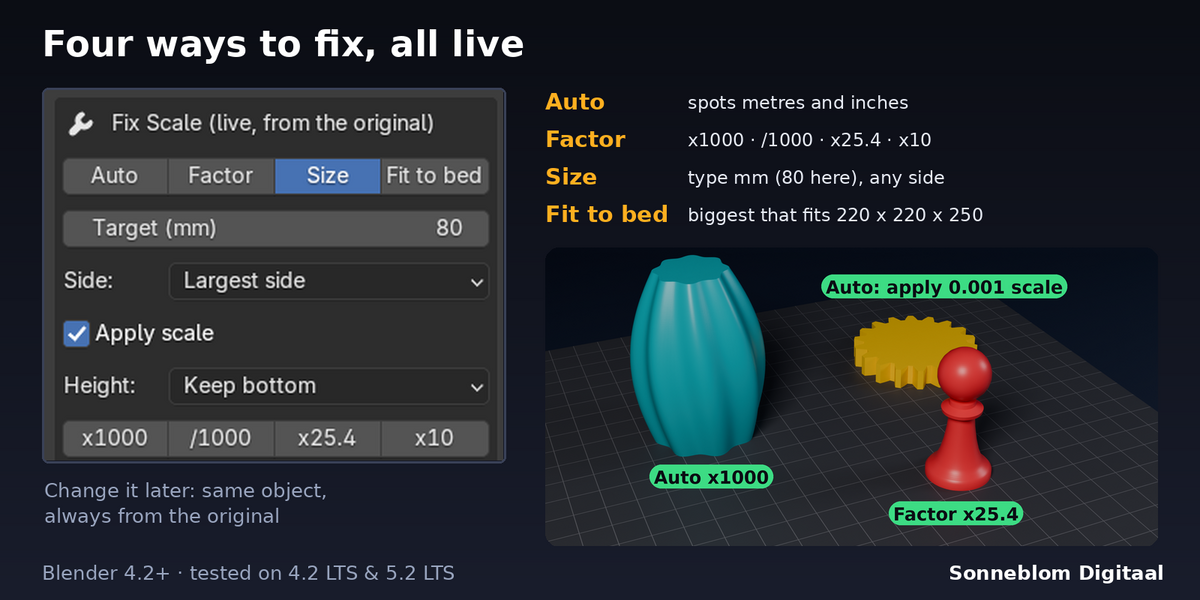
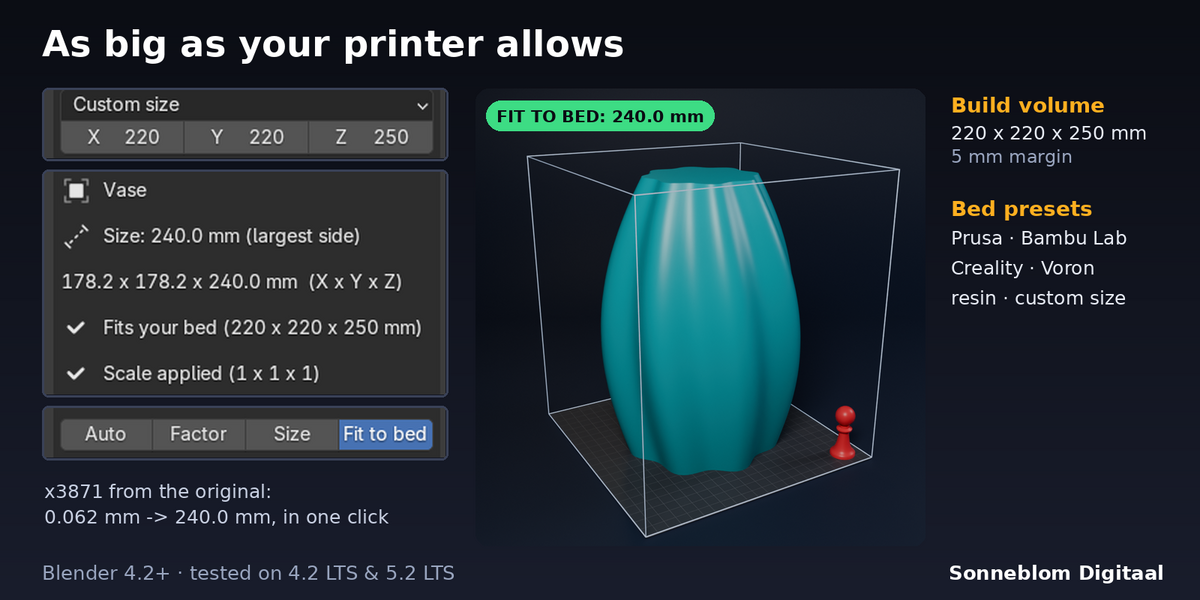
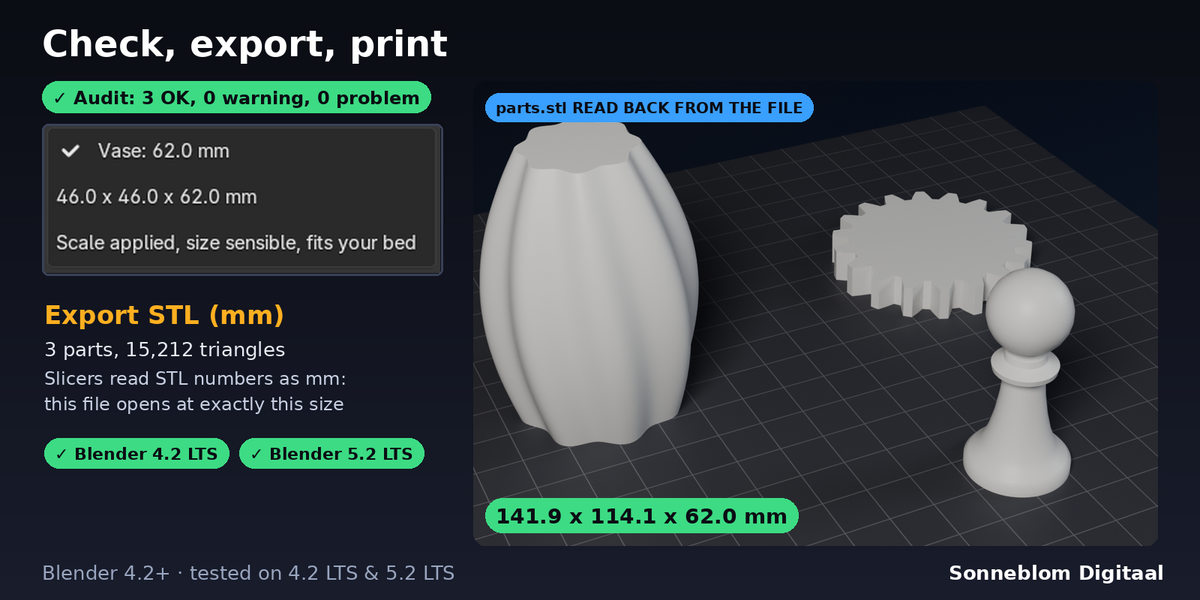
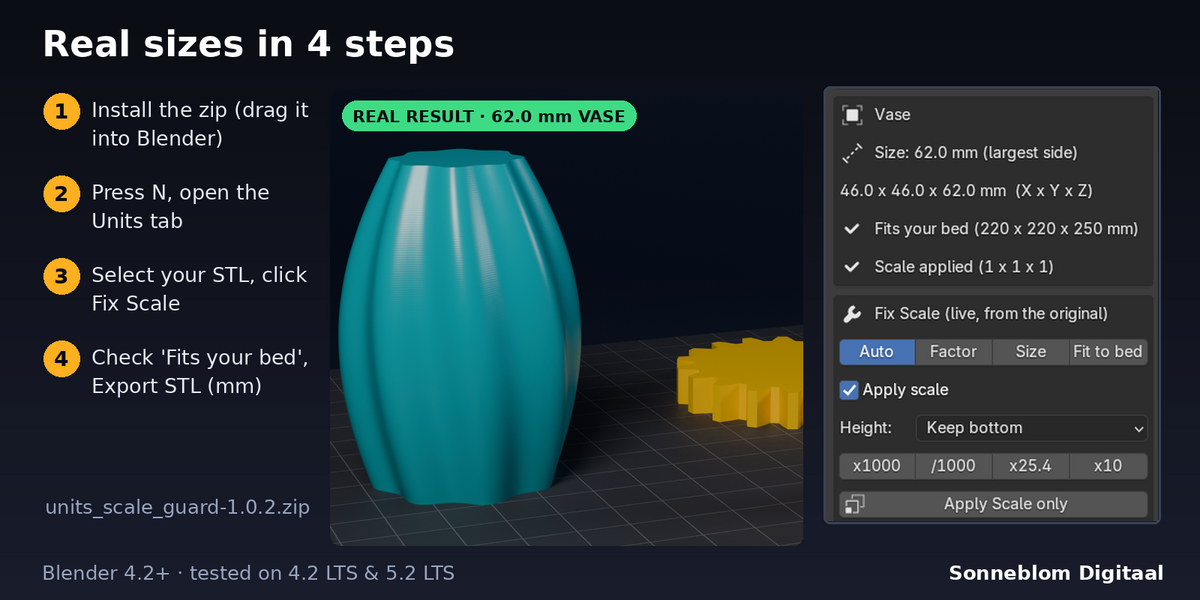
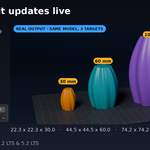
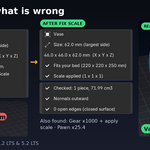
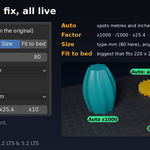
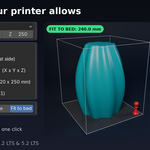
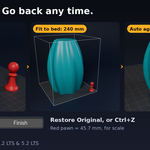
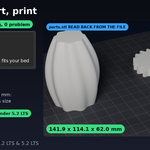
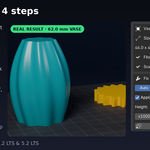
STL files have no units and slicers read the numbers as millimetres. A part modelled in Blender's default scene (1 unit = 1 m) is written as 0.05 instead of 50, and ticking Scene Unit on export in a mm scene does the same. The panel shows the size your slicer will see, the audit flags it and Fix Scale (Auto) multiplies by 1000.
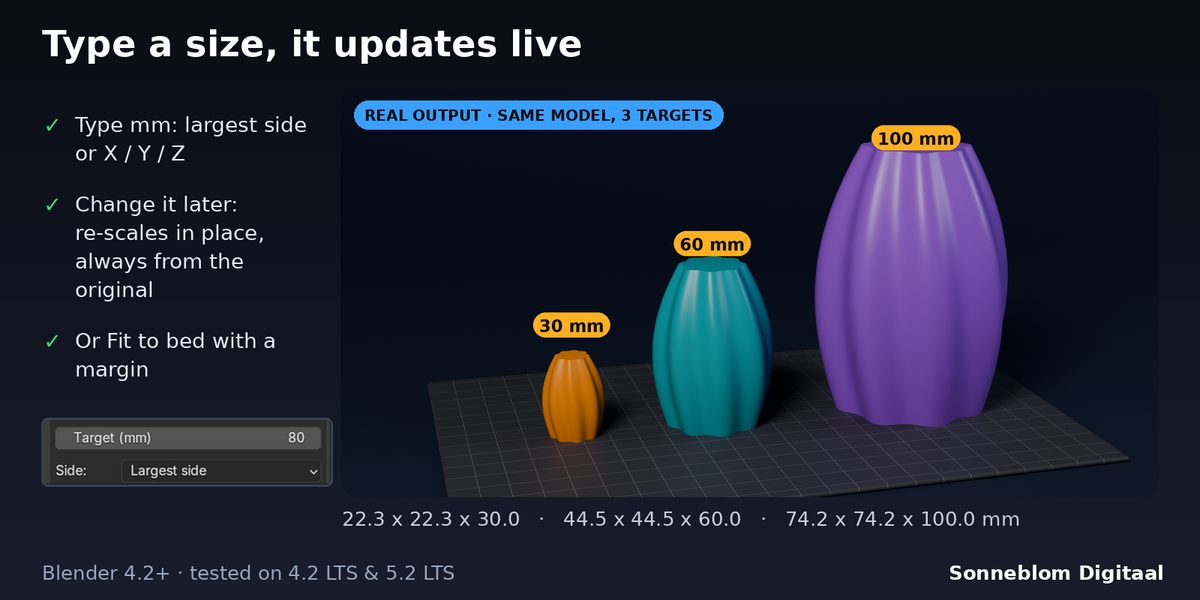
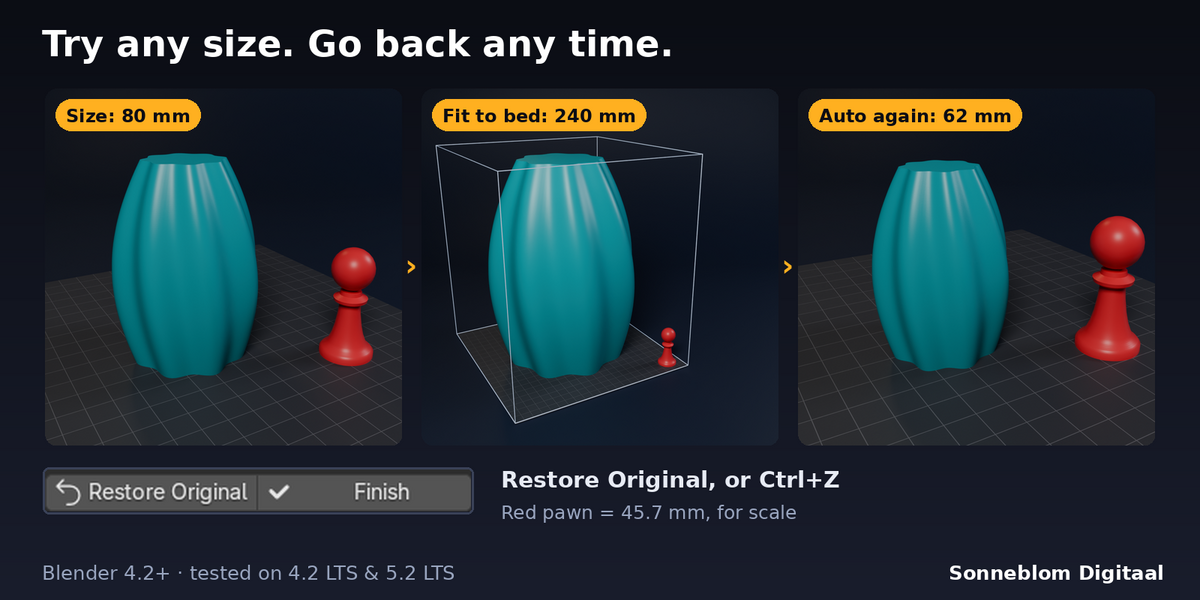
Only when you want it to. The original is stored; every change re-scales from it (never cumulative), Restore Original puts the mesh, scale and position back exactly, and Ctrl+Z works. Click Finish to keep the result and drop the stored original.
Yes. Auto reads a part that is below 2 mm but would not fit your bed at x1000 as inches and multiplies by 25.4; otherwise click the x25.4 button. Every number in the panel is in mm.
No, but it helps: Set Up mm Scene makes Blender show the sizes your slicer will see. The add-on reads sizes with its own '1 Blender unit =' setting (1 mm by default) either way, and Revert puts your old units back.
Yes: Fix: Target size, Side: Z (height), 120. The size is measured on the final mesh with modifiers, and you can change the value live afterwards.
Mirrored (negative) scale is applied with the normals kept outward, checked in the panel and in the exported STL. Zero scale is reported with the axis (or the parent) that causes it: set the scale back and click again; nothing is changed until then.
Export STL (mm) is the built-in checked path. After Fix Scale the mesh itself is in millimetres with scale 1, so any exporter at scale 1.0 (without Scene Unit) writes the right size too.
Have questions about this product?
Login to message
| Blender Extension Compatible | Yes |
| Published | 1 day ago |
| Blender Version | 4.2 - 5.2 |
| Extension Type | Add-on |
| License | GPL |
Discover more products like this
apply scale 3d printing Export units scale slicer millimeters STL