Unreal Engine Bridge
 Tachyon Studio
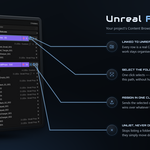
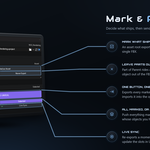
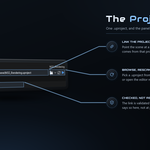
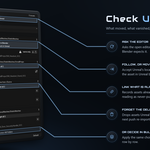
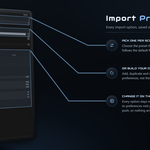
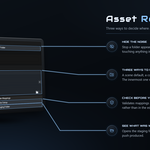
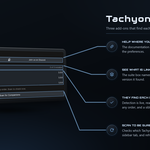
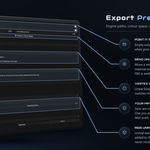
Unreal Bridge
Blender 3.3 – 5.2 · Unreal Engine 5.2 – 5.8 · Windows
Mirror your Unreal project's real folder tree inside Blender, mark what is an asset, and push it into the open editor — with collision, sockets, LODs and naming already applied.
| Item | Detail |
|---|---|
| Version | 1.0.0 |
| Blender | 3.3 – 5.2, one package for all of them — extension or classic add-on, the same folder works as both |
| Unreal Engine | 5.2 – 5.8, with the Python Editor Script Plugin and Remote Execution enabled in the project — a free download from Epic Games, not included |
| Platform | Windows only — macOS and Linux are not supported |
| Licence | GPL-3.0-or-later |
Prefer to watch? The whole pipeline is covered in a short video series — install and setup, folders, pushing, Live Sync, collision and LODs, skeletal meshes, and the rest: the full series on YouTube.
What this add-on does

Unreal Bridge is a one-way Blender → Unreal asset pipeline with a memory. You mark objects as asset roots, drop them into your Unreal project's own Content Browser folders — mirrored inside Blender — and press one button: the add-on exports FBX to a staging mirror and imports it into the running editor over Epic's own Python Remote Execution.
The memory is the part that matters day to day. Every pushed asset is recorded with a content hash, so:
- unchanged assets are skipped on the next push,
- the panel tells you which assets are new, edited, or already in Unreal,
- and Check Unreal can ask the live editor whether anything was moved or deleted behind your back.
It is the bridge only. It does not modify your Blender objects — every export happens on throwaway duplicates.
Your Unreal folders, mirrored in Blender
This is the part that changes how the day feels, so it is worth understanding first.
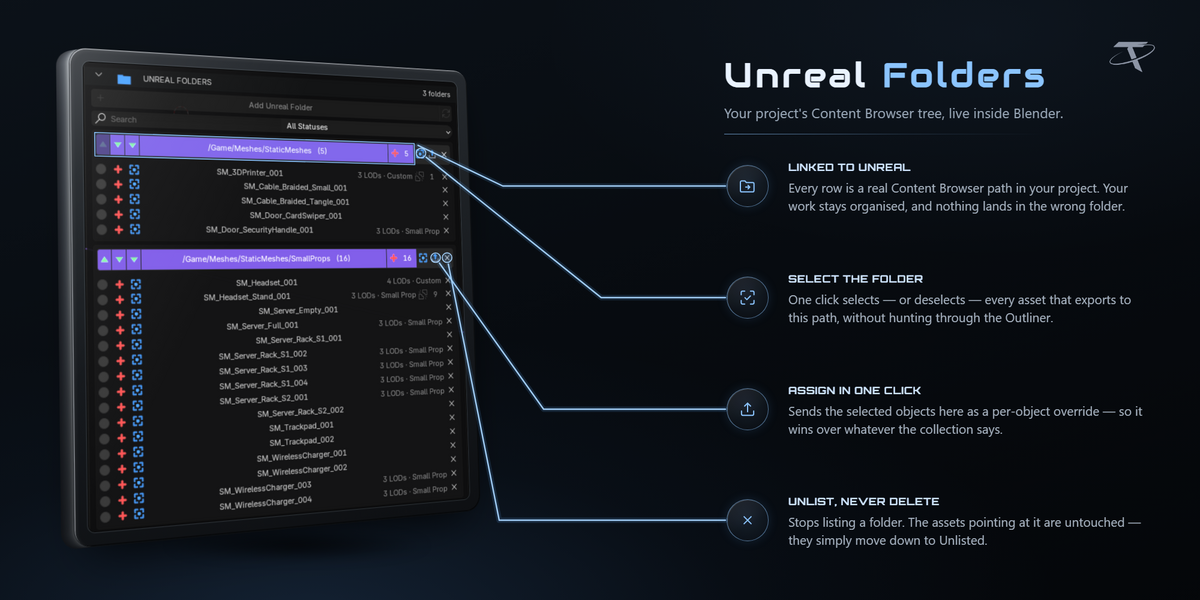

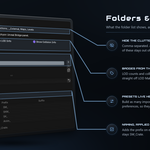
The panel shows your project's real Content Browser tree. Not a list you typed out and have to keep in sync — the actual folders, read from the .uproject on disk. /Game/Props/Electronics is there because it is there in Unreal.
Because it is read from disk rather than asked of the editor, it works with Unreal closed. You can link a project, browse its whole folder tree, and decide where every asset belongs without launching the engine at all.
Assign once and assets land in the right folder from the very first push. No import dialog. No dropping everything into /Game and dragging it into place afterwards. No renaming a folder in Unreal and then hunting for what you exported into the old one.
| How a destination is decided | |
|---|---|
| Per object | An override on one asset, for the exceptions |
| Per collection | The usual case — a collection maps to a folder and everything in it follows, including nested collections, innermost first |
| Scene default | The fallback underneath, /Game unless you change it |
Every path is forced under /Game, so a typo can never target /Engine or another mount.
The picker is the project tree itself: indented, collapsible, with a search that reaches inside collapsed branches so you do not have to remember where something lives. Need a folder that does not exist yet? Type it as a new subfolder and Unreal creates it on the next import.
And because the mapping is remembered rather than retyped, reorganising in Blender reorganises Unreal. Move an asset into a different collection and the next push offers to move it in Unreal — keeping its references, its history and everything pointing at it — instead of importing a second copy somewhere else. Your Blender scene becomes the place you organise from, and the project follows.
Installing
- Blender → Edit ▸ Preferences ▸ Add-ons ▸ Install from Disk.
- Pick the
tachyon_unreal_linkzip. - Enable Unreal Bridge.
- A welcome dialog appears once per install and points you at the three first steps.
The panel is in the 3D Viewport sidebar: press N, then the Unreal Bridge tab. You can rename that tab in the add-on preferences.
The Unreal Engine side

The add-on talks to a running editor. Three things have to be switched on in the project, once:
| Requirement | Where |
|---|---|
| Python Editor Script Plugin | Edit ▸ Plugins |
| Editor Scripting Utilities | Edit ▸ Plugins |
| Remote Execution | Project Settings ▸ Plugins ▸ Python |
Then restart the editor once, and keep the project open while pushing.
Do It For Me
You do not have to do any of that by hand. As soon as a valid .uproject is linked, the panel audits those three settings by reading the project files, and offers a Do It For Me button if anything is missing. It edits .uproject and Config/DefaultEngine.ini, copying each original to *.tul-backup first and preserving the file's existing line endings so source control does not churn.
If the editor was open while it ran, the panel shows Restart Unreal to finish — the running editor still holds the old settings.
Firewall
On the first push, Windows asks whether to allow Blender through the firewall. Say yes. The traffic is UDP 6766 for discovery and TCP 6776 for commands, on localhost only. Nothing leaves your machine.
Linking your project
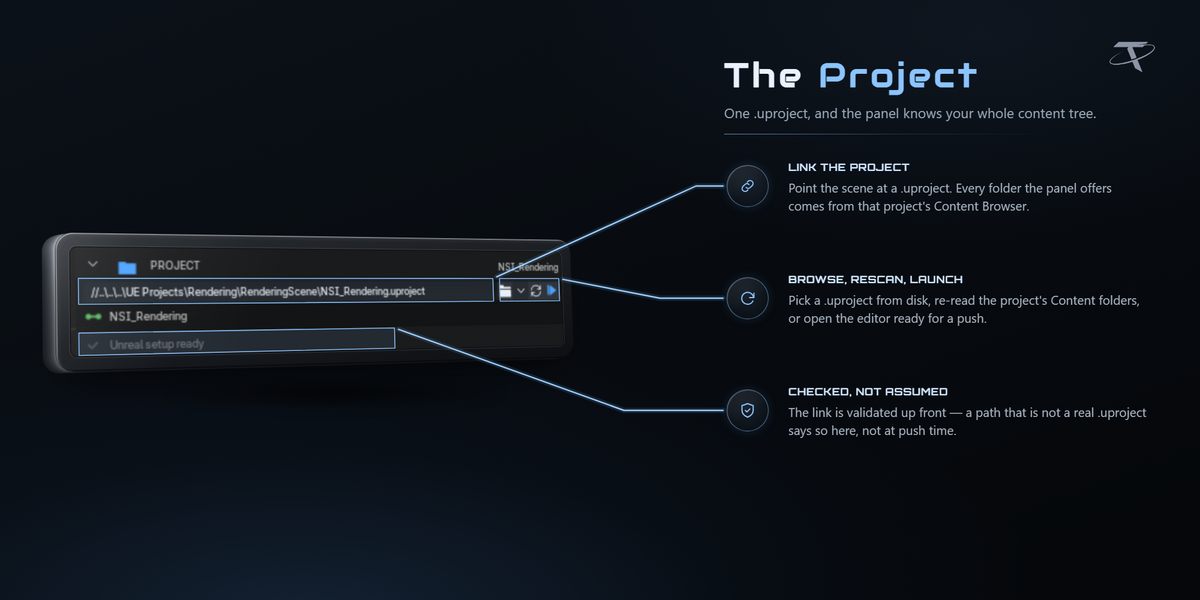
At the top of the panel, the PROJECT section:
| Control | What it does |
|---|---|
.uproject file field |
Links the scene to a project. The path must end in .uproject and exist, or the panel says Not a valid .uproject
|
| Dropdown | Your ten most recent projects, by name |
| Refresh | Rescans the project's Content folders and reports how many it found |
| Launch | Opens the project in Unreal. It shows the engine it resolved, warns if an editor is already open, and launches detached so the editor outlives Blender |
The Unreal install itself is auto-detected: the .uproject's engine association first, then Epic launcher folders and a few common custom roots. If yours is somewhere unusual, set Unreal Engine Root in the add-on preferences — either the install folder or the path to UnrealEditor.exe.
Moving an asset to another folder
Reorganise in Blender — drag an asset into a different collection, or point its override somewhere new — and the next push notices that the asset is already in Unreal, just not where Blender now says it belongs. It asks before doing anything:
| Answer | What happens |
|---|---|
| Move them in Unreal (default) | The existing asset is moved to the new folder. It keeps its references, its history and everything pointing at it, and nothing is duplicated |
| Import as new assets | A second asset is imported at the new path and the original is left where it is |
Until you answer, the asset does not pretend to be in sync. It reads Moved in Blender in the Folders list — amber, its own glyph — so a folder you reorganised does not quietly look finished.
It only asks when it is sure: the push record remembers which Blender object produced each asset, so "same object, different destination" is a fact rather than a guess. If the record cannot pin the asset down to exactly one previous path, nothing is moved and it imports normally — importing a duplicate is a nuisance, while moving the wrong asset in someone's project is not.
If you always want the same answer, Preferences ▸ Asset Moved to Another Folder makes it standing. It ships as Ask every time on purpose: both answers are reasonable, and which one is right depends on why the asset moved.
Live Sync never answers this for you. A folder change is a question, not an edit, so Live Sync leaves those assets alone and tells you to push by hand and choose.
Changing to a different project
Folder mappings are written in one project's vocabulary: /Game/Props means a folder that exists over there. Link a different .uproject and every mapping is a claim about a project that never made it — nothing errors, and the next push quietly builds a copy of the old project's folder tree inside the new one.
So the add-on notices, and asks:
| Answer | What happens |
|---|---|
| Keep them | Every mapping stays. The same paths are used in the new project and created there on the next push — right when you are deliberately keeping two projects parallel |
| Start fresh | The folder list, per-asset destinations, collection mappings, hidden folders and the scene default are all cleared |
Start fresh does not unmark anything. What is an Asset stays an Asset — that is a fact about your objects, not about the project they were last sent to. Only where things get sent is cleared, so you never have to re-mark a scene to change project.
A scene with no mappings is never interrupted, and re-picking the same project asks nothing. You can also clear the mappings deliberately at any time with Clear Folder Mappings in the ADVANCED section.
Your first push
-
Link the
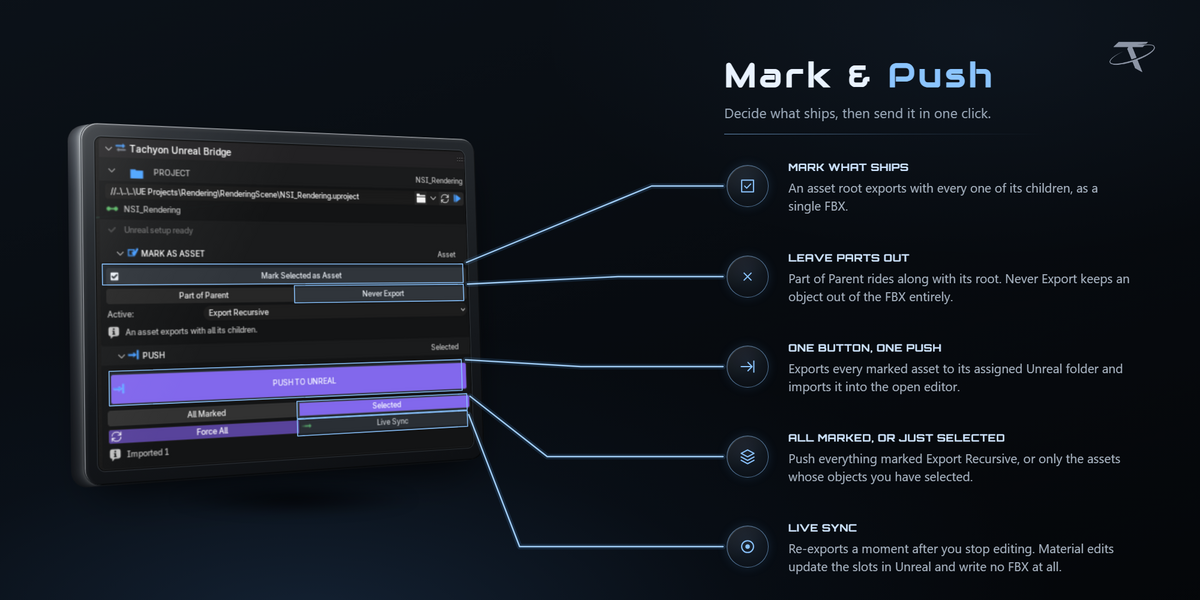
.uproject. - Select your object(s) and press Mark Selected as Asset. That object is now an asset root: it and all its children export as one FBX.
- Add Unreal Folder, pick a folder from the project tree (or type a new subfolder name), then select the asset and press the folder row's assign button.
- PUSH TO UNREAL.
With Unreal closed, Push still works — it writes the FBX and manifest to the staging mirror and tells you "Exported N to staging". The next push with the editor open imports them. Re-pushing is always safe.
The panel, section by section
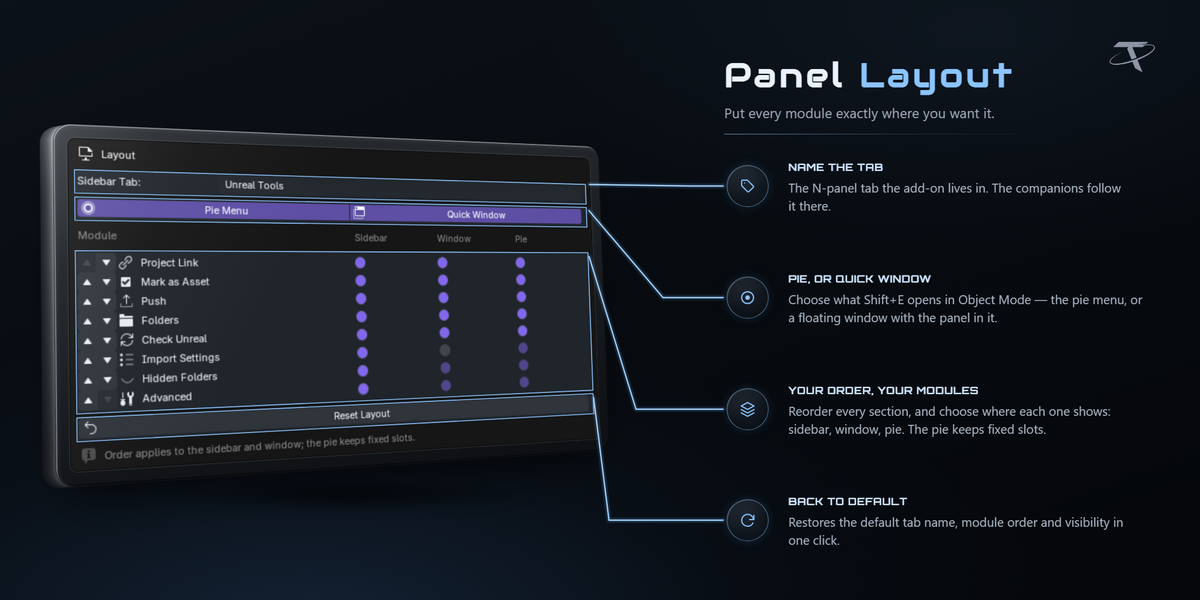

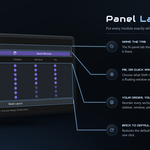
Fresh out of the box the sections appear in this order. Every one of them can be reordered, or hidden from the sidebar, the pie menu and the quick window independently, in Preferences ▸ Layout.
PROJECT
The .uproject picker and the Unreal-setup audit described above. The header shows the linked project's name when collapsed, or not linked.
MARK AS ASSET
Nothing exports until it is marked. Three buttons apply to everything selected:
| Button | Meaning |
|---|---|
| Mark Selected as Asset | This object is an asset root — it and all its children export as one FBX |
| Part of Parent | The default. Exported only because a marked parent includes it |
| Never Export | Excluded, even under a marked parent |
The Active dropdown below changes only the active object. The header summary shows the active object's state: Asset, Part of Parent or Never.
PUSH
| Control | What it does |
|---|---|
| PUSH TO UNREAL | Exports and imports. Disabled until a project is linked, and only available in Object Mode |
| All Marked / Selected | Push scope. Selected is generous: selecting any child of an asset — or one of its LODs or collision shapes — counts as selecting the asset |
| Force All | Ignores the unchanged-skip and reimports everything |
| Live Sync | See below |
With Live Sync on, two more toggles appear: Smart (send only what the edit touched) and Badge (the viewport readout).
The last line of the section is the report from the most recent push.
FOLDERS
The heart of the panel, in two collapsible parts.
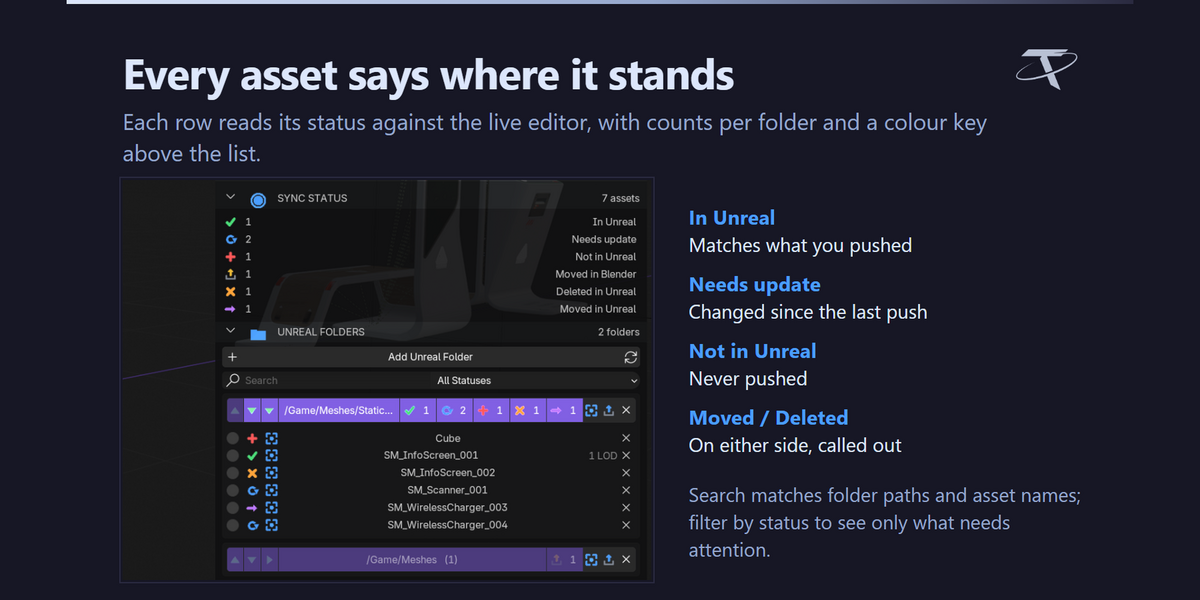
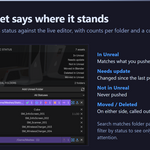
SYNC STATUS is the key: one row per state, with its glyph, colour and how many assets are in it. Deleted in Unreal and Moved in Unreal stay hidden until a Check Unreal scan has actually produced one.
UNREAL FOLDERS is the list itself:
| Control | What it does |
|---|---|
| Add Unreal Folder | Opens the folder picker — the project's real tree, indented and collapsible, with a search that reaches inside collapsed branches, plus a New Subfolder field for a folder Unreal will create on import |
| Refresh | Force-rescans the project from disk |
| Search | Matches folder paths and asset names |
| Status filter | Narrows the list to one sync state |
Both filters reset when you reopen the file, deliberately — a filter remembered into the next session would silently hide assets.
Each folder is one row. Registered folders are tinted green; folders that assets merely resolved into but which are not on your list are grey and marked as unlisted. On the row:
| Widget | What it does |
|---|---|
| Up / Down | Reorders the list. Moving an unlisted folder adopts the visible list so it can be ordered |
| Caret / name | Expands the folder to show its assets. Under a filter the count reads shown / total |
| Status counts | Clicking any count also opens the folder |
| Select | Selects every asset in the folder. Shift-click extends the selection |
| Assign | Sends the currently selected assets to this folder |
| ✕ / ✚ | Removes the folder from the list, or registers an unlisted one. Removing a folder never touches the assets — they just show as unlisted |
Expanding a folder lists its assets. The checkbox on each row is the viewport selection, in both directions: tick a row and the object is selected; select in the viewport and the row ticks. Drag down a column to range-select. Clicking the name jumps to the asset — deselect all, select the whole hierarchy, frame it — and shift-clicking adds to the selection without reframing. Each row can also show a LOD badge, a collision badge, and the status in words.
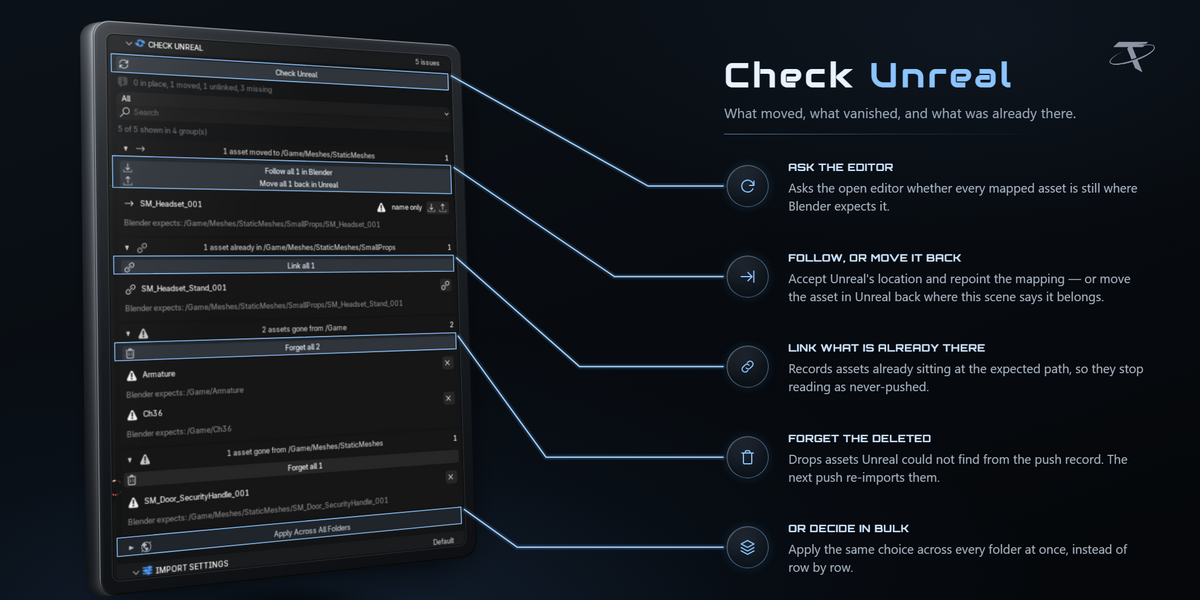
CHECK UNREAL
Asks the open editor where every mapped asset actually is. Covered in its own section below.
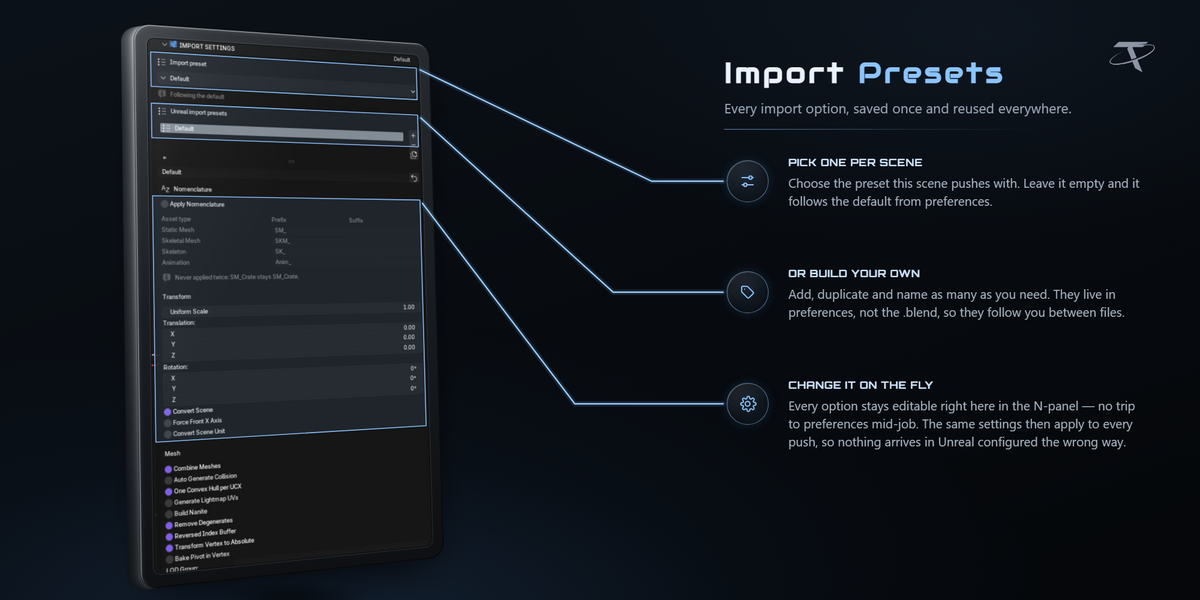
IMPORT SETTINGS
Which import preset this scene uses, and the full preset editor — the same editor as in Preferences, so the two can never drift apart. A scene stores only the preset's name, so presets follow you from project to project.
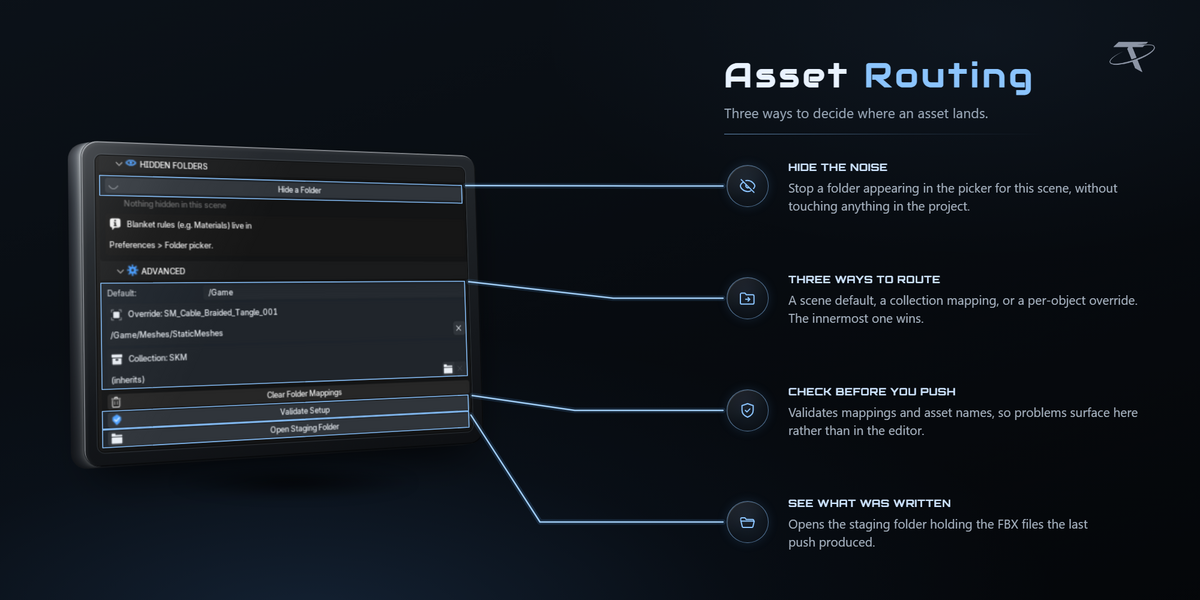
HIDDEN FOLDERS
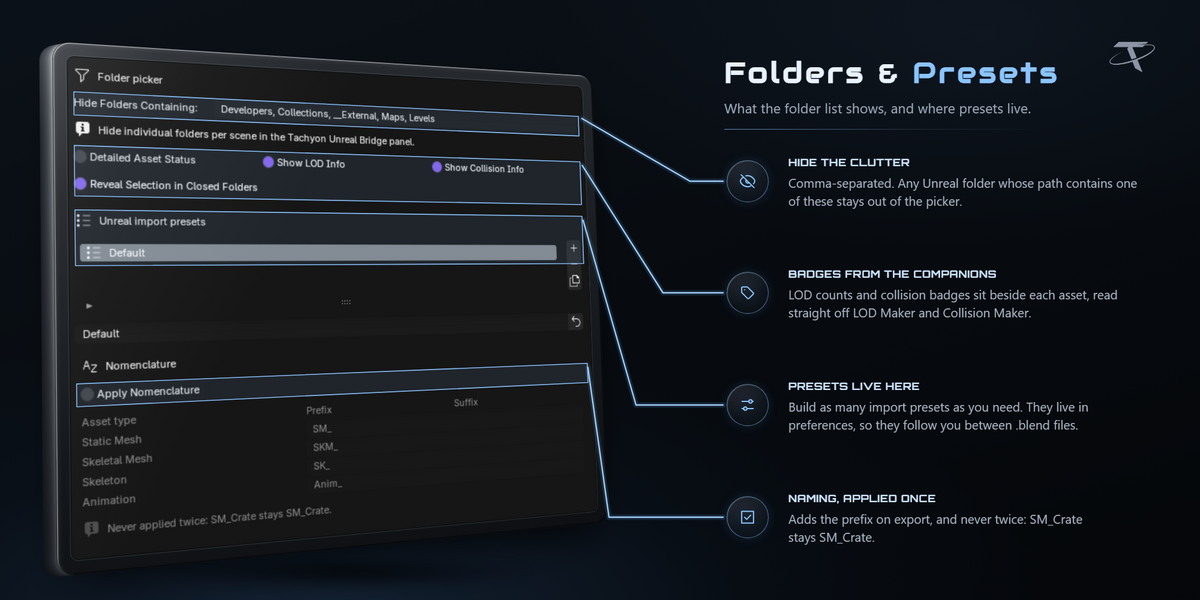
Hides individual folders from this scene's folder list, by exact path. For blanket rules across all scenes — hiding everything containing Materials, say — use Preferences ▸ Folder picker.
ADVANCED
| Control | What it does |
|---|---|
| Default | The scene's last-resort destination, /Game unless you change it |
| Object override | Shows the active asset's per-object destination, with an ✕ to clear it |
| Collection | Shows and sets the active collection's Unreal folder |
| Validate Setup | Reports every problem it can find before you push: no project, nothing marked, two assets heading for the same destination, folders that do not exist yet |
| Open Staging Folder | Opens the staging mirror in Explorer |
Sync status: the six words
| Panel label | What it means | What to do |
|---|---|---|
| In Unreal | Pushed, and untouched since | Nothing |
| Needs update | Pushed, but edited since | Push |
| Not in Unreal | No push record on this machine | Push — or run Check Unreal, which may find it already there and let you adopt it |
| Deleted in Unreal | A scan says it is gone despite the record | Forget it, then push |
| Moved in Blender | You re-pointed it at another folder. It is still in Unreal at the path it had before, and Unreal has not been told | Push and choose, or resolve it in Check Unreal |
| Moved in Unreal | A scan found it somewhere else | Follow it, move it back, or disambiguate |
Moved in Blender is worked out locally, from the push record alone — no scan needed. The last two come only from a Check Unreal scan, which is why the key hides all three until there is one to show.
The distinction matters: an asset you re-pointed is not a new asset. Reading it as Not in Unreal is what would have you push a second copy.
Check Unreal

Reconciliation asks the live editor about every mapped asset and reports one of four problems. Nothing is ever resolved automatically.
| Verdict | What it means | What you can do |
|---|---|---|
| Moved | Gone from the expected path, found elsewhere | Follow in Blender repoints the mapping (registering the new folder if needed); Move in Unreal moves the asset back |
| Unlinked | Sitting at exactly the expected path, but with no push record — this is what makes an asset read as Not in Unreal while it is plainly visible in the Content Browser | Link to this asset adopts it, after a confirmation |
| Missing | Not found anywhere in the project | Forget it drops the record so the next push re-imports it |
| Ambiguous | Several assets share the name and none matched by hash | Rename or move one in Unreal, then check again — this is the one status you must resolve inside Unreal |
A moved asset is matched by its TulContentHash tag where possible, and each problem box says which evidence it rests on: Matched by content hash, or Matched by name only — check it is the same asset. Asset names are not unique in a real project, so a name-only match is shown for you to look at rather than acted on silently.
Results are grouped, not listed
Reorganise a project and a scan reports one row per asset — but a few hundred rows are rarely a few hundred decisions. They are usually one decision ("everything that was in /Game/Meshes is now in /Game/Props") repeated. So the panel folds the rows into groups: one per verdict, per folder that verdict is about.
Each group is a collapsible header — 200 assets moved to /Game/Props — carrying the buttons that settle it for the whole group at once: Follow all N in Blender and Move all N back in Unreal for moves, Link all N, Forget all N. When a group of moves mixes evidence it also offers Follow only the N confirmed, leaving the name-only matches for your eyes.
Moved assets group by where Unreal has them, not where Blender expected them — a single reorganisation drawn as one group rather than scattered across every folder it came from.
The buttons stay on the header whether the group is open or shut, so a group of two hundred can be settled without unrolling it. Groups of six or fewer open on their own; anything larger starts collapsed, listing twenty rows with a Show N more at the end. Every row keeps its own individual buttons — a bulk decision is offered, never forced.
Ambiguous results get no bulk button. Several assets share a name and none matched by hash, so choosing one for you would be a guess, not a shortcut.
Every bulk button asks first, in a dialog naming how many assets it covers, which folder, and what will actually happen — including that undoing a Move in Unreal does not reach the editor.
By default, opening a .blend runs a quiet scan in the background so the panel is honest the moment you look at it. It publishes verdicts only; it never adopts anything into the push record on its own, and it says nothing when the editor simply is not open. Turn it off with Check on file open in preferences.
Live Sync

Toggle Live Sync and edits send themselves. The add-on watches the depsgraph, waits for the quiet interval (1 second by default), and syncs everything that changed — but only in Object Mode, and only one round trip at a time. Anything you edit while one is in flight goes into the next.
It is smart about what it sends
| What you changed | What gets sent |
|---|---|
| Geometry, or a transform | The asset is re-exported and re-imported — the full round trip |
| Only materials | Nothing is exported. The material slots are re-pointed inside the editor, and no FBX is written at all |
The reason the second row works is that the add-on never imports materials: it runs the importer with Import Materials off and matches each slot against materials already in your project. So the only thing a full re-import would change after a material edit is which project material each slot points at — and that is one call per slot, straight to the open editor.
The safety rail is the slot layout. If the number of slots no longer matches, the sections themselves changed and only a real import can fix that, so the asset drops back to a normal push automatically. The same happens if the asset has never been pushed, if it is a skeletal mesh, or if the editor cannot be reached — nothing is ever quietly skipped.
Turn it off with Smart next to the Live Sync toggle (or Smart Live Sync in preferences) and every edit re-exports the whole asset.
Two details worth knowing. Material tracking only runs while Live Sync is on: with it off, a colour tweak deep in a shader graph that Unreal never imports would flag the asset as Needs update and only a pointless full push could clear it. And opening a .blend reports every material in it as changed, so there is a short quiet window after a file load before Live Sync starts listening.
The badge
While Live Sync is running, a small readout sits in the bottom-left corner of the 3D viewport:
The bottom line is there the whole time it is watching; the top line flashes for a few seconds after each sync and then fades. Turn it off with Badge next to the Live Sync toggle, or Viewport Status Badge in preferences.
The panel's report line says the same thing in words: Live: sending 3 to Unreal…, Live: imported 3, Live: materials on 1 asset (no FBX), Live: staged (3) — editor closed.
Import presets
A preset is a named set of Unreal FBX import options, stored in preferences rather than in the .blend, so one set of presets follows you across every project. A scene picks one by name.
One preset covers every engine version: the common settings first, then a section for settings added in later engines, which older engines simply ignore. The add-on deliberately forces Unreal's legacy FBX importer with an explicit FbxImportUI rather than Interchange, so one preset behaves identically on 5.2 and on 5.8.
Sections: Transform, Mesh, Normals & Tangents, Material, Skeletal Mesh, Animation, and Added in Unreal 5.3.
Defaults worth knowing:
- Combine Meshes on — an asset arrives as one static mesh.
-

Auto Generate Collision off — your
UCX_/UBX_/USP_/UCP_shapes stay authoritative. - One Convex Hull per UCX on.
- Import Materials and Import Textures off, with material search set to All Assets — slot names match against materials already in the project instead of importing duplicates.
- Generate Lightmap UVs and Build Nanite off.
- LOD Group empty, which leaves Unreal's own default alone.
Nomenclature
Asset names are used as-is. An object called Crate_001 imports as Crate_001. Type prefixes (SM_, SKM_, SK_, Anim_) live in the preset's Nomenclature box and are off by default, because objects are usually already named to the convention and applying it regardless produced names like SM_SM_Crate. When enabled, a prefix is never applied twice.
Whatever the name, it is sanitised to [A-Za-z0-9_], given a leading underscore if it starts with a digit, and truncated to 96 characters.
Shortcuts and the quick window
Shift+E in Object Mode opens the pie menu (or the quick window — your choice in preferences). The binding is editable in Preferences ▸ Shortcuts, with a Restore button if it goes missing. It is bound to Object Mode only on purpose: Shift+E is Crease in Edit Mode.
The pie:
| Direction | Action |
|---|---|
| West | Mark as Asset, then straight into the folder menu |
| East | Push to Unreal |
| North-East | Push Selected |
| South | Folders and Assets window |
| North | Check Unreal |
| North-West | Add Folder |
| South-West | Open Unreal |
| South-East | Live Sync toggle |
The quick window (also under Object ▸ Unreal Bridge) is the panel's fast twin: mark, push, and the whole Folders UI in a floating popup with no OK button — every row acts on its own.
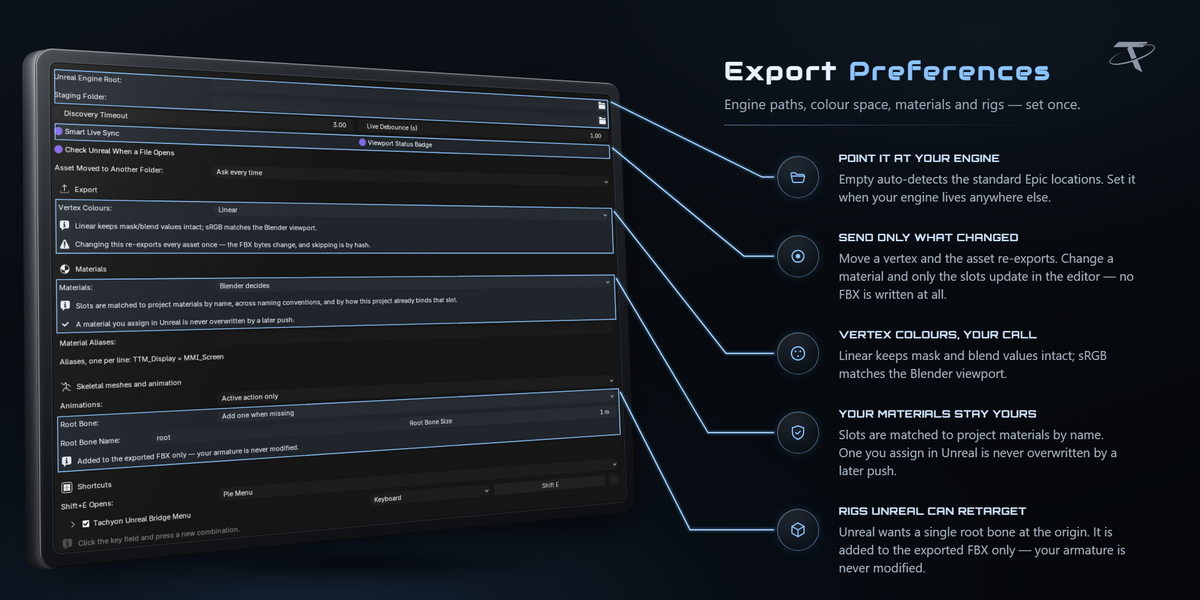
One thing to know: the pie's Push to Unreal and the window's EXPORT TO UNREAL always push All Marked, even when the sidebar scope is set to Selected. Only the sidebar's own PUSH button follows the scope toggle.
Preferences
| Setting | Default | What it controls |
|---|---|---|
| Unreal Engine Root | auto | Engine install folder, or the path to UnrealEditor.exe
|
| Staging folder | %LOCALAPPDATA%\TachyonUnrealLink\staging |
Where FBX files are written before import |
| Discovery timeout | 3.0 s | How long to wait for a running editor to answer |
| Live debounce | 1.0 s | Quiet time after an edit before Live Sync sends |
| Smart Live Sync | on | Send only what the edit touched — material edits skip the FBX entirely |
| Viewport Status Badge | on | The corner readout while Live Sync is running |
| Check on file open | on | Run a quiet Check Unreal when a .blend opens |
| Shift+E opens | Pie Menu | Pie menu or quick window |
| Sidebar tab name | Unreal Bridge | Renames the N-panel tab |
| Layout | all shown | Per-module order and visibility across sidebar, window and pie |
| Hide Folders Containing | Developers, Collections, __External, Maps, Levels |
Comma-separated substrings, matched anywhere in the path. Materials would also hide /Game/Props/Materials
|
| Show asset status / LOD info / collision info | off / on / on | Which badges appear on asset rows |
LODs and collision
Unreal Bridge reads what the companion Tachyon add-ons write, but does not need them installed.
Collision is matched by name, so it works no matter how you author it: any child mesh named UCX_, UBX_, USP_ or UCP_ rides inside the asset's FBX, and its materials are stripped at export. Auto Generate Collision stays off so your shapes are the ones Unreal uses.
Sockets are Empty children named SOCKET_. Static-mesh sockets get Unreal's +90° X convention applied automatically.
LODs export as one extra FBX per level and are applied to the imported asset, with each level's screen size pinned. A LOD that fails to import degrades to a warning — a base asset without its LODs still beats no asset — but a LOD that fails to export fails the whole asset, so you hear about it.
Both show as badges on the asset rows, and an edit to a LOD or a collision shape marks its asset as Needs update.
Export-only modifiers: any modifier whose name starts with ExportOnly_ and is turned off in the viewport is switched on for the export duplicates. It affects the FBX and nothing you see.
Bring your own LODs
You do not need Tachyon LOD Maker. A LOD level is just a mesh the add-on has been told is a level, so a chain you built yourself — decimated by hand, authored in another package, or shipped with a marketplace asset — works exactly the same: it exports as one FBX per level, gets its screen size pinned, and has its materials bound by name like any other.
Select the asset and open MARK AS ASSET:
| Control | What it does |
|---|---|
| Detect by Name | Claims every mesh called _LOD1, _LOD2 and so on. .lod2, LOD 3 and LOD4 with no separator all count |
| Assign Selected | Makes the selected meshes levels. The number comes from a _LOD suffix when there is one, otherwise the next free slot |
| The ✕ on a row | Returns that mesh to being an ordinary object. Nothing is deleted |
| Remove All Levels | The same for the whole chain |
Each level's screen size is editable on its row: the fraction of the view the asset fills when that level takes over. New levels start on a halving ladder — 0.5, 0.25, 0.125 — the same place LOD Maker starts.
Naming is matched against the asset's own name, so Crate_Lid_LOD1 is understood as a part of Crate rather than a level of it, and one asset's levels are never claimed by another.
The same is true of collision: UCX_, UBX_, USP_ and UCP_ are recognised by name whoever made them, so hand-modelled shapes need no companion add-on either.
Skeletal meshes and animation
Mark the armature, not the mesh
This is the one thing worth getting right, and it takes a second.
**Mark the armature as the Asset. Leave the skinned mesh as Part of Parent.**
A marked object becomes an export root, and the walk only ever descends into its children. Your mesh is a child of the armature, so marking the mesh leaves the armature — its parent — out of the export entirely: the FBX comes out with no bones and Unreal imports a static mesh. Marking both is worse, not safer: the mesh then exports twice, once correctly inside the armature's asset and again as a separate static mesh.
The rule generalises: mark the topmost object of the asset. For a prop that is the mesh; for anything skinned it is the armature.
If you do mark a skinned mesh, the MARK AS ASSET section says so and offers Mark the Armature Instead, which moves the mark up and sets the mesh back to Part of Parent in one click.
What you get in Unreal
One push of a marked armature produces:
| Asset | From |
|---|---|
| Skeletal Mesh | the armature and its skinned meshes, as one FBX |
| Skeleton | created by Unreal alongside the mesh, named _Skeleton
|
| Physics Asset | created by Unreal, unless the import preset turns it off |
| Anim Sequence, one per clip | a separate FBX per action, bound to that Skeleton |
Animation is pushed as its own Unreal asset rather than baked into the mesh, which is what Unreal expects. Each clip carries its own content hash, so an edited animation still goes when the mesh itself has not changed — and a mesh edit does not force every clip to re-import.
Which clips are exported
Preferences ▸ Animations:
| Setting | Meaning |
|---|---|
| Active action only | The default. The action currently assigned to the armature |
| Every action for the rig | Every action whose curves drive this armature's bones, one Anim Sequence each |
| Do not export animations | Push the Skeletal Mesh alone |
An armature with no action assigned pushes the mesh and nothing else — that is not an error.
The root bone
Unreal expects a skeletal hierarchy to hang off a single bone at the origin called root. Rigs from Mixamo and most other libraries do not have one — their topmost bone is the hips — so Unreal promotes the hips to root, and anything that assumes a grounded root (root motion, retargeting, several IK setups) starts out wrong.
By default the add-on adds that bone to the exported FBX when it is missing, parenting the existing top-level bones under it. The bone is added to the export copy: your armature in Blender is never modified. The same bone is added to the mesh and to every animation, because a skeleton whose bone list does not match the one a clip was authored against is exactly what makes Unreal reject an animation import.
| Where | Setting |
|---|---|
| Preferences ▸ Root Bone | Add one when missing (default) or Never add one, plus the bone's name and size |
| MARK AS ASSET, per armature | Use Preference, Add on Export, or Leave Alone |
| MARK AS ASSET ▸ Add Root Bone | Adds it to the real armature, if you would rather own the bone in your own file |
Validate Setup reports a rig that would reach Unreal with its hips acting as root — but only when nothing is set to fix it.
Rigs that arrive rotated
A rig imported from an FBX usually carries a rotation on the armature object — Mixamo's is +90° on X — because the rig is authored Y-up and Blender is Z-up. That rotation is applied to the bone data on the export copy, so the mesh and its animations are authored in one space and agree about which way is up. Without that step the character stands correctly in its reference pose and lies on its back the moment a clip plays. Your rig is not modified.
Companion add-ons
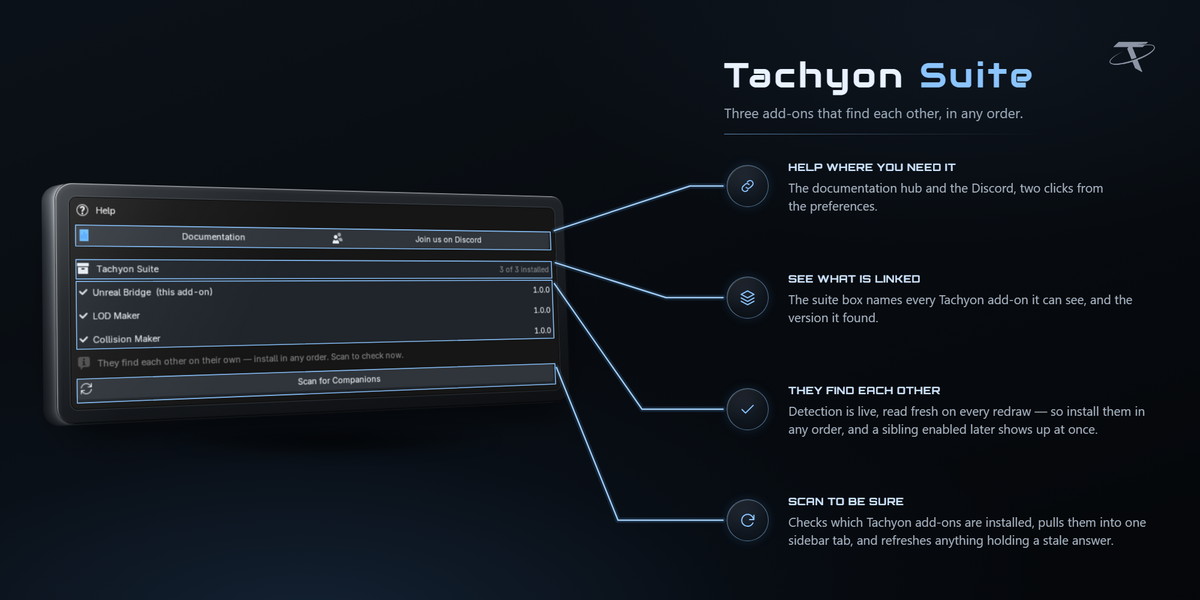
Two separate Tachyon add-ons share Unreal Bridge's sidebar tab and feed it directly. Both are optional, and both are sold separately — Unreal Bridge is complete without either.
The connection between them is deliberately loose. Each companion stamps plain ID properties on your objects, and Unreal Bridge reads those properties without importing the add-on. A missing companion never breaks a push, and a push never requires one.
Preset-driven LOD generation aimed at the Unreal pipeline. Six built-in presets — Small Prop, Medium Prop, Large Prop, Architecture, Hero Asset, Skeletal / Character — each carrying per-level decimation ratios and the Unreal screen size at which that level takes over, plus your own saved presets.
The screen-size maths follows Unreal's own ComputeBoundsScreenSize at the default 90° horizontal FOV, so the screen sizes stay size-invariant while the distances shown in the UI scale with each asset's real bounds. The decimator protects floater decals rather than melting them, and never folds collision shells or SOCKET_ empties into a LOD mesh.
What Unreal Bridge does with it: the generated levels export as one FBX per level and arrive on the imported asset with each screen size pinned, and the asset row reads a badge like 3 LODs · Medium Prop.
Shape-aware automatic collision with concave decomposition, a mark-selected-as-collision command, and an in-viewport collision editor — Generate, Add Shape, Preview, Confirm, Cancel — with translucent green for confirmed shapes and blue for shapes still being edited.
Every shape it makes is named to Unreal's FBX collision convention: UBX_ box, USP_ sphere, UCP_ capsule, UCX_ convex, each suffixed with the asset root name. That naming is the entire integration — a normal Push already recognises those prefixes, so generated shapes export inside the asset's FBX with no exporter changes at all. Collision materials are stripped on the way out, so the preview material never reaches Unreal.
What actually happens on a push
Where an asset lands — first the object's own override, then the innermost mapped collection walking outward, then the scene's default folder. Every path is forced under /Game; nothing can target /Engine or another mount.
The export works entirely on duplicates: the asset is isolated, duplicated, curves and metaballs converted, modifiers applied, sockets and collision fixed up, the root snapped to the origin, and the FBX written. It is all inside a safety net, so a failure never leaves stray copies or renamed originals behind. The FBX settings follow the conventions Unreal's importer expects and are locked by a node-level diff harness, so collision, sockets and slot-name material matching work with nothing to configure per import — and the bytes stay stable between releases, which is what keeps unchanged assets from re-importing.
Staging mirrors the destination: \\Game\Props\SM_Crate.fbx, with manifest.json at the project root and LODs beside their base as _LOD1, _LOD2.
Skipping is by content hash — one that ignores the FBX header, file ID and timestamp, so two exports of identical geometry hash the same. Unreal is the authority: each imported asset carries a TulContentHash tag, and the importer skips anything whose tag already matches. Force All overrides it.
The push record lives per Unreal project, not per .blend, under Blender's config folder — so two .blend files feeding the same project agree about what has been pushed.
Troubleshooting
The editor is not running, the project is not open, or Remote Execution is off. Check that the linked .uproject is the project actually open, then re-run Do It For Me and restart the editor. If a different project is open, the message names it. Your FBX files are already in staging; the next push imports them.
Normal and harmless: the export worked, the editor was unreachable. Open Unreal and push again.
Blender has no push record for it — usually because it was imported some other way, or the record was made on another machine. Run Check Unreal: it comes back as Unlinked, and Link to this asset adopts it.
The message names both objects and the destination they collide on. Two objects resolve to the same folder and name — rename one, or send one elsewhere. This is caught before anything is exported.
The folder list is cached for a minute. Press the refresh button on the folder list to force a rescan. If it still does not appear, check Hide Folders Containing in preferences — those patterns match anywhere in the path.
Press N in the 3D Viewport and look for the Unreal Bridge tab. If you renamed it in preferences, look for that name instead.
Check what the material edit actually was. The add-on does not import materials — it points each slot at a material already in your project — so editing a Blender material's colour or its shader graph has nothing to send. Swapping which material is in a slot does, and Live Sync re-points it within a second. If the material Blender names does not exist in /Game, or two assets share that name, the sync says so rather than binding the wrong one.
Expected, once. Blender's FBX exporter is not byte-identical between releases, and the skip-unchanged check compares a hash of the exported FBX — so the first push on a new Blender re-sends everything. The push after that skips as normal.
An engine that does not have a given setting skips it and records a note rather than failing the import. Check the push report for option warnings.
Vertex colours
Vertex colours are exported by default, as Linear. The setting lives in the add-on preferences under Export.
Linear (the default) sends the values through unchanged, which is what you want when the colours are data — a mask, a blend weight, wind — and that is the usual reason to carry vertex colours into an engine. sRGB encodes them the way Blender's viewport shows them, which is what you want when the colours are paint. Do not export strips them from the FBX.
Both halves have to agree. The Unreal side is the import preset's Vertex Colour option, which defaults to Replace — "use the colours in the file". If colours are missing in Unreal, check that before anything else: an export set to Linear and an import set to Ignore will lose them just as thoroughly as the other way round.
Changing this re-exports every asset once. Unchanged assets are skipped by hashing the exported FBX, and this setting changes those bytes — so the first push after switching re-imports the library, exactly like the one-time cost of a Blender version change. The push after that skips as normal.
Blender 3.3's FBX exporter has no colour option at all, so the setting has no effect on 3.3. The preferences panel says so when you are running it.
Known limits
- Changing Blender version re-pushes everything once. Blender's own FBX exporter changes between releases, so the same asset exported from 4.3 and from 5.2 is not byte-identical. The add-on skips unchanged assets by hashing the FBX, so the first push after a Blender upgrade sees every asset as changed and re-imports it. It is one wasted round trip per asset, not a fault: the results are correct, and the push after that skips everything again.
- Sockets on skeletal assets are recorded in the manifest only — not yet applied to the UE Skeleton.
- The added root bone carries no motion. It is placed at the origin so Unreal has a proper root to retarget against, but the character's movement stays on the hips where the clip authored it. Root motion is not extracted, so enabling it in Unreal will not move the actor.
- Each action becomes one Anim Sequence. NLA strips are not evaluated, and an action is never split into several clips.
- Live Sync pushes only from Object Mode.
- Windows only.
Support
Watch the tutorial series — every section of this page, demonstrated.
Join us on Discord — questions, bug reports and feature requests. The same invite is in the add-on preferences, next to a link back to this documentation.
GPL-3.0-or-later. Copyright 2026 Tachyon Studio. Unreal Engine is required and not included; it is a free download from Epic Games. This add-on is the Blender-side bridge only and is not affiliated with or endorsed by Epic Games.
Unreal Engine is required and is not included. It is a free download from Epic Games.
This add-on is the Blender-side bridge only and is not affiliated with or endorsed by Epic Games.
-
$11.24 $14.99
One-person license for hobby and professional work.
-
$22.49 $29.99
The complete add-on with a business license for up to five members of one studio or production team.
 Included
Includes 12 months of
- Support from Tachyon Studio
- Product updates
Extend this product’s Support Period +12 months: 50% of product price
Have questions before purchasing?
Login to message
| Blender Extension Compatible | Yes |
| Published | 5 days ago |
| Blender Version | 3.3 - 5.2 |
| Extension Type | Add-on |
| License | GPL |
Discover more products like this
pipeline ue5 Export Game Engine content browser game assets unreal bridge collision LOD fbx Unreal Engine live sync