 Virtual Rain Development

Virtual Rain Development / ValueMarks
Your favorite values.
Right where you work.
Save the numbers you use again and again. Recall them from a numeric field, explore them with a Preset Slider, or switch between them with your mouse wheel.
Blender 4.2–5.2
Blender 4.3.x: right-click tools available; hover shortcuts unavailable.


01 Scroll through your presets
Find the right value. Keep your focus.


After saving presets for a field, hover over its number and hold Shift + Alt while scrolling. Move to the next higher or lower saved value and see the result in your scene.
Compare surface finishes by switching between saved Roughness values on the Principled BSDF node. The wheel stops at the first and last preset instead of wrapping around.

Hover shortcuts are unavailable in Blender 4.3.x. Use the right-click Preset Slider or preset list instead.
02 See your favorite values on a slider
A familiar motion. Your own markers.
Open Preset Slider... from the field’s right-click menu. Your saved values appear as ticks, so you can drag, snap to a favorite, and compare the result as you move.
For quick access to a field with saved presets, hover over its number and hold Shift + Alt + S. Move the mouse to adjust the value, then release S to confirm. Press Esc to restore the starting value.
Hold Ctrl while adjusting to disable snapping and explore values between presets.
03 Build your own collection
Keep the number you just found.
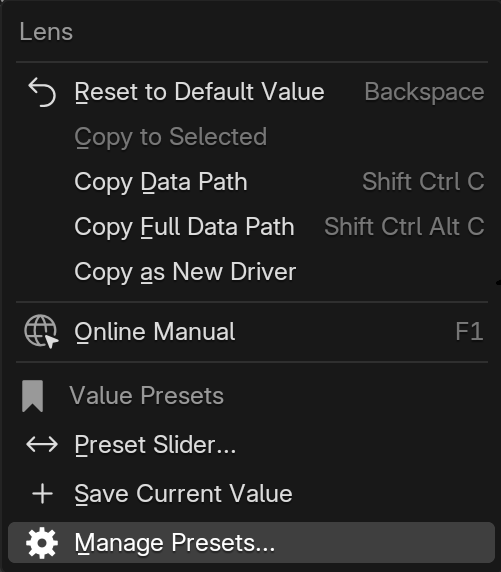
When a value works, right-click the field and choose Save Current Value. Save multiple favorites for the same field and give them names you will recognize later.
Presets are shared across .blend files for the same kind of number field when Blender uses the same ValueMarks saved-data folder. For example, Bevel and Roughness values have separate lists.
Small changes, throughout your workflow
What will you save first?
Modeling · Bevel width
Keep several edge widths ready and compare them on your model.
Materials · Roughness
Save go-to roughness values and quickly try different surface finishes.
Procedural work · Numeric inputs
Reuse favorite counts and dimensions on supported Geometry Nodes inputs.

Sculpting & painting · Brush size

Keep favorite brush sizes ready and switch between fine details and broader strokes on supported numeric brush-size fields.
These are workflow examples. Create your own presets from the values you use.
04 Keep your favorites organized
Your values. In an order that makes sense.
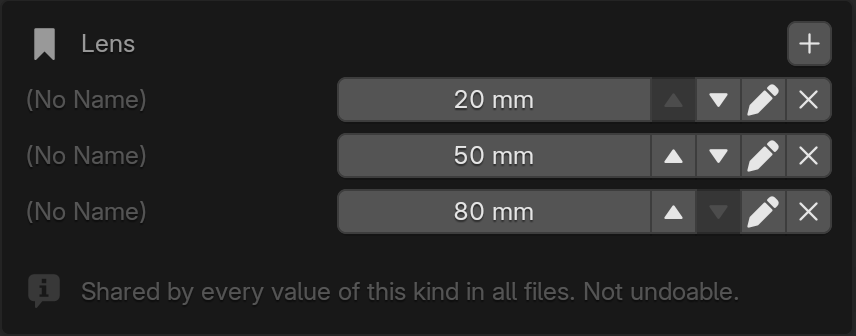
Open Manage Presets... to add values, rename them, edit their numbers, remove old entries, or rearrange the list. Changes are saved immediately.
Keep the right-click menu compact, or enable With Preset List in Preferences to show your saved values directly in the menu. You can also customize the shortcuts there.
Compatibility & supported values
- Windows: Blender 4.2 through 5.2.
- Tested versions: 4.2.23, 4.3.2, 4.4.3, 4.5.11, 5.0.1, 5.1.2, and 5.2.1.
- Blender 4.3.x: right-click operations work; hover keyboard and wheel shortcuts are unavailable.
- macOS: testing in progress — testers wanted for Apple silicon (M1 or later). Not yet a supported environment.
- Linux / versions newer than 5.2: not tested and not included in the supported environment.
- Numeric values: editable whole-number and decimal fields, including angles, percentages, distances, and individual X, Y, and Z values.
- Where you can use it: supported Blender number fields, numeric node inputs, Geometry Nodes inputs, and custom number fields.
Number fields in Blender Preferences, including add-on settings, cannot be used to save or apply presets. Save one number at a time. Colors, special rotation formats (Quaternion and Axis Angle), direction and matrix values, checkboxes, text, and drop-down choices are not supported. Fields that cannot be edited, are controlled by drivers, or belong to linked or overridden library data are also unavailable.
A few things to know
- Preset data is stored locally as presets.json in the extension user directory and shared across .blend files using that location. No cloud account is needed.
- Preset management changes are not undoable. Applied values can be undone where Blender supports Undo; view settings such as 3D View focal length are outside Blender’s Undo system.
- Uninstalling the extension removes its user data. Copy your preset files somewhere safe before uninstalling. Built-in import / export is not included.
- Applying a value does not create a keyframe. Animated values may return to their keyed value when the frame changes.
The interface is in English. Names or unit symbols may display incorrectly in the Windows System Console.
Mac testing
Help us test on Apple silicon.
macOS testing is in progress. macOS is not yet supported for version 1.0.0. We are looking for testers using a Mac with Apple silicon (M1 or later) to help evaluate compatibility.
Interested in helping? Please send a message through Superhive or contact [email protected].
Need a hand?
Contact us through the Superhive product messaging system. Include your ValueMarks version, Blender version, operating system, and the steps needed to reproduce the issue.
AI-assisted development
Generative AI tools assisted with parts of the code and documentation. The developer reviewed, corrected, tested, and maintains the distributed extension. ValueMarks does not use AI at runtime or send user data to external AI services.
ValueMarks
Remember the values.
Stay in the flow.
Turn the numbers you reach for every day into a collection of favorites, ready at the field where you need them.
More from Virtual Rain Development
Simple Pie Menu — a separate product
Simple Pie Menu is sold separately and is not included with your ValueMarks purchase.
Simple Pie Menu helps you organize commands and properties into custom Pie Menus, Popup Menus, Popup Dialogs, and Floating Buttons. ValueMarks saves and recalls favorite numeric values. Each extension works independently; neither requires the other.
Simple Pie Menu demo (separate product)
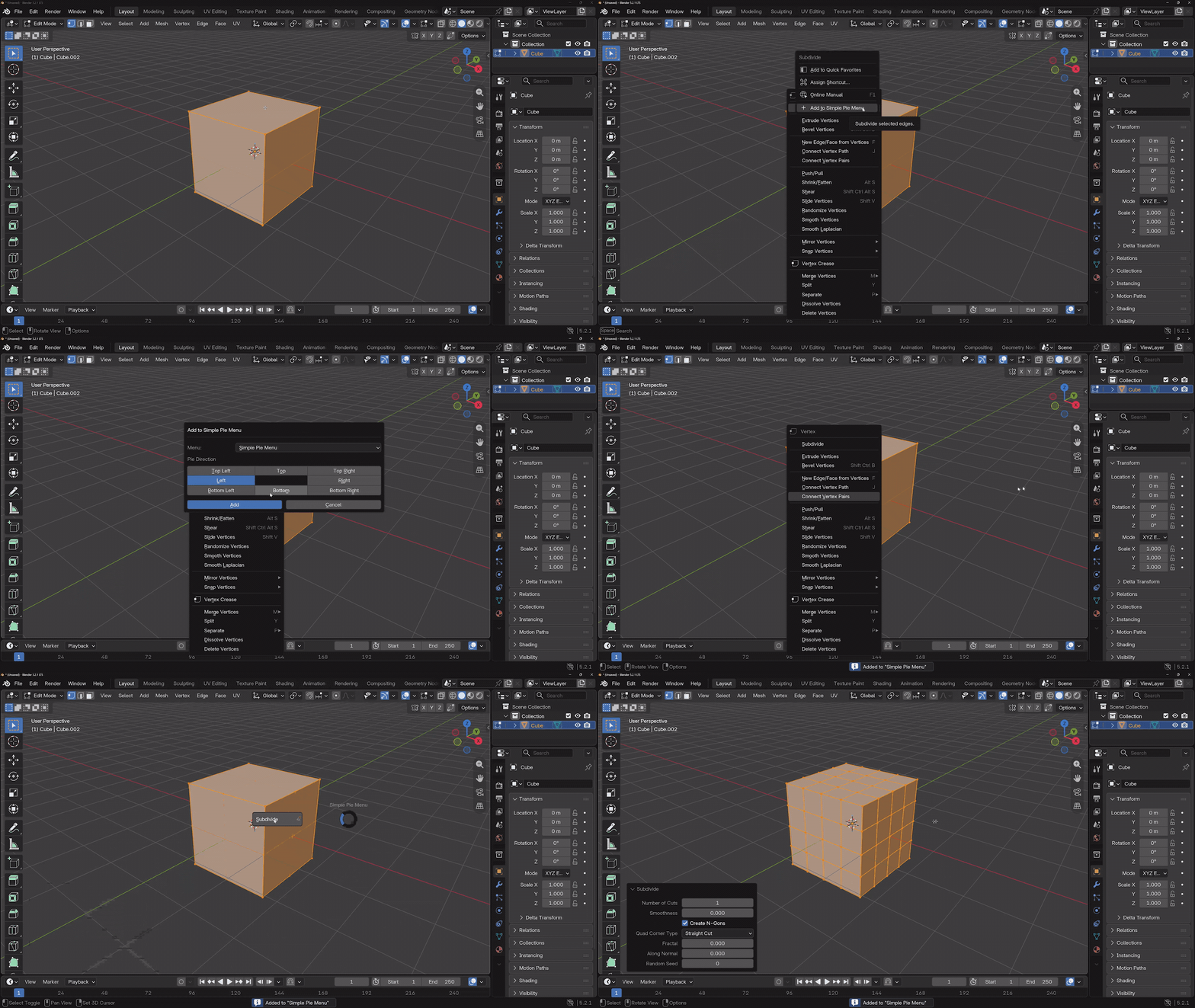
The animation above shows Simple Pie Menu, not ValueMarks. Dedicated preset integration and direct preset sharing between the products are not included.