Vector to 3D
 Blender Procedural
Installation
- Download the addon
.zipfile from Blender Market or your source. - Open Blender and navigate to Edit > Preferences > Add-ons.
- Click Install... and select the downloaded
.zipfile. - Enable the addon by checking the box next to Vector to 3D.
- Save Preferences to ensure the addon is ready for use.
Interface Overview
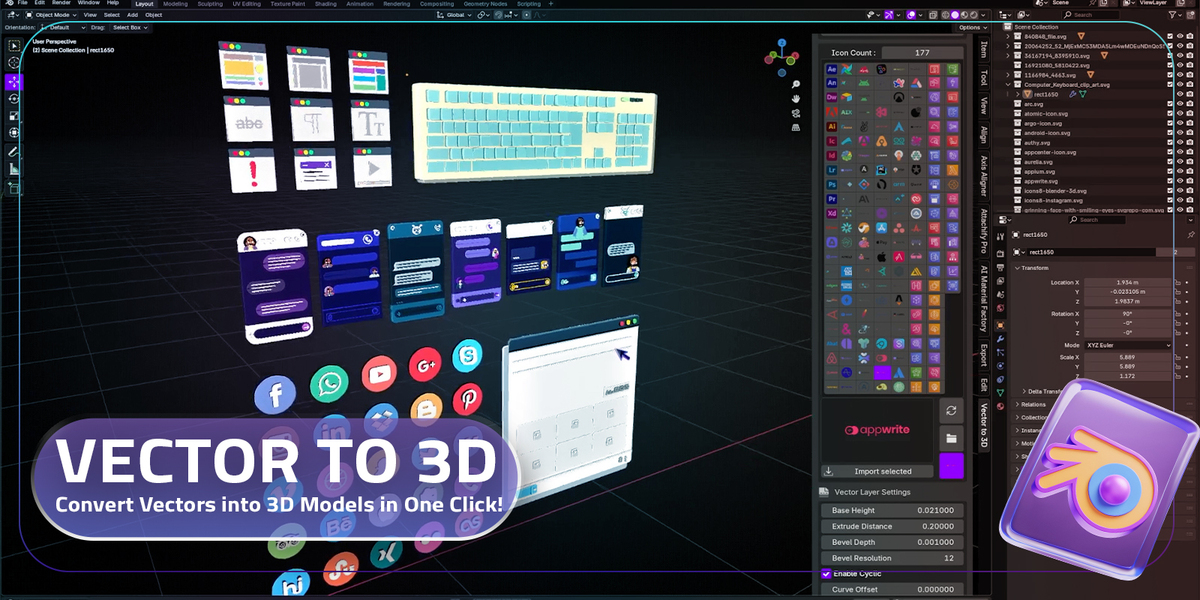
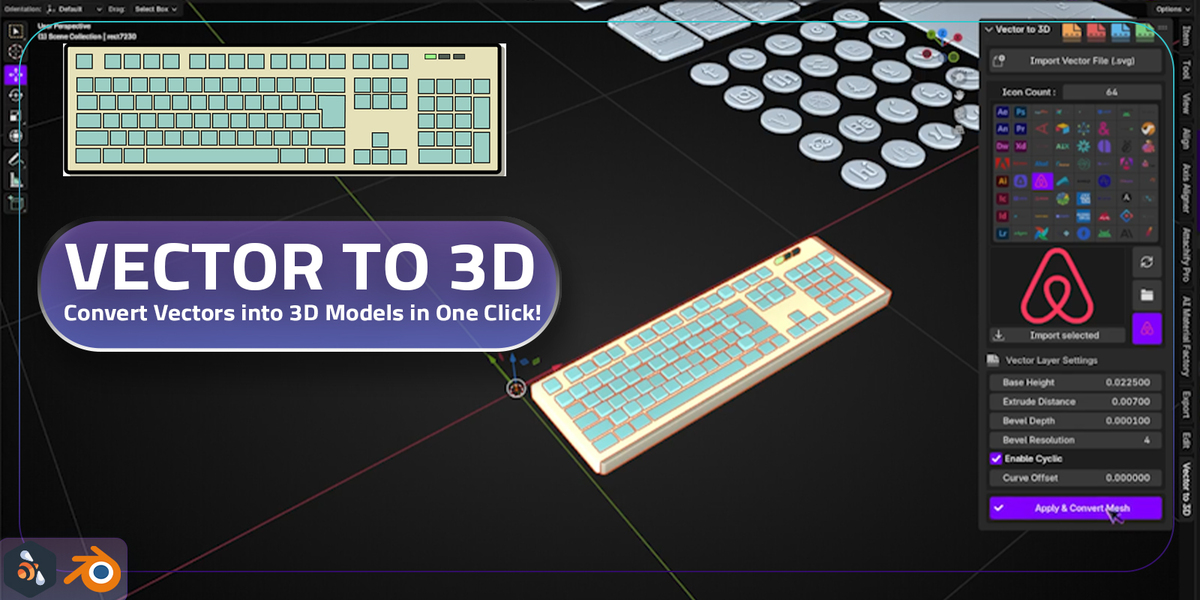
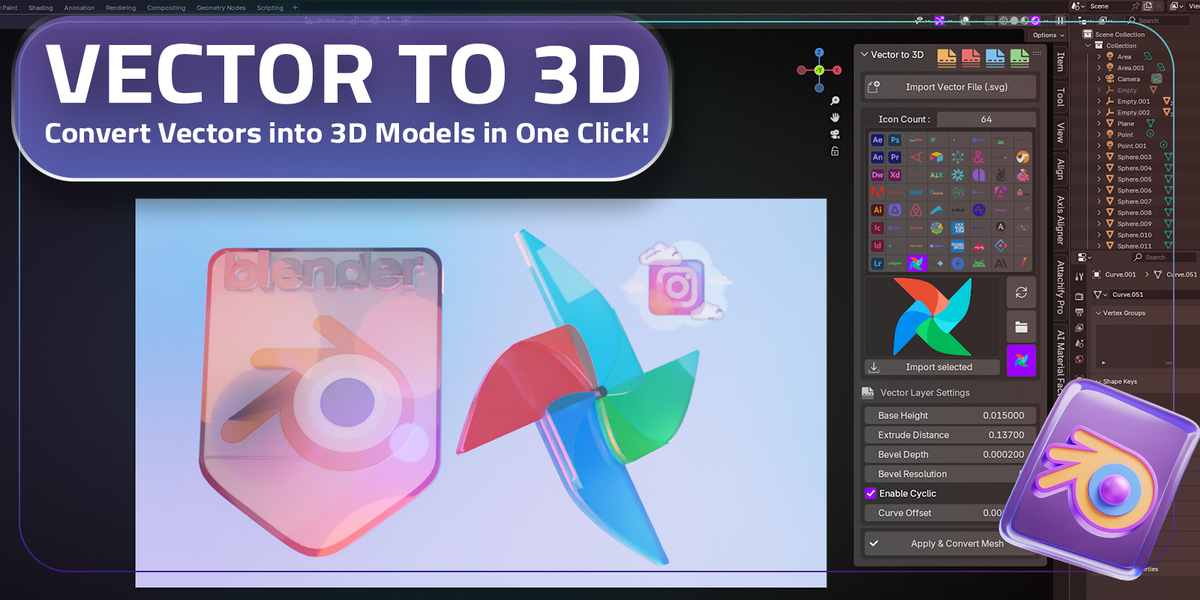
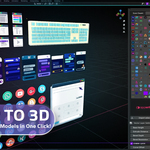
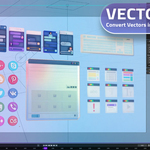
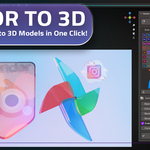
The Vector to 3D interface consists of the following sections:
1. Import Vector File (SVG)
-
Button: Import Vector File (.svg)
- Select and load your SVG file into Blender.
- The imported vector will appear in the preview panel.
2. Icon Count
- Displays the number of vector layers/icons in the loaded SVG file.
- Use this to manage and navigate complex SVG files with multiple layers.
3. Icon Selection Panel
- Browse through the layers/icons of the imported SVG file.
- Feature: Click on an icon to select it for 3D conversion.
- Use the Import Selected button to confirm your choice.
4. Vector Layer Settings
Adjust how your vector is converted into a 3D model:
- Base Height: Set the initial thickness of the base layer.
- Extrude Distance: Define the depth for extruding the vector into 3D.
- Bevel Depth: Add smooth bevels to edges for a polished look.
- Bevel Resolution: Adjust the smoothness of the bevel.
- Enable Cyclic: Create closed-loop geometry if your vector design allows it.
- Curve Offset: Fine-tune the position of the curve for precision.
5. Apply & Convert Mesh
- After setting the parameters, click Apply & Convert Mesh to generate the 3D model.
- The model will be added to your scene and ready for further adjustments or rendering.
Workflow Example
- Click Import Vector File (SVG) and load your SVG design.
- Browse the Icon Selection Panel and choose the desired vector layer.
- Adjust the Vector Layer Settings to customize the 3D conversion.
- For example, set Extrude Distance to 0.05 for a moderate depth.
- Check the Enable Cyclic option for closed-loop designs.
- Click Apply & Convert Mesh to finalize the 3D model.
- Modify materials, add lighting, and render your creation!
Tips for Best Results
- Use clean and simple SVG designs for smoother conversions.
- Adjust Bevel Resolution for high-detail designs to avoid sharp edges.
- Experiment with Curve Offset to achieve precise alignment for intricate designs.
Have questions about this product?
Login to message
| Sales | 200+ |
| Dev Fund Contributor | |
| Published | over 1 year ago |
| Blender Version | 4.0 - 5.0 |
| Extension Type | N/A |
| Render Engine Used | Cycles, Eevee |
| License | GPL |
Discover more products like this
Logo to 3D Graphic design game development Creative Tools for Blender Easy 3D Modeling 3D UI/UX Inkscape to 3D Figma to 3D blender addon 3D visualization UI/UX Design SVG to 3D 3d-icons Mockup Creation Vector Graphics 3d modeling tool One-Click Conversion motion graphics Blender Automation Banner Design 3D Logo Creation Blender Workflow Illustrator to 3D Addon for Designers 3d textures Extrusion Tool blender tools Vector to 3D