 kaleab


Viewnote Pro Documentation
Version 1.0.0 · Blender 4.0+
A professional 3D feedback and annotation system for team reviews and personal projects.
INSTALLATION
- Download viewnote_pro.py to your computer.
- Open Blender and go to Edit → Preferences → Add-ons.
- Click Install… and select the viewnote_pro.py file.
- Enable the add-on by checking the box next to "Viewnote Pro".
- Done-no restart required.
Requirements: Blender 4.0 or later.
ACCESSING THE PANEL
The panel lives in the Properties Editor → Object Properties tab (the orange square icon in the Properties panel). You'll see it listed as "Project Review System". Make sure you have at least one object in your scene and are in Object Mode for the full feature set to be available.
PROJECT TYPE
At the top of the panel, choose a Project Type that matches your workflow.
Studio Review is for team feedback with multiple reviewers. Assisting is for when you're doing a second-pass or technical review for someone else. Personal / Solo hides reviewer name fields and is meant for solo use.
REVIEW LEVELS
Use the three-way toggle to choose what you want to attach notes to.
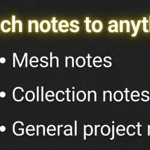
Mesh attaches notes to a specific 3D object. Collection attaches notes to a whole collection. General creates project-wide notes not tied to any object.
If you selected Mesh or Collection, a picker will appear below the toggle, use it to select your target.
ADDING A NOTE
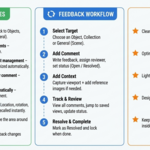
Click "Add New Note". A note card will appear with a timestamp set automatically, a reviewer name field (visible in Studio Review and Assisting modes), a status toggle that can be set to Open or Resolved, a text field for your feedback, a References section to attach images, and a Location Snapshot to capture the current 3D viewport.
To lock a note and prevent accidental edits, click the lock icon on the card. Click it again to unlock.
VIEWPORT OVERLAYS
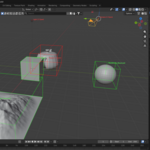
Viewnote Pro draws live color-coded outlines directly in the 3D viewport so you always know which objects have active notes.
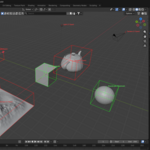
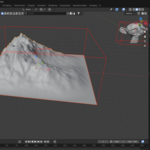
A red outline with a red dot means a mesh has open unresolved notes. A green outline with a green dot means all notes on a mesh are resolved. An orange outline means a collection has open notes. A teal outline means all notes in a collection are resolved. Labels showing the name and note count appear next to each indicator.
You can toggle overlays from the top of the panel using the Mesh Bounds and Collection Bound checkboxes. The Overlay Filter lets you switch between Show All and Unresolved Only.
SNAPSHOTS AND REFERENCES
The Capture 3D View button inside any note card saves a screenshot of your current viewport and attaches it to that note, useful for documenting the exact angle the feedback refers to.
The References section lets you attach one or more images to a note as visual context, like concept art or texture sheets. Click the magnifier icon next to any attached image to open it in a full-resolution window.
PROJECT SUMMARY
Scroll down the panel to find the collapsible Project Summary section. It lists every object, collection, and general note in the scene along with their open or resolved status at a glance. In Object Mode, clicking the viewport icon next to any mesh entry will instantly focus the 3D view on that object.
RECYCLE BIN
Deleted notes move to the Recycle Bin at the bottom of the panel rather than being removed immediately. From there you can restore a note back to its original target, delete a single note permanently, or use Empty All Trash to clear everything at once.
TIPS
Switch to Object Mode before using the Project Summary focus buttons, they won't work in Edit Mode. Reviewer names you type are remembered automatically and become searchable in future notes. The Unresolved Only filter is handy during final review passes to quickly spot what still needs attention. Notes, snapshots, and references are all saved inside the .blend file, nothing is stored externally.
Have questions about this product?
Login to message
| Dev Fund Contributor | |
| Published | 5 months ago |
| Blender Version | 4.0 - 5.2 |
| Extension Type | N/A |
| Render Engine Used | Cycles, Eevee |
| License | GPL |
Discover more products like this
animation asset review project-management blender annotation viewport notes Production Pipeline review tool blender addon team collaboration task tracking